




Want to try out the COSMIC desktop environment? Without installing the whole Pop!_OS, you can now install the desktop in Ubuntu 24.04 through a PPA repository.
COSMIC is a new standalone desktop environment built from scratch. It’s the default desktop environment for Pop!_OS, developed by System76, an American Linux computer manufacturer.
The desktop is written in the Rust programming language for high performance and memory safety. It features its own set of files, terminal, text editor, and video player etc core applications.
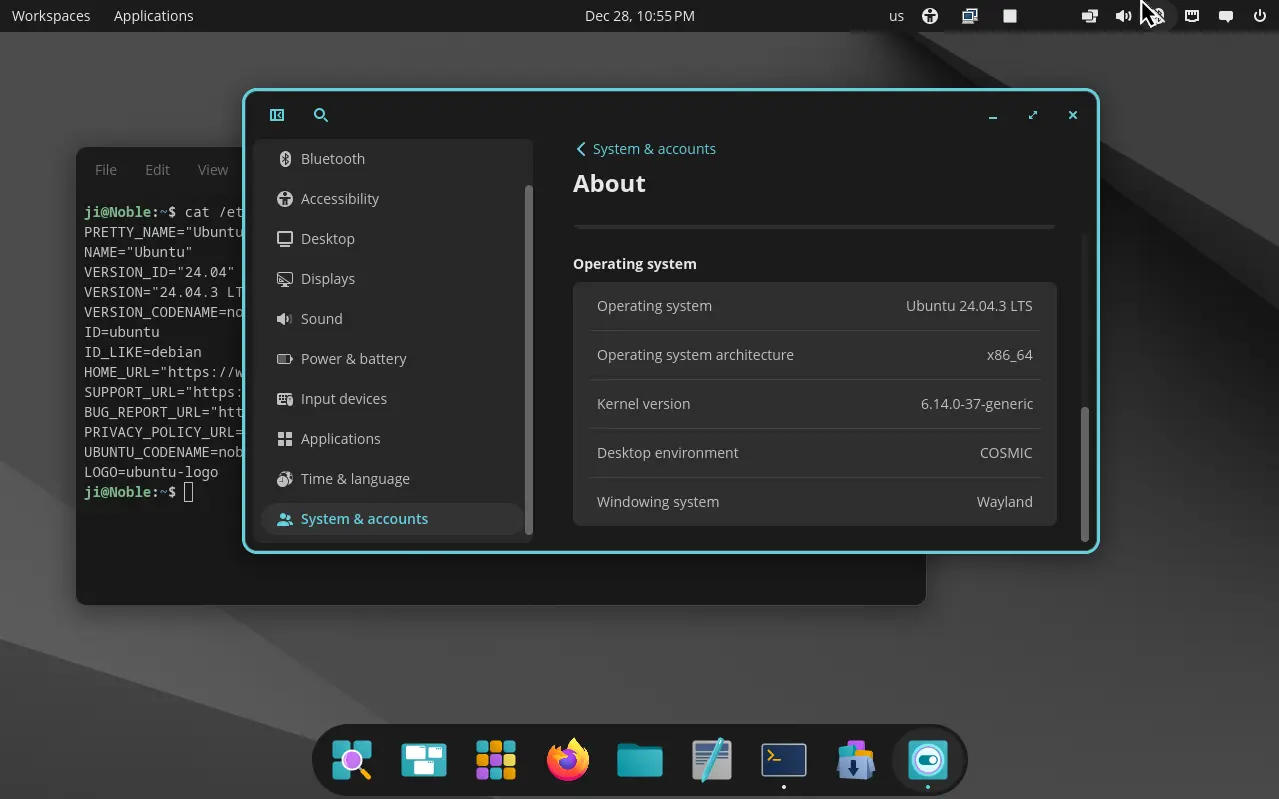
Ubuntu 24.04 with COSMIC desktop
COSMIC was previously a customized version of Gnome desktop. It by default has Gnome style top-bar and bottom dock, which are however highly customizable.
User may configure to show or hide the top-bar/dock, move them to any screen edge, as well show/hide panel items and move them to left, right, or center.
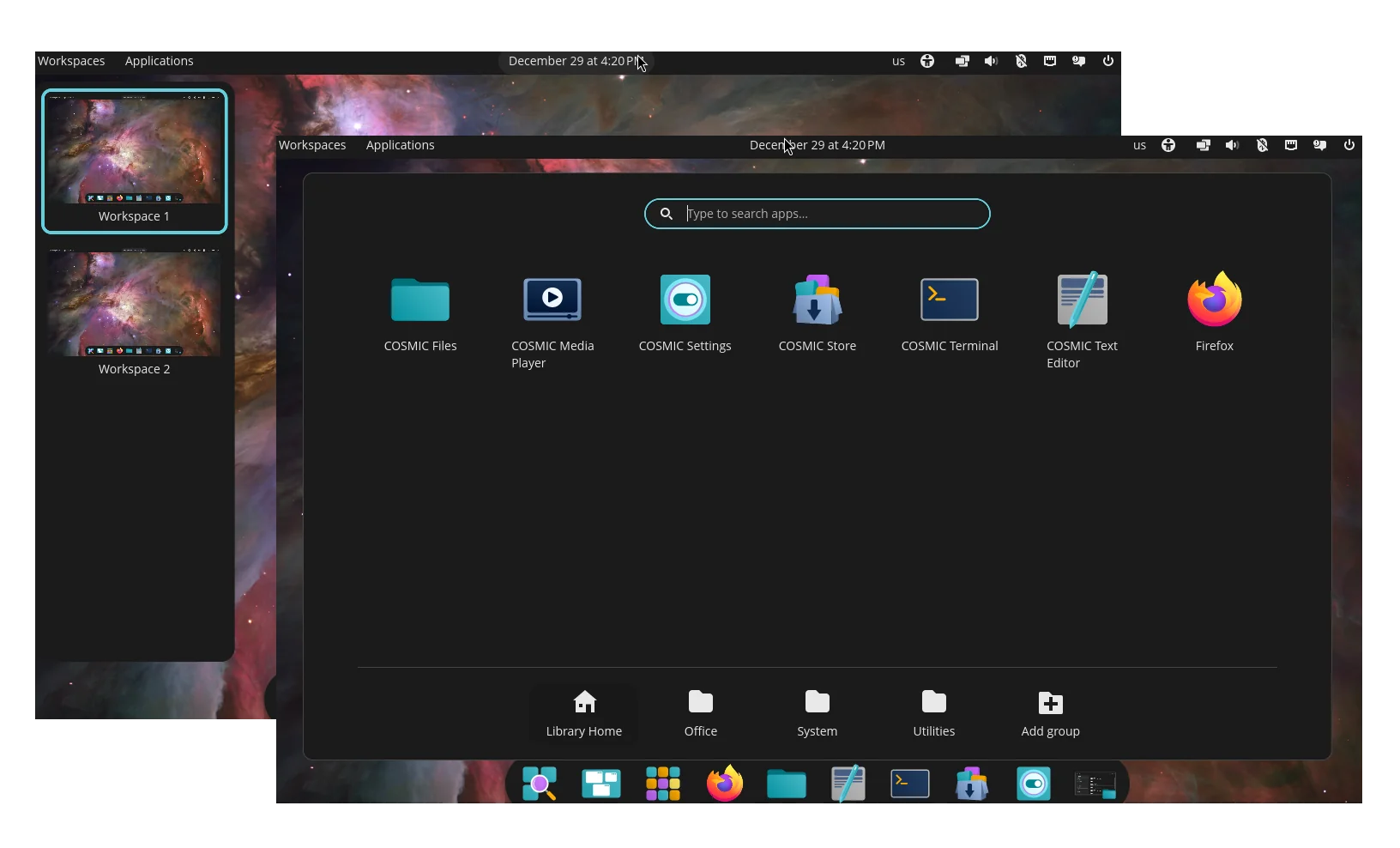
It as well features Gnome 3.x style vertical overview screen, and its own Application menu to get started launching apps or opening files.
And, it features an indicator applet to one-click tiling all app windows in current workspace, while user may drag’n’drop exchanging window position in the tiling mode.
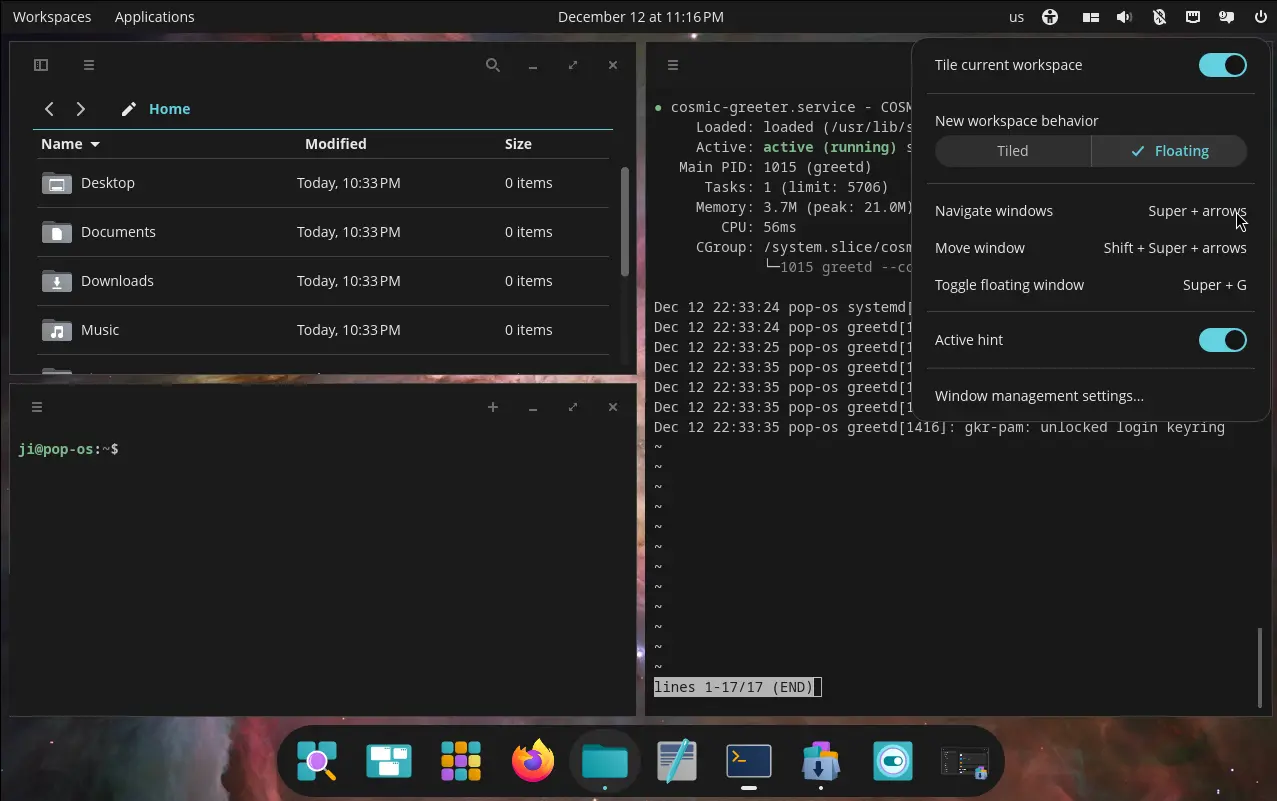
Other features include:
- Multiple displays support with separated or spanned workspaces, per display window tiling, mixed HiDPI and standard resolutions.
- Hybrid graphics support that auto select the correct GPU for running apps.
- Stack windows feature to combine multiple app windows into single in tabs.
Install COSMIC in Ubuntu 24.04
For Ubuntu 24.04 LTS users who don’t want to download & install the Pop!_OS 24.04, there’s now an unofficial PPA repository that maintains the desktop environment packages for AMD/Intel platform.
NOTE: This is an unofficial PPA, though it has a source repository for reporting issues or requesting features.
1. Just open terminal (Ctrl+Alt+T) and run command to add the PPA:
sudo add-apt-repository ppa:hepp3n/cosmic-epoch
Type user password (no visual feedback) when it asks for sudo authentication, and hit Enter to continue.
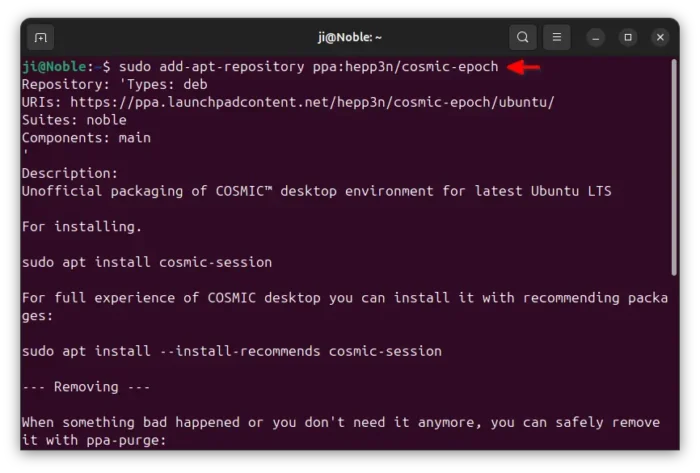

2. Ubuntu now automatically refresh cache while adding PPA, but some flavors (e.g., Linux Mint) may need to manually run command below to do the job:
sudo apt update
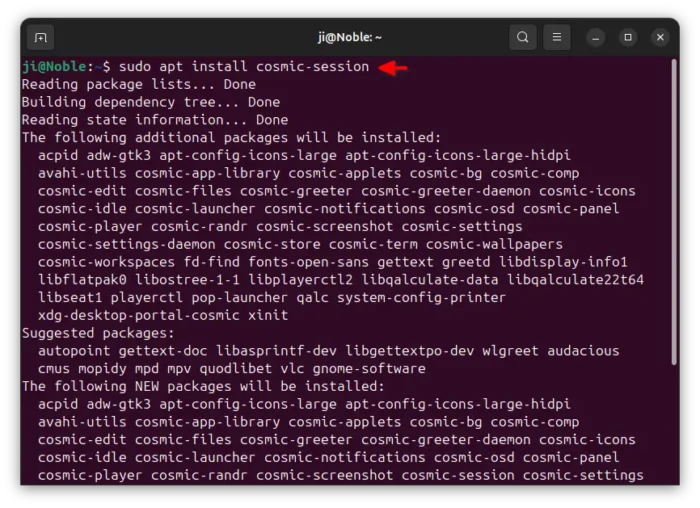
3. Finally, install the COSMIC desktop by running command:
sudo apt install cosmic-session
As the PPA description said, you may optionally add --install-recommends option in last command to install more packages to get full experience of COSMIC desktop.

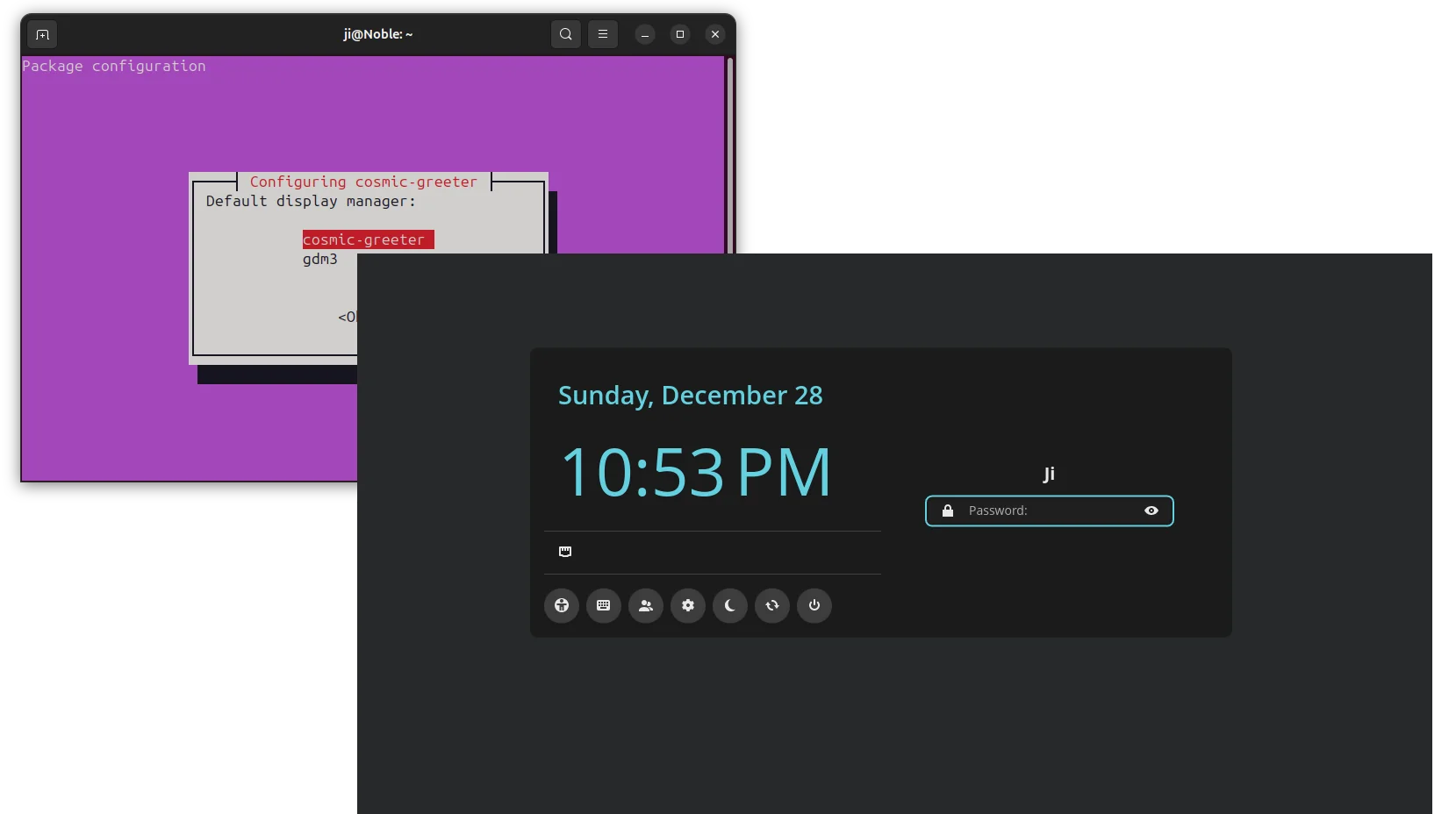
During the installation process, it will ask for choosing the default display manager. And, by choosing “cosmic-greeter” (press Tab to select OK), the login screen will change to be cosmic style.
After successfully installed the desktop, restart your computer and select login with “COSMIC” session if you chose to use the previous login screen.
Uninstall COSMIC desktop
If something goes wrong, or you just want to remove the desktop environment, then open terminal (Ctrl+Alt+T) and run commands:
- First, install ppa-purge tool:
sudo apt install ppa-purge
- Then, use the tool to purge the PPA, which will also downgrade (or remove) all the installed packages.
sudo ppa-purge ppa:hepp3n/cosmic-epoch
For Ubuntu flavors, e.g., Linux Mint, use
sudo ppa-purge ppa:hepp3n/cosmic-epoch -d nobleinstead.
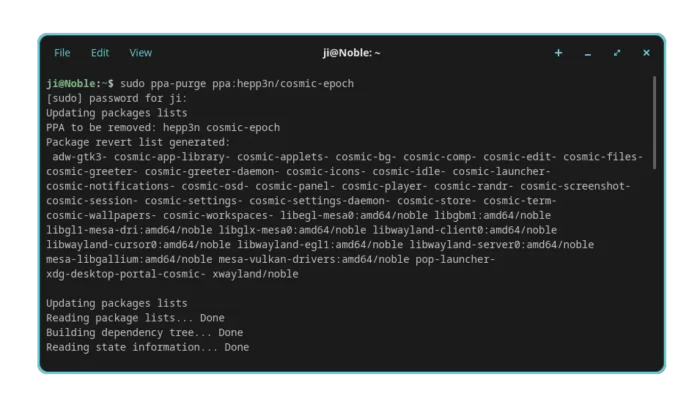

In my case, it automatically switch the display manager (the login screen) back to the default afterward.
Tips: If the ppa-purge process was somehow interrupted, then use the command below to manually remove the desktop packages:
sudo apt remove cosmic-app-library cosmic-applets cosmic-bg cosmic-comp cosmic-edit cosmic-files cosmic-greeter cosmic-greeter-daemon cosmic-icons cosmic-idle cosmic-launcher cosmic-notifications cosmic-osd cosmic-panel cosmic-player cosmic-randr cosmic-screenshot cosmic-session cosmic-settings cosmic-settings-daemon cosmic-store cosmic-term cosmic-wallpapers cosmic-workspaces pop-launcher xdg-desktop-portal-cosmic
Finally, restart computer to apply changes.














Does it work on any Ubuntu Flavor of Ubuntu or only the original gnome edition?
It should work on all flavors, though I only tested it on Gnome.