For Ubuntu, Fedora Workstation, and other Linux with recent GNOME Desktop, there’s now a new extension to enable the top-bar in multiple monitors.
As you know, GNOME top-bar by default only shows in the primary display for multi-monitors working in the “Join Mode”.
There was a multi-monitors-add-on extension which can add multiple monitors overview and panel. It’s however discontinued and support ends at Gnome 3.38.
Some forked that extension making it work in GNOME from v42 to 26, and I’ve written about how to install it in Ubuntu 22.04 & 24.04.
Now with the new Multi Monitor Bar extension, all Linux Distributions with recent GNOME v45 ~ 49 (e.g., Ubuntu 24.04, Ubuntu 25.04/25.10, Fedora 42/43, Debian 13, and Arch) can easily enable the top-bar on multiple monitors.
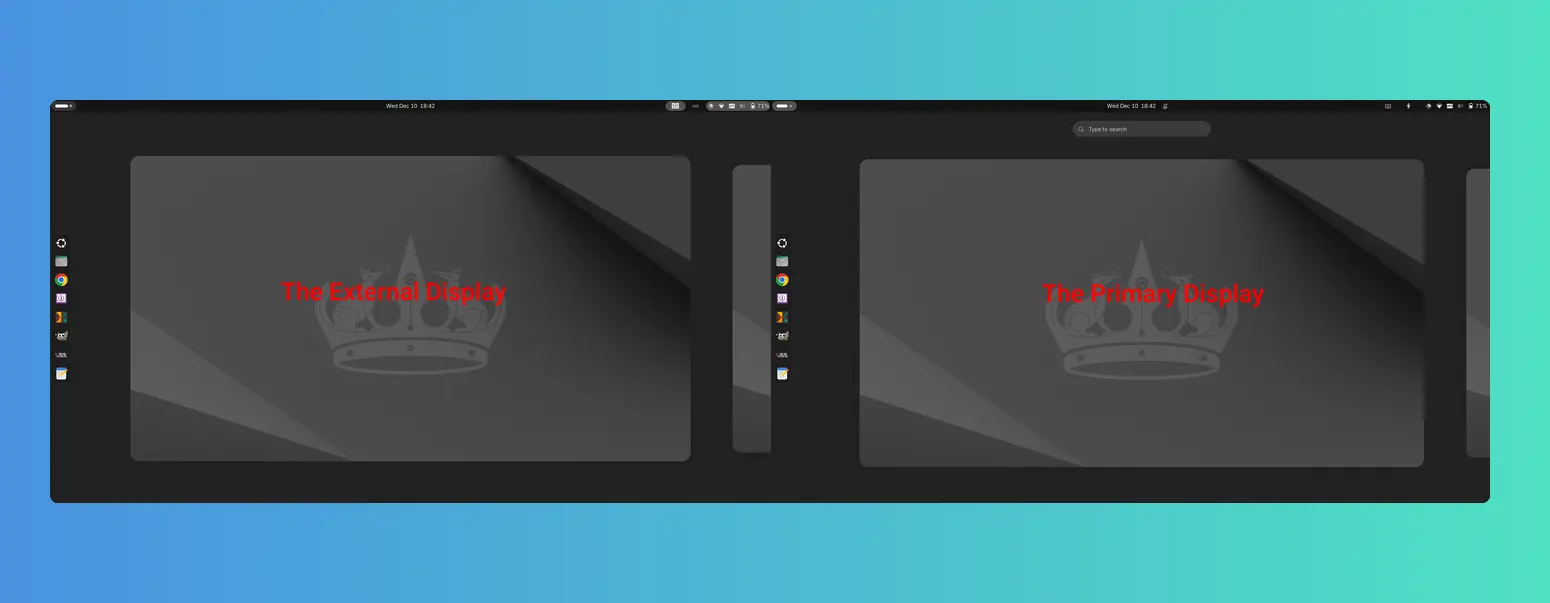
As you see via the screenshot above, besides the top-bar, it also shows following items in the non-primary displays:
- Activities button (dot and pill icon).
- date and time menu.
- system tray icons and indicators.
- the overview screen.
However, there are still some downsides. There’s neither overview search-box nor app grid to launch apps from the non-primary display. And, following things do NOT work properly either:
- Scroll on dot-and-pill icon does not switch workspace.
- Some indicator icons do not show in non-primary display.
- The built-in screenshot UI options only available in primary display, and “Screen” selection only take the primary screen, though area selection works in all screens.
- System tray icons display incorrectly when you full-screen something in primary screen. See this issue. In which case, you need to restart the extension to reset.
Install the extension to Enable Gnome Top-bar in Multi-monitors
For Ubuntu 24.04 and higher, simply launch App Center, search & install Extension Manager (filter by Debian package).

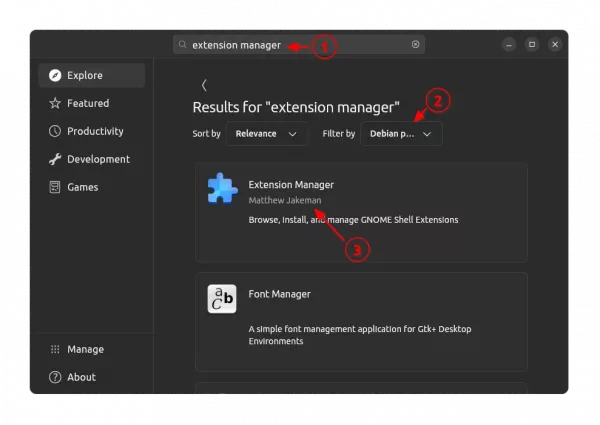
Install Extension Manager in Ubuntu Software/App Center
Next, launch Extension Manager and switch to “Browse” tab, finally search & install the “Multi Monitor Bar” extension.
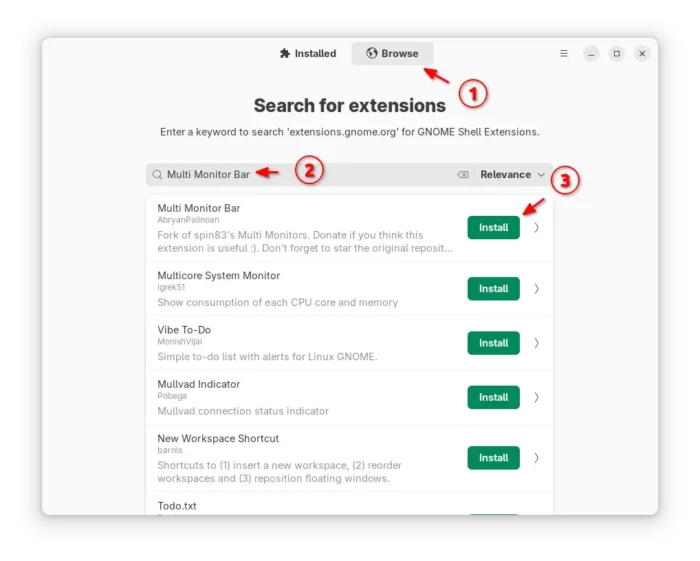

After installed the extension, Gnome top-bar should display automatically on your external monitors. And, you may switch to “Installed” tab in Extension Manager to configure that extension with following options:
- Turn on/off panel, activities-button, date and time button in additional monitors.
- Enable/disable hot-corners function.
- Add more indicators to additional monitors.
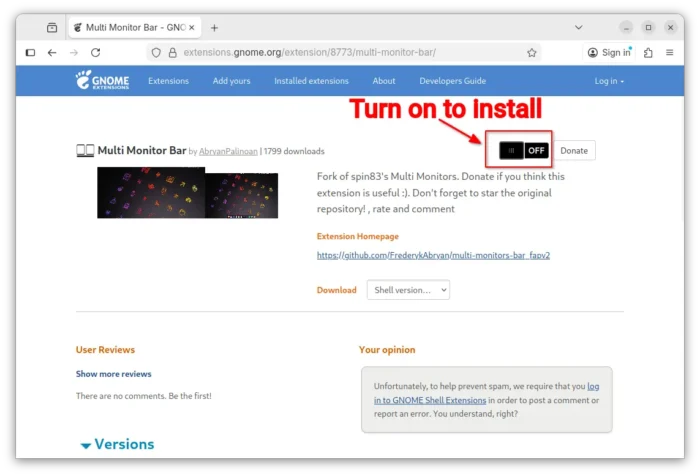
For other Linux, simply launch web browser and visit the extension on EGO:
Then, install the browser extension (if it asks) with the link in that page and refresh. Finally, use the ON/OFF toggle to install the extension.
Tips: besides installing the browser extension, Debian/Ubuntu need to also install the agent package by running the command below in terminal:
sudo apt install chrome-gnome-shell
Finally refresh the page to see the toggle option.

After installed the extension, install “Gnome Extensions” in GNOME Software or your system package manager and use it to manage the extension preferences.
That’s all. Enjoy!