This tutorial shows how to disable the media controls in the lock screen of GNOME 49 desktop in Ubuntu 25.10, Fedora 43, and Arch etc Linux distributions.
GNOME, the default desktop for Ubuntu, Fedora Workstation, and optional in Arch, Debian, etc, introduced media controls support for the lock screen in version 49, allowing to pause, play next or previous track without needing to unlock the screen.
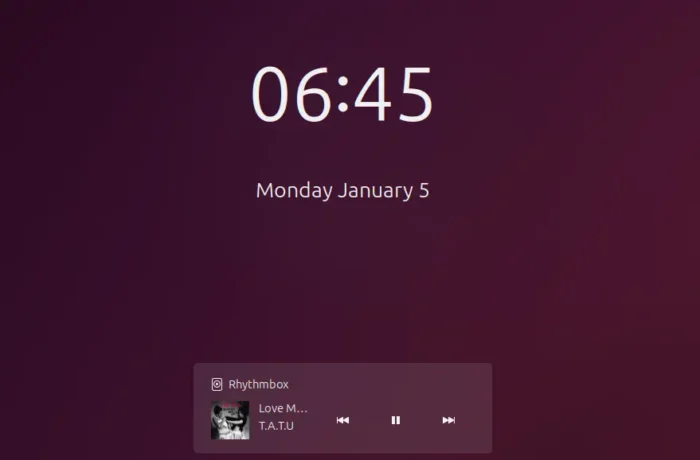

The feature is great when you’re working at home or private office, but what if using your computer/laptop in public places, e.g., coffee shops, and you don’t want others to know what you’re listening or watching?
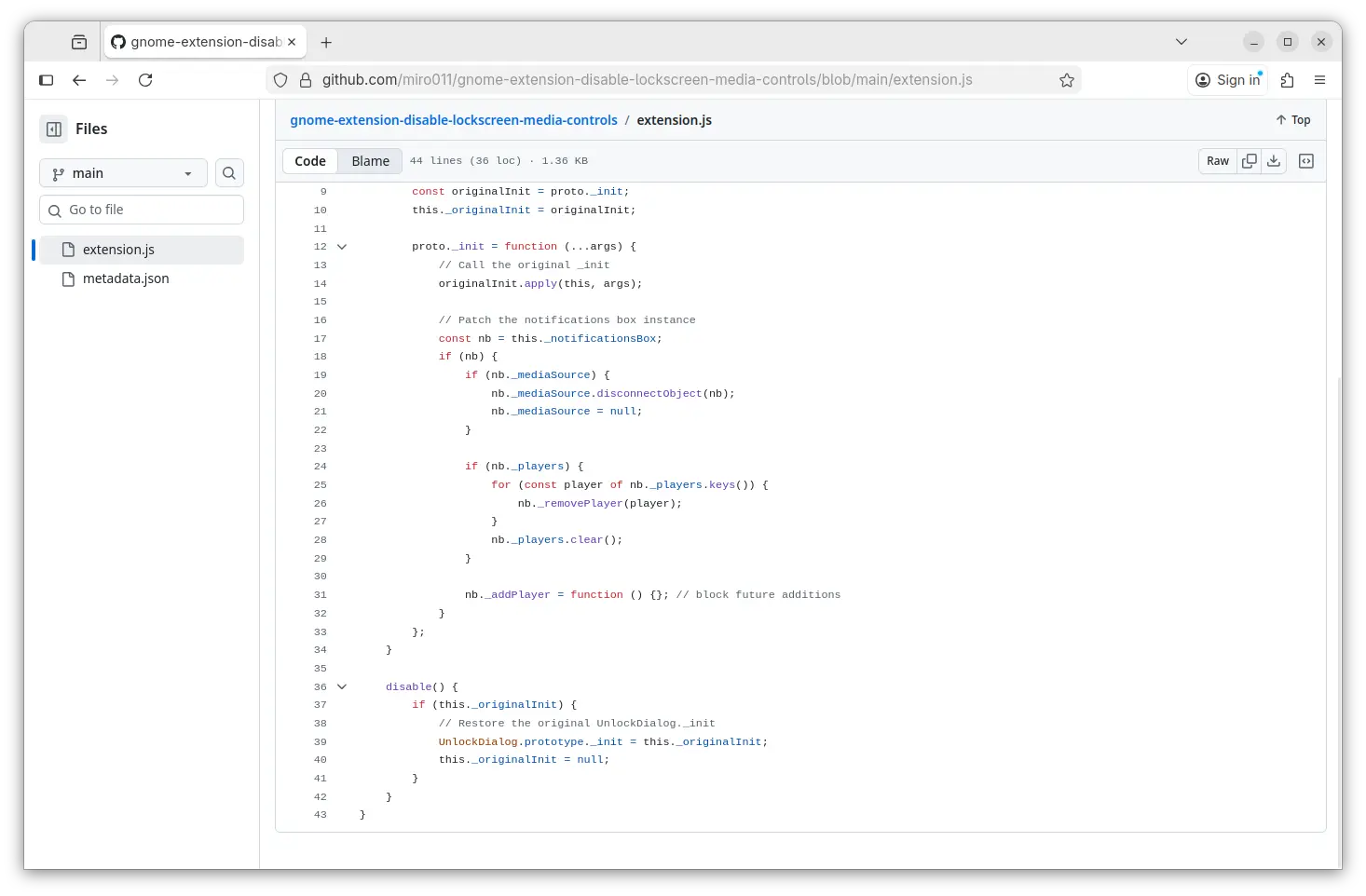
GNOME so far does not provide an option to disable this feature. Besides closing your audio or video player every time before screen lock, here’s an extension can do the job by hiding the media controls via a small GJS script.
And, the extension is quite simple and lightweight, because it has only few dozen lines of code, which is available in this Github page.
Install the extension to disable media controls from lock screen
To install the extension, first launch App Center, then search and install “Extension Manager” tool (filter by Debian package).


Next, launch the Extension Manager app, navigate to Browse tab, finally search and install the “Disable Lock Screen Media Controls” extension.
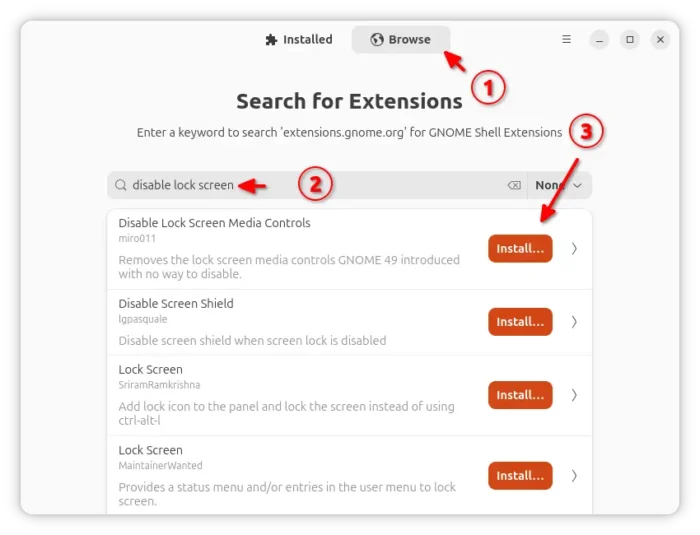

It should work immediately after successfully installed the extension. And, you may navigate back to the “Installed” tab in Extension Manager to disable or remove the extension if you want at anytime.
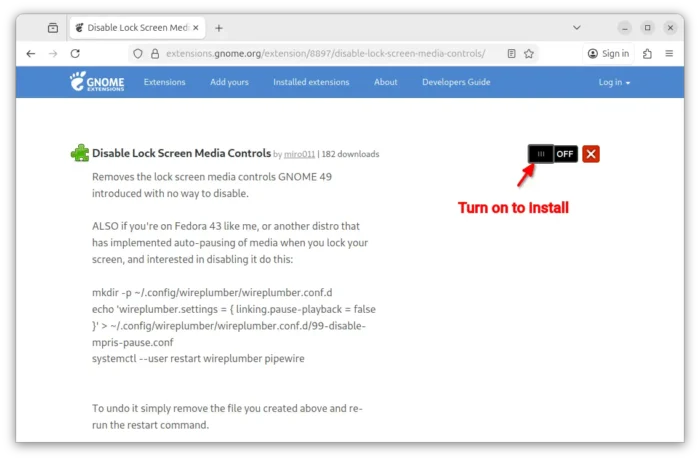
For choice, you may install the extension by using web browser instead. Simply visit the link below and turn ON/OFF the toggle.
You however need to install the browser extension first (if it asks) by using the link in that page and refresh. And, Ubuntu needs to open terminal (Ctrl+Alt+T) and run command below to install the agent package:
sudo apt install chrome-gnome-shell
That’s it. Enjoy!