

Refine, the configuration tool for GNOME desktop, released version 0.7.0 today with more configure options.
As you may know, the Settings tool (aka Gnome Control Center) in GNOME only provides commonly used options to provide a simple and clean user interface. And, GNOME Tweaks is available for more configure options, such as themes, fonts, sounds, and startup applications.
All others are considered as “hidden” options that can be controlled by either gsettings commands or the advanced “Dconf Editor” tool.
As Dconf Editor contains so many options, it’s not easy to find out what you need. And, some options may even break applications. So, Refine was born to provide a simple interface to help discover some advanced and experimental feature options, that GCC and Gnome Tweaks don’t have.

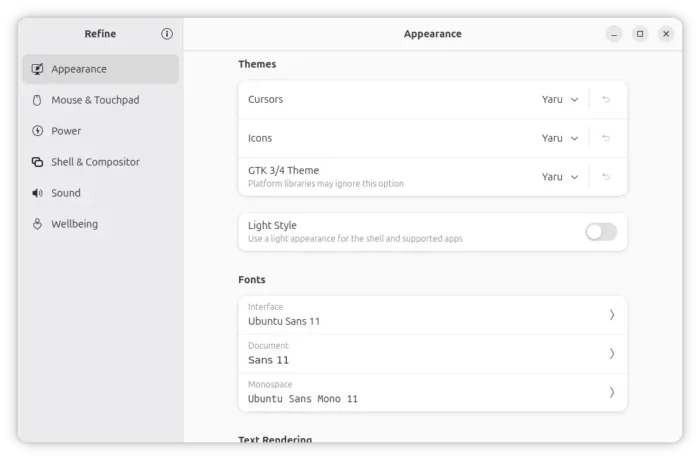
Refine 0.7.0
Refine so far contains “Appearance” page to configure themes, fonts, text rendering, and background rendering options, as well it allows to enable “Light Style” for light panel and menus.
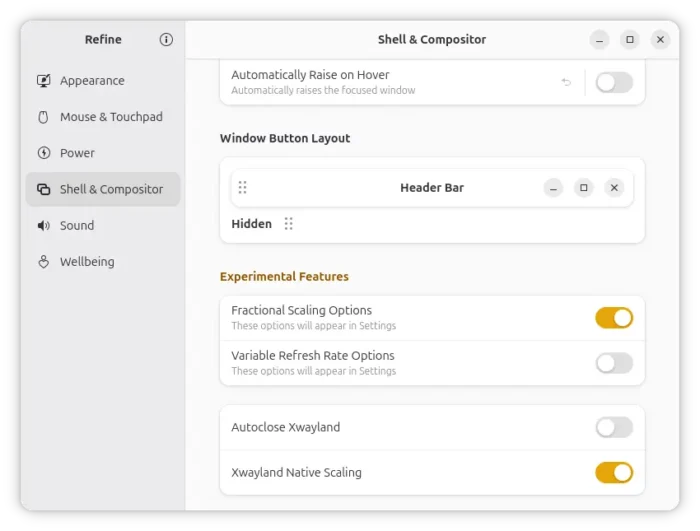
It also allows to configure window header click actions, drag’n’drop adjust window buttons (minimize, maximize, close), and enable some experimental features such as fractional scaling, Variable Refresh Rate (VRR), and Xwayland Native Scaling.

As you know, GNOME 48 introduced “Wellbeing” settings page, allowing to view screen time usage, set screen limits and break reminders to take breaks in schedule.
For break reminders, it provides only options to toggle on/off the function, and select a time schedule preset. And, it only shows a notification when a break is due, dims screen during break, and play a sound when break ends.

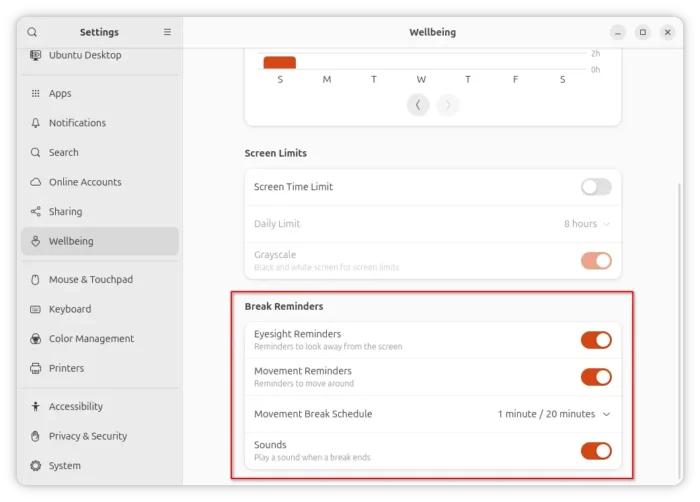
Wellbeing setting page in GNOME Control Center
They are many more options for break reminders, but hidden by default. They include:
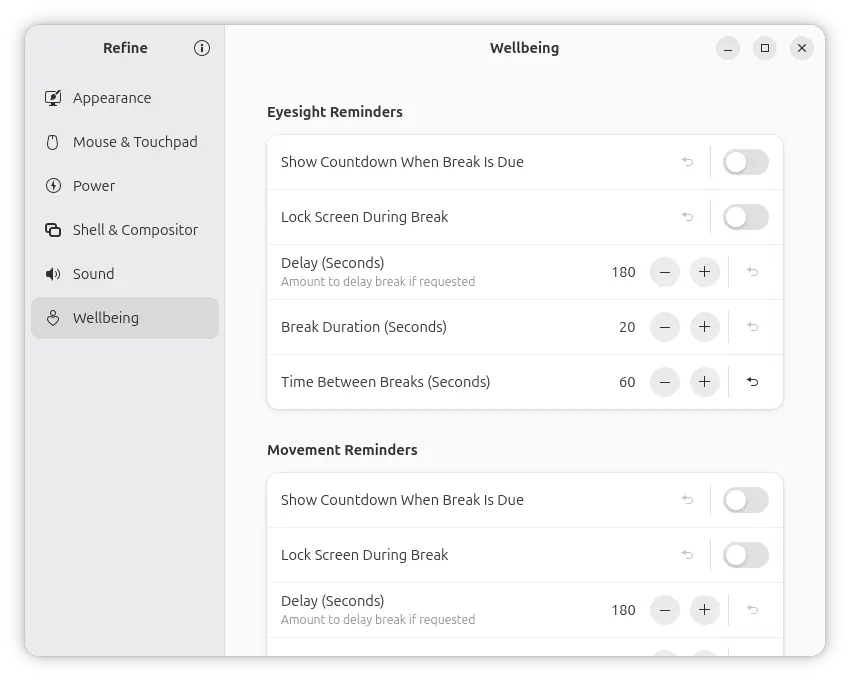
- Show countdown when a break is due.
- Lock screen during break.
- Custom duration of break.
- Custom duration between breaks.
- Amount of delay if required.
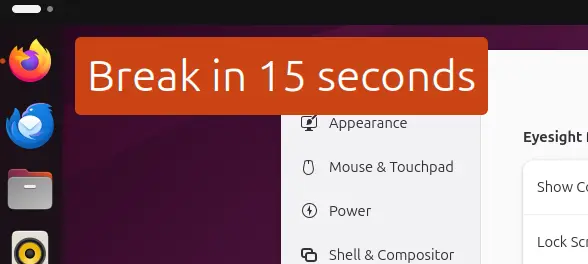

Besides struggling with gsettings command or discovering with Dconf Editor, Refine since 0.7.0 now provides “Wellbeing” page, provide a stupid simple and clean interface to configure these hidden options for GNOME 48+.
How to Install Refine
NOTE: As Ubuntu features customized GNOME appearance, it is marked as un-supported by Refine, through works partly including the new Wellbeing.
Refine is available to install as Flatpak package which runs in sandbox environment in most Linux.
Fedora Workstation with 3rd repository enabled can search & install the app directly from GNOME Software.
While most other Linux with GNOME may follow the steps below to install it:
- First enable Flatpak support by following the official setup guide. For Ubuntu, simply run the command below in terminal (Ctrl+Alt+T):
sudo apt install flatpak
- Then run the single command below in terminal (Ctrl+Alt+T) to install the package:
flatpak install https://dl.flathub.org/repo/appstream/page.tesk.Refine.flatpakref
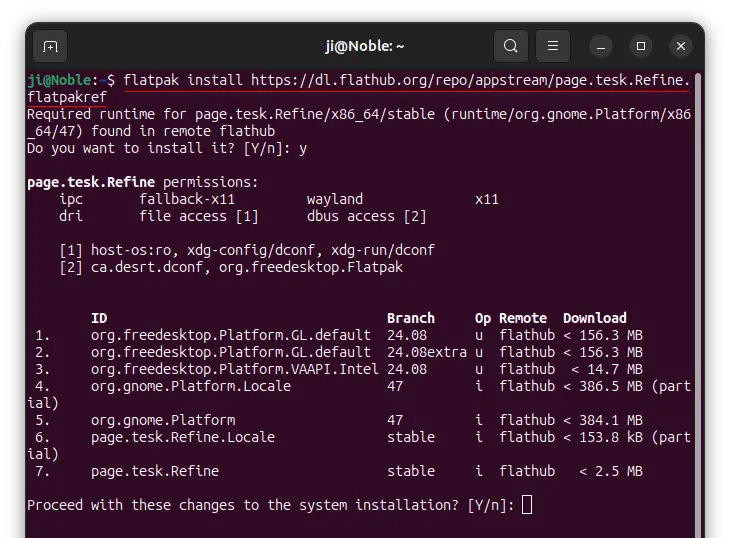
Refine can be installed, but not works in Ubuntu
After that, search for and launch it from GNOME Overview. If app icon is not visible, either log out and back in to apply variable change, or run command flatpak run page.tesk.Refine instead to start from terminal.

If you already installed the tool, then run the command below instead to update it:
flatpak update page.tesk.Refine
Uninstall Refine:
To uninstall the Flatpak package, open terminal and use command:
flatpak uninstall --delete-data page.tesk.Refine
You may also run flatpak uninstall --unused to clear useless run-time libraries.