




Wine, the compatibility layer for running Windows apps and games in Linux, macOS, and BSD, released new stable 11.0 version yesterday!
The new version finally fully supports the new WoW64 mode for running 32-bit Windows applications with 64-bit libraries on the host.
The new WoW64 mode was initially introduced as experimental feature in Wine 9.0. But, the official wine packages for Ubuntu until 25.10 were still built with old WoW64 that need installing 32-bit libraries.
With Wine 11.0, the new WoW64 mode is considered fully supported, and essentially has feature parity with the old WoW64 mode. And, for the old WOW64 installation, it’s possible to force to run in the new mode by setting WINEARCH=wow64 variable.

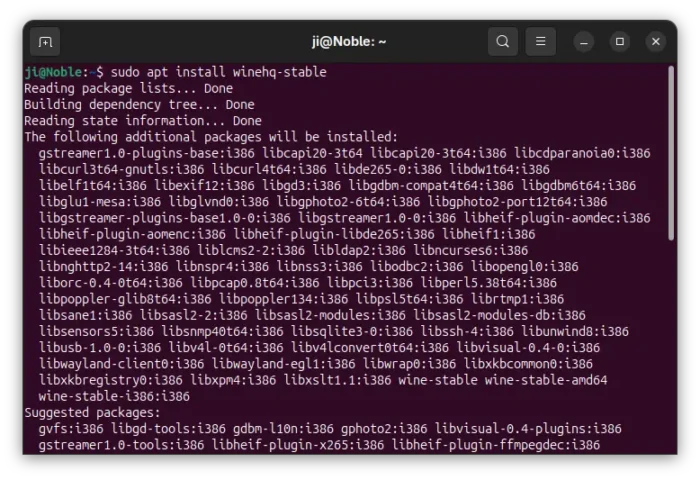
the 24.04 package still depends on lots of 32-bit libraries
For Linux Kernel with the NTSync module loaded, it will be used by default in this Wine release for significantly boosting performance for Windows applications, especially games.
NTSync is a Linux kernel driver to accurately and efficiently emulate Windows NT synchronization by user-space.
The module is available in Linux Kernel 6.14 and later, though not loaded by default. To load it in Ubuntu, either run sudo modprobe ntsync that works until reboot, or write to config file to load automatically on system start.
echo ntsync | sudo tee /etc/modules-load.d/ntsync.conf

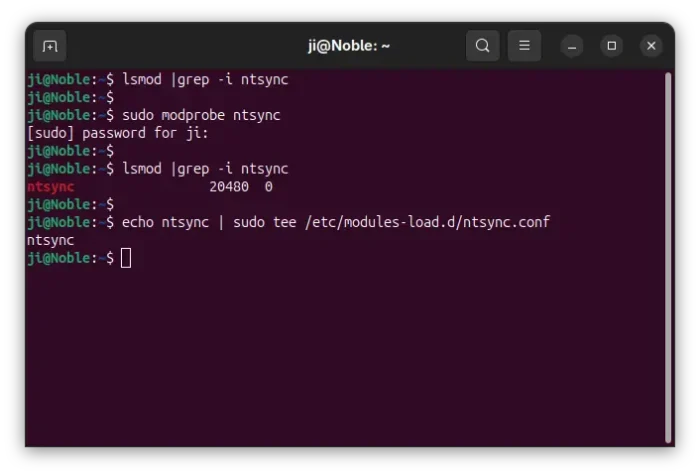
load NTSync kernel module
Besides that, it implemented NTDLL synchronization barriers, which are useful for phased computations or parallel tasks that need to complete one step before starting the next.
And, it added the ability to change thread priority on Linux and macOS. Though, for Linux this feature is restricted by the system nice limit, and, it recommends to change the nice hard limit to a negative value (e.g., -5).
For Ubuntu, you may try doing this by adding line below in /etc/security/limits.conf file (replace ji with your user/group name who runs the process):
ji hard nice -5
Wine 11.0 also improved graphics support by using hardware accelerated runtime for OpenGL bitmap rendering, and using EGL as OpenGL backend by default on X11/Xorg, for better performance, while GLX is deprecated but remains available and used as fallback.
And, it implemented VK_KHR_external_memory_win32, VK_KHR_external_semaphore_win32, VK_KHR_external_fence_win32, VK_KHR_win32_keyed_mutex Vulkan extensions for sharing GPU memory, synchronize access to semaphores and shared memory objects.
It as well improved X11 window manager integration, added exclusive fullscreen mode support, and improved Wayland compatibility with input methods and clipboard support.

Other changes include:
- Hardware accelerated H.264 decoding through Direct3D 11 API.
- more Joystick devices compatibility with hidraw backend.
- Support NTFS Reparse Points, for redirecting file/folder to another location.
- Scan and configure bluetooth devices in Linux via BlueZ.
- And, much more!
For more details, see the official release note in winehq.org.
How to Install Wine 11.0 in Ubuntu
Wine has an official page for how to install it in supported platforms.
For Ubuntu from 22.04 to 25.10, open terminal (Ctrl+Alt+T) and simply run the commands below one by one:
- Create the directory in case it does not exist for storing keys:
sudo mkdir -p /etc/apt/keyrings
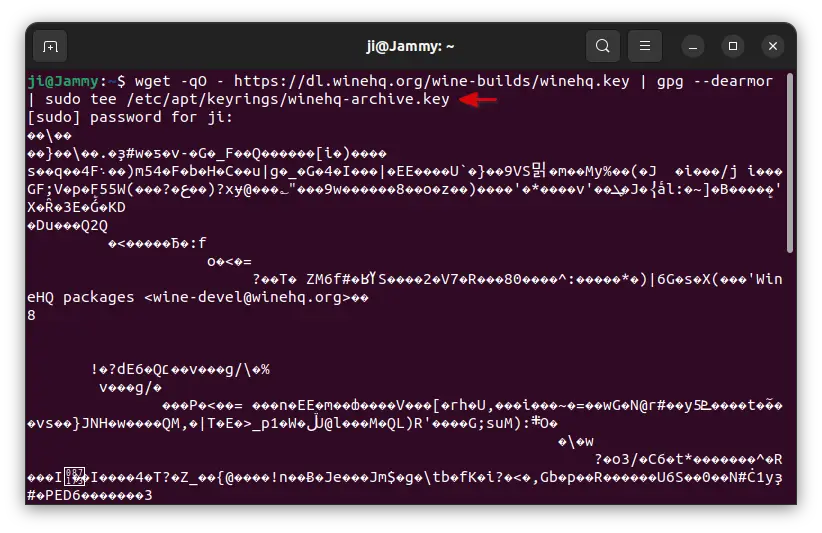
- Download the key, dearmor (so unreadable), and save to that directory:
wget -O - https://dl.winehq.org/wine-builds/winehq.key | sudo gpg --dearmor -o /etc/apt/keyrings/winehq-archive.key
The command may get stuck, if you ran last
sudocommand more than 5 minutes earlier, waiting you to type user password (no visual feedback) and hit enter to authenticate.
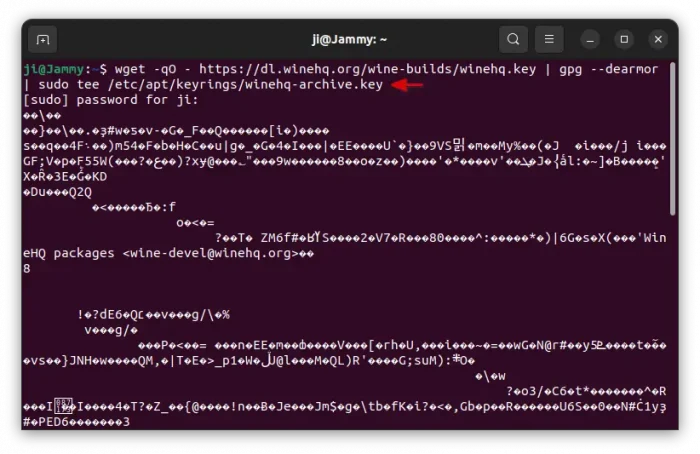
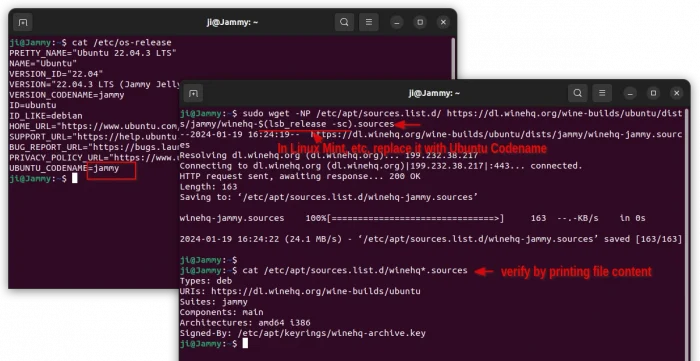
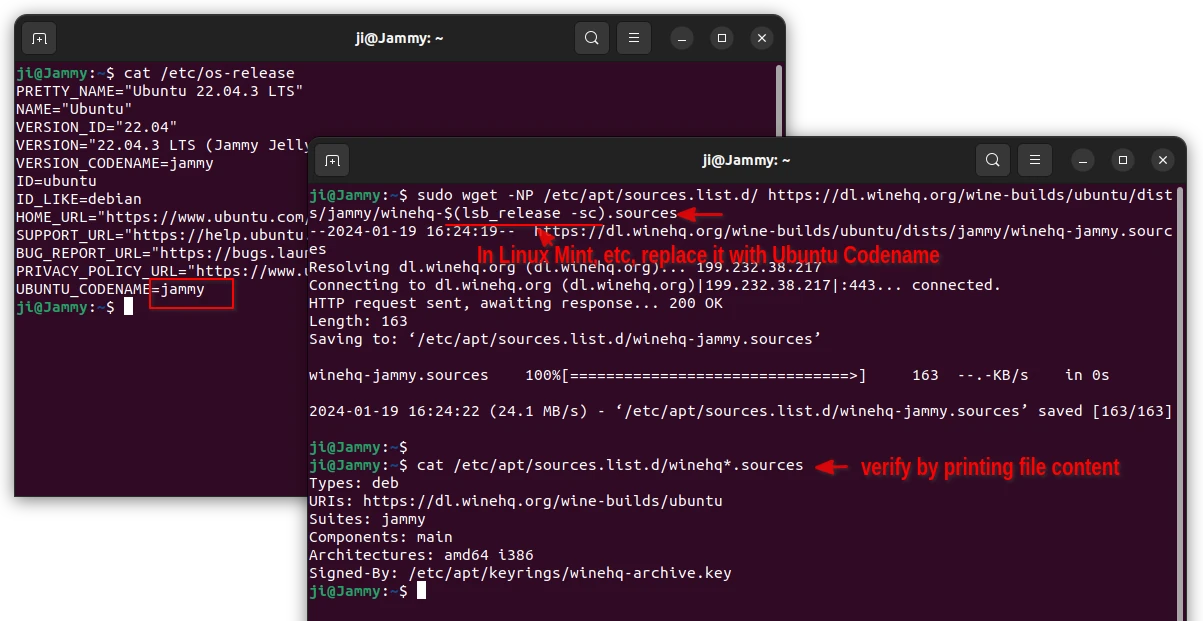
- Download the source file and save to
/etc/apt/sources.list.ddirectory.sudo wget -NP /etc/apt/sources.list.d/ https://dl.winehq.org/wine-builds/ubuntu/dists/$(lsb_release -sc)/winehq-$(lsb_release -sc).sources
For Linux Mint, Zorin OS, and other unofficial Ubuntu flavors, you need to replace $(lsb_release -sc) with the code-name of the Ubuntu edition (e.g., noble for 24.04, jammy for 22.04) that your system is based on.
- Finally, refresh cache and install Wine 11.0:
sudo apt update
sudo apt install --install-recommends winehq-stable
After installation, run winecfg to configure Wine, and right-click on your .exe and select load with Wine Windows Program Loader. And, see this page for the application compatibility with Wine.
Uninstall:
To uninstall the Wine package, simply open terminal (Ctrl+Alt+T) and run command:
sudo apt remove --autoremove winehq-stable
Then, remove the winehq repository by deleting the key and source files:
sudo rm /etc/apt/keyrings/winehq-archive.key /etc/apt/sources.list.d/winehq*.sources
Finally run sudo apt update to update cache.














What about an upgrade from ver. 10?
Should I remove first 10 and then add 11?
The v11.0 package for 22.04/24.04 somehow still builds with many i386 dependencies. You don’t need to do something special for the new version.
Hi I’m having this problem after installing wine 11.0 and tried to install metatrader 5, the error say: “a debugger has been found running in system” and won’t let me install the program.
still work good for my one paid software from 1999 that i continue to use 27 years later
finally updated my wine6 to wine11
thanks for your help with trying to install wine. what does this mean how to fix it, thanks
E: Malformed entry 1 in list file /etc/apt/sources.list.d/archive_uri-https_dl_winehq_org_wine-builds_ubuntu_noble-noble.list (Component)
E: The list of sources could not be read.
Just remove the file which was added with old deprecated method:
Then refresh via
sudo apt updateto see if it works.I followed the instructions on the Wine WIKI but install failed as follows:
$ sudo apt install –install-recommends winehq-stable
Reading package lists… Done
Building dependency tree… Done
Reading state information… Done
Some packages could not be installed. This may mean that you have
requested an impossible situation or if you are using the unstable
distribution that some required packages have not yet been created
or been moved out of Incoming.
The following information may help to resolve the situation:
The following packages have unmet dependencies:
winehq-stable : Depends: wine-stable (= 11.0.0.0~noble-1)
E: Unable to correct problems, you have held broken packages.
I looked for broken or help packages and found none. I tried several proposed fixes from the internet and none worked. The wine-stable package does not appear in my package repository. I am ready to give up. Do you have any advice?