



Want to password protect your files in Linux? Here’s a stupid simple app to do the job for beginners.
There are quite a few ways to secure your data in Linux, e.g., encrypt the whole disk, encrypt a folder, or compress files into encrypted archive.
For individual files, the GPG (GNU Privacy Guard) command line tool is great for the encryption, and the new Hideout graphical front-end make it easy to use for beginners.
Hideout
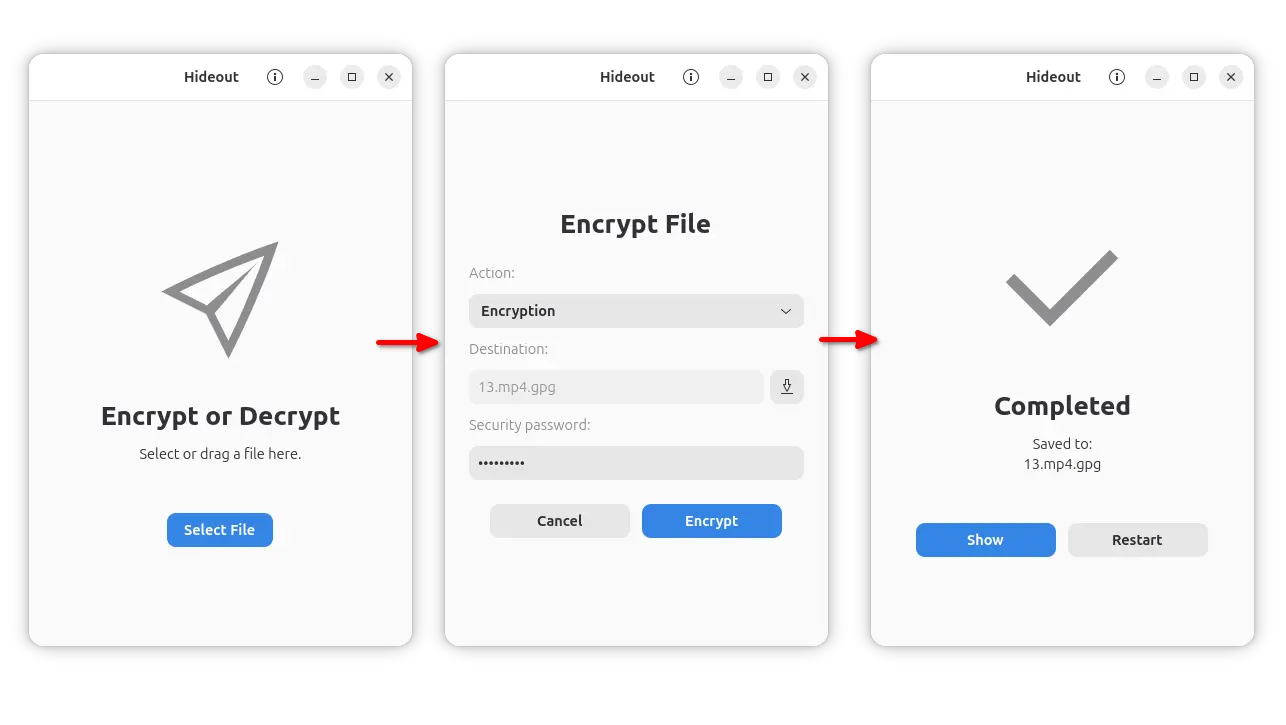
As you see in the screenshot, simply launch the app, select file (or drag’n’drop file into app window), choose encrypt or decrypt, input passphrase, and click start.
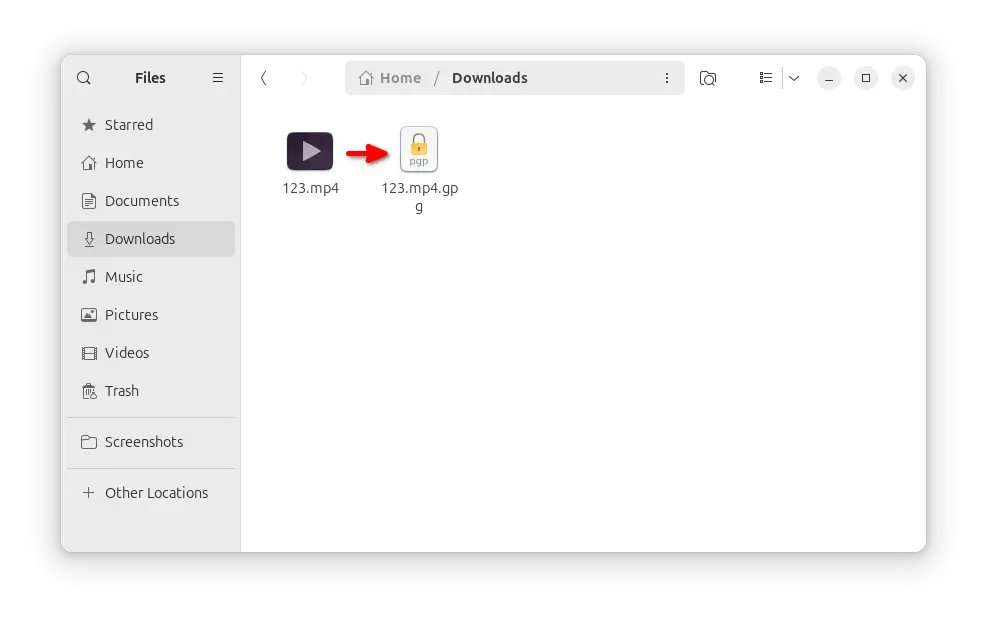
It will make a copy of the original input file into new encrypted .gpg file, though you may rename it to whatever name with whatever extension. After that, share that encrypted file to your friends or upload to the cloud, and only the ones who have the passphrase can decrypt then read the file content.
As mentioned, the app is based on GPG, the free open-source tool that many Linux Distributions use for signing software repositories, and Email Clients (e.g., Thunderbird) use it for end-to-end encryption and and digital signatures.
It by default uses AES256 cipher algorithm for passphrase based encryption in all current Ubuntu releases. It’s very secure as long as your passphrase is long and strong enough.
And, advanced users may use the commands below instead to encrypt or decrypt files.
- To encrypt a file with a password:
gpg --symmetric input_file
- To decrypt a GPG file:
gpg --output output_file --decrypt input_file.gpg
Both commands will pop-up a dialog ask to input your passphrase.
For choice, add --batch --pinentry-mode loopback --passphrase "your_passphrase" flags before --symmetric or --decrypt to tell the passphrase within the command, which may be useful for server use.
How to Install Hideout
The source of the app is available in Github via this page.
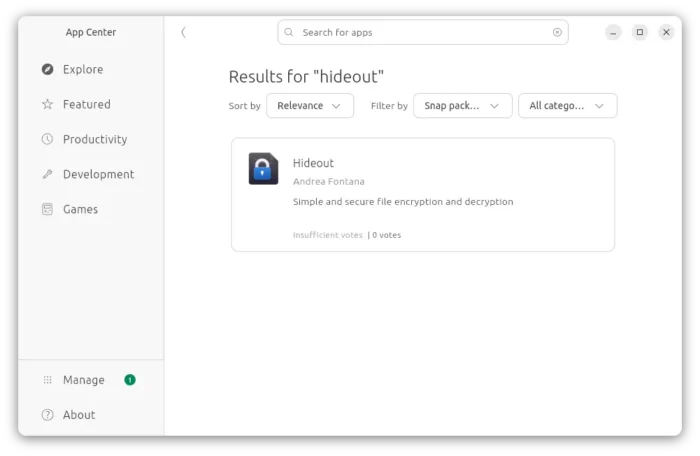
For Ubuntu, it provides official snap package (so far only for modern Intel/AMD platform) that can be easily installed from either App Center or Ubuntu Software.
NOTE: The snap package so far has a conflict to AppArmor, try Flatpak or install snap in dev mode via the command below:
sudo snap install hideout --devmode
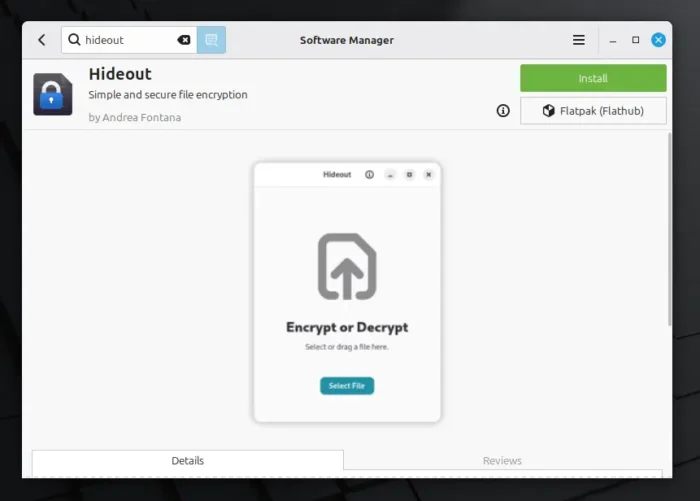
Linux Mint and Fedora Workstation can install the app from either Software Manager or GNOME Software through the official Flatpak package (support both amd64 and arm64/aarch64).
While, other Linux Distributions may do the steps below one by one to install the Flatpak package:
- First, enable Flatpak support. For Debian/Ubuntu, simply open terminal (Ctrl+Alt+T) and run command:
sudo apt install flatpak
- Then, install the Hideout flatpak package:
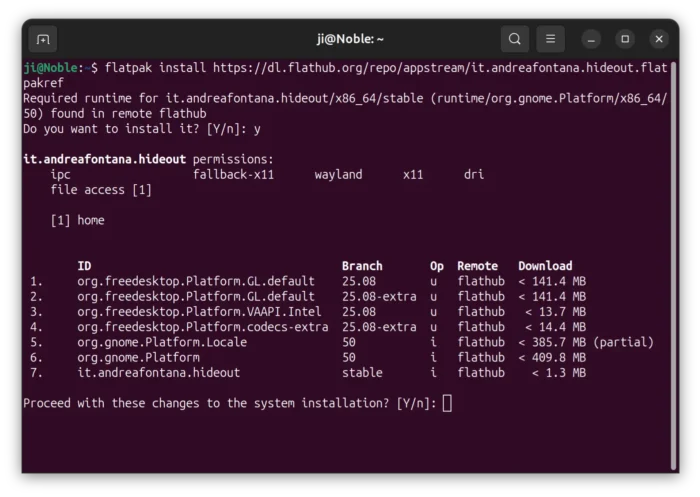
flatpak install https://dl.flathub.org/repo/appstream/it.andreafontana.hideout.flatpakref
If this is the first time you install a Flatpak package, then either log out and back in to apply environment change (for app icon visible), or start the app from command line:
flatpak run it.andreafontana.hideout















Ji
I installed hideout both by the instructions for Ubuntu which didn’t work and then by the snap store. It doesn’t give me a menu entry or a context menu entry when I right click. So how do I use hideout now that I have it installed/
Ubuntu Mate User
libpxbackend-1.0.so: cannot open shared object file: No such file or directory
Failed to load module: /home/jim/.snap/data/hideout/common/.cache/gio-modules/libgiolibproxy.so
Failed to register: GDBus.Error:org.freedesktop.DBus.Error.AccessDenied: Connection “:1.146” is not allowed to own the service “it.andreafontana.hideout” due to AppArmor policy
as sudo:
$ sudo hideout
[sudo] password for:
mkdir: cannot create directory ‘/run/user/0’: Permission denied
Authorization required, but no authorization protocol specified
(hideout:20650): Gtk-WARNING **: 05:06:40.941: Failed to open display
It’s something to do with AppArmor, the kernel security mode.
Either try the Flatpak package, or remove snap and reinstall via the command below works in my case:
Strange: The decrypt command “gpg –output output_file –decrypt input_file.gpg” doesn’t ask for the password used for encrypting. It simply decrypts the file successfully.
Environment is EndeavourOS, not Ubuntu.
Because gpg-agent caches passwords for a short time on the same session. (Default: 600secs)
Like sudo.
Why wouldn’t you just use 7zip, Ark, or any other archive tool with encryption? Most distros already have this sort of capability. Am I missing something?
It’s not really trying to compete with 7zip or Ark. Those are archive managers; Hideout is just a specialized GPG frontend.
The main difference is that 7zip can’t handle standard .gpg files: if someone sends you one, an archive tool won’t help. Hideout is there to replace the GPG command line with a dead-simple drag-and-drop workflow.
It’s not about replacing your zip tools, just making GPG encryption faster and more accessible for non-expert users.