Archives For jimingkui

This simple tutorial is going to show you how to disable laptop camera in Ubuntu 13.10 Saucy. Cameras are controlled by the uvcvideo kernel module, so all you need to do is block it from loading.

After this tutorial, you’ll get a blank screen in Cheese:

blank screen after disabled camera

blank screen after disabled camera

To get started:

Press Ctrl+Alt+T on your keyboard to open terminal. When it opens, run command to disable the camera until reboot:

sudo modprobe -r uvcvideo

You will be asked for your password, and after typing it, if there are no errors shown in the terminal, your webcam should be disabled.

To enable your webcam again, run:

sudo modprobe uvcvideo

If you want to permanently disable camera, run below command to block the kernel mode by adding to config file.

echo 'blacklist uvcvideo' | sudo tee -a /etc/modprobe.d/blacklist.conf

Reboot your machine and done.

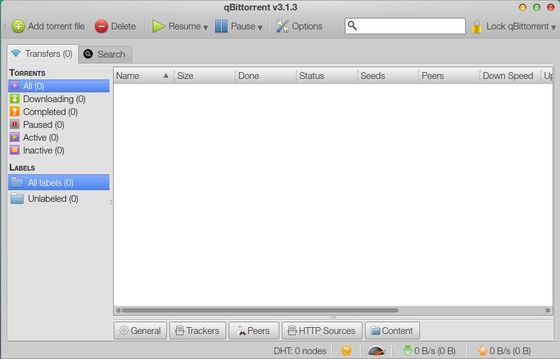
qBittorrent 3.1.0 has been released with a lot of new features and bugfixes. This tutorial shows you how to install or upgrade it in Ubuntu 13.10, Ubuntu 13.04, Ubuntu 12.10, Linux Mint 16/15.

What’s New in qBittorrent 3.1.0:

  • Add command line option to daemonize qbittorrent-nox (ngaro)
  • Add “Shutdown qBittorrent” button to Web UI (ngaro)
  • Add setting to copy .torrent files for finished downloads (Driim)
  • Add option to start qBittorrent on Windows startup (sledgehammer999)
  • Add context menu to Web seed list (Gelmir)
  • Add support for tracker tiers / groups to creator (Gelmir)
  • Allow clearing execution and ban logs (Gelmir)
  • Add option to use random port on each startup (ireallylikeher)
  • Expose the cache expiry to the user (Gelmir)
  • Support Atom feeds (Gelmir)
  • Add “save path” column (John Peterson)
  • Add μTorrent-compatible “Flags” column in the peer tab(sledgehammer999)
  • Load magnet metadata in the background while the “Add New Torrent” Dialog is showing (Gelmir)
  • Allow to enter only an info-hash for download(sledgehammer999)
  • Bring the “Add New Torrent” Dialog to the front(glassez)
  • Add confirmation dialog for “Force recheck” action (closes #131)
  • Greatly improve RSS manager performance (closes #34)
  • Ensure that all columns in the tranferlist have a size > 0.
  • Don’t mark RSS item as read when it failed to download (Gelmir)
  • Fix ETA calculation when some files are downloaded and marked afterwards as ‘do not download'(sledgehammer999)
  • Make the UI show that PEX/DHT/LSD are actually disabled on private torrents(sledgehammer999)
  • Scheduler should be much more robust and correct now(sledgehammer999)
  • Now qBt won’t forget torrent settings after an unclean shutdown(sledgehammer999)
  • Text boxes in edit dialogs will fit to text width(Gelmir)
  • Enable edit/rename via F2 or double click in various places(Gelmir)
  • Allow to edit trackers and copy their urls(Gelmir and Driim)
  • Add Uploaded column to main view(Gelmir)
  • Calculate ETA for seeding torrents(Gelmir)
  • Add option to ignore global share ratio limits for created torrents(Gelmir)
  • Many RSS bugfixes and improvements all over the place(Gelmir)
  • Generate translations at configure time to reduce tarball size
  • Make peer tab sortable by ip too (Gelmir)
  • Translations moved to Transifex(https://www.transifex.com/projects/p/qbittorrent/)
  • New Translation – Vietnamese (Anh Phan)
  • Impove drawing speed of tranferlist when there are many torrents(>100)
  • Impove drawing speed of peers list when there are many peers

Install / Upgrade qBittorrent:

The qBittorrent PPA has updated packages for Ubuntu 13.10 Saucy, Ubuntu 13.04 Raring, Ubuntu 12.10 Quantal and their derivatives.

To install it, press Ctrl+Alt+T on your keyboard to open terminal. When it opens, run below commands one by one:

sudo add-apt-repository ppa:hydr0g3n/qbittorrent-stable

sudo apt-get update

sudo apt-get install qbittorrent

Calibre, the free and open source e-book computer software application suite has reached v1.6 with handy mark-book feature.

What’s New in Calibre 1.6:

  • Temporary marking of books in the library
    This allows you to select books from your calibre library manually and mark them. This ‘mark’ will remain until you restart calibre, or clear the marks. You can easily work with only the marked subset of books by right clicking the Mark Books button. To use this feature, go to Preferences->Toolbars and add the ‘Mark Books’ tool to the main toolbar.
  • Get Books: Add Wolne Lektury and Amazon (Canada) ebook stores
  • DOCX Input: Handle hyperlinks in footnotes and endnotes
  • Driver for Sunstech reader
  • Allow using both uri: and url: identifiers to create two different arbitrary links instead of just one in the Book details panel
  • E-book viewer: Make all keyboard shortcuts configurable
  • Conversion: Add an option to not condense CSS rules for margin, padding, border, etc. Option is under the Look & Feel section of the conversion dialog.
  • calibredb: Allow setting of title sort field
  • ebook-meta: Add an –identifier option to set identifiers.
  • Fix a locking error when composite columns containing formats are used and formats are added/deleted.
  • EPUB Output: Do not strip <object> tags with type application/svg+xml in addition to those that use image/svg+xml.
  • Cover grid: Fix selecting all books with Ctrl+A causing subsequent deselects to not fully work
  • HTMLZ Output: Fix long titles causing error when converting on windows.
  • Content server: Fix OPDS category links to composite columns
  • E-book viewer: Fix regression that broke import/export of bookmarks
  • E-book viewer: Use the default font size setting for the dictionary view as well.
  • DOCX Input: Avoid using the value attribute for simple numbered lists, to silence the asinine epubcheck
  • HTML Input: Images linked by the poster attribute of the <video> tag are now recognized and processed.
  • DOCX Input: Fix erorr when converting docx files that have numbering defined with no associated character style.
  • EPUB Metadata: Implementing updating identifiers other than isbn in the epub file from calibre when polishing or exporting the epub
  • Amazon metadata download: Fix parsing of some dates on amazon.de

New news sources

  • Various Uruguayan news sources by Carlos Alves

Improved news sources

  • National Geographic Magazine
  • New York Review of Books
  • Focus (PL)
  • Carta Capital
  • AM 730
  • Ming Pao (HK)
  • Neu Osnabrucker Zeitung

Install / Upgrade Calibre:

For Ubuntu 13.10, Ubuntu 13.04, Ubuntu 12.04, Ubuntu 12.10, Linux Mint users, press Ctrl+Alt+T on your keyboard to open terminal. When it opens, copy and paste below codes and hit enter to run:

sudo python -c "import sys; py3 = sys.version_info[0] > 2; u = __import__('urllib.request' if py3 else 'urllib', fromlist=1); exec(u.urlopen('http://status.calibre-ebook.com/linux_installer').read()); main()"

It automatically download the source code and install it on your system.

This quick tutorial is going to show you how to disable overlay scrollbars and switch back to old fat regular scrollbars in Ubuntu 13.10 Saucy Salamander.

Since Ubuntu 13.04, there’s an option in Dconf Editor allows to switch on / off this feature. Follow steps show you how:

1. Open Ubuntu Software Center. Search for and install dconf Editor.

2. Open dconf Editor, navigate to com/canonical/desktop/interface. Change the scollbar-mode to normal

If you’re familiar with command line, just run one command in terminal:

gsettings set com.canonical.desktop.interface scrollbar-mode normal

That’s it. Enjoy!

The latest Linux Kernel 3.11.5 has been released. It fixed a security issue: ipv6 ipsec encryption bug in sctp_v6_xmit. Also there’re a lot of bugfixes and drivers udpates. See the changelog.

All users of kernel 3.11 series are urged to upgrade as soon as possible. Here’s how to upgrade in Ubuntu 13.10, Ubuntu 13.04, Ubuntu 12.04, Ubuntu 12.10 and Linux Mint 13/14/15/16.

Upgrade Linux Kernel 3.11.5:

At the moment of writing this tutorial, the kernel PPA is not ready for this kernel. I’ll update this post once the PPA updated.

Press Ctrl+Alt+T on your keyboard to open terminal. When it opens, follow the steps below:

1. Download the kernel Debs:

For 32-bit system:

wget http://kernel.ubuntu.com/~kernel-ppa/mainline/v3.11.5-saucy/linux-headers-3.11.5-031105-generic_3.11.5-031105.201310132235_i386.deb

wget http://kernel.ubuntu.com/~kernel-ppa/mainline/v3.11.5-saucy/linux-headers-3.11.5-031105_3.11.5-031105.201310132235_all.deb

wget http://kernel.ubuntu.com/~kernel-ppa/mainline/v3.11.5-saucy/linux-image-3.11.5-031105-generic_3.11.5-031105.201310132235_i386.deb

For 64-bit system:

wget http://kernel.ubuntu.com/~kernel-ppa/mainline/v3.11.5-saucy/linux-headers-3.11.5-031105-generic_3.11.5-031105.201310132235_amd64.deb

wget http://kernel.ubuntu.com/~kernel-ppa/mainline/v3.11.5-saucy/linux-headers-3.11.5-031105_3.11.5-031105.201310132235_all.deb

wget http://kernel.ubuntu.com/~kernel-ppa/mainline/v3.11.5-saucy/linux-image-3.11.5-031105-generic_3.11.5-031105.201310132235_amd64.deb

2. Install the debs:

sudo dpkg -i linux-headers-3.11.5*.deb linux-image-3.11.5*.deb

3. Restart your computer and done!

4. If you have problem with this kernel. Run command to remove Linux Kernel 3.11.5:

sudo apt-get purge linux-image-3.11.5-*

The free & open-source BitTorrent client FrostWire has released v5.6.6 with important bugfixes on meta search. It’s highly recommended to update.

See what’s new in FrostWire 5.6.6:

frostwire (5.6.6) stable; urgency=high

  • Fixes ExtraTorrent meta search.
  • Polish translation 100% updated.
  • New support for anonymous user experience statistics.

Download FrostWire for Ubuntu / Linux Mint

Because FrostWire depends on Java, so you need to install OpenJDK from Ubuntu Software Center. Or install oracle Java via PPA. Then double-click on downloaded package to install via pop-up Ubuntu Software Center.

The Linux Kernel 3.10 LTS series has reached v3.10.16, all users of this series are urged to upgrade as soon as possible. Here’s how to upgrade in Ubuntu 13.10, Ubuntu 13.04, Ubuntu 12.04, Ubuntu 12.10 and Linux Mint.

Linux Kernel 3.10.16 fixed a security issue: ipv6 ipsec encryption bug in sctp_v6_xmit, updated drivers as well as other bug fixes. See changelog.

Upgrade Linux Kernel 3.10.16:

Press Ctrl+ALt+T on your keyboard to open terminal. When it opens, follow the steps below:

1. Download the DEBs.

For 32-bit:

wget http://kernel.ubuntu.com/~kernel-ppa/mainline/v3.10.16-saucy/linux-headers-3.10.16-031016-generic_3.10.16-031016.201310131935_i386.deb

wget http://kernel.ubuntu.com/~kernel-ppa/mainline/v3.10.16-saucy/linux-headers-3.10.16-031016_3.10.16-031016.201310131935_all.deb

wget http://kernel.ubuntu.com/~kernel-ppa/mainline/v3.10.16-saucy/linux-image-3.10.16-031016-generic_3.10.16-031016.201310131935_i386.deb

For 64-bit:

wget http://kernel.ubuntu.com/~kernel-ppa/mainline/v3.10.16-saucy/linux-headers-3.10.16-031016-generic_3.10.16-031016.201310131935_amd64.deb

wget http://kernel.ubuntu.com/~kernel-ppa/mainline/v3.10.16-saucy/linux-headers-3.10.16-031016_3.10.16-031016.201310131935_all.deb

wget http://kernel.ubuntu.com/~kernel-ppa/mainline/v3.10.16-saucy/linux-image-3.10.16-031016-generic_3.10.16-031016.201310131935_amd64.deb

2. Install the Debs:

sudo dpkg -i linux-headers-3.10.16*.deb linux-image-3.10.16*.deb

3. Restart your computer and done.

4. If you have problem with this new kernel, run command below to remove Linux Kernel 3.10.16:

sudo apt-get purge linux-image-3.10.16-*

The popular Ubuntu configuration tool Ubuntu Tweak has released v0.8.6, which adds support for Ubuntu 13.10 Saucy Salamander and remove support for Ubuntu 11.10 Oneiric.

See what’s new in Ubuntu Tweak 0.8.6:

  • Add support for Ubuntu 13.10 Saucy Salamander, drop support for Ubuntu 11.10 Oneiric
  • Improve the old kernels clean up, now it will find out more old kernels
  • Disable appcenter and sourcecenter, they are no longer maintained
  • Fixed modules show error with “expected string or buffer”
  • Fixed Ubuntu Tweak crached in logo in GNOME 3.8
  • Fixed Ubuntu Tweak crashed while processing override
  • Fixed problem showing error dialog if dest path contains special characters e.g. “ö”
  • Fixed LovewallpaperHD failed to load

Read official announcement on developer’s English & Chinese blogs.

Install / Upgrade Ubuntu Tweak 0.8.6:

Download the Deb: ubuntu-tweak_0.8.6-1_all.deb

The PPA is ready for Ubuntu 13.10, Ubuntu 13.04, Ubuntu 12.04, Ubuntu 12.10 and their derivatives, such as Linux Mint 13/14/15/16, Elementary OS. Run below commands one by one in terminal:

sudo add-apt-repository ppa:tualatrix/ppa

sudo apt-get update

sudo apt-get install ubuntu-tweak

This tutorial is going to show you how to install the latest Spotify client from its official repository in Ubuntu 13.10 Saucy Salamander & Linux Mint 16 Petra.

Spotify is a very popular music streaming service. Its client works on Android, iOS, Windows Phone, Blackberry, web browser, Mac, Windows, and Linux.

The Spotify client for Desktop has reached v0.9.4 with following changes:

  • A new app for messages!
    this is gradually rolling out, so don’t fret if you don’t see a change right away
  • When re-starting Spotify your last playlist position will now be available
  • More languages!
  • Proxy authentication support for views
  • Linux only: Media key support in Gnome
    Coming soon!
  • Stability and performance fixes
  • Fixed a lot of crashes, especially on shutdown/log out
  • Fixed crash when adding tracks to large playlists
  • Install Spotify in Ubuntu 13.10:

    The Spotify client for Linux can be installed on Ubuntu 13.10, Ubuntu 13.04, Ubuntu 12.04, Ubuntu 12.10, Linux Mint 13/14/15/16, Elementary OS Luna. Below steps show you how:

    1. Press Ctrl+Alt+T on your keyboard to open terminal. When it opens, copy and paste below command to add spotify repository:

    sudo add-apt-repository "deb http://repository.spotify.com stable non-free"

    2. Add the key:

    sudo apt-key adv --keyserver keyserver.ubuntu.com --recv-keys 94558F59

    3. Now you can install spotify in Ubuntu Software Center after checking for updates. Or you can run below commands instead:

    sudo apt-get update; sudo apt-get install -y spotify-client

    This quick tutorial is going to show you how to install Subsonic music streamer 4.8 in Ubuntu 13.10 Saucy Salamander & Linux Mint 16 Petra via getdeb repository.

    As you may know, Subsonic is a free, web-based media streamer, providing ubiquitous access to your music. Use it to share your music with friends, or to listen to your own music while at work. You can stream to multiple players simultaneously, for instance to one player in your kitchen and another in your living room.

    Subsonic is designed to handle very large music collections (hundreds of gigabytes). Although optimized for MP3 streaming, it works for any audio or video format that can stream over HTTP, for instance AAC and OGG. By using transcoder plug-ins, Subsonic supports on-the-fly conversion and streaming of virtually any audio format, including WMA, FLAC, APE, Musepack, WavPack and Shorten.

    Install Subsonic:

    1. Press Ctrl+Alt+T on your keyboard to open terminal. When it opens, run 2 commands to add getdeb repository:

    wget http://archive.getdeb.net/install_deb/getdeb-repository_0.1-1~getdeb1_all.deb
    
    sudo dpkg -i getdeb-repository_0.1-1~getdeb1_all.deb

    For Linux Mint, there’s an option under ‘Software & Sources -> Additional repositories’ allows to easily enable / disable this repository.

    2. Use synaptic package manager to install Subsonic. Or run commands below instead:

    sudo apt-get update; sudo apt-get install -y subsonic