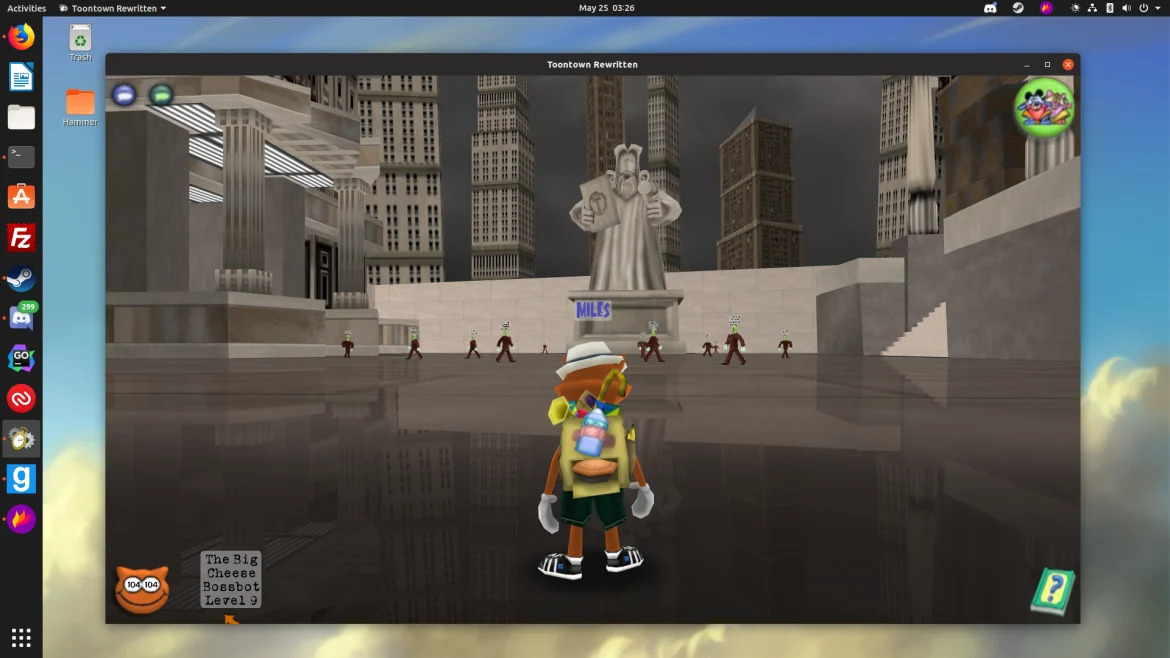
Toontown Rewritten, a fan-made recreation of Disney’s closed MMORPG Toontown Online, now is available to install via Snap package in Ubuntu 16.04, Ubuntu 18.04, and higher.
Toontown Rewritten (TTR) is free to play and open to anybody. The TTR snap package contains a slightly modified version of the official Toontown Rewritten launcher, including python 3 support. Due to the fact that this launcher is modified, the TTR team will not provide support if anything goes wrong with the launcher.
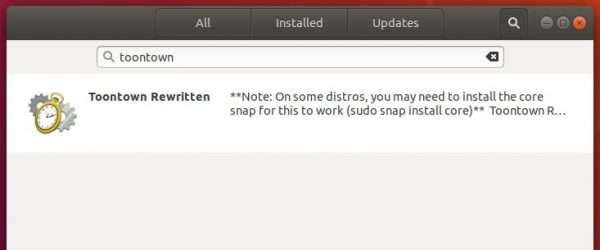
For Ubuntu 18.04 and higher, simply search for and install the game from Ubuntu Software utility:
For Ubuntu 16.04, you need to open terminal (Ctrl+Alt+T) and make sure snapd daemon is installed first:
sudo apt-get install snapd
Then install the Toontown Rewritten via command:
sudo snap install toontown
Once installed, launch it from your system application menu and enjoy!
Uninstall:
To remove the game, either use Ubuntu Software or run command in terminal:
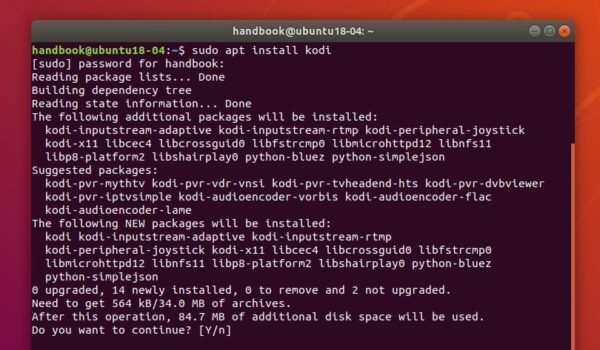
Kodi media center released version 18.3 a day with DTS-HD audio support and many bug-fixes. Here’s how to install it in Ubuntu 16.04, Ubuntu 18.04, Ubuntu 18.10, Ubuntu 19.04, and derivatives.
HPLIP, HP developed printer and scanner drivers for Linux, released version 3.19.6 with a lot of new devices support.
New devices supported in HPLIP 3.19.6:
HP Smart Tank 500 series, 510, 530 series, 610
HP Smart Tank Plus 550, 570 series, 650
HP Neverstop Laser MFP 1200a, 1200w
HP Laser NS MFP 1005, 1005w
HP Neverstop Laser 1000a, 1000w
HP Laser NS 1020, 1020w
HP DesignJet T2600dr Postscript MFP
HP DesignJet XL 3600 PS MFP
HP Color LaserJet Pro M453cdn, M454dn, M454cdn, M453cdw, M454nw, M454dw, M454cdw
HP Color LaserJet Pro MFP M479dw, M478fcdn, M479fdn, M479fcdn, M478fcdw, M479fdw, M479fnw, M479fcdw
HP LaserJet Pro MFP M428dw, M429dw, M428fdn, M428c1, M428c3, M428m, M429fdn, M428fdw, M428c2, M428c4, M429fdw.
HP LaserJet Pro M305d, M304a, M305dn, M305dw, M404d, M405d, M404n, M405n, M404dn, M404c1, M404c3, M404m, M405dn, M404dw, M404c2, M404c4, M405dw.
1. To install the software, download the package “hplip-3.19.6.run” from the link below:
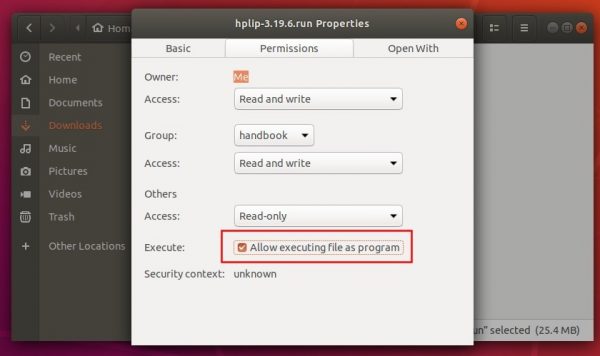
2. Then make the downloaded file executable from its Properties dialog, Permissions tab:
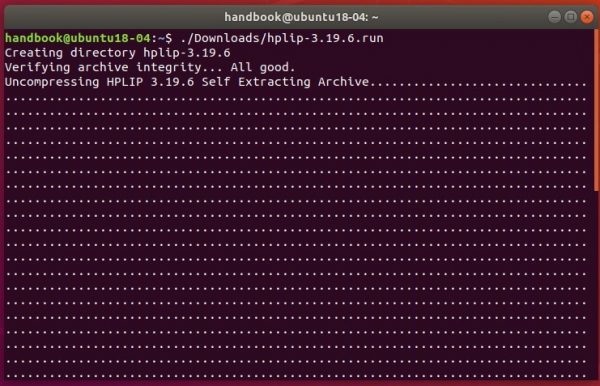
3. Finally open terminal either via Ctrl+Alt+T or search for “terminal” from app launcher. When it opens, run command to start installing it:
./Downloads/hplip-3.19.6.run
Type user password (no asterisk feedback) when it prompts and hit Enter.
4. Then follow the terminal prompts, answer some questions to build and install HPLIP on your system. When everything is done, plug/re-plug your printers and enjoy!
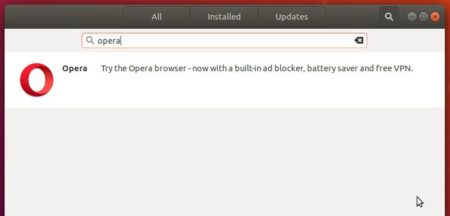
The Opera team offers snap package (containerised software package), which is always up-to-date (auto-updates itself). You can simply install it in Ubuntu Software:
Also traditional Opera binary package for Ubuntu is available for download at the link below:
To receive future updates through Software Updater, add the official Opera apt repository via following steps:
1. Open terminal (Ctrl+Alt+T) and run command to add the opera repository:
sudo sh -c 'echo "deb http://deb.opera.com/opera-stable/ stable non-free" >> /etc/apt/sources.list.d/opera.list'
This quick tutorial shows how to install PulseEffects, audio effects software (e.g., limiter, compressor, equalizer.), in Ubuntu 18.04, Ubuntu 18.10, Ubuntu 19.04, and Ubuntu 19.10.
Ubuntu uses both ALSA and Pulseaudio for controlling sound input and output. ALSA is the kernel level sound mixer that manages your sound card directly. And Pulseaudio is a software mixer provides further tools on top of ALSA base.
PulseEffects is an open-source audio effects software for PulseAudio applications that support:
How to Install PulseEffects in Ubuntu / Linux Mint:
Following steps will show you how to install PulseEffects via Ubuntu PPA, though it’s also available as flatpak (containerized softare package).
1. Open terminal either via Ctrl+Alt+T keyboard shortcut or by searching for ‘terminal’ from application menu. When it opens, run command to add the PPA:
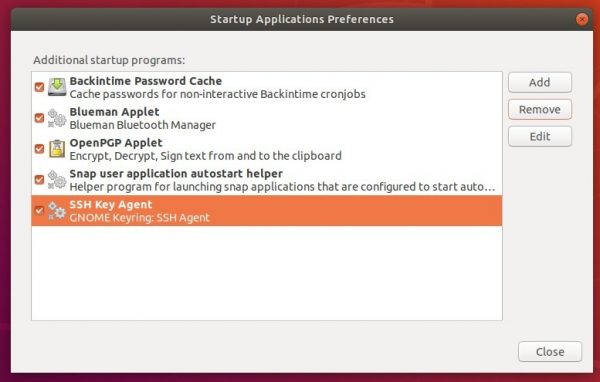
This quick tutorial shows beginners how to list and edit all startup applications or services in the Startup Applications utility in Ubuntu 18.04 and higher.
In the default Ubuntu Gnome desktop, there’s a Startup Applications utility allows to add, remove, or edit system startup applications or services.
While most startup apps or services are hidden, it shows only a few applications or even is empty.
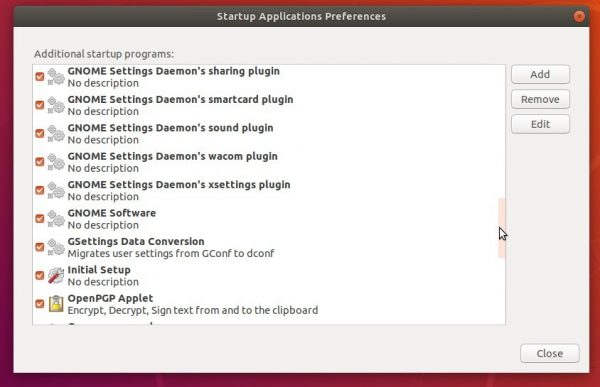
1. To display all hidden startup applications or services, simply open terminal (Ctrl+Alt+T) and run command:
sudo sed -i 's/NoDisplay=true/NoDisplay=false/g' /etc/xdg/autostart/*.desktop
Type user password when it prompts and hit Enter.
Then restart the utility and you’ll see a large list of applications. You MUST be careful as changing them may break your desktop.
2. And to hide them again, simply run command in terminal:
sudo sed -i 's/NoDisplay=false/NoDisplay=true/g' /etc/xdg/autostart/*.desktop
Add Razer headphone devices support for Razer Chroma
And various other changes.
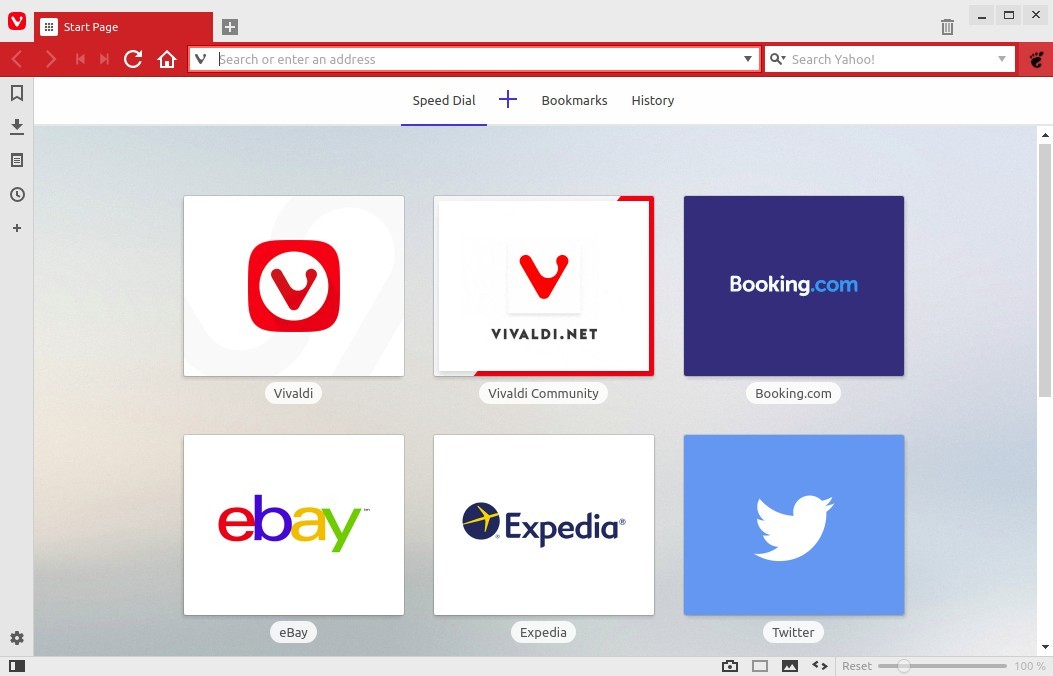
How to Install Vivaldi 2.6 in Ubuntu:
The official Ubuntu .DEB packages are available for download at the link below:
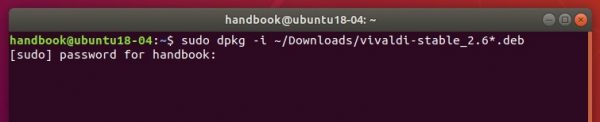
Grab the deb matches your OS, then install it via Ubuntu Software or Gdebi package manager. Or run command in terminal:
sudo dpkg -i ~/Downloads/vivaldi-stable_2.6*.deb
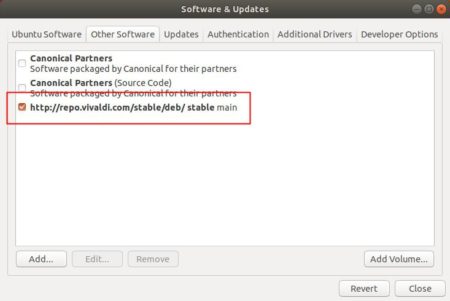
Vivaldi also has apt repository, with it you can install the browser and get future updates through Software Updater utility.
Open terminal either via Ctrl+Alt+T keyboard shortcut or by searching for terminal from application menu. When it opens, run following commands one by one:
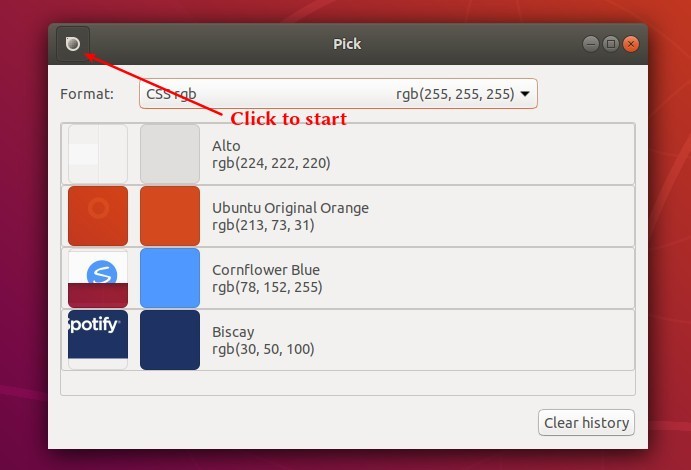
Pick is a simple open-source color picker application for Ubuntu Linux. It supports history by remembering last colors where you got them from.
Pick lets you pick colours from anywhere on your screen. Choose the colour you want and Pick remembers it, names it, and shows you a screenshot so you can remember where you got it from.
Zoom all the way in to pixels to pick just the right one. Show your colours in your choice of format: rgba() or hex, CSS or Gdk or Qt, whichever you prefer. Copy to the clipboard ready for pasting into code or graphics apps.
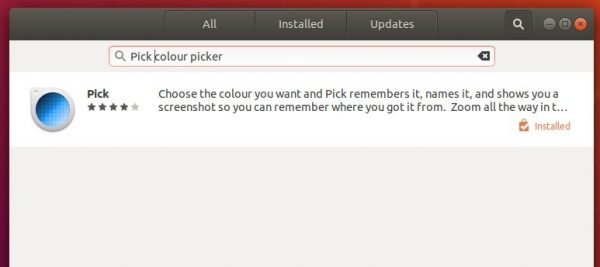
For Ubuntu 18.04 and higher, you can easily install the tool from Ubuntu Software as it has been made as snap package.
For Ubuntu 16.04, open terminal (Ctrl+Alt+T) and install snapd first:
sudo apt-get install snapd
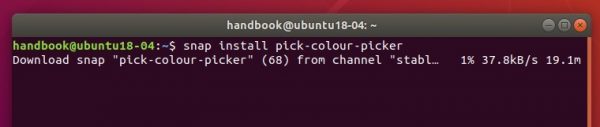
Then install the Pick color picker via command:
sudo snap install pick-colour-picker
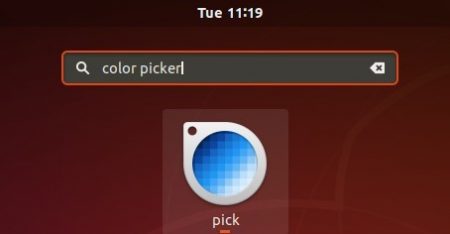
Once installed, launch the tool from application menu and enjoy.