Mari0, a fan-made video game that combines elements of Super Mario Bros and Portal, now is available to install in Ubuntu easily via Snap package.
Although there’s already a 2D jump and run game SuperTux available in Ubuntu Software, Mari0 is available as a complete from scratch recreation of Super Mario Bros, with puzzle game mechanics from Portal. It also features play 4-player coop, with everyone having their own Portal gun!
How to Install Mari0 in Ubuntu:
It’s quite easy to install the snap package (unofficial) in Ubuntu 18.04 and higher. Simply open Ubuntu Software, search for and install mari0.
For Ubuntu 16.04, open terminal either via Ctrl+Alt+T keyboard shortcut or from application menu. When it opens, install snapd via command:
sudo apt-get install snapd
Then install the game via command:
sudo snap install mari0
In addition, for allowing the game to use joystick, you need to run one more command:
sudo snap connect mari0:joystick
Uninstall:
To remove the game, simply run command in terminal:
Linus Torvalds announced the released of Kernel 5.0 yesterday afternoon. He wrote on lkml.org:
Ok, so the last week of the 5.0 release wasn’t entirely quiet, but it’s a lot smaller than rc8 was, and on the whole I’m happy that I delayed a week and did an rc8.
It turns out that the actual patch that I talked about in the rc8 release wasn’t the worrisome bug I had thought: yes, we had an uninitialized variable, but the reason we hadn’t immediately noticed it due to a warning was that the way gcc works, the compiler had basically initialized it for us to the right value. So the same thing that caused not the lack of warning, also effectively meant that the fix was a no-op in practice.
But hey, we had other bug fixes come in that actually did matter, and the uninitialized variable _could_ have been a problem with another compiler.
Regardless – all is well that ends well. We have more than a handful of real fixes in the last week, but not enough to make me go “Hmm, things are really unstable”. In fact, at least two thirds of the patches are marked as being fixes for previous releases, so it’s not like 5.0 itself looks bad.
…
Changes in Linux Kernel 5.0 include:
AMD Radeon FreeSync support
Logitech High Resolution Scrolling support
Raspberry Pi Touchscreen support out of the box.
New console font for HiDPI and retina screens.
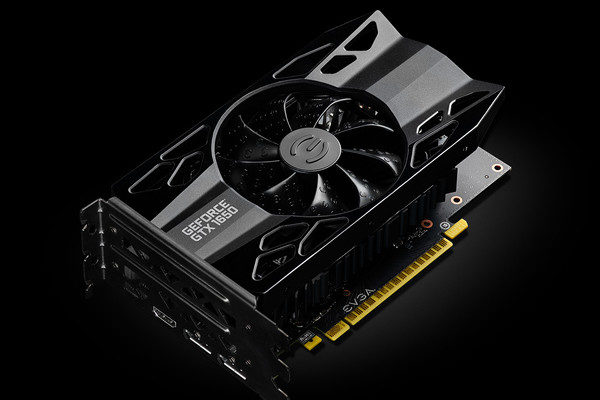
Initial support for NVIDIA Turing GPUs
And numerous other changes
How to Install Linux Kernel 5.0 in Ubuntu:
The mainline kernel packages for Linux 5.0 are available for download at the link below:
Depends on your OS type, download and install the packages in turns:
Select generic for common system, and lowlatency for a low latency system (e.g. for recording audio), amd64 for 64bit system, i386 for 32bit system, or armhf, arm64, etc for other OS types.
Alternatively you can download and install the kernel binaries via terminal commands (Ctrl+Alt+T):
Restart your machine and select boot with the previous kernel in boot menu ‘Grub2 -> Advanced Option for Ubuntu’. Then run command to remove Linux Kernel 5.0:
Free score writer MuseScore 3 was released a few months ago. Finally the official PPA for MuseScore 3 is available for Ubuntu 18.04, Ubuntu 18.10, and higher.
MuseScore 3 is a new major release that features automatic placement, brand new Mixer and Piano Roll, dark theme, notation improvements, and many other changes.
MuseScore 3 and MuseScore 2.3 can co-exist on one machine. Installation of the MuseScore 3 will create the association with .mscz/.mscx files, but you can keep using both versions of MuseScore on one machine.
How to Install MuseScore 3 via PPA in Ubuntu:
While MuseScore PPA contains the latest 2.3.x packages, a new official PPA for MuseScore 3 was created. You can do following steps to add the PPA and install the score writer.
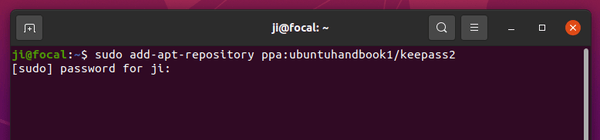
1. Open terminal either via Ctrl+Alt+T keyboard shortcut or by searching for ‘terminal’ from application menu. When it opens, run command to add the PPA:
OBS Studio, free live streaming and screen recording software, released version 23.0 recently with many new features. Here’s how to install it in Ubuntu 16.04, Ubuntu 18.04, Ubuntu 18.10.
3. Now you can install OBS-Studio via Synaptic package manager, upgrade the software from an existing release via Software Updater, or simply run commands one by one:
New parameter default_ai_algorithm for setting the default AI
New parameter mp_rank for setting the order in which AIs appear in the MP computer player selection menu
New option “Keep saved AI” when reloading games from the MP Create Game screen.
Fix Lua AIs using the ai.stopunit_*() functions potentially creating infinite candidate action loops
Many fixes and improvements to campaigns.
Miscellaneous and bug fixes
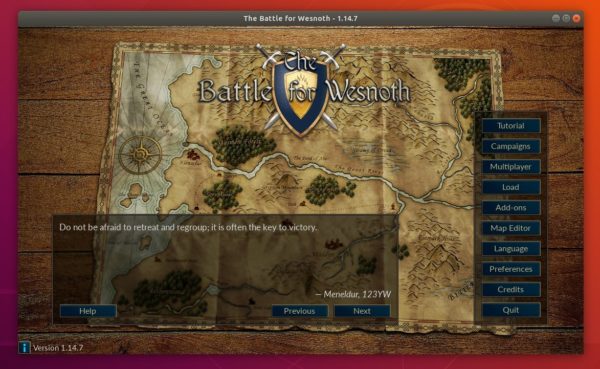
How to Install Battle for Wesnoth 1.14.6 in Ubuntu:
The new release package has been made into Flatpak package, available to install via the Flathub repository.
1. (For Ubuntu 16.04 only), open terminal either via Ctrl+Alt+T keyboard shortcut or by searching for ‘terminal’ from app launcher. When it opens, run command:
After testing for a period of time, OnlyOffice Desktop Editors snap package goes stable for Ubuntu and other Linux desktops.
“ONLYOFFICE Desktop Editors is a free office suite that combines text, spreadsheet and presentation editors allowing to create, view and edit documents stored on your Windows/Linux PC or Mac without an Internet connection. It is fully compatible with Office Open XML formats: .docx, .xlsx, .pptx.”
The snap is a containerized software package (runs in sandbox) runs in most Linux desktops. It bundles most required libraries and auto-updates itself.
For Ubuntu 18.04 and higher, simply open Ubuntu Software, search for and install onlyoffice:
For Ubuntu 16.04, first install snapd daemon by opening terminal (Ctrl+Alt+T) and then running command:
sudo apt install snapd
Then install OnlyOffice Desktop Editors via command:
sudo snap install onlyoffice-desktopeditors
Like normal software, open OnlyOffice from your system app launcher.
Uninstall:
To remove the software, either use Ubuntu Software, or run command in terminal:
This quick tutorial is for those who want to install the latest Python 3.7.2 in Ubuntu 18.04 LTS, Linux Mint 19.x, and Ubuntu 18.10.
Ubuntu 18.04 comes with Python 2.7 and Python 3.6 out-of-the-box, and later includes Python 3.7.1 in its updates (universe) repository.
For the updated Python 3.7.2, you can do following steps to use the ToolChain PPA packages.
1. Open terminal either via Ctrl+Alt+T keyboard shortcut or by searching for “Terminal” from app launcher. When it opens, run command to add the ToolChain PPA:
Type user password (no visual feedback) when it asks and hit Enter to continue.
2. Then run command to install Python3.7:
sudo apt install python3.7
For Linux Mint 19.x, run command sudo apt update to check updates first.
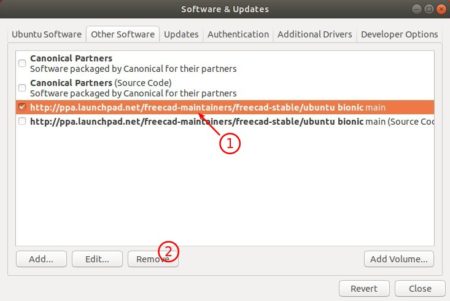
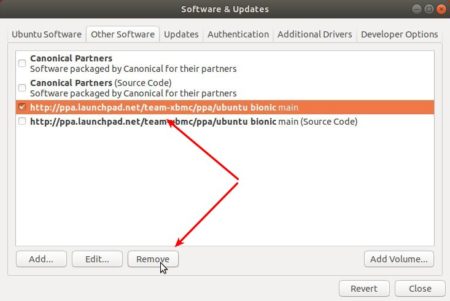
3. As the PPA contains other updates toolchain packages, e.g., gcc-7.4.0, gcc-8.2.0, and python-3.6.8, you may remove the PPA afterwards via Software & Updates -> Other Software tab.
4. To make python3 use the new installed python 3.7.2 instead of the default 3.6.7, run commands to add python3.7 as choice: