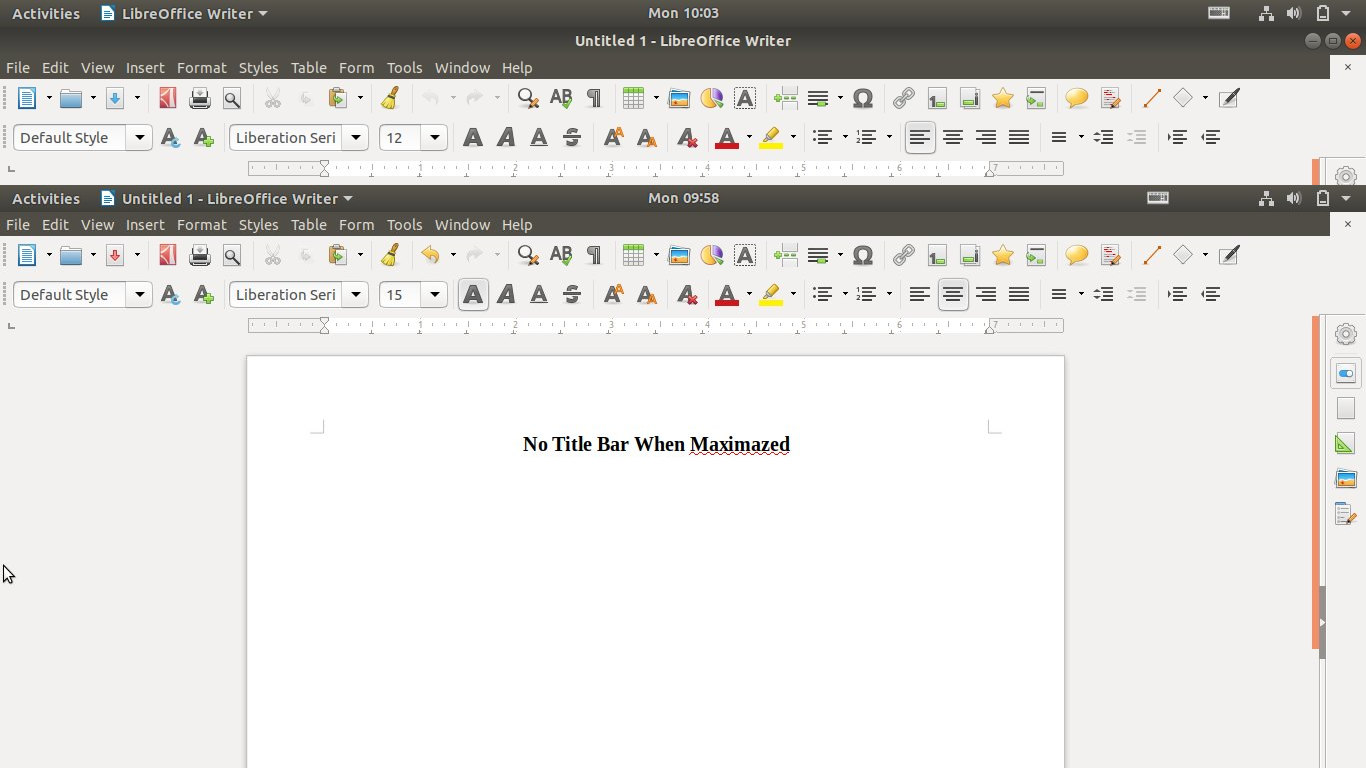
For Ubuntu 18.04 default Gnome desktop, this quick tutorial is going to show you how to integrates maximized application window with the top panel, by removing the title bar, and moving the title and buttons to the top panel.
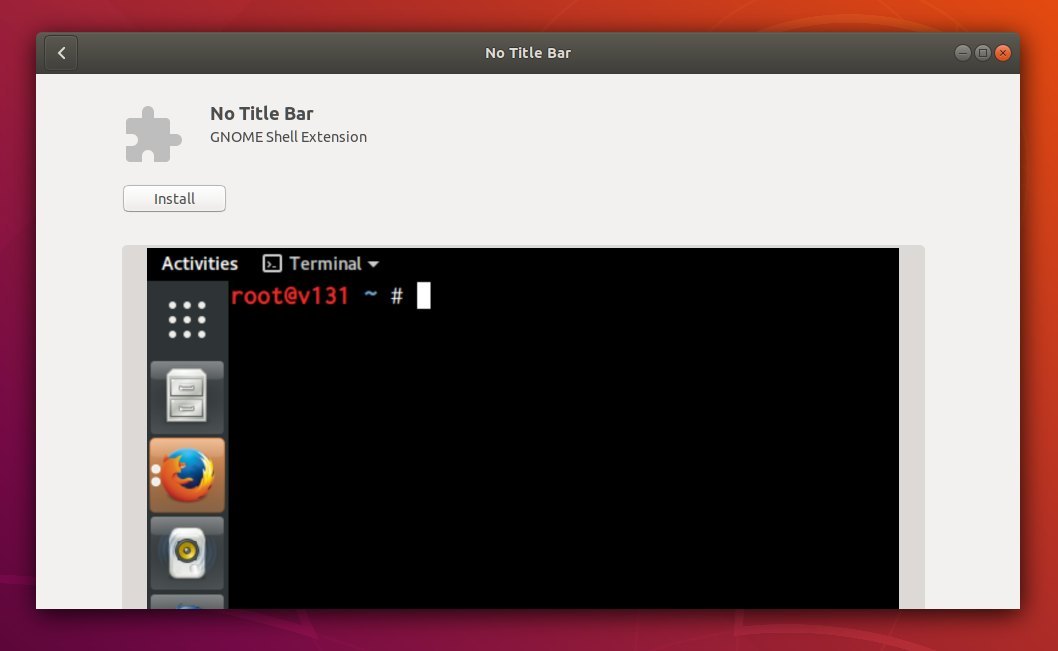
All the work can be done via Gnome Shell extension called No Title Bar.
1. Open Ubuntu Software, search for and install No Title Bar extension.
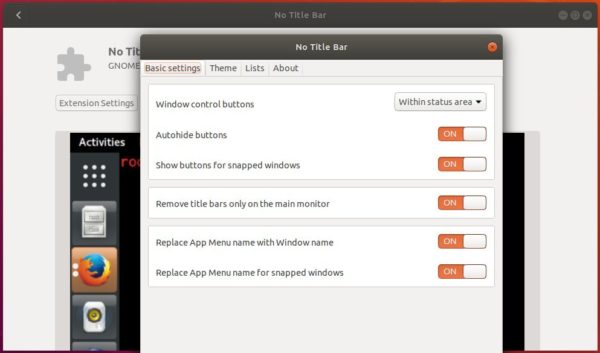
2. The extension takes effect once you installed it. To tweak the appearance, click Extension Settings in Ubuntu Software.
The extension does not work for Gnome 3.30 at the moment, Ubuntu 18.10 users can build it from the source code.
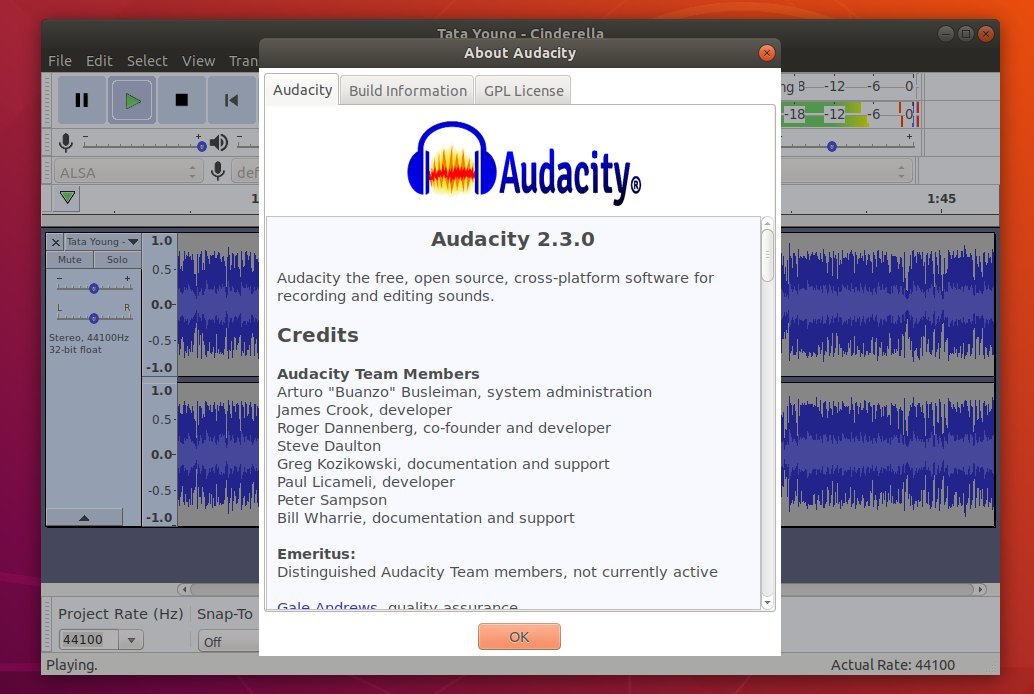
Audacity audio editor and recorder 2.3.0 was released one day ago. Here’s how to install it in Ubuntu 18.10, Ubuntu 18.04, Ubuntu 16.04, Linux Mint 18 and 19.
New features in Audacity 2.3.0 according to the release note:
New feature – “Punch and Roll Recording”
Pinned-play-head can now be repositioned by dragging
Play-at-speed now can be adjusted whilst playing.
Toolbars controlling volume and speed can now be resized for greater precision
Macros (formerly ‘Chains’) substantially extended
New Macro palette
Macros can be bound to keyboard keys
New commands: New ‘Tools’ menu, and new ‘Scriptables’ commands
Nyquist gains AUD-DO command
Nyquist effects are now translatable and translated
More dialogs have help buttons now
Increased legibility of trackname display
Half-wave option for collapsed tracks
Sliding Stretch
Dialog (option) for entering labels
And numerous bug-fixes.
How to Install Audacity 2.3.0 in Ubuntu:
For Ubuntu 16.04 and higher, the new release package can be easily installed from this third-party PPA.
1. Open terminal via Ctrl+Alt+T or by searching for ‘terminal’ from app launcher. When it opens, run command:
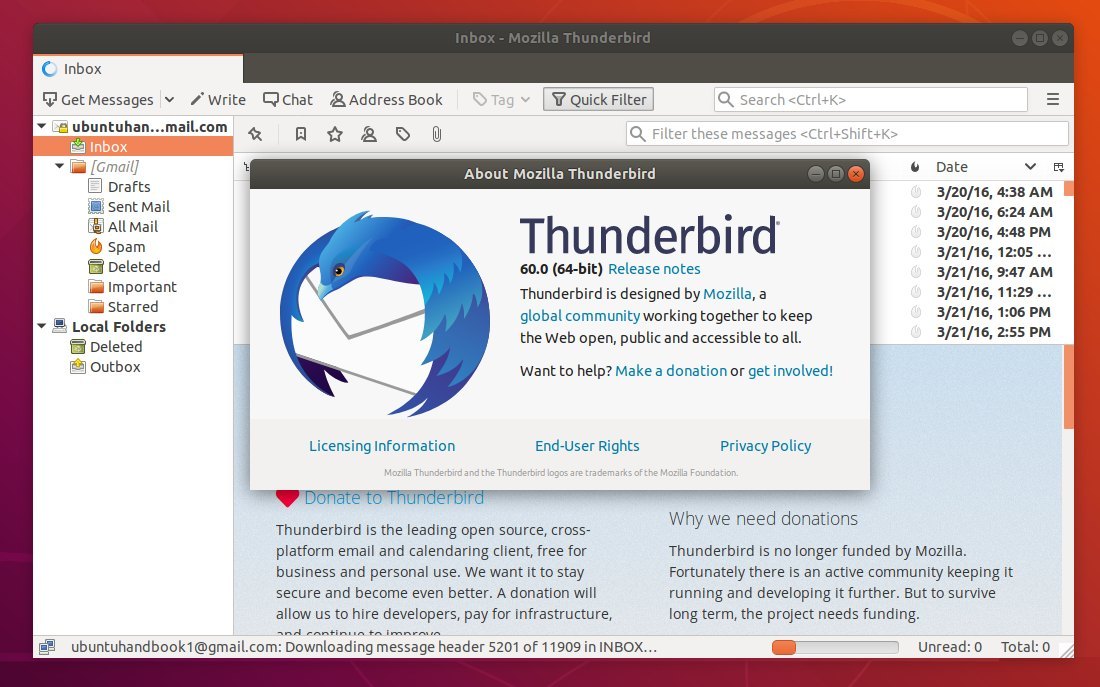
Thunderbird email client 60 stable is finally available via Mozilla Team Stable PPA for Ubuntu 18.04, Ubuntu 16.04, Ubuntu 14.04, Ubuntu 18.10, and their derivatives.
Thunderbird 60 was released one month and a half ago with following exciting new features:
New application logo
New “Photon” UI with rectangular tabs
Optional ‘light’ and ‘dark’ themes
Supports WebExtensions
New “Add-on Options” in Tools menu
Calendar events now display location
Native notifications on Linux
Improved email attachment UX
Compose window has button to delete email recipient(s)
Set the update interval for individual RSS feeds
OAuth2 authentication for Yahoo and AOL
FIDO U2F support
How to Install Thunderbird 60 in Ubuntu via PPA:
Open terminal either via Ctrl+Alt+T keyboard shortcut or by searching for ‘terminal’ from software launcher. When it opens, do following steps to add the Mozilla Team PPA and install Thunderbird 60.
1. Paste the command in terminal and hit run to add the PPA:
sudo add-apt-repository ppa:mozillateam/ppa
Type your password (no asterisks feedback) when it prompts and hit Enter.
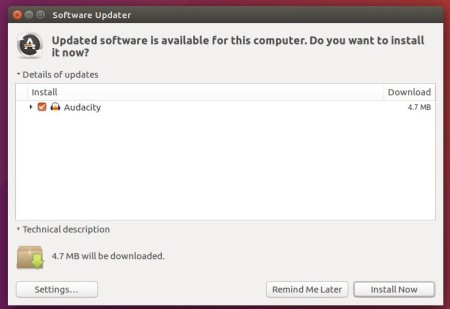
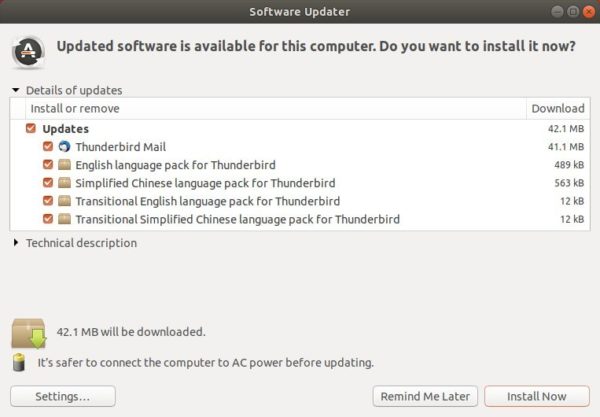
2. Then launch Software Updater and you’ll see the software updates after checking for update.
Or run following command one by one to refresh repository cache and install software updates:
sudo apt-get update

sudo apt-get dist-upgrade
Uninstall:
To downgrade Thunderbird to the stock version in Ubuntu universe repository, run command to purge the PPA:
HPLIP 3.18.9, HP developed Linux drivers for HP inkjet and laser based printers, was released today with new Linux Distros and new printers support.
HPLIP 3.18.9 added support for Linux Mint 19 and Debian 9.5. Also there are new supported printers:
HP PageWide 755dn
HP PageWide MFP 774dns
HP PageWide MFP 774dn
HP PageWide MFP 779dns
HP PageWide MFP 779dn
HP LaserJet Pro MFP M148dw
HP LaserJet Pro MFP M149dw
HP LaserJet Pro MFP M148fdw
HP LaserJet Pro MFP M149fdw
HP LaserJet Pro M118dw
HP LaserJet Pro M119dw
HP Scanjet Ent Flow 7500
Download / Install HPLIP 3.18.9 in Ubuntu:
To install the software, download the package “hplip-3.18.9.run” from the link below:
Then open terminal either via Ctrl+Alt+T or search for “terminal” from app launcher. When it opens, run command:
cd ~/Downloads/ && chmod +x hplip-3.18.9.run && ./hplip-3.18.9.run
Type your user password (no asterisks feedback) when it prompts and hit Enter.
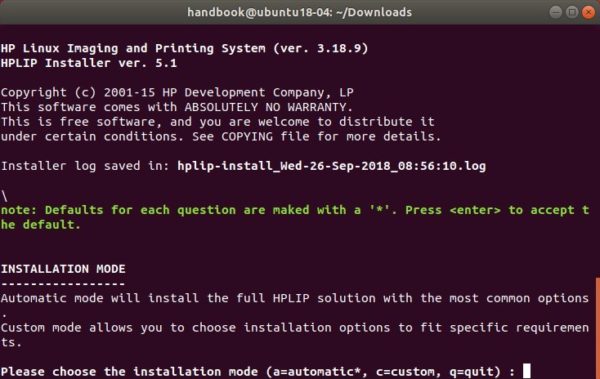
Then follow the terminal prompts, answer some questions to build and install HPLIP on your system. When everything is done, plug/re-plug your printers and enjoy!
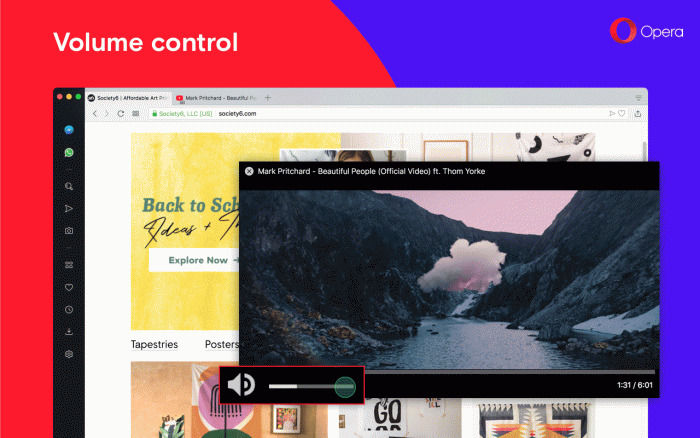
Hover over the title of pop out video and click back to tab.
Add new option in Settings > Advanced > Browser > User interface for the scroll to the top of the page feature
Add a page zoom indicator in the address and search bar when the zoom level for a page changed.
Easy bug reporting via O menu > Help > Report an issue.
Redesigned about page, and tidied up the settings.
How to Install Opera 56 in Ubuntu:
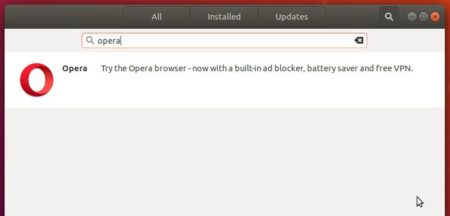
The Opera team offers snap package (containerised software package), which is always up-to-date (auto-updates itself). And you can simply install it in Ubuntu Software:
Also traditional Opera binary package for Ubuntu is available for download at the link below:
To receive future updates through Software Updater, add the official Opera apt repository via following steps:
1. Open terminal (Ctrl+Alt+T) and run command to add the opera repository:
sudo sh -c 'echo "deb http://deb.opera.com/opera-stable/ stable non-free" >> /etc/apt/sources.list.d/opera.list'
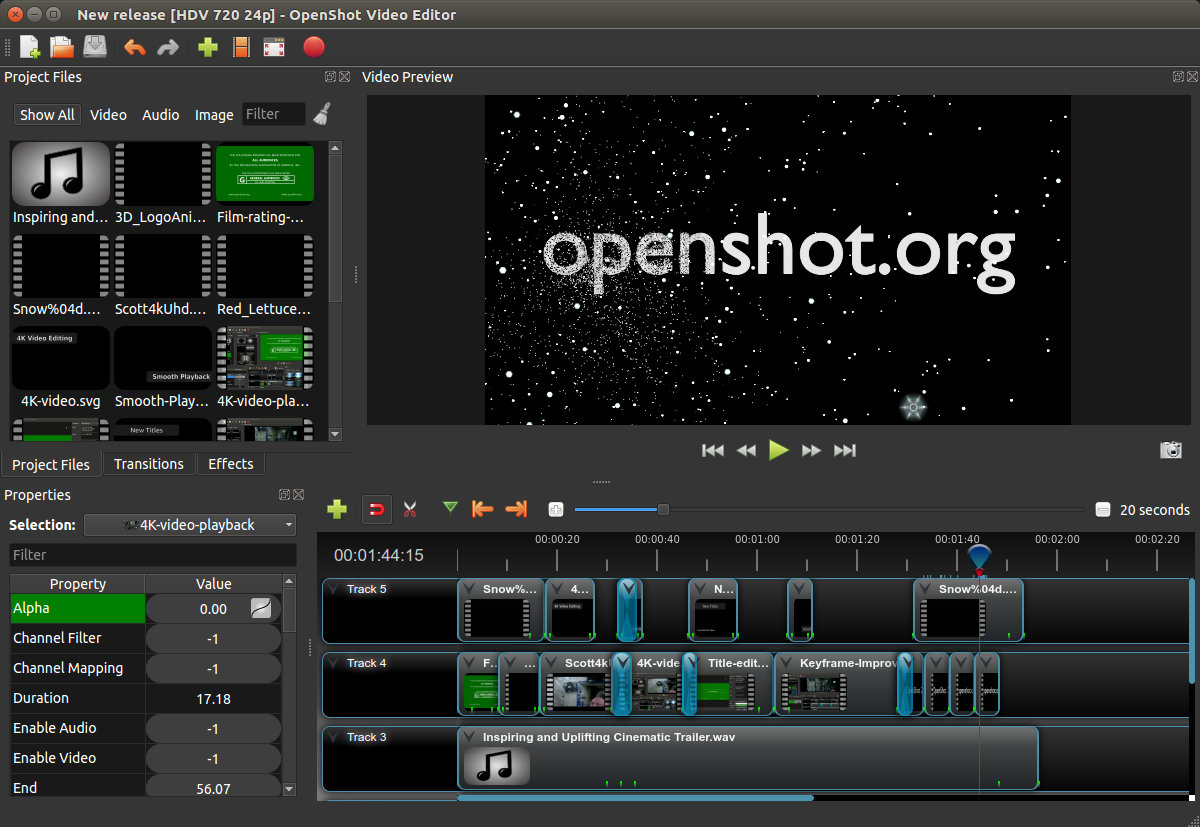
OpenShot video editor 2.4.3 was released a few days ago with animated Masks, nudge, zoom fixes, improved stability, and more.
OpenShot 2.4.3 release highlights:
Masks and transitions can now be modified at any time, and can now use an image or video! This utilizes the grayscale of each frame and converts it into a mask, and can be used to create some really amazing effects.
Threading improvements help prevent crashing around effects (including masks and transitions), and improve performance on many systems.
Save frame button for quickly saving the current preview frame
Huge improvement to language translations (Thanks to Frank Dana – ferdnyc)
Animated Masks: New “reader” property type, initially used by the Mask effect to change the image/video used by transitions and the Mask effect
Add Save Current Frame button.
New translation & language infrastructure and logic.
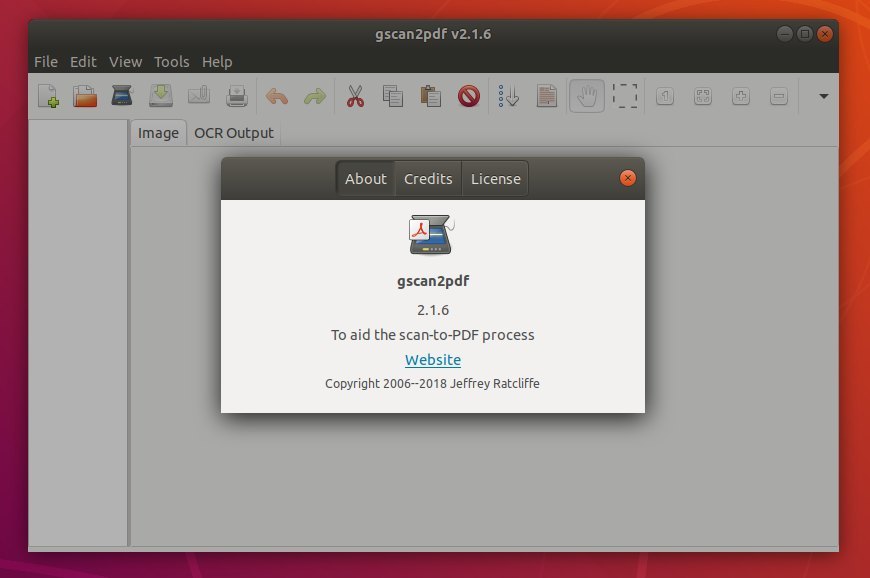
Gscan2pdf 2.1.6, a GTK tool to produce PDF / DjVu from scanned document, was released today with few quick fixes.
According to the changelog, Gscan2pdf 2.1.6 fixed the issue that application exits on pressing “Start OCR” for Tesseract. In the release, it also fixed opening UDT and unpaper dialog windows.
How to Install gscan2pdf 2.1.6 in Ubuntu:
The official Ubuntu PPA has made the new release packages for Ubuntu 16.04, Ubuntu 18.04, Ubuntu 18.10, and their derivatives.
1. Open terminal either by pressing Ctrl+Alt+T on keyboard or searching for ‘terminal’ from software launcher. When it opens, run command to add the PPA:
sudo add-apt-repository ppa:jeffreyratcliffe/ppa
Type your password (no asterisks feedback due to security reason) when it prompts and hit Enter.
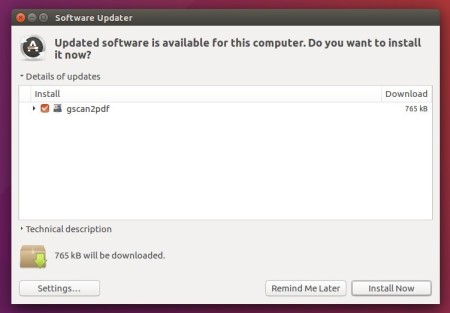
2. For those who have a previous release installed, upgrade it through Software Updater:
For the first time, you can either install it via Synaptic Package Manager or by running following commands in terminal:
This quick tutorial is for those who want to remove the top and left panel, instead use Microsoft Windows style a single bottom panel in Ubuntu 18.04 Gnome desktop.
Without installing other desktop environments, e.g., Cinnamon and KDE, this can be done easily via Gnome shell extensions called dash to panel.
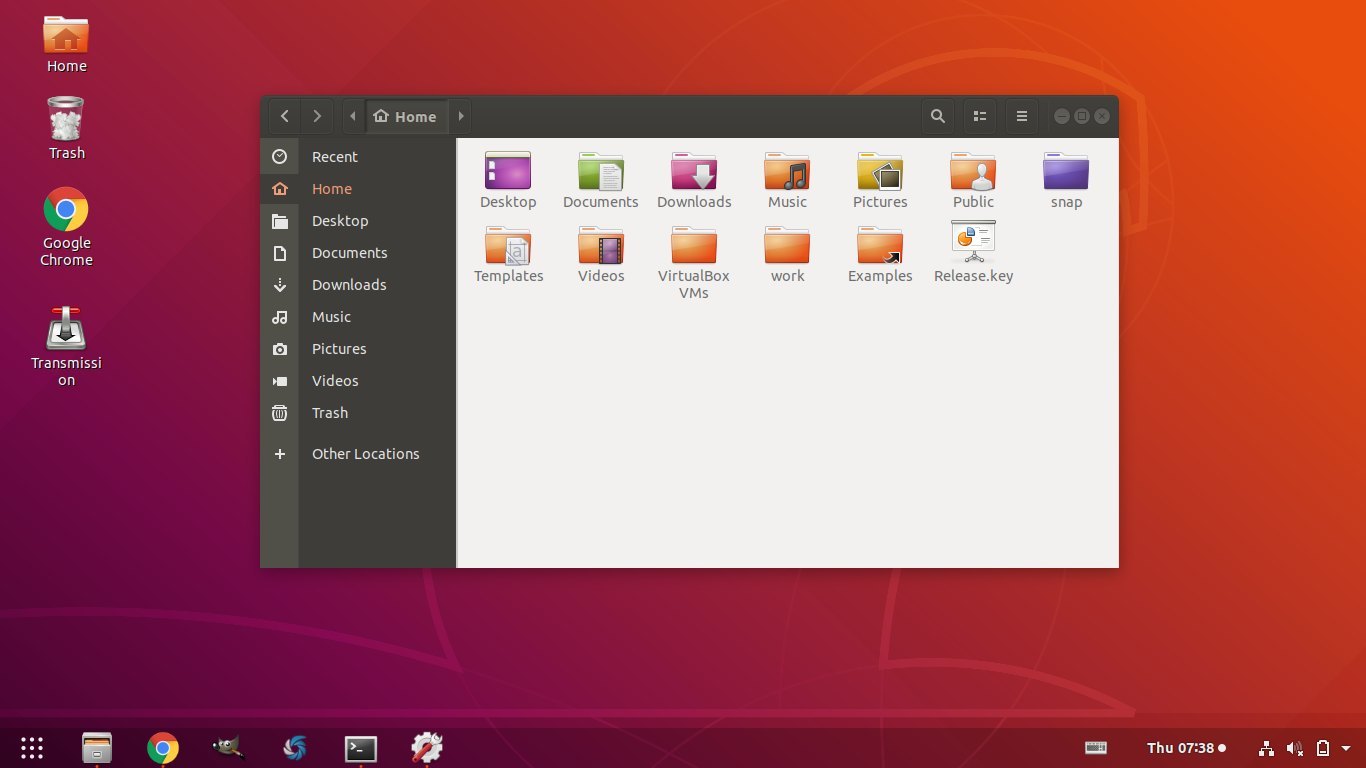
Dash to panel combines the top panel and left dock launcher into one single panel. So your Ubuntu deskop will look like:
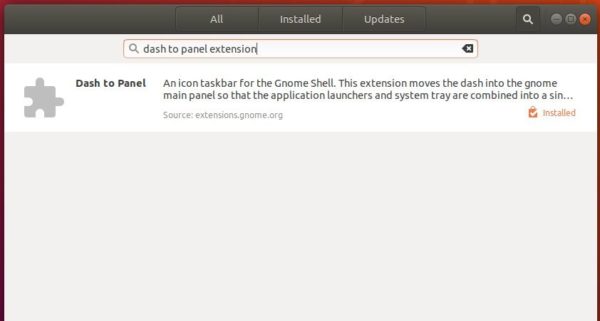
1. To install the extension, search for and install Dash to Panel extension in Ubuntu Software utility:
Once installed, restart your machine to apply changes.
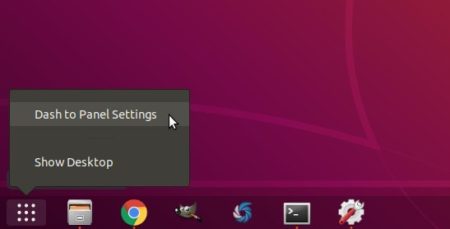
2. To configure the panel appearance, either use Gnome Tweaks or right-click on application menu and select “Dash to Panel Settings”.