Archives For Howtos

VLC 3.0 Released! Install it is Quite Easy Now

Last updated: February 10, 2018

VLC media player reached new major 3.0 release a day ago. Now you can directly install the latest VLC in Ubuntu Software utility.

VLC 3.0 “Vetinari” features:

  • VLC 3.0 activates hardware decoding by default, to get 4K and 8K playback!
  • It supports 10bits and HDR
  • VLC supports 360 video and 3D audio, up to Ambisoncics 3rd order
  • Allows audio passthrough for HD audio codecs
  • Can stream to Chromecast devices, even in formats not supported natively
  • Can play Blu-Ray Java menus: BD-J
  • VLC supports browsing of local network drives and NAS

How to Install VLC 3.0 in Ubuntu:

VLC 3.0 is available as snap, the universal Linux app packaging format, for Ubuntu 16.04, Ubuntu 17.10, Ubuntu 18.04.

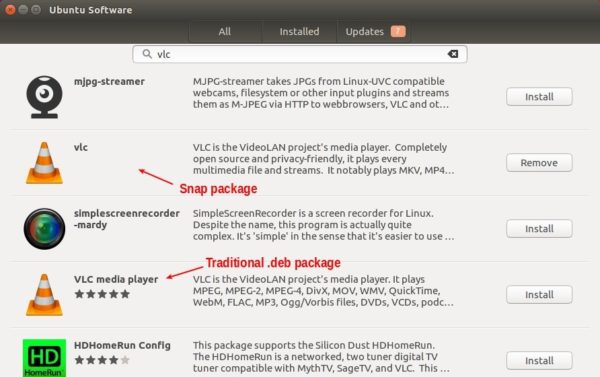
Open Ubuntu Software utility, search for and install VLC, though there are two versions available.

As an alternative, you can run command in terminal to install the snap:

snap install vlc

The snap is kinda large in file size since it contains all required run-time libraries.

Uninstall traditional VLC package:

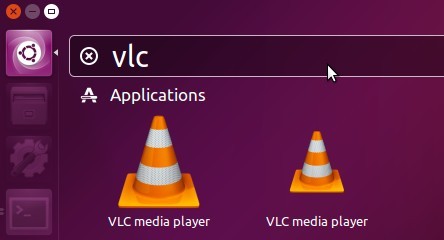
If you’ve a previous version of VLC media player installed, you’ll have two launcher icons and two VLC options in video files’ open with menu.

So you may want to remove the old traditional VLC package via Synaptic Package Manager, Ubuntu Software, or by running command:

sudo apt-get remove --autoremove vlc

LibreOffice office suite reached the 6.0 release more than a week ago. Now it’s finally made into LibreOffice Fresh PPA for Ubuntu 16.04, Ubuntu 17.10, Ubuntu 18.04.

Though LibreOffice offers .deb binaries for downloading in its website, it’s recommended to install the PPA packages which are well integrated with Ubuntu desktop.

LibreOffice 6.0 release highlights:

  • Better compatibility with Microsoft Office documents
  • Support for standards-compliant PDF forms within Writer
  • Experimental Notebookbar and other user-interface improvements
  • OpenPGP can now be used to sign ODF documents
  • OOXML interoperability improvements
  • Ability to save documents as ePub ebook files
  • And many more other changes, see the announcement for details.

How to Install LibreOffice 6.0 via PPA in Ubuntu:

Open terminal either via Ctrl+Alt+T keyboard shortcuts, or by searching for “terminal” from application launcher. When it opens, do:

1. Run command to add the LibreOffice Fresh PPA:

sudo add-apt-repository ppa:libreoffice/ppa

Input your password (no visual feedback while typing) when it prompts, and read terminal output for PPA description and hit Enter to continue.

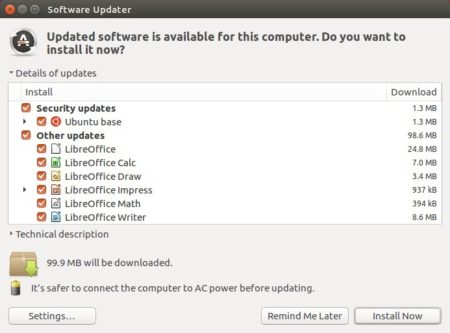
2. Then you’ll see the upgrade available in Software Updater after checking for updates.

The LibreOffice upgrading process may be kept back. If so, run following commands instead in terminal after added the PPA:

sudo apt-get update

sudo apt-get dist-upgrade

Uninstall:

You can restore to stock version of LibreOffice in Ubuntu main archive by running command in terminal:

sudo apt-get install ppa-purge && sudo ppa-purge ppa:libreoffice/ppa

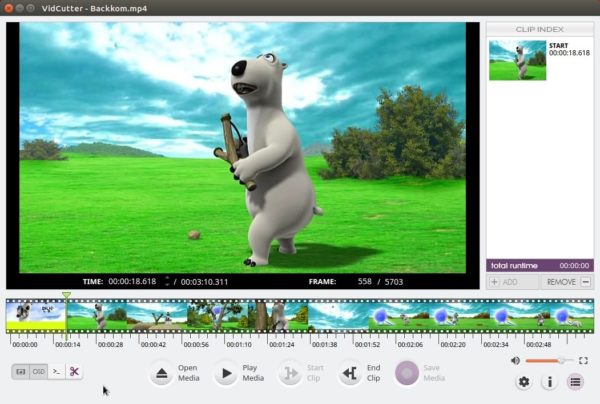
VidCutter, a simple Qt5 video cutting and joining software, reached 5.5.0 release earlier today with most requested feature media stream support.

VidCutter 5.5.0 release highlights:

  • Media stream support for use when clips are all derived from the same source media OR media files added manually all share the same codecs, formats, etc.
  • Migrated main toolbar buttons from QToolBar + QActions to new custom widget VCToolBarButton handling QPushButton with attached.
  • Tools section added to settings for setting paths to three main tools used by VidCutter
  • Ability to set clip index list to the left or right (default) of main window.
  • Support for WTV (.wtv – Windows Recorded TV Show) media files
  • Required dependency of PyOpenGL for users on slightly older Ubuntu, Fedora
  • Fullscreen mode rewrite for Qt 5.10 changes + better support in wayland.
  • OpenGL helpers added to X11 and Wayland based Linux platforms
  • Updated keyboard shortcuts to include some added keyboardand mouse based shortcuts.

How to Install VidCutter 5.5.0 in Ubuntu:

For Ubuntu 16.04, Ubuntu 17.10, Ubuntu 18.04, the new release can be installed via its official PPA.

1. Open terminal either via Ctrl+Alt+T or by searching for ‘terminal’ form app launcher. When it opens, run command:

sudo add-apt-repository ppa:ozmartian/apps

Input your password (no visual feedback while typing) when it prompts and hit Enter.

2. Then install Vidcutter either via your system package manager or run commands:

sudo apt-get update

sudo apt-get install vidcutter

For other Ubuntu editions and Linux distributions, an executable file Appimage (make executable in file Properties -> Permissions) is available for download in the above link.

Uninstall:

To remove the PPA, open ‘Software & Updates’ utility and navigate to Other Software tab.

To remove the video cutting software, either use your system package manger or run command:

sudo apt-get remove --autoremove vidcutter

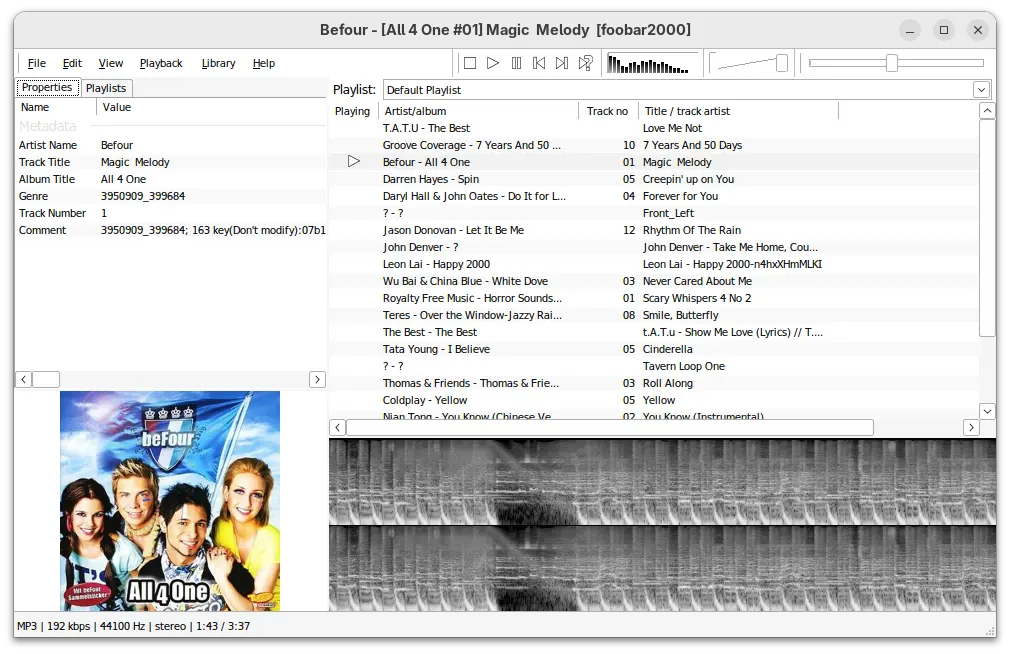
Foobar2000, the popular music player for Windows platform, now can be easily installed in Ubuntu via snap, the universal Linux app packaging format.

This is a Wine based snap package maintained by an open-source project. With it, you can simply install it either via App Center (or Ubuntu Software) or by running a single command.

1. For old Ubuntu 16.04, you need to first open terminal (Ctrl+Alt+T) and run command to install the snapd daemon package:

sudo apt install snapd snapd-xdg-open

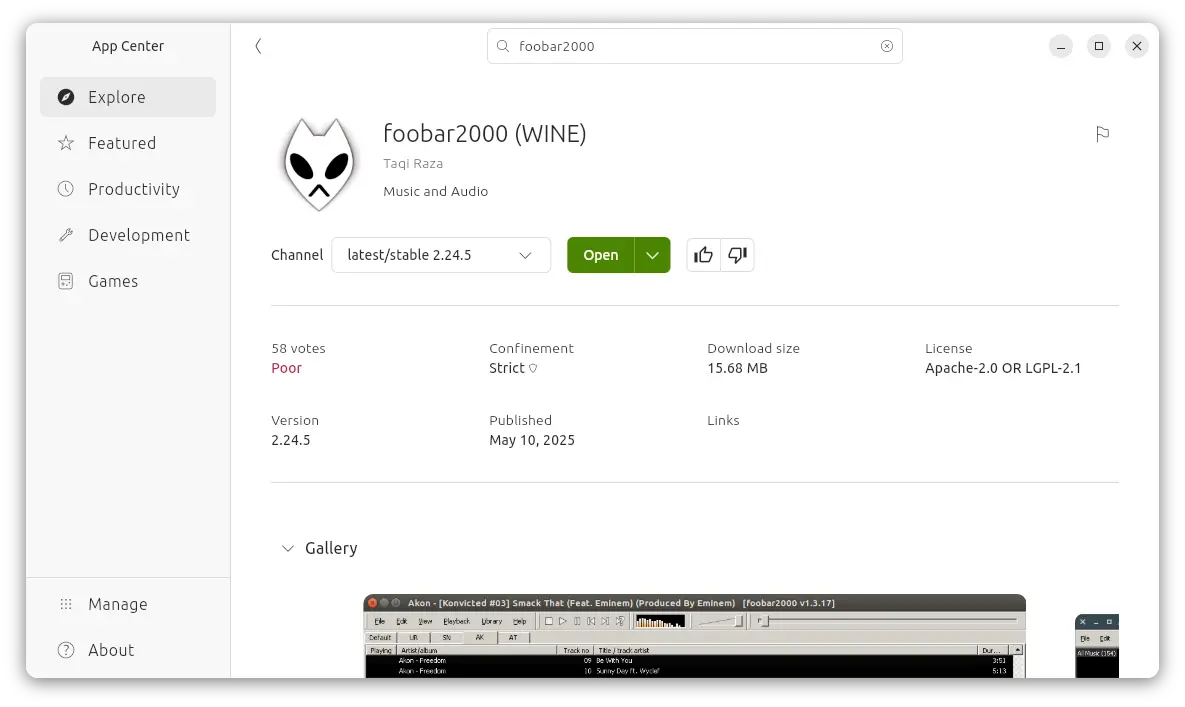
2. For Ubuntu 20.04, 22.04, 24.04, and higher, Snap is pre-installed. You may either search & install Foobar2000 from Ubuntu Software or App Center:

Or, run the command below instead to install from terminal window:

snap install foobar2000 --classic

--classic flag is required to be able to access files outside the installation directory.

3. (no longer requires in current Ubuntu releases) To make it work, you still need to run following 3 commands one by one:

sudo snap connect foobar2000:hardware-observe core:hardware-observe

sudo snap connect foobar2000:process-control core:process-control

sudo snap connect foobar2000:cups-control core:cups-control

Finally launch the music player from application launcher (may need re-login) and enjoy, though the UI is kinda age-old.

Uninstall:

To remove foobar2000 snap package, either use Ubuntu Software or run command in terminal:

snap remove --purge foobar2000

Wine 3.1, the first development release towards the next Wine 4.0 stable, was released released a few days ago.

Wine 3.1 features:

  • Kerberos authentication support.
  • Window class redirection for Common Controls 6.
  • Support for X11 ARGB visuals.
  • DOSBox required for running DOS executables.

Also there are 29 bug-fixes range from fixing Qt5 applications to Grand Theft Auto V issues to Doom 4 / DOOM 2016 problems and other gaming issues.

How to Install Wine 3.1 in Ubuntu:

For Ubuntu 14.04, Ubuntu 16.04, Ubuntu 17.10, Linux Mint 17.x and 18.x, open terminal via Ctrl+Alt+T and run following commands one by one:

1. Add the official wine repository via command:

sudo apt-add-repository https://dl.winehq.org/wine-builds/ubuntu/

For Linux Mint 18.x, use following command instead to add the repository:

sudo apt-add-repository 'deb https://dl.winehq.org/wine-builds/ubuntu/ xenial main'

For Linux Mint 17.x, replace xenial in the code with trusty.

2. Install the GPG key to be able to receive software updates:

wget -nc https://dl.winehq.org/wine-builds/winehq.key && sudo apt-key add winehq.key

3. Finally update and install the latest Wine development release:

sudo apt-get update

sudo apt-get install --install-recommends winehq-devel

Uninstall:

To remove wine dev release, simply run command in terminal:

sudo apt-get remove --autoremove winehq-devel

And you can remove the repository via Software & Updates utility under Other Software tab.

The fourth update for the IntelliJ IDEA 2017.3 was released a few days ago with a whole variety of improvements.

The most notable bug-fixes in IntelliJ IDEA 2017.3.4 include:

  • Roll back the fix for the UI upper scale limit on Linux (because of regressions)
  • Allow to choose test runner even when “Delegate IDE build/run action to gradle” enabled.
  • Now renaming a module is reflected in the dependent module’s file (.iml)
  • Allow to use TAB key to jump to the Result pane in the Evaluate Expression window.
  • Fix the issue with Gradle silent import doing nothing when the Gradle JDK is invalid
  • The Show Local Changes as UML action doesn’t let you scroll infinitely
  • Unlimited resizing in Diagrams when scrolling with the mouse wheel has been fixed
  • New shortcuts Shift + Del and Сtrl + X (cmd + X) to the remove results action in the Find Tool Window

How to Install IntelliJ IDEA 2017.3.4 in Ubuntu:

method 1: Download official Linux package (NON-INSTALL), extract and run the executable to launch the IDE:

method 2: The Jetbrains team also provides snap, the universal Linux app packaging format, for Ubuntu Linux.

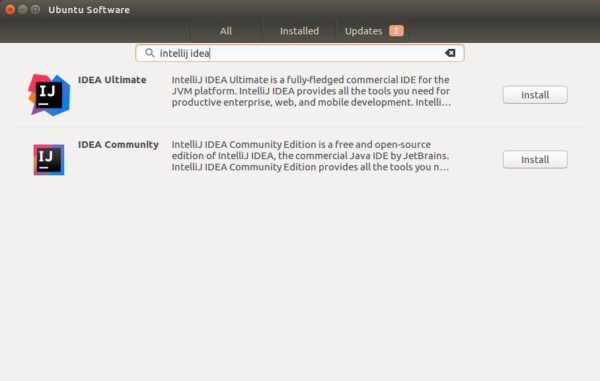
For Ubuntu 16.04 (need to install snapd first), Ubuntu 17.10, and higher, the latest snap app can be easily installed via Ubuntu Software.

Or you can open terminal via Ctrl+Alt+T or by searching ‘terminal’ from app launcher. And run command:

sudo snap install intellij-idea-community --classic

Replace intellij-idea-community with intellij-idea-ultimate for ultimate edition. And type your password (no visual feedback) when it asks.

Uninstall:

For the snap packages, you can either remove them from Ubuntu Software, or by running command in terminal:

snap remove intellij-idea-community intellij-idea-ultimate

You Can Now Install Skype in Ubuntu via Snap

Last updated: February 1, 2018

Skype for Linux now is available as snap, the universal Linux app packaging format, with easy install and automatic updates.

London, UK – 1st February 2018 – Canonical, the company behind Ubuntu, announces today that Skype is now available as a snap, the universal Linux app packaging format. Available as of today, the release means that Skype can deliver its communication service to a wider range of Linux users, including millions on Ubuntu.“, it’s announced in Ubuntu Insights.

For Ubuntu 16.04 users who’ve never installed a snap package, first install snapd daemon in terminal (Ctrl+Alt+T):

sudo apt-get install snapd snapd-xdg-open

The snap package can be installed directly from Ubuntu Software. At the moment, it’s skype 8.14.0.10:

You can also open terminal and run command to install the snap:

snap install skype --classic

And the snap automatic updates itself when a new release is out and published.

To launch Skype, search it from application launcher (may need re-login) or run command:

/snap/bin/skype

Uninstall:

To uninstall the snap, either use Ubuntu Software or run command:

snap remove skype

The Vivaldi web browser reached the new stable 1.14 release earlier today.

Vivaldi 1.14 features:

  • Vertical reader mode for users of Chinese, Japanese and Korean languages.
  • Add Markdown support to Notes
  • Add the ability to customize the order of the Web Panels in the sidebar.
  • Ability to change order of search engines
  • Also various bug-fixes. See release note for details.

How to Install Vivaldi 1.14 in Ubuntu:

The official DEB binaries are available in the link below:

Grab the deb matches your OS, then install it via Ubuntu Software or Gdebi package manager. Or run command in terminal:

sudo dpkg -i ~/Downloads/vivaldi-stable_1.14*.deb; sudo apt-get -f install

NOTE that for those prefer upgrading Vivaldi from its official apt repository, Vivaldi 1.14 is held back due to a proprietary media support issue, read HERE for details.

Adobe Brackets 1.12 Released! How to Install

Last updated: January 30, 2018

Adobe Brackets code editor 1.12 was released hours ago. Here’s how you can install it in Ubuntu desktop.

With Brackets 1.12, you can easily restructure JavaScript code using Refactor capabilities in Brackets. You can also rename, wrap in Try/Catch or Condition, Extract to Variable or Function, and Create Getters/Setters – all at the click of a button (or two!).

Other changes in Brackets 1.12:

  • Upgraded codemirror version to 5.30.0
  • Update CSS at-rule hints
  • Update CSS pseudo-selector hints
  • Findbar search string retention
  • And a list of bug-fixes. See release note for details.

How to Install Brackets 1.12 in Ubuntu:

The official .deb binaries for both 32-bit and 64-bit system are available in the link below:

Just grab the .deb that matches your OS, then click install via Ubuntu Software or Gdebi package manager. Or run command to install the downloaded package:

sudo dpkg -i ~/Downloads/Brackets.Release.1.12*.deb; sudo apt-get -f install

After 9 release candidates, Linux Kernel 4.15 stable was finally announced earlier today. Kernel 4.15 is the first to be fully patched against the Meltdown and Spectre security vulnerabilities.

After a release cycle that was unusual in so many (bad) ways, this last week was really pleasant. Quiet and small, and no last-minutepanics, just small fixes for various issues. I never got a feeling that I’d need to extend things by yet another week, and 4.15 looks fine to me.“, Linus Torvalds announced.

What’s new in Kernel 4.15:

  • support for the RISC-V architecture
  • support for AMD Secure Encrypted Virtualization
  • support for the User-Mode Instruction Prevention feature on Intel CPUs
  • DRM leasing support for benefiting VR use-cases on Linux.
  • The HTC Vive VR headset treated “Non-Desktop”
  • Intel Coffee Lake graphics are now considered stable
  • Nouveau driver adds support for GeForce GTX 1000 “Pascal” temperature monitoring.

How to Install Kernel 4.15 in Ubuntu:

Other than using a graphical tool UKUU to install the latest mainline kernel packages, following steps will tell you how to manually download and install it in all current Ubuntu releases.

The mainline kernel PPA has made the new kernel binaries for Ubuntu, available for download at the link below:

Depends on your OS type, download and install the packages in turns:

  1. linux-headers-4.15.0-xxxxxx_all.deb
  2. linux-headers-4.15.0-xxx-generic(/lowlatency)_xxx_amd64(/i386).deb
  3. linux-image-4.15.0-xxx-generic(/lowlatency)_xxx_amd64(/i386).deb

Select generic for common system, and lowlatency for a low latency system (e.g. for recording audio), amd64 for 64bit system, i386 for 32bit system, or armhf, arm64, etc for other OS types.

To get the Kernel 4.15 from the command console, run the commands below one by one:

For 64-bit OS:

cd /tmp/

wget http://kernel.ubuntu.com/~kernel-ppa/mainline/v4.15/linux-headers-4.15.0-041500_4.15.0-041500.201801282230_all.deb

wget http://kernel.ubuntu.com/~kernel-ppa/mainline/v4.15/linux-headers-4.15.0-041500-generic_4.15.0-041500.201801282230_amd64.deb

wget http://kernel.ubuntu.com/~kernel-ppa/mainline/v4.15/linux-image-4.15.0-041500-generic_4.15.0-041500.201801282230_amd64.deb

sudo dpkg -i *.deb

for 32-bit OS:

cd /tmp/

wget http://kernel.ubuntu.com/~kernel-ppa/mainline/v4.15/linux-headers-4.15.0-041500_4.15.0-041500.201801282230_all.deb

wget http://kernel.ubuntu.com/~kernel-ppa/mainline/v4.15/linux-headers-4.15.0-041500-generic_4.15.0-041500.201801282230_i386.deb

wget http://kernel.ubuntu.com/~kernel-ppa/mainline/v4.15/linux-image-4.15.0-041500-generic_4.15.0-041500.201801282230_i386.deb

sudo dpkg -i *.deb

After installed these .debs, restart and enjoy!

Uninstall Linux Kernel 4.15:

Start/restart your machine and select boot with the previous kernel in Grub2 -> Advanced menu. Then use Ubuntu Tweak, or other system tool to remove the Kernel 4.15, or you may see this how to remove old kernels tutorial.