MAME (Multiple Arcade Machine Emulator) reached the 0.192 release. Here’s how to install it via PPA in Ubuntu 17.04, Ubuntu 17.10.
MAME is a free and open source emulator designed to recreate the hardware of arcade game systems in software on modern personal computers and other platforms.
The latest MAME 0.192 was release a few days ago with following changes:
Supports Oriental Legend 2 and Knights of Valour 2 New Legend
The MCU for Ping Pong King is simulated
Flower and Taito’s abstract maze game Marine Date are emulated better.
Missing graphics in the Merit Megatouch games fixed.
graphical fixes for FM Towns
heaps of improvements for the Tatung Einstein
No-Slot Clock support for the Apple //e family
support for some Brazilian CoCo clones from Prológica and Codimex.
The ACI Destiny Prodigy, Mephisto RISC 1MB and Mephisto RISC II chess computers are now working.
How to Install MAME 0.192 in Ubuntu:
There’s an unofficial PPA contains the latest packages for Ubuntu 17.04, and Ubuntu 17.10 so far. Unfortunately, Ubuntu 16.04 build is not updated any more since version 0.189.
1. Open terminal either via Ctrl+Alt+T or by searching for ‘terminal’ form app launcher. When it opens, run command:
sudo add-apt-repository ppa:c.falco/mame
Input your password (no visual feedback) when it prompts and hit Enter to continue adding the PPA.
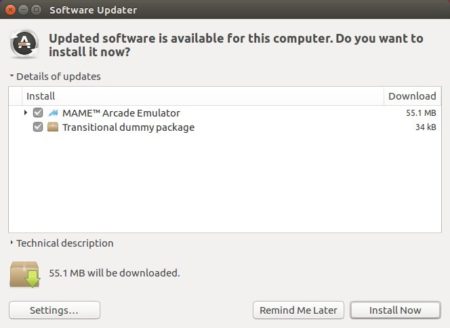
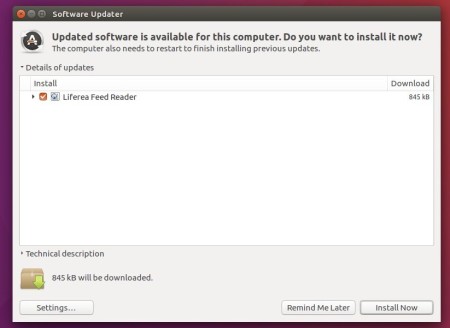
2. Then upgrade the emulator via Software Updater utility if you have a previous release installed.
or run commands one by one in terminal to install it:
sudo apt-get update
sudo apt-get install mame
Uninstall:
To remove MAME emulator, run following command in terminal:
sudo apt-get remove --autoremove mame
To remove the PPA, launch ‘Software & Updates’ utility and navigate to Other Software tab.
The open-source Liferea feed reader finally reached the new stable 1.12.0 release after months of development. Here’s how to install it in Ubuntu 16.04, Ubuntu 17.04, Ubuntu 17.10, Ubuntu 18.04.

Jet Brains announced the release of IntelliJ IDEA 2017.3 earlier today. Here’s how to install it in Ubuntu 14.04, Ubuntu 16.04, Ubuntu 17.10, and Ubuntu 18.04.
IntelliJ IDEA 2017.3 is a new massive release that includes loads of new features and dozens of important bugfixes. See the release note for details.
How to Install IntelliJ IDEA 2017.3 in Ubuntu:
There are a few ways to run the latest release of the Java IDE in Ubuntu desktop. And here are 3 of them:
method 1: Download official Linux package (NON-INSTALL), extract and run the executable to launch the IDE:
method 2: Install the Snap package for Ubuntu 16.04 and higher:
Open terminal via Ctrl+Alt+T or by searching ‘terminal’ from app launcher. When it opens, run command:
Jet Brains announced the release of PyCharm 2017.3 earlier today. Here’s how to install it in Ubuntu 16.04, Ubuntu 17.04, Ubuntu 17.10, Ubuntu 18.04.
PyCharm 2017.3 release highlights:
Performance improvements: Python indexing is twice as fast, JavaScript indexing is up to 40% faster, configuring SSH interpreters is much faster (in some cases over 100x), and more!
The new release makes creating and selecting Python interpreters easier.
A new scientific mode, which puts all the tools you need for data science at your fingertips (professional version only)
An all new HTTP client for those who build (REST) APIs.
Fully supports for Django 2.0 (professional edition only)
Supports running Python modules (python -m )
Supports for SSH config files
How to Install PyCharm 2017.3 in Ubuntu:
You can easily run the new release in Ubuntu via either:
method 1: official Linux binaries. NON-INSTALL version, just extract and run executable file to launch the IDE:
method 2 (recommended): or install the Snap package. WELL integrated with Ubuntu. Support for Ubuntu 16.04 and higher:
Simply open terminal via Ctrl+Alt+T or by searching for ‘terminal’ from app launcher. When it opens, run command:
sudo snap install pycharm-community --classic
For sudo prompts, input your password (no visual feedback while typing) when it asks and hit Enter.
For professional edition, run following command instead:
sudo snap install pycharm-professional --classic
Once installed, launch the IDE from your application launcher and enjoy!
Uninstall:
To remove the snap packages, either use Ubuntu Software or run command in terminal:
Qmmp, a Qt-based music player with winamp or xmms like interface, reached the new major 1.2.0 (and 0.11.0 for Qt4) release with many new features, improvements, and some bug-fixes.
added feature to disable notifications when another application is in the full screen mode
added cover tab to the track details dialog
added ‘--volume-status‘ and ‘--mute-status‘ command-line option
added feature to change user interface from command line
added parent directory name to the title formatting fields
added cache to the lyrics plugin
added feature to clear window title when playback is finished
added ‘Raise’ method implementation to the mpris plugin
added mount point list to the file dialog (1.2.0 only)
improved plugin API, cover cache, visualization support
improved aac plugin, sndfile plugin, mpeg,plugin, qsui plugin, audio format determination in the ffmpeg plugin
improved m3u, pls and xspf support
improved DirectSound and WASAPI support
added lame header and gapless support
improved file type determination
added quick search to the playlist and the file system browser
added feature to change toolbar icon size
added record button
added cover image alignment
reduced memory usage
improved settings
fixed memory leaks
fixed FVWM support (0.11.0 only)
translation updates
How to Install Qmmp 1.2.0 (0.11.0) in Ubuntu:
Qmmp has an PPA repository that offers the latest packages for Ubuntu 12.04, Ubuntu 14.04, Ubuntu 16.04, Ubuntu 17.04, Ubuntu 17.10, and their derivatives.
1. Open terminal via Ctrl+Alt+T or from app launcher, and then run command to add the PPA:
OpenShot video editor reached the 2.4.1 release two weeks ago. Now it’s finally available in PPA for Ubuntu 14.04, Ubuntu 16.04, Ubuntu 17.04.
OpenShot 2.4.1 release highlights:
Improved image quality.
Improved playback smoothness.
Improved stability (especially for Windows)
New video tutorials
Stability improvements and more. See the release note.
How to Install OpenShot 2.4.1 in Ubuntu:
The PPA does not support Ubuntu 17.10 so far. However, a 64-bit AppImage is available for download at the link below. Just download, make executable and run the file to launch OpenShot:
For traditional packages, OpenShot’s official PPA contains the .deb packages for Ubuntu 14.04, Ubuntu 16.04, and Ubuntu 17.04:
1. Open terminal (Ctrl+Alt+T) and run command to add the PPA:
Virtualbox 5.2.2, the first maintenance release for VBox 5.2 series, was released earlier today.
Changes in Virtualbox 5.2.2 include:
Various improvements for high resolution screens
Added functionality to duplicate optical and floppy images
Various improvements for the virtual media manager
VMM: fixed emulation so that Plan 9 guests can start once more
Storage: fixed regression breaking iSCSI
Audio: added HDA support for more exotic guests (e.g. Haiku)
Serial: fixed hanging I/O when using named pipes on Windows
Serial: fixed broken communication with certain devices on Linux hosts
USB/OHCI: improved behavior so that the controller state after a VM reset is closer to the initial state after VM start
EFI: fixed HFS+ driver which in rare cases failed to access most files on a volume
Shared clipboard: fixed hang with OS X host and Linux guest
Linux hosts/guests: fixed kernel module compilation and start failures with Linux kernel 4.14.
X11 hosts: better handle WM_CLASS setting
Linux guests: fixed various 5.2.0 regressions
Bridged networking: fixed duplicate EtherType in VLAN/priority tags on Linux.
How to Install Virtualbox 5.2.2 in Ubuntu:
1. If you’re still running with VirtualBox 5.1.x, open terminal via Ctrl+Alt+T or from application launcher. Remove old Virtualbox via command:
sudo apt-get remove virtualbox virtualbox-5.1
2. Download & install the latest Virtualbox package from the link below:
3. If you’ve added the Oracle VBox repository, you can directly install the 5.2 release from Synaptic Package Manager or via apt command, after removing the old version.
To add the repository, do:
Open terminal (Ctrl+Alt+T) and run command to add the repository:
sudo sh -c 'echo "deb http://download.virtualbox.org/virtualbox/debian xenial contrib" >> /etc/apt/sources.list.d/virtualbox.list'
Depends your Ubuntu edition, replace xenial (for Ubuntu 16.04) with trusty (for 14.04, Mint 17.x, eOS 0.3), or artful (for Ubuntu 17.10).
Setup the keyring so to trust the updates from the repository:
Although they are not officially announced, VLC media player 2.2.7 (and 2.2.8 with single fix) now are available for download. Here’s how to install it in Ubuntu 16.04, Ubuntu 14.04, and derivatives.
Changes in VLC 2.2.7 include:
Fix flac heap write overflow on format change
Fix crash in libavcodec module (heap write out-of band) (CVE-2017-10699)
Fix infinite loop in sami subtitle
Fix AAC 7.1 channels detection
Fix potential crash in ASX parser
Fix AVI read/write overflow
Fix compatibility with Mac OS High Sierra
Fix regression in ASS subtitle decoding for Mac OS
Fix crash during automatic update in Mac OS X. Some users might need to manually update to the newest version.
Fix Direct3D9 output with odd offsets
Fix crash in MTP
Support libupnp 1.8
And VLC 2.2.8 fixed AVI invalid pointer dereferences for demuxers.
Install VLC 2.2.7 in Ubuntu 16.04/14.04:
There are quite a few PPAs with VLC packages for Ubuntu. At the moment, you can install VLC 2.2.7 in Ubuntu easily via Jonathon F’s PPA.
1. Open terminal via Ctrl+Alt+T or by searching “Terminal” from start menu. When it opens, run command to add PPA:
sudo add-apt-repository ppa:jonathonf/vlc
Type in your password (no visual feedback due to security reason) when prompts and hit Enter.
2.Remove old VLC version, if you installed it from Ubuntu Software, to avoid a package conflict:
sudo apt remove --autoremove vlc vlc-nox
3. Finally run commands in terminal to check updates and install VLC 2.2.7:
sudo apt update && sudo apt install vlc
How to Restore:
To restore VLC media player to the stock version in your main Ubuntu repository, run command to purge the PPA: