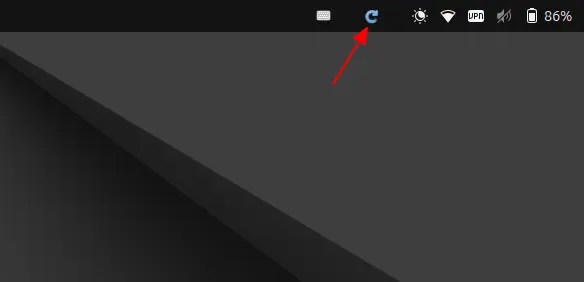
Ubuntu 24.04 has a new circular arrow indicator icon in top right system tray, when there are available system updates. By clicking on it allows to quickly launch Software Updater (Update Manager) tool for installing updates.
If you don’t like that indicator icon, here’s how to disable it, as well as stop checking for updates automatically.
This tutorial shows how to automatically create, delete files/folders, and/or write parameters into config files at startup in Ubuntu and other Linux using systemd.
This can be useful if some configuration do not persistent and reset to default on every boot, or you want to clean up something either on every boot or after every time period.
Advanced users can manually create a script, and run it via either crontab schedule task or custom systemd service. But, here I’m going to show you how to do the trick using tmpfile.d, a built-in configuration for creation, deletion and cleaning of volatile and temporary files.
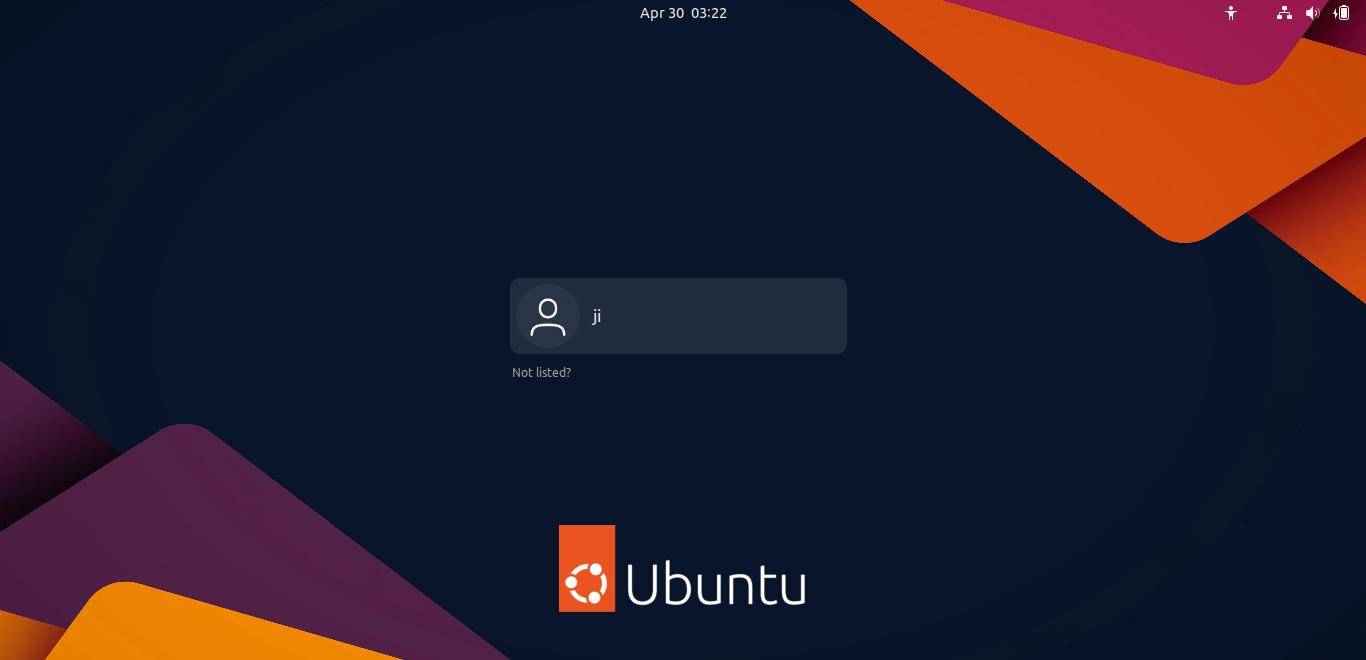
This simple tutorial shows how to automatically login a user account in Ubuntu 24.04 and its flavors, such as KUbuntu 24.04, XUbuntu 24.04, Ubuntu MATE 24.04, and Ubuntu Unity 24.04.
The auto login feature is handled by the display manager service in most Linux. It varies depends on your desktop environment and user configuration.
Here I’m going to show you how to enable this feature, either using graphical setting option or by editing config file from command line. Choose either one that you prefer.
This is a step by step beginner’s guide shows how to encrypt your home directory in Ubuntu 24.04 LTS.
As you may know, the new installer in Ubuntu 24.04 only supports encrypting the entire disk. If you want to dual boot Ubuntu with another OS in single disk, there’s no option so far to encrypt only the Ubuntu file-system partition.
In the case, you may choose to encrypt your home folder to keep personal data and files safe.
There’s NO visible difference after encrypted your home directory. You can login just like before, read and write files, run apps and play games. Because, it’s automatically decrypted using your password.
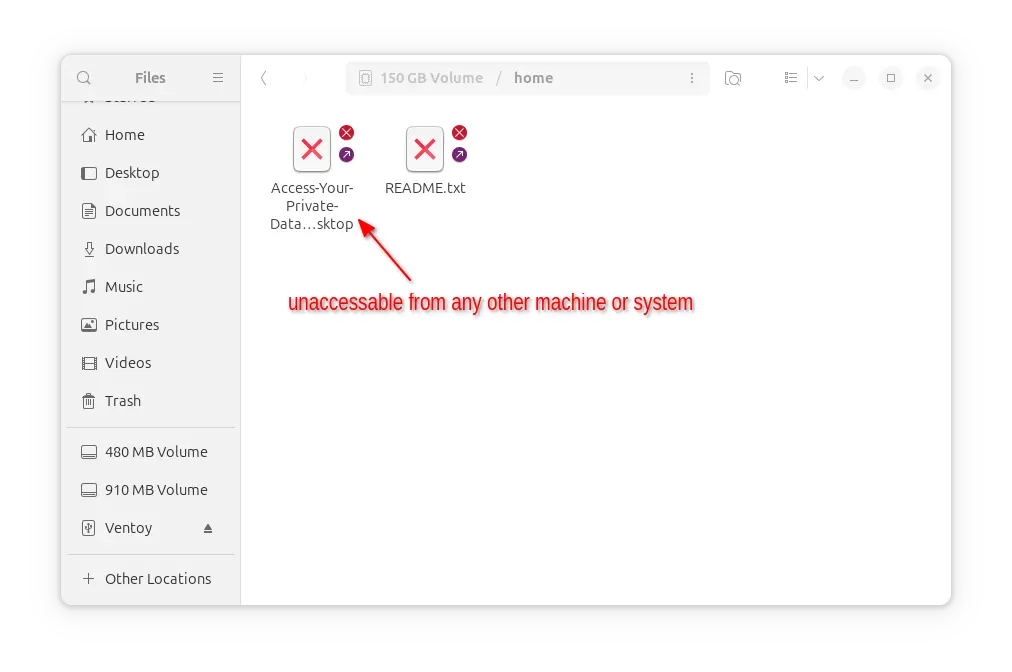
But, if you lost your computer/laptop, then no one can access your files in the home folder, without the login password or the encryption passphrase. Accessing from another operating system will show something like the screenshot below shows you:
Encrypted home is not accessible from other machine or OS
Got app windows that do not show their icons on left (or bottom) dock panel? This tutorial may help to fix the issue in Ubuntu 24.04.
App icons that you see in system app launcher are handled by .desktop files. This kind of config file usually include a line Icon=app-icon-name, so Ubuntu and many other Linux can find and display the icon image for the app in start menu (or application menu).
If the icon file is missing from both system icons directory (usually /usr/share/icons and /usr/share/pixmaps) and user’s local icons folder (.local/share/icons), then it shows universal executable icon (the gear icon with gray square background, see the image above) instead.
After doing a fresh install of Ubuntu system, users usually have to do a list of configurations before the system is ready for use. And, here are a list of the top things I can tell for the Ubuntu 24.04 LTS.
1. Install back some default apps
If you didn’t choose “Extended selection” option while installing Ubuntu 24.04, then you’ll find that many apps are missing!
There’s no office suite, no video/music player, no email app … If you need some of them, then just launch the new App Center from left panel, then search and install any of them back. Continue Reading…
This is a step by step beginner’s guide shows how to install Ubuntu 24.04 LTS, Desktop Edition, in PC or laptop using an USB stick.
Ubuntu 24.04 is a long term support release with 5 years support (and other 7 years security updates via Ubuntu Pro). It features a new desktop installer. So, I re-write about this how to guide for beginners, with Windows 10/11 dual boot support.
NOTE: The new installer so far does NOT allow encryption for manually added partitions! Meaning encryption ONLY works when using entire disk for Ubuntu. See the bug reports here and here. Continue Reading…
Ubuntu 24.04, code-name Noble Numbat, is finally released!
It’s a new Long Term Support (LTS) release with 5 years of support until 2029, and another 7 years of support through ‘Ubuntu Pro’ (can be enabled in welcome or Software & Updates dialog).
Meaning users of Ubuntu 24.04 can keep receiving security updates until 2036!
Ubuntu 24.04 features Linux Kernel 6.8, and it will keep updating to new kernel series in next point releases. The new kernel introduced Intel Shadow Stack, and stable Intel Meteor Lake graphics support. KVM now allows up to 4096 vCPUs. And, there are many other new features as well as hardware support, see this page for details.
For users who want to go directly from Ubuntu 22.04 to Ubuntu 24.04, here’s an overview of the changes between the two Ubuntu LTS releases.
Ubuntu 24.04 LTS has 5 years support until 2029, and then 7 years extended security updates (through Ubuntu Pro) until 2036. The release features Linux Kernel 6.8, and will receive feature Kernel updates in next point releases.
Linux Kernel
Ubuntu 22.04 so far has Kernel 6.5. As usual, it will backport Kernel 6.8 from 24.04 in the next point release.
Before that happens, you’ll see a list of changes between the Kernel 6.5 and Kernel 6.8, including: Continue Reading…
Ubuntu 24.04, code-name Noble Numbat, is finally available for Beta testing after a week of delay.
Ubuntu 24.04 is long term support (LTS) release with 5-year of support. By enabling Ubuntu Pro, user can get 7 years more security updates. Meaning that Ubuntu LTS has 12 years of support!
The new LTS features GA Kernel 5.8 and GNOME Desktop 46.