NVIDIA 595.58.03, the latest stable version of NVIDIA driver for Linux, is available in Ubuntu repository for the upcoming 26.04 LTS.
Canonical (the company behind Ubuntu) usually supports production branch NVIDIA driver by building the packages into the restricted repository. Now, NVIDIA 595 for Ubuntu 26.04 is ready, while, the driver package for current 25.10, 24.04 and 22.04 will be probably available in next few weeks.
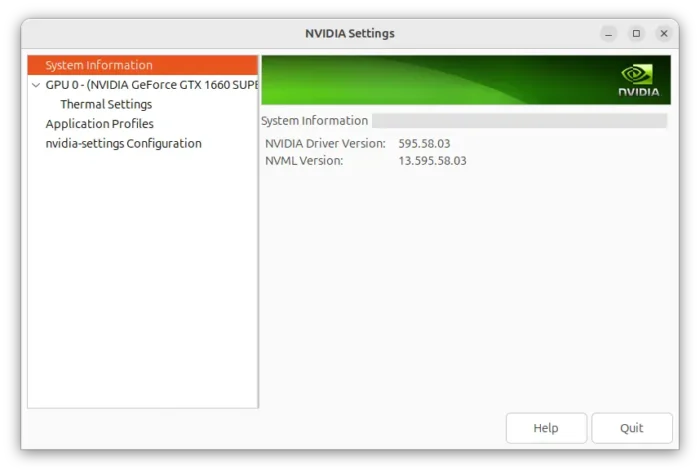

NVIDIA 595.58.03 was released in last week. It introduced new application profile, CudaNoStablePerfLimit, allowing CUDA-using apps to reach P0 PState, the highest power and performance level.
It improved Linux gaming performance and video playback experience by added DRI3 version 1.2 support that features Linux kernel-level synchronization mechanism, as well as VK_EXT_present_timing extension support to query timing information about past presentations and specify a target time for future frames.
It as well added VK_EXT_descriptor_heap extension support, allowing to store buffers / images directly into GPU-accessible memory thus reducing CPU overhead.
The new driver also improved system suspend and resume support, fixed potential Wayland session freezes, fix screen flickering for VRR on some HDMI displays, GPU hang in Black Myth: Wukong, and various other issues. And, some reported HDR now works without needing to install VK_HDR_LAYER or ENABLE_HDR_WSI variables. See more about NVIDIA 595.58.03.
How to Install NVIDIA 595 in Ubuntu 26.04
“Software & Updates” is not pre-installed in Ubuntu 26.04, though you may install it back from App Center, and try installing the driver by using “Additional Drivers”, which somehow does not work in my case.
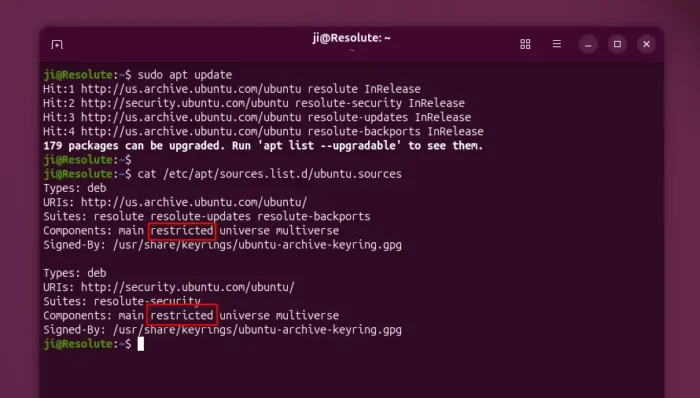
1. As mentioned, the new driver package is made available through the restricted repository. The repository is enabled in Ubuntu out-of-box. Just in case, run the commands below one by one to make sure:
- First, open terminal (Ctrl+Alt+T) and run command to refresh cache:
sudo apt update
- Next, run command to see if the restricted component is included in Ubuntu Sources.
cat /etc/apt/sources.list.d/ubuntu.sources
If NOT, run the command below to add the restricted repository, and re-run the sudo apt update to refresh cache.
sudo add-apt-repository restricted

2. Next, run command to list all available drivers for your device:
ubuntu-drivers list
In my case, the new 595 driver is only available as DKMS package. Run the command below instead to check:
ubuntu-drivers list --include-dkms
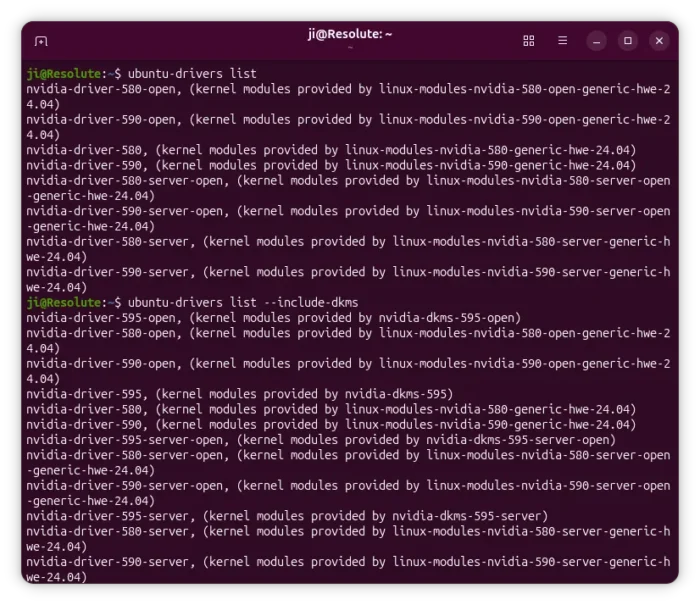

3. If you can see the new 595 driver in the list above, then you may run the command below to install it.
- For desktop and gaming use, run command:
sudo ubuntu-drivers install nvidia:595
Or use
sudo ubuntu-drivers install --include-dkms nvidia:595, which will rebuild the kernel modules the during the installing process. - For server or computing purpose, install the server driver instead:
sudo ubuntu-drivers install --gpgpu nvidia:595-server
Also add the
--include-dkmsflag if it’s only available as DKMS package for you.
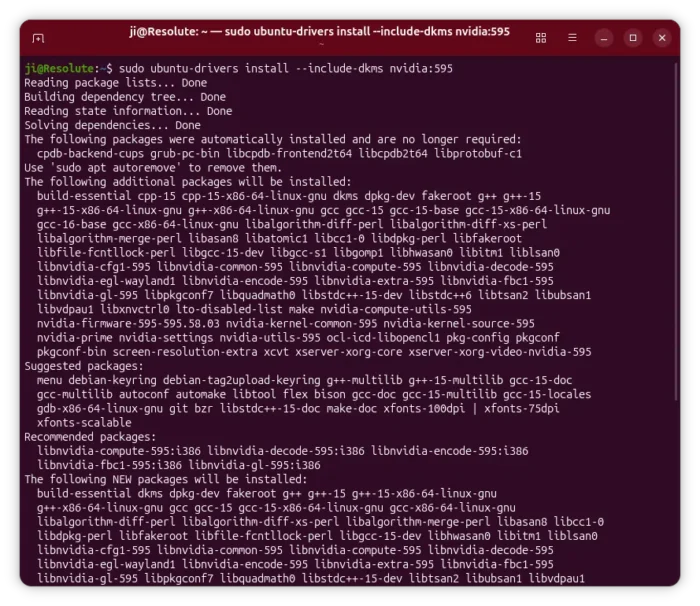

If your computer has Secure Boot enabled, then during the installing process, it will asks to enter a password for secure boot.
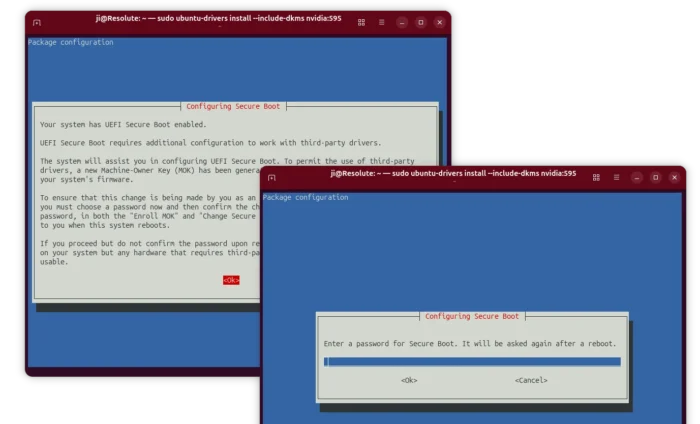

If everything done without error, restart your computer. In next boot, you need to choose Enroll MOK -> Continue -> yes -> input the password you set (no visual feedback) and finally reboot.
For Ubuntu 25.10, Ubuntu 24.04 and 22.04, keep an eye on the official building page. Once available, use either “Additional Drivers” or commands above to install the driver.
If you can’t wait, then try installing the driver package from this NVIDIA repository.
- Download & install the “cuda-keyring_1.1-1_all.deb” (version number may vary as time goes on) for your Ubuntu version and CPU architecture type.
- Then, refresh cache
sudo apt update. - Finally, install driver
sudo apt install nvidia-driver.
NOTE: the driver package from NVIDIA website conflicts to the ones from Ubuntu repository, see this guide about how to remove the Ubuntu ones.