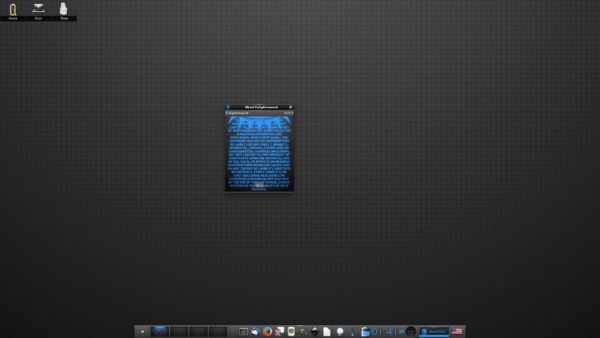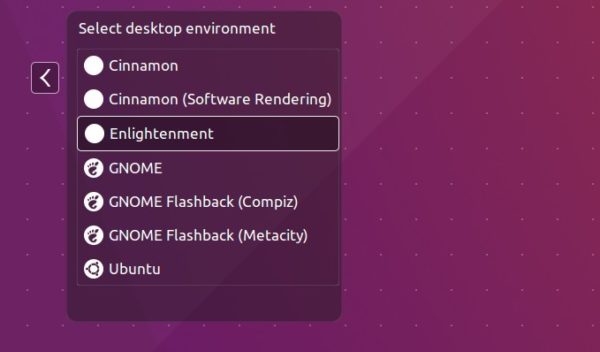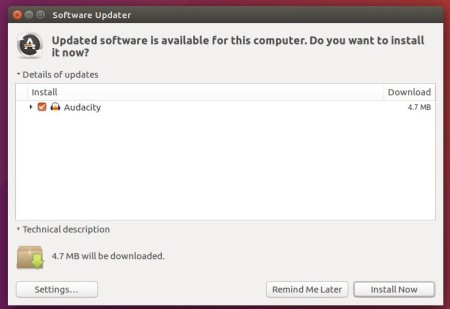
The Enlightenment desktop environment reached the new major 22 release a few days ago. Here’s how to install it via PPA in Ubuntu 14.04, Ubuntu 16.04, Ubuntu 17.04, and Ubuntu 17.10.
Enlightenment E22 Features:
Greatly improved Wayland support
Improvements to new gadget infrastructure
Added a sudo/ssh askpass utility gui
meson build system
tiling policy improvements
integrated per-window volume controls
How to Install Enlightment E21 via PPA in Ubuntu:
For all current Ubuntu releases and derivatives, Enlightenment 0.22 is available for install via the PPA repository.
1. Open terminal via Ctrl+Alt+T or by searching “Terminal” from app menu. When it opens, run command:
sudo add-apt-repository ppa:niko2040/e19
Type in your password and hit Enter to add the E21 PPA, though it contains e19 in its name.
2. Then check updates and install the window manager via commands:
Audacity, free and open-source audio editing and recording software, reached the new major 2.2.0 release a few days ago with great new features and tons of bug-fixes.
Four supplied user interface themes, and customizability of themes for advanced users.
Playback of MIDI files (requires cooperating software synthesizer programs on macOs or Linux)
Better organized menus
Help link buttons in many dialogs lead to the relevant manual pages
198 bugs/annoyances in 2.1.3 fixed, most importantly
Improved recovery from full file system errors
Thorough update of the manual with new images, more hover texts, and more cross-references.
Complete support for macOS 10.12 (Sierra) and 10.13 (High Sierra)
How to Install Audacity 2.2.0 in Ubuntu:
The Audacity team does not offer pre-compiled Linux binaries. Besides building from source, a third-party PPA is available with Audacity 2.2.0 for Ubuntu 16.04, Ubuntu 17.04, and Ubuntu 17.10.
1. Open terminal via Ctrl+Alt+T or by searching for ‘terminal’ from app launcher. When it opens, run command:
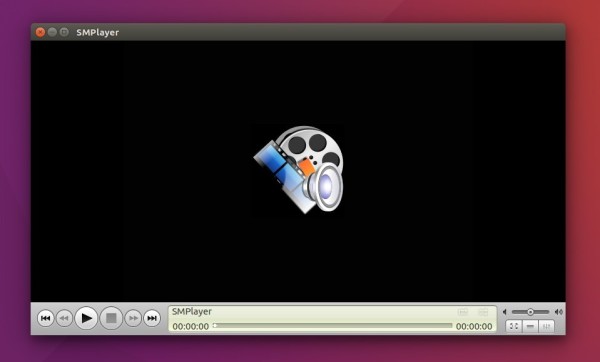
The SMPlayer media player reached the 17.11.0 release earlier today. The new release features a few small bug-fixes and improvements.
Changes in SMPlayer 17.11 include:
The video equalizer by software has been fixed.
The thumbnail generator is now more precise with short videos.
The audio quality of the audio equalizer has been improved.
The option “add black borders on fullscreen” has been fixed.
The option “AC3/DTS passthrough over S/PDIF” has been fixed.
How to Install SMPlayer 17.11 in Ubuntu via PPA:
The new release has made into the official PPA, available for Ubuntu 17.10, Ubuntu 17.04, Ubuntu 16.04, Ubuntu 14.04, Ubuntu 12.04, and their derivatives.
1. Open terminal and run the following command to add the PPA:
sudo add-apt-repository ppa:rvm/smplayer
For those who prefer Qt4 version, use the another PPA instead:
sudo add-apt-repository ppa:rvm/smplayer-qt4
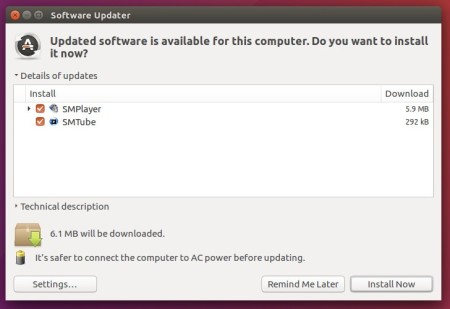
2. Then you can upgrade SMPlayer from a previous release via Software Updater (Update Manager) after checking for updates:
Or you can run the commands below in terminal to do install or upgrade SMPlayer:
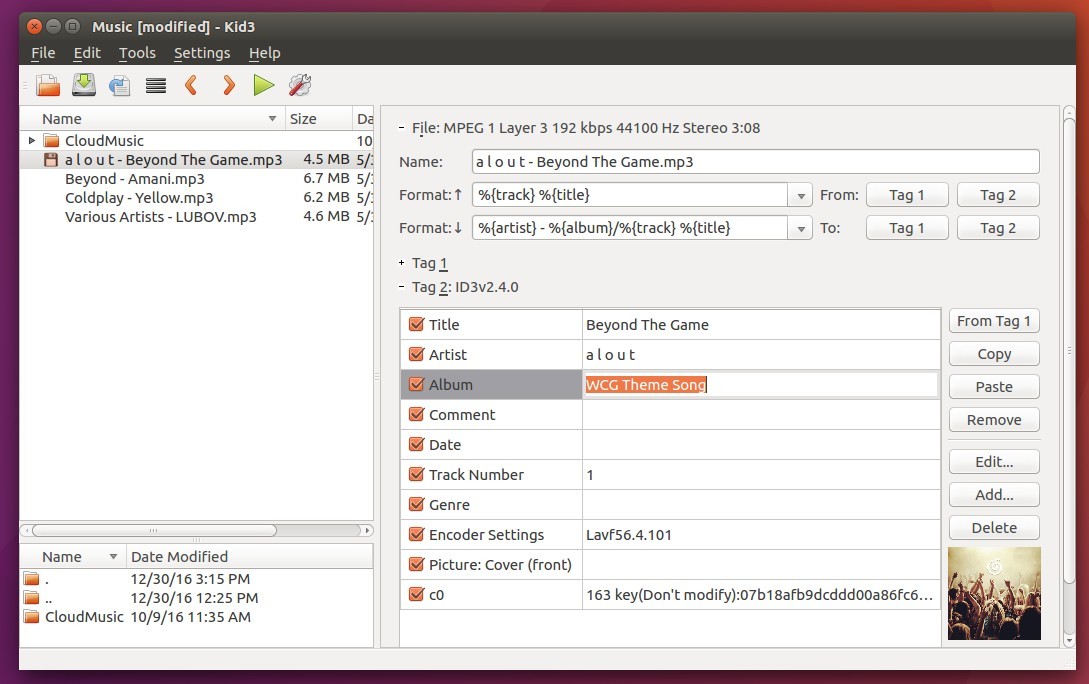
Gscan2pdf, a simple GUI tool to produce PDFs or DjVus from scanned documents, reached the new 1.8.8 release a few hours ago with some bug-fixes and translation updates.
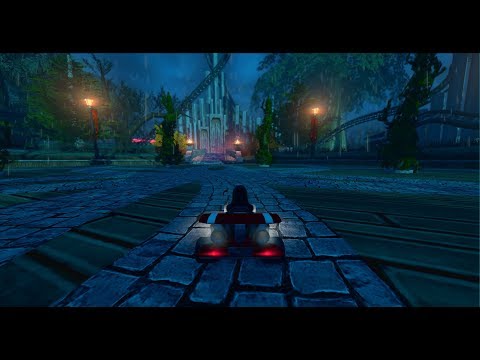
Supertuxkart, open-source arcade racing game, got a big update by releasing 0.9.3 rc1 yesterday. Here’s how to install it in Ubuntu 14.04, Ubuntu 16.04 via PPA.
Supertuxkart 0.9.3, code name ‘Halloween Update’, includes following changes:
Android support! Get it from Google Play store, or download apk from its website.
Completely redesigned the old Mansion and made two brand new arenas
New tracks: Candela City, Las Dunas Stadium, Cornfield Crossing
Karts now have headlights that are automatically turned on during night time.
Built-in screen recorder.
HSV colorization for some scenery
various other bug-fixes and performance improvements.
While the PPA does not support Ubuntu 17.10 so far, you may download the linux tarball, extract, and directly run the executable file (“run_game.sh”) to launch the game.
Uninstall:
You can launch Software & Updates utility and navigate to ‘Other Software’ tab to disable or remove the PPA.
To remove the game, either use your system package manager or run command:
Ability to develop apps with Kotlin, a newer programming language designed to interoperate with existing Java code
An SDK for creating Instant Apps
New templates for Android Things applications, XML and downloadable fonts for Android 8.0 and higher
A new wizard for creating adaptive icons.
Android Plugin for Gradle 3.0.0 with significant performance improvements to large multi-module projects.
Ability to create Android 8.0 emulators with the Google Play Store pre-installed
How to Install Android Studio 3.0 in Ubuntu:
You can easily install it either via Maarten Fonville’s PPA or by using Ubuntu Make in Ubuntu 14.04, Ubuntu 16.04, Ubuntu 17.04, and Ubuntu 17.10.
The Maarten Fonville’s PPA contains installer script that automatically downloads Linux package from Google, and installs it into /opt/ for global use.
1. Open terminal via Ctrl+Alt+T and run command to add the PPA:
To install Android Studio 3.0 via Ubuntu Make, you need to first install the latest Ubuntu Make from this PPA. Then run command to install the IDE after accepting license.
This simple tutorial shows how to enable ‘minimize on click’, minimize running app window when clicking on its icon on the left dock panel.
All the opened app icons are docked on the left panel in Ubuntu GNOME desktop. Unlike Windows, it however does not minimize focused app when you click its icon on the dock. And, neither “System Setting” nor “Gnome Tweaks” has option to enable this action.

Since the Ubuntu dock is handled by the dash-to-dock extension, it does have the option to enable the feature. All current Ubuntu releases, including Ubuntu 18.04, Ubuntu 20.04, Ubuntu 22.04, and Ubuntu 24.04, can enable this feature via following steps.
Single command to enable ‘Minimize on click’:
The dash-to-dock Gnome extension in Ubuntu is called ‘Ubuntu Dock’. As the built-in extension, it does not provide settings page in ‘Gnome Extensions’ app. However, users may run single command to change its options one by one.
Firstly, either search for and open terminal from ‘Activities’ overview or press Ctrl+Alt+T key combination on keyboard. When terminal opens, run command:
gsettings set org.gnome.shell.extensions.dash-to-dock click-action minimize
After that, click on dock icon to open or focus an app, and click again to see effect!
Enable ‘Minimize on click’ via Extension Manager (Graphical Tool):
In Ubuntu 24.04, user can first launch App Center, then search for and install the Extension Manager tool.
Install Extension Manager in Ubuntu Software/App Center
Then, launch “Extension Manager” and click the setting icon for “Ubuntu Dock” extension to open its preferences dialog.
In next pop-up dialog, you’ll see lots of options to configure the left dock panel. There, navigate to “Behavior” tab and set “Click action” to minimize, will do the trick enabling click app icon to minimize its window.
Enable ‘Minimize on click’ via Dconf Editor (Graphical Tool):
For those hate Linux command, the advanced “Dconf Editor” configuration tool is present to do the trick.
1.) Firstly, search for and install ‘dconf editor’ via Ubuntu Software if you don’t have it.
2.) Next, search for and open the tool from the upper-left Activities overview, and then navigate to org -> gnome -> shell -> extensions -> dash-to-dock.
Then scroll down and find out settings for ‘click-action’, and do:
click the line to go into its configuration page.
turn off the default value switch.
select ‘minimize’ as Custom value.
You may also set the value to ‘minimize-or-overview’, which will go to overview screen if more than one windows of the same app are opened; or ‘minimize-or-previews’ that opens thumbnail preview if multiple app instances exist.