Archives For Howtos

Nvidia 340.65

NVIDIA has announced the 340.65 release of its Linux graphics driver (long lived branch version) with latest Kernel (3.18) support and various bug fixes.

Here’s the release highlight for NVIDIA 340.65:

  • Added support for X.Org xserver ABI 19 (xorg-server 1.17).
  • Improved compatibility with recent Linux kernels.
  • Fixed a bug that prevented internal 4K panels on some laptops from being driven at a sufficient bandwidth to support their native resolutions.
  • Fixed a regression that prevented the NVIDIA kernel module from loading in some virtualized environments such as Amazon Web Services.
  • Fixed a regression that caused displays to be detected incorrectly on some notebook systems.
  • Fixed a bug that could cause X to freeze when using Base Mosaic.
  • Fixed a regression that prevented the NVIDIA X driver from recognizing Base Mosaic layouts generated by the nvidia-settings control panel.
Install / Upgrade NVIDIA Driver in Ubuntu:

If you’re running with NVIDIA’s proprietary driver in Ubuntu, you can upgrade to this driver release by following below steps:

1. Press Ctrl+Alt+T to open terminal. When it opens, run the command below to add the xorg-edgers fresh X crack PPA repository:

sudo add-apt-repository -y ppa:xorg-edgers/ppa

Type in your user password when it asks.

2. After added the PPA, refresh your system cache via command:

sudo apt-get update

3. Finally install the 340.65 driver:

sudo apt-get install nvidia-340

The repository also provides the NVIDIA 343 driver (short lived branch version) and NVIDIA 346 driver (still in beta). If need, you can replace nvidia-340 in the previous code with nvidia-343 or nvidia-346 to install the driver.

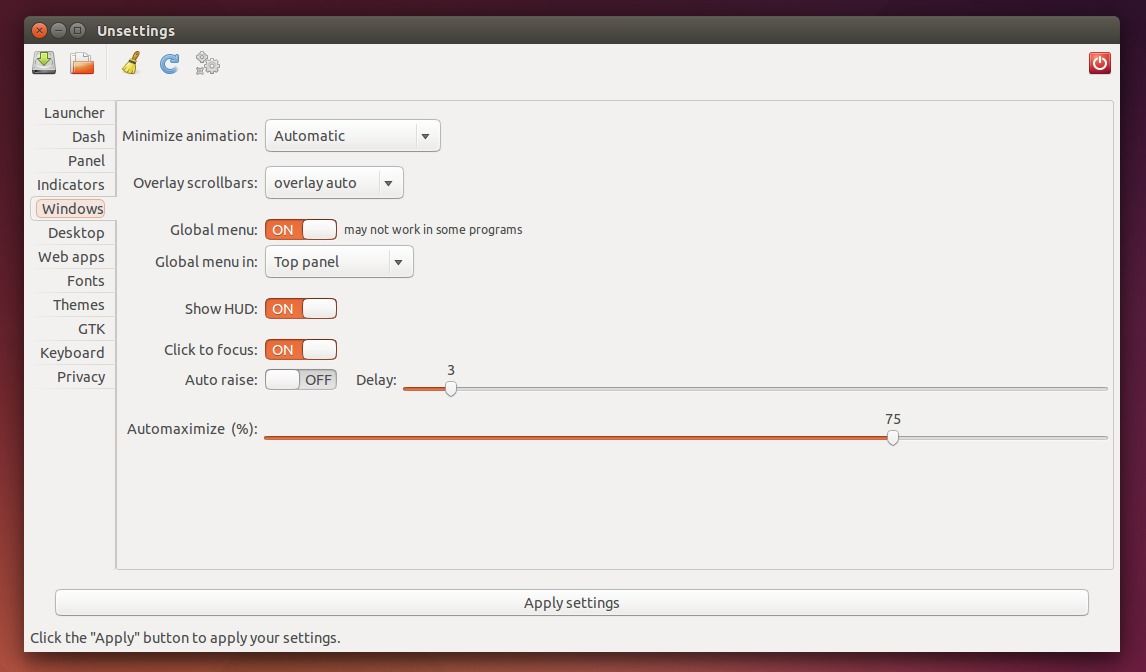
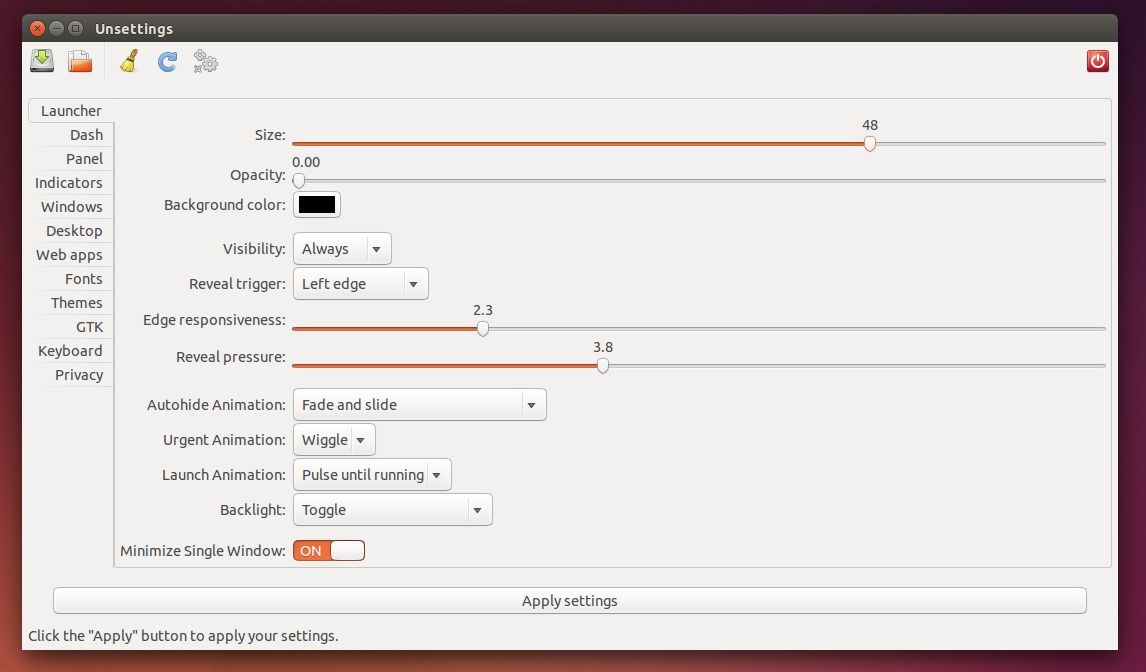
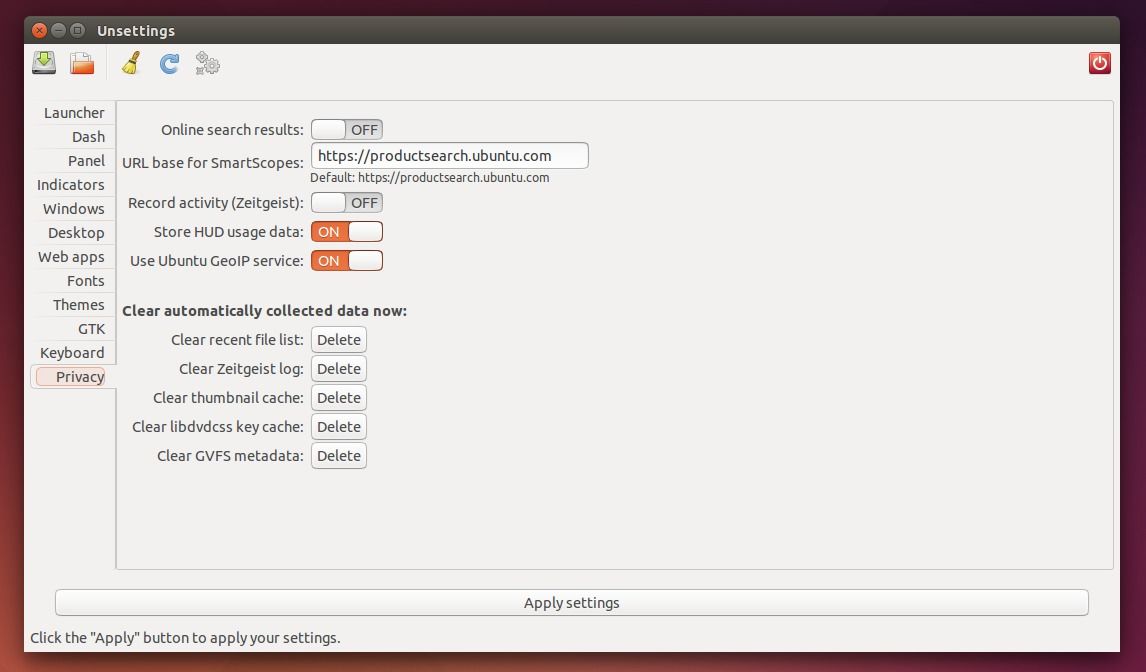
Unsettings, the graphical configuration tool for Unity desktop, is “back” by releasing the 0.09 release with Ubuntu 14.04 and Ubuntu 14.10 support.

It has been 2 years since the last 0.08 was released in 2012 with support up to Ubuntu 12.10.

Unsettings is developed by Florian Diesch, the man behind Classic Menu Indicator. It allows you to change setting for the Dash, Launcher, Panel, Indicator, Privacy, Fonts, Themes, and more. There are also some options that Unity Tweak Tool and Ubuntu Tweak don’t have, such as Web Apps, Menus/Buttons have icons, Keyboard settings, etc.

Install Unsettings 0.09 in Ubuntu 14.04/Ubuntu 14.10/Ubuntu 12.04:

Download the binary package (.deb) from the link below, then double-click to open it with Ubuntu Software Center and finally click install Unsettings.

The developer has also made the binary into his PPA repository, available for Ubuntu 12.04/14.04/14.10 and even the next Ubuntu 15.04. Run commands below one by one in terminal to add the PPA and install Unsettings:

sudo add-apt-repository -y ppa:diesch/testing

sudo apt-get update

sudo apt-get install unsettings

Once installed, start the configuration tool from the Unity Dash and enjoy!

The stable release of Linux Kernel 3.18 has been released this weekend. Linus Torvalds wrote on the Linux Kernel Mailing List (lkml.org):

It’s been a quiet week, and the patch from rc7 is tiny, so 3.18 is out.

I’d love to say that we’ve figured out the problem that plagues 3.17 for a couple of people, but we haven’t. At the same time, there’s absolutely no point in having everybody else twiddling their thumbs when a couple of people are actively trying to bisect an older issue, so holding up the release just didn’t make sense. Especially since that would just have then held things up entirely over the holiday
break.

So the merge window for 3.19 is open, and DaveJ will hopefully get his bisection done (or at least narrow things down sufficiently that we have that “Ahaa” moment) over the next week. But in solidarity with
Dave (and to make my life easier too ;) let’s try to avoid introducing any _new_ nasty issues, ok?

Linus

What’s New in the Linux Kernel 3.18:

The Linux 3.18 Kernel brings many great changes, here’s some of the highlights for end-users:

  • Unified Video Decoder (UVD) support for old ATI/AMD GPUs of the Radeon HD 3000 series.
  • Re-clocking improvements for AMD’s Radeon driver.
  • Userptr support for AMD Radeon GPUs.
  • Razer Sabertooth support and other hardware input devices improvements for gamers.
  • Faster suspend and resume for large Linux servers.
  • Btrfs and F2FS improvements.
  • Para-virtualized SCSI (pvSCSI) support for Xen virtualization.
  • DisplayPort audio support, fan control improvements and various other enhancements for open-source NVIDIA driver.
  • OverlayFS was finally merged into Linux Kernel 3.18
Install / Upgrade to Linux Kernel 3.18 in Ubuntu:

The Ubuntu Kernel Team has made the binary packages of this kernel release, available for download at the link below:

Download Kernel 3.18 (.deb)

First check out your OS type, 32-bit (i386) or 64-bit (amd64), then download and install the packages below in turn:

  1. linux-headers-3.18.0-031800_xxx_all.deb
  2. linux-headers-3.18.0-031800-generic_3.18.0-031800.xxx_i386/amd64.deb
  3. linux-image-3.18.0-031800-generic_3.18.0-031800.xxx_i386/amd64.deb

For Ubuntu Servers without UI, run the commands below one by one to download & install the kernel debs.

For 64-bit system, run:

cd /tmp/

wget http://kernel.ubuntu.com/~kernel-ppa/mainline/v3.18-vivid/linux-headers-3.18.0-031800-generic_3.18.0-031800.201412071935_amd64.deb

wget http://kernel.ubuntu.com/~kernel-ppa/mainline/v3.18-vivid/linux-headers-3.18.0-031800_3.18.0-031800.201412071935_all.deb

wget http://kernel.ubuntu.com/~kernel-ppa/mainline/v3.18-vivid/linux-image-3.18.0-031800-generic_3.18.0-031800.201412071935_amd64.deb

sudo dpkg -i linux-headers-3.18.0-*.deb linux-image-3.18.0-*.deb

For 32-bit system, run:

cd /tmp/

wget http://kernel.ubuntu.com/~kernel-ppa/mainline/v3.18-vivid/linux-headers-3.18.0-031800-generic_3.18.0-031800.201412071935_i386.deb

wget http://kernel.ubuntu.com/~kernel-ppa/mainline/v3.18-vivid/linux-headers-3.18.0-031800_3.18.0-031800.201412071935_all.deb

wget http://kernel.ubuntu.com/~kernel-ppa/mainline/v3.18-vivid/linux-image-3.18.0-031800-generic_3.18.0-031800.201412071935_i386.deb

sudo dpkg -i linux-headers-3.18.0-*.deb linux-image-3.18.0-*.deb

When done, run sudo update-grub command to refresh grub bootloader and restart your computer.

NOTE: If you’re running with a proprietary video driver, either switch to open-source driver or reinstall the latest (For Nvidia, >= 343.36).

If for some reason, the new kernel does not work properly for you, reboot with the previous Kernel (Grub boot loader -> Advanced -> select previous kernel) and run below command to remove Linux Kernel 3.18:

sudo apt-get remove linux-headers-3.18.0-* linux-image-3.18.0-* && sudo update-grub

While Nvidia’s Linux Graphics Driver 346 series is still in beta, the latest 343.36 stable driver has been released this Friday, which brings support for the latest Linux kernels (up through Linux 3.18), various bug fixes (including an Unreal Engine 4 fix), support for disabling indirect GLX, and more.

Release Highlight in Nvidia Graphics Driver 343.36:

  • Added support for X.Org xserver ABI 19 (xorg-server 1.17).
  • Improved compatibility with recent Linux kernels.
  • Fixed a bug that rendered very bright garbage data onto some textures in UnrealEngine 4 applications. This issue is known as the “disco bug” by the UnrealEngine 4 Linux community.
  • Added option UseSysmemPixmapAccel to control the use of GPU acceleration for X drawing operations on pixmaps allocated in system memory.
  • Fixed a regression that prevented the NVIDIA X driver from recognizing Base Mosaic layouts generated by the nvidia-settings control panel.
  • Fixed a bug that could cause VT-switching to fail following a suspend, resume, and driver reload sequence.
  • Fixed a bug that caused incorrect colors to be displayed on X screens running at depth 8 on some GPUs.
  • Fixed a bug that prevented GPUs from being correctly recognized in MetaMode strings when identified by UUID.
  • Implemented support for disabling indirect GLX context creation using the -iglx option available on X.Org server release 1.16 and newer. Note that future X.Org server releases may make the -iglx option the default. To re-enable support for indirect GLX on such servers, use the +iglx option.
  • Added the “AllowIndirectGLXProtocol” X config option. This option can be used to disallow use of GLX protocol. See “Appendix B. X Config Options” in the README for more details.
  • Fixed a crash with UnrealEngine 4 when the application was started with the -opengl4 commandline switch.
  • Fixed an OpenGL issue that could cause glReadPixels() operations to be improperly clipped when resizing composited application windows, potentially leading to momentary X freezes.
  • Fixed a bug that could prevent the GLSL compiler from correctly evaluating some expressions when compiling shaders.
  • Fixed a bug that could cause nvidia-installer to crash while attempting to run nvidia-xconfig on systems where that utility is missing.
  • Fixed a bug that could prevent 32-bit GPU-based applications from running correctly on 64-bit systems when using GPUs with very large memory-mapped I/O regions.
  • Fixed a bug that could cause the CUDA debugger to fail after exiting X on systems with persistence mode enabled.
  • Fixed a bug that could cause silent and intermittent failures when a CUDA application writes to a peer device’s memory with GPUDirect.
  • Updated nvidia-installer to avoid writing to non-zero offsets of sysctl files in /proc/sys/kernel.

How to Install / Upgrade to Nvidia 343.36 Driver in Ubuntu:

To make the installation easy, you can install/upgrade the driver from PPA. But at the moment of writing this tutorial, the PPA does not yet update with the 346.36 binaries.

Check out the package version of “nvidia-graphics-drivers-343” from the PPA page below:

xorg-edgers fresh X crack PPA

Once the PPA updated, run the commands below one by one in terminal to add the PPA and install the 346.36 driver:

sudo add-apt-repository -y ppa:xorg-edgers/ppa

sudo apt-get update

sudo apt-get install nvidia-343

(Optional) To uninstall the driver as well as the PPA, run:

sudo add-apt-repository -r ppa:xorg-edgers/ppa && sudo apt-get remove nvidia-343 && sudo apt-get update

If you don’t want to add the PPA, follow the steps below to install the 346.36 driver via the official package from Nvidia website.

1. Select download the 346.36 driver that matches your OS type:

64-bit Linux | 32-bit Linux | 32-bit Linux ARM

2. IMPORTANT: You have to switch to the black & white text console (press Ctrl+Alt+F1 ~ F6), then log in with current username & password.

3. When you’re in the text console, run the command below to stop the graphics session (The graphics session is still there, and you can press Ctrl+Alt+F7 to switch back).

sudo service lightdm stop

Replace lightdm with gdm or mdm in the code if you’re running with Gnome GDM or Linux Mint’s MDM display manager.

4. Once the graphics session is closed, you are able to run the downloaded package by running the commands below:

cd ~/Downloads/

chmod +x NVIDIA-Linux-*-343.36.run

sudo sh NVIDIA-Linux-*-343.36.run

Above commands will navigate current directory to /Downloads/, then give executable permission to the 346.36 driver package, and finally run the installer.

5. After the last command, follow the onscreen prompt until done. Finally restart your computer.

(Optional) To uninstall the 346.36 driver, get into the text console and run:

sudo sh ~/Downloads/NVIDIA-Linux-*-343.36.run --uninstall

There’s already a tutorial talking about Canon Printer Driver and ScanGear in the site. But it’s old and lack of ScanGear support for Ubuntu 14.04, and Linux Mint 17.

UPDATE: This post is outdated! For recent Ubuntu 20.04 and Ubuntu 22.04, try this tutorial instead.

Fortunately, a third-party ppa contains the driver and scangear for commonly used Canon printers, available for Ubuntu 14.04 LTS, and its derivatives, such as Linux Mint 17.

Below devices are supported:

  • bjf9000, bjf900, bjs300, bjs500, bjs700 series
  • e500, e510, e600, e610 series
  • i250, i255, i550, i560, i850, i860, i950, i990 series
  • ip100, ip1800, ip1900, ip2200, ip2500, ip2600, ip2700, ip3000, ip3300, ip3500, ip3600, ip4000, ip4200, ip4300, ip4500, ip4600, ip4700, ip4800, ip4900, ip5000, ip5200, ip6600, ip7200, ip7500, ip8500, ip90 series
  • ix6500 series
  • mg2100, mg2200, mg3100, mg3200, mg4100, mg4200, mg5100, mg5200, mg5300, mg5400, mg6100, mg6200, mg6300, mg8100, mg8200 series.
  • mp140, mp160, mp190, mp210, mp230, mp240, mp250, mp270, mp280, mp490, mp495, mp500, mp510, mp520, mp540, mp550, mp560, mp600, mp610, mp620, mp630, mp640, mp750, mp780 series.
    mx320, mx330, mx340, mx350, mx360, mx370, mx390, mx410, mx420, mx430, mx450, mx510, mx520, mx710, mx720, mx860, mx870, mx880, mx890, mx920 series.
  • pixmaip1000, pixmaip1500 series.
  • pixus250, pixus255, pixus550, pixus560, pixus850, pixus860, pixus950, pixus990 series
  • pixusip3100, pixusip4100, pixusip8600 series

Install Canon Drivers / ScanGear in Ubuntu 14.04:

1. To get started, press Ctrl+Alt+T on keyboard to open terminal. When it opens, paste the command below and hit enter to run:

sudo add-apt-repository ppa:inameiname/stable

Type in your user password when it asks and hit Enter to continue. This will add the PPA repository into your system.

2. After that, open Synaptic Package Manager from the Unity Dash. If you don’t find it, search for and install it from Ubuntu Software Center.

Do:

  1. Click the Reload button to refresh your system cache.
    • To install a printer driver:
      • In Quick filter box, type in cnijfilter.
    • To install a ScanGear:
      • In Quick filter box, type in scangearmp.
  2. Select a package in the result list that matches your device.
  3. Right-click on the package and select “Mark for Installation”
  4. Finally click on the “Apply” button to install the driver.

Once the printer and scanner drivers are installed, connect your device to the computer and start Printers utility test if it works. And launch the Simple Scan utility and select your scanner from app menu Documents -> Preferences -> Scan Source to test if the scanner works.

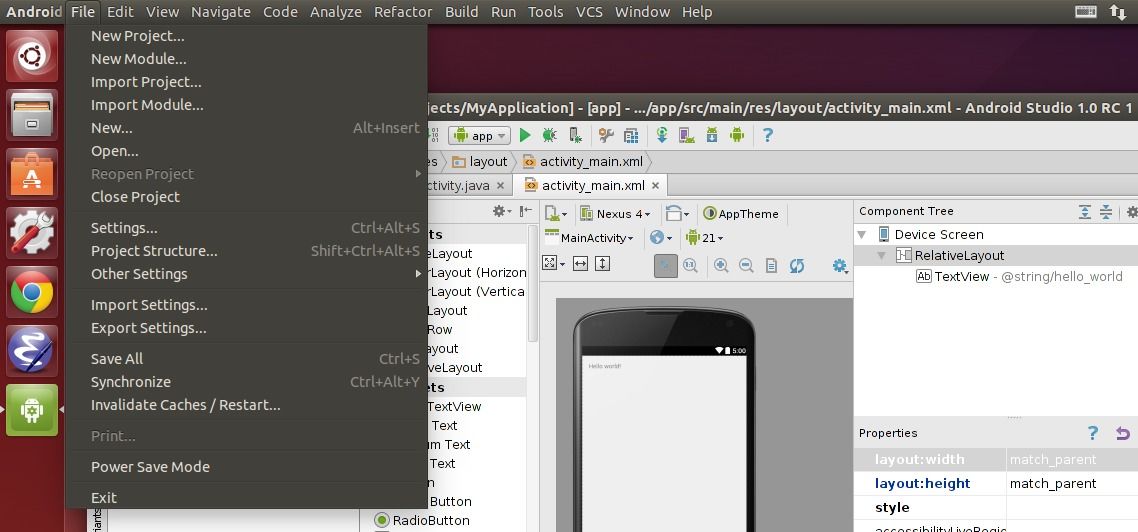
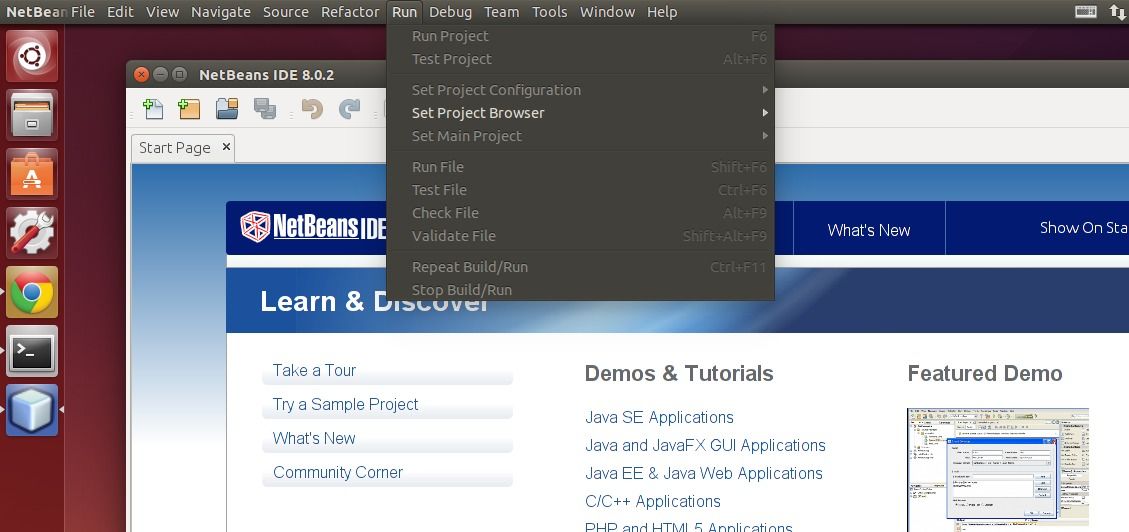
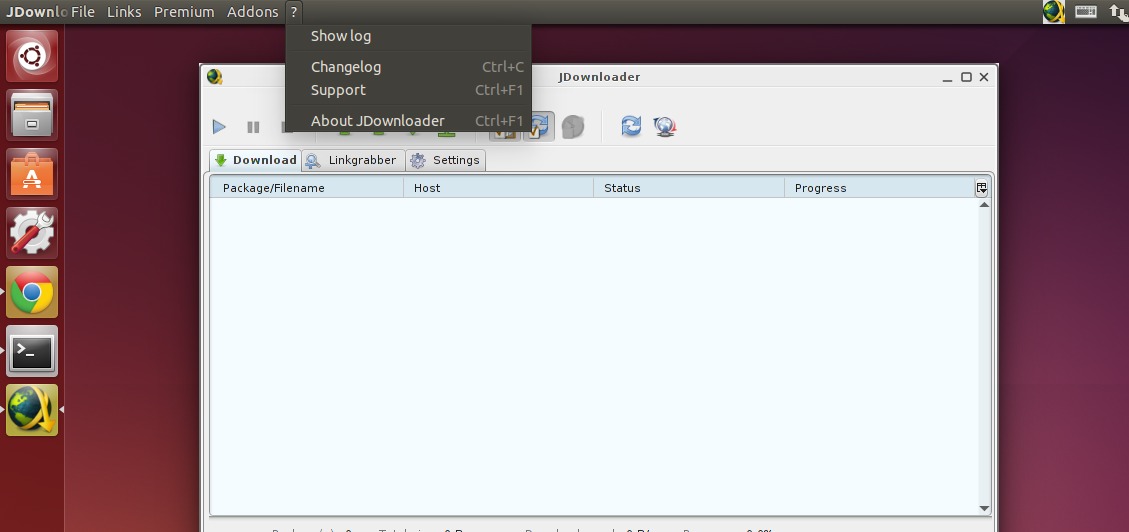
Want to enable the Unity AppMenu (Global Menu) support for NetBeans IDE, IntelliJ IDEA, Android Studio, etc in Ubuntu?

UPDATE: This tutorial does NOT work anymore for Ubuntu 16.04 and later!

Thanks to open source, there’s a project called java-swing-ayatana that enables Global Menu as well as HUD support for all Java Swing Applications in Ubuntu Unity desktop.

Here are some applications with Global Menu enabled via java-swing-ayatana:

Install java-swing-ayatana in Ubuntu:

The developer has made a PPA contains the packages for Ubuntu 14.04, Ubuntu 14.10. An old version also available for Ubuntu 13.10.

Press Ctrl+Alt+T on keyboard to open terminal. When it opens, run the commands below one by one:

sudo add-apt-repository ppa:danjaredg/jayatana

sudo apt-get update

sudo apt-get install jayatana

Above commands will add the developer’s PPA, update your system cache and finally install the java-swing-ayatana.

Once you installed the package, log out and back in to apply changes.

(Optional) To restore settings, just run the command below to uninstall the project:

sudo apt-get --purge remove jayatana libjayatana libjayatanaag libjayatana-java libjayatanaag-java

That’s it. Enjoy!

Install Opera 26 Stable in Ubuntu 14.04

Last updated: December 3, 2014

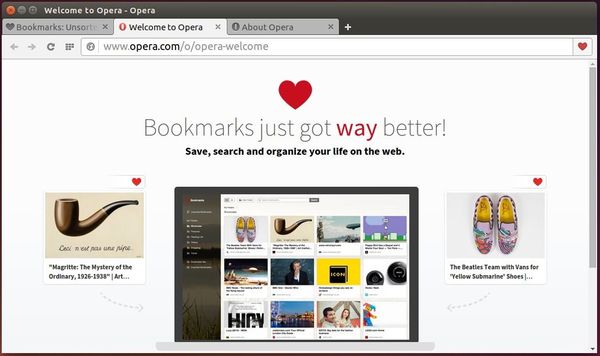
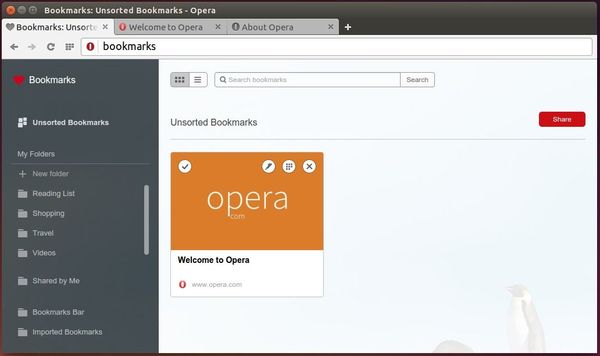
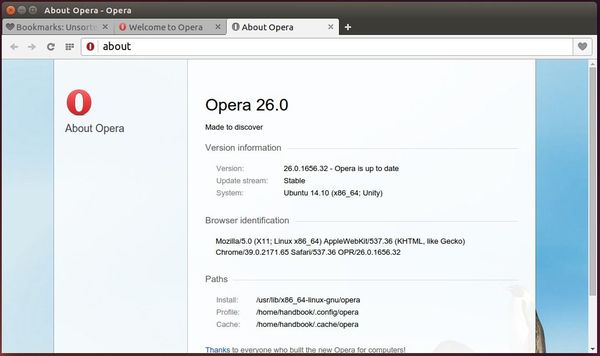
Opera web browser for Linux finally goes stable by releasing the Opera 26 which is based on Chromium 39.

Opera for Linux is 64-bit only. It comes with all the same features as Opera for Windows and Mac, including Speed Dial, the Discover feature, Opera Turbo, bookmarks and bookmark sharing, themes, extensions and more.

An official repository for Debian/Ubuntu based system is available for receiving automatic Opera updates.

For more, see the frequently asked questions about Opera for Linux.

Install Opera 26 in Ubuntu 14.04 and Other Releases:

Just download the .deb package from the link below and click to open with Ubuntu Software Center and finally install the browser:

While the installing process, you’ll be prompts to add the Opera Stable repository. To enable flash, just search for and install the package pepperflashplugin-nonfree from Ubuntu Software Center.

Sigil EPUB editor finally reaches 0.8.x release recently with new feature Plugin Support and various bug fixes. Here I’ll show you how to install it in Ubuntu 14.04, Ubuntu 14.10 and their derivatives.

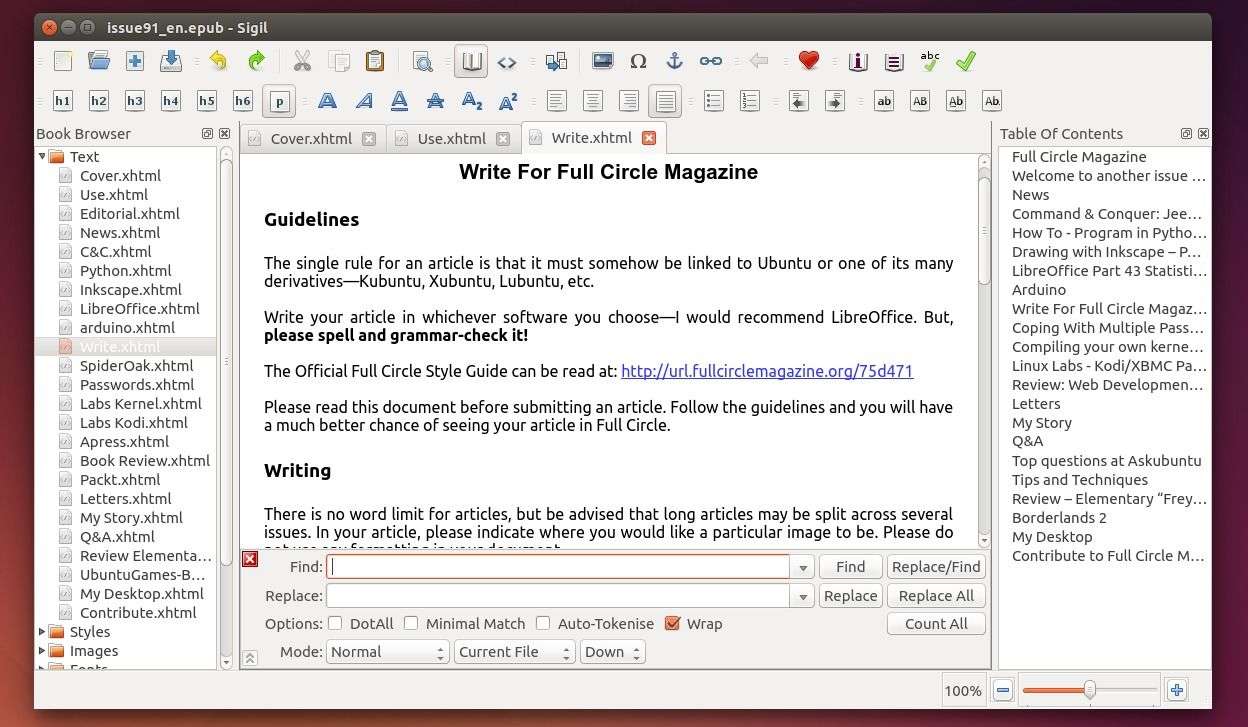
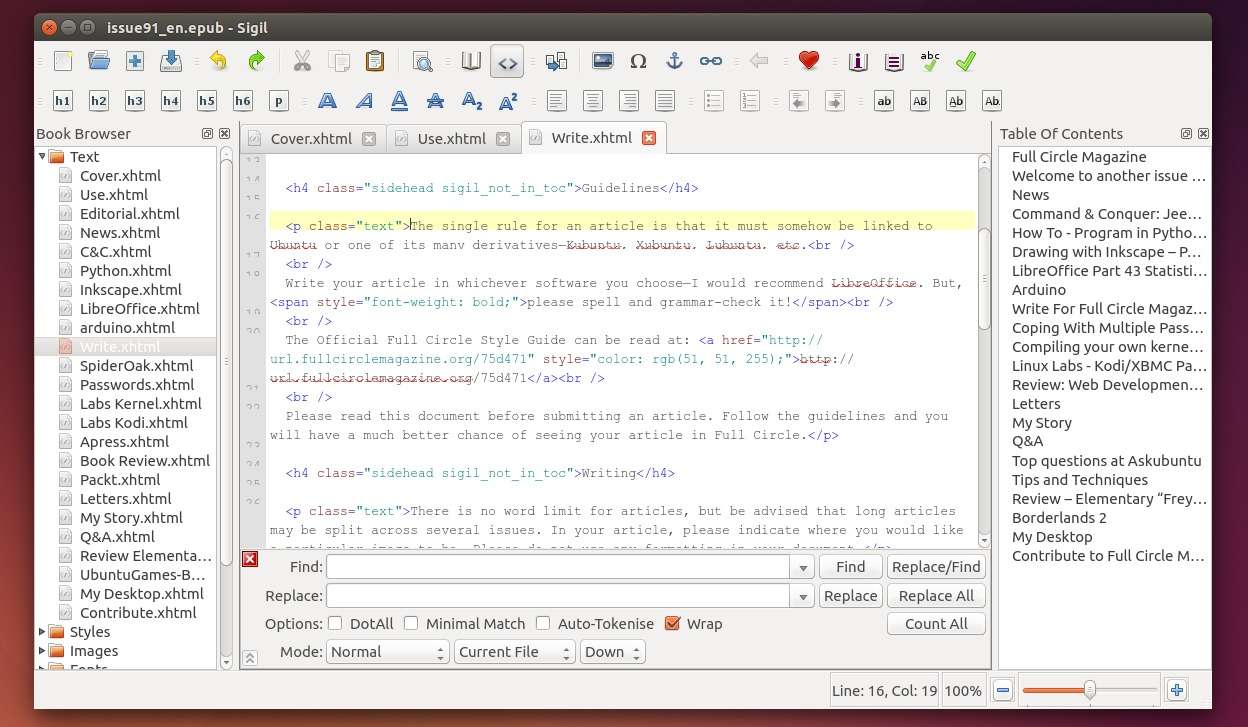
Sigil is an open-source editor for EPUB e-books, works in Windows, Mac OS X, and Linux. It supports both WYSIWYG and code-based editing of EPUB files, as well as the import of HTML and plain text files.

Sigil features:

  • Full UTF-16 and EPUB 2 specification support
  • Multiple views: book, code and preview view
  • WYSIWYG editing in book view
  • Table of contents generator with multi-level heading support
  • Metadata editor with full support for all metadata entries
  • Spell checking with default and user configurable dictionaries
  • Full regular expression (PCRE) support for find and replace
  • Supports import of EPUB and HTML files, images, and style sheets,
  • FlightCrew EPUB integration for EPUB compliance validator
  • Integrated API to external HTML and graphics editors

Screenshots:

How to Install Sigil 0.8.2 in Ubuntu:

The developer does not provides the binary packages of Sigil ebook editor for Ubuntu Linux, but there’s a third-party PPA contains the latest builds (Sigil 0.8.2 so far) for Ubuntu 14.04 LTS and Ubuntu 14.10.

To add the PPA and install Sigil, press Ctrl+Alt+T on keyboard to open terminal. When it opens, run commands below one by one:

sudo add-apt-repository ppa:i2p.packages/i2p

sudo apt-get update

sudo apt-get install sigil

For those who don’t want to add PPA, grab the .deb package directly from the PPA page and click to open it with Software Center and finally install the software.

(Optional) To remove the PPA as well as sigil epub editor:

sudo add-apt-repository -r ppa:i2p.packages/i2p && sudo apt-get remove sigil

This is a step by step tutorial shows you how to install the real Ubuntu OS on USB stick to create a ‘Windows To Go’ style USB drive. Tested with Ubuntu 14.04

Requirements:

Before getting started, you need to prepare something:

  1. A 8GB+ USB Drive.
  2. A Ubuntu Live CD/DVD/USB. In the case below, I created a bootable Ubuntu Live USB from the .iso image.
  3. A computer with an operating system installed.

And always backup your data on the USB flash drive!

To get started:

In my case I have a newly bought 16GB USB stick, a 4GB old USB stick, and a laptop multi-boot with Ubuntu based systems.

1. I don’t have a Ubuntu CD/DVD, so I decided to burn the Ubuntu .iso image into the old USB stick. To do so:

  1. Download Ubuntu image: releases.ubuntu.com
  2. Download UNetbootin: unetbootin.sourceforge.net. For Ubuntu, install it from Software Center.

  3. Plug in the USB stick.

  4. Start UNetbootin, and burn the .iso image into USB

2. Plug in the bootable USB drive to your computer and boot into the Live Ubuntu system.

IMPORTANT: For Windows 8 pre-installed machine, you have to disable “fast startup” and “secure boot” features.

To disable “fast startup”, go to Control Panel > Hardware and Sound > Power Options > System Settings > Choose what the power buttons do and uncheck the Turn on fast startup box.

To disable “secure boot”, follow this screenshot tutorial.

3. Now you’re in the Ubuntu Live system. Plug in the 8GB+ USB stick. Then launch Gparted from the Unity Dash.

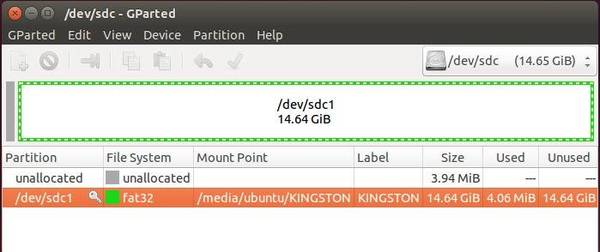
In the top-right drop-down box select the USB drive (16GB in my case), and you should see something like below:

I have two USB flash drives plugged in the computer, the Hard Disk is /dev/sda, 4GB Live USB is /dev/sdb, and the 16GB USB drive is /dev/sdc.

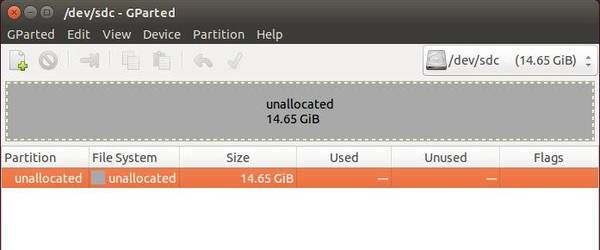
4. From the right-click context menu, un-mount partitions on the USB drive and then delete them.

Click the green check mark button to apply changes, finally you have an unallocated flash drive, like:

When done, close Gparted partition manager.

5. Click the desktop shortcut “Install Ubuntu” to bring up the Ubuntu installation wizard.

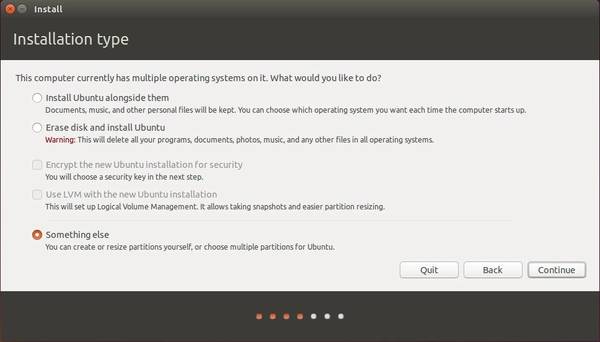
Follow the wizard until it asks you to choose where to install Ubuntu. Select the last option “Something else” and click Continue to bring up partition table.

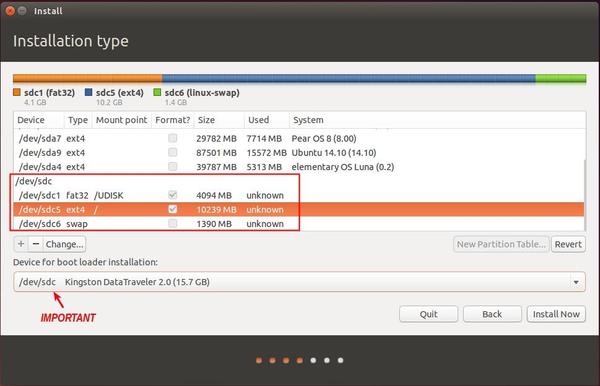
6. In the partition table, scroll down and highlight the “free space” under the USB drive (/dev/sdc in the case) and click the plus sign to create below partitions one by one:

  • a FAT32 (or fat16) partition (required)
    • must be /dev/sdc1 (or sdX1)
    • mount point /NAME_HERE (/UDISK in the case)
    • set the memory size by yourself, it can be used for normal data storage.
    • leave others default.
  • a EXT4 partition for Ubuntu (required)
    • mount point “/” (without quotes)
    • memory size 5G+
    • leave others default.
  • a swap partition (optional).
    • You can skip this if RAM is large enough and you don’t need hibernation feature.

And very important is select install boot-loader to the USB flash drive (/dev/sdc in the case).

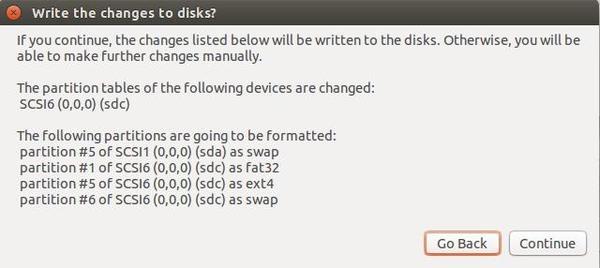
7. When everything’s done, click Install Now and confirm to format the partitions (Pay attention on which partitions to be formatted).

Click continue and finish the wizard. Once the installation complete, restart your computer and boot with the ‘Ubuntu To Go’ USB drive and enjoy!

Lost your Ubuntu user password? Well, it’s not hard to reset your password even you’ve forgot the username and below is how to do it step by step.

1. To get started, you need to boot into Recovery Mode to get a console for running commands.

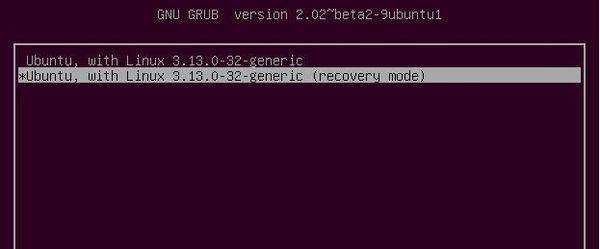
Start your machine and when you’re at the Grub boot loader, select boot with the entry says something below. You may find it under “Advanced Options for Ubuntu” option:

Ubuntu, with Linux 3.x.x … (recovery mode)

If you don’t see the grub menu, press and hold the Shift key after you pressed the Power button to boot the computer.

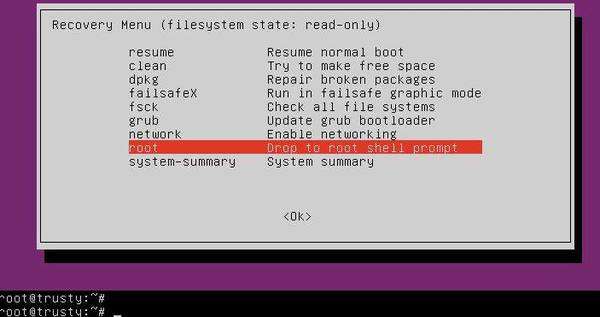
2. In the Recovery Mode options list, select “root Drop to root shell prompt” and hit Enter. You should see the black and white command prompt at the end of the screen:

3. Now run below commands one by one:

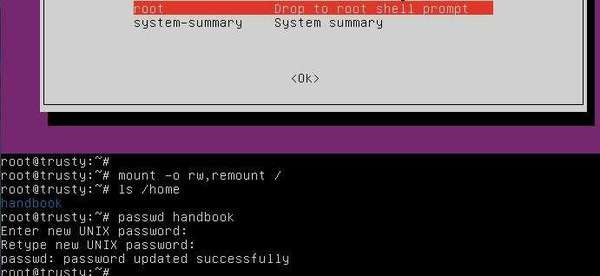
  • First remount the file system with read & write permission:
    mount -o rw,remount /
  • If you don’t remember the username, below command will show you:
    ls /home
  • To change user password:
    passwd USER_NAME_HERE

    Replace USER_NAME_HERE with your username. When it prompts, type in a new password and confirm.

The output “passwd: password updated successfully” means user password has been successfully reset.

Finally run command exit to back to menu (picture in step 2) and select “resume Resume normal boot” to exit Recovery Mode.