Archives For Howtos

android emulator ubuntu

Want to emulate Nexus, Galaxy, or other Android Phone/Tablet on Ubuntu Desktop? Well, you may already know the handy tool Genymotion.

Genymotion is a complete set of tools that provides a virtual environment for Android. It can be very useful for developers, testers, salesman or even gamers. Genymotion is free for personal use. For full features, you need to buy a license.

Features:

  • OpenGL acceleration to achieve the best 3D performance
  • Enable full screen option and improve your experience
  • Be precise in your UI development with the “pixel perfect” functionality
  • Start multiple virtual device at the same time
  • Override virtual device identifiers
  • Directly command virtual devices sensors with Genymotion Shell
  • Fully compatible with ADB. You can control your virtual device from the host
  • Manage sensors: Battery level / status, GPS, Rotation, Camera

Since 2.1:

  • supports copy/paste from the host to the virtual device, or from the virtual device to the host using Android builtin copy/paste feature.
  • Android 4.4 support

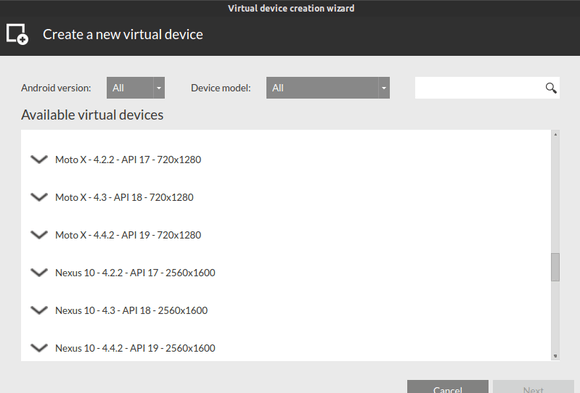
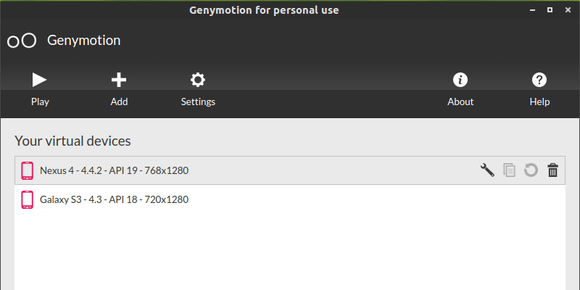
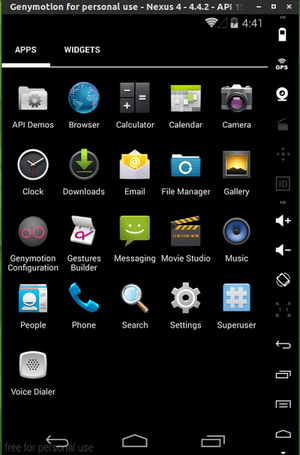
Screenshots:


Install Genymotion:

1. This Android Emulator requires Virtualbox, so first search for and install virtualbox in Ubuntu Software Center.

2. Register https://cloud.genymotion.com/ (free).

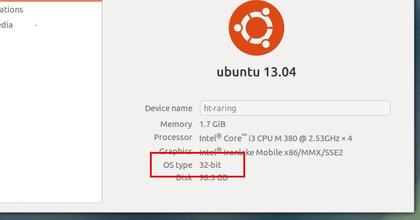
3. Download the installer after your login the website. Not sure Linux 32 bits or 64 bits? Go to System Settings -> Details and you’ll see the OS type:
4. If you save the installer in the default Downloads folder, press Ctrl+Alt+T to open terminal. When it opens, run below commands one by one:

cd ~/Downloads/

chmod +x genymotion-2.1.0_x64.bin

./genymotion-2.1.0_x64.bin

It first navigate to Downloads folder, then give executable permission, and finally start the installer. Of course you need to change the file-name to yours.
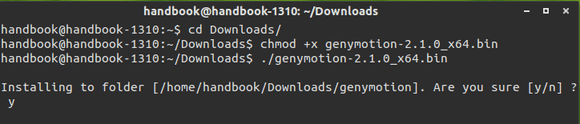
5. According to the previous picture genymotion has been installed to “/home/handbook/Downloads/genymotion”.

So run below command to start it:

/home/handbook/Downloads/genymotion/genymotion

If you have an Apple mobile device and want to charge it through the USB port in Ubuntu Linux machine, you’ll find a little app called ipad_charge which was originally developed by Ondrej Zary from Rainbow-Software.

This simple app supports following devices:

  • iPad / iPad2 / iPad3 / iPad4 / iPad Mini
  • iPod Touch 2G/3G/4G
  • iPhone 3GS/4/4s/5

The developer of super-wingpanel has done a little tweak on the code so that iPad air is supported now. This build has been made into PPA for Ubuntu 14.04, Ubuntu 13.10, Ubuntu 12.10, Ubuntu 12.04, Linux Mint and their derivatives.

Install ipad-charge:

Press Ctrl+Alt+T on keyboard to open the terminal. When it opens, run below commands one by one:

sudo apt-add-repository ppa:heathbar/ipad-charge

sudo apt-get update

sudo apt-get install libusb-1.0-0 ipad-charge

After that, your iPad should be automatically detected and charging enabled when you plug it in. However, if it’s not you may have to troubleshoot.

Troubleshooting:

If the udev rules are not automatically enabling charging when you plug in your device, you can run the program manually.

ipad-charge

If your iPad is still not charging you can find the device IDs of all Apple products with this command.

ipad-charge -l

If more than one is listed, you may have to run it with your iPad unplugged, then plugged in to find the correct ID. Once you determine the ID, report the ID to the links below.

via: ipad_charge on github

Enable Global Menu in Elementary OS Luna

Last updated: February 10, 2014

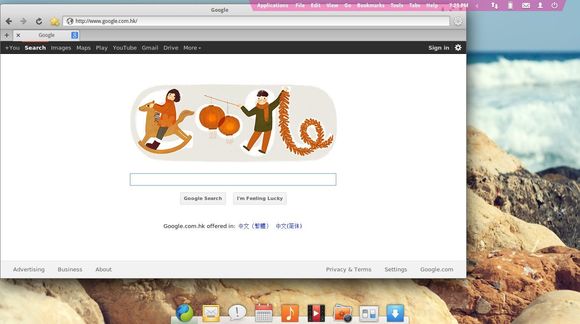
Want to try the Ubuntu Unity-Style Global Menu in Elementary OS Luna? Well, it’s easy to accomplish this via super wingpanel.

Super Wingpanel, wingpanel from the elementaryos project with some additional features:

  • auto hide / intellihide / intellislim
  • slim mode a la wingpanel-slim

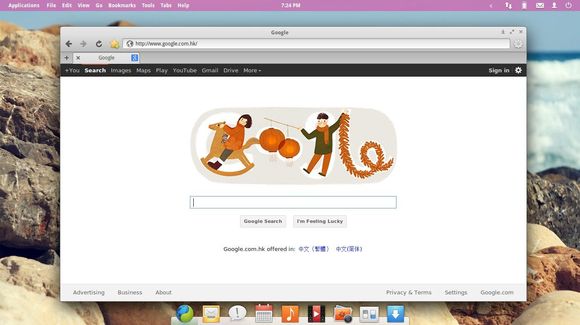
First take a look at the result:

NOTE: Super Wingpanel is not stable at the moment, use it at your own risk!

To install this tool, press Ctrl+Alt+T on your keyboard to open the terminal. When it opens, run the commands below one by one:

sudo apt-add-repository ppa:heathbar/super-wingpanel-daily

sudo apt-get update

sudo apt-get install super-wingpanel

To get it working, indicator-appmenu and dconf-tools are needed. Install them via:

sudo apt-get install indicator-appmenu dconf-tools

To enable Global Menu:

1. Open dconf Editor from the Applications menu.

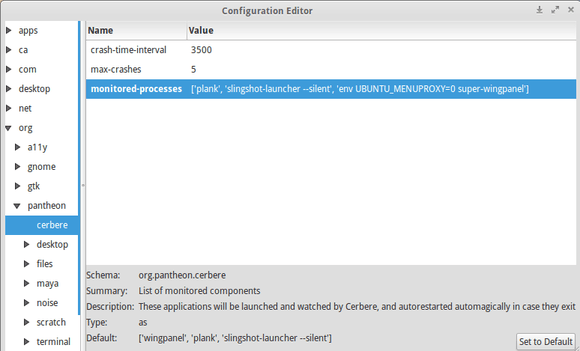
2. Navigate to org -> pantheon -> cerbere, enable appmenu and super wingpanel by changing the value of monitored-process to:

[‘plank’, ‘slingshot-launcher –silent’, ‘env UBUNTU_MENUPROXY=0 super-wingpanel’]

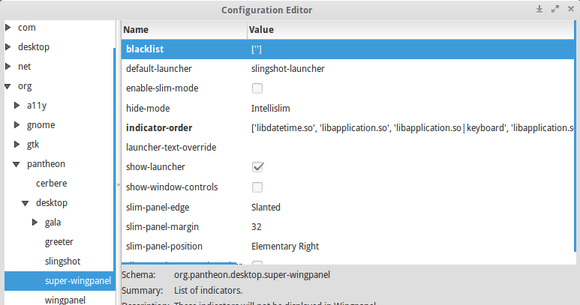
3. Navigate to org -> pantheon -> desktop -> super-wingpanel, change the value of blacklist to:

[”]

Log out and back in. Done.

This is a beginners’ guide about how to install or upgrade to the latest official build of LibreOffice in Ubuntu or Linux Mint.

As you may know, the open-source office suite LibreOffice 4.2 has been released recently which is focusing on performance and interoperability, and improving the integration with Microsoft Windows. See what’s new in LibreOffice 4.2

To install LibreOffice 4.2 in Ubuntu:

1. Press Ctrl+Alt+T on keyboard to open the terminal. When it opens, run the command below to remove the previous installation:

sudo apt-get remove --purge libreoffice*

2. Check out your system type, 32 bit or 64 bit, by going to System Settings -> Details

3. Download:

LibreOffice_4.2.0_Linux_x86_deb.tar.gz (32 bit)

LibreOffice_4.2.0_Linux_x86-64_deb.tar.gz (64 bit)

Go to this page when a new release is out.

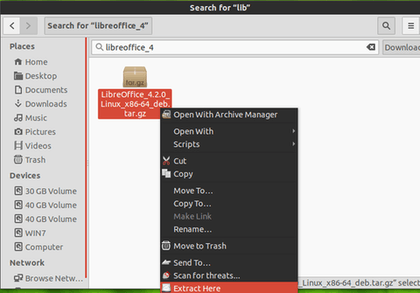
4. Right on the downloaded package and extract it. After that, you’ll see the result folder: LibreOffice_4.2.0.4_Linux_x86-64_deb.

5. In previous terminal window (or press Ctrl+Alt+T to open a new one), run the command below to navigate to LibreOffice folder:

cd ~/Downloads/LibreOffice_4.2.0*

You may replace “LibreOffice_4.2.0*” with your full folder name.

6. Now install all the debian packages under DEBS:

cd DEBS && sudo dpkg -i *.deb

After that, you can Launch LibreOffice 4.2 from Unity Dash or Menu.

Greg KH has announced the first update of Linux Kernel 3.13. If you are using the first release in the Linux kernel 3.13.x branch, you should consider an update to this build.

Linux Kernel 3.13.1 is a very small release. See the changelog:

  • staging: comedi: fix result of memdup_user for user chanlist
  • GFS2: Increase i_writecount during gfs2_setattr_chown
  • ALSA: hda – Explicitly keep codec powered up in hdmi_present_sense
  • mm: Make {,set}page_address() static inline if WANT_PAGE_VIRTUAL
  • extcon: gpio: Request gpio pin before modifying its state
  • staging: comedi: addi_apci_1032: fix subdevice type/flags bug
  • staging: comedi: adl_pci9111: fix incorrect irq passed to request_irq()
  • serial: amba-pl011: use port lock to guard control register access
  • md/raid5: fix long-standing problem with bitmap handling on write failure.
  • md/raid5: close recently introduced race in stripe_head management.

Install:

The DEB packages of this release are available in this page. Download & install them in turn:

  1. linux-headers-3.13.1-xxxxxx_all.deb
  2. linux-headers-3.13.1-xxx-generic_3.13.1-xxx_i386/amd64.deb
  3. linux-image-3.13.1-xxx-generic_3.13.1-xxx_i386/amd64.deb

For command line:

1. Download the DEBs:

For 32 bit system:

wget http://kernel.ubuntu.com/~kernel-ppa/mainline/v3.13.1-trusty/linux-headers-3.13.1-031301-generic_3.13.1-031301.201401291035_i386.deb

wget http://kernel.ubuntu.com/~kernel-ppa/mainline/v3.13.1-trusty/linux-headers-3.13.1-031301_3.13.1-031301.201401291035_all.deb

wget http://kernel.ubuntu.com/~kernel-ppa/mainline/v3.13.1-trusty/linux-image-3.13.1-031301-generic_3.13.1-031301.201401291035_i386.deb

For 64 bit system:

wget http://kernel.ubuntu.com/~kernel-ppa/mainline/v3.13.1-trusty/linux-headers-3.13.1-031301-generic_3.13.1-031301.201401291035_amd64.deb

wget http://kernel.ubuntu.com/~kernel-ppa/mainline/v3.13.1-trusty/linux-headers-3.13.1-031301_3.13.1-031301.201401291035_all.deb

wget http://kernel.ubuntu.com/~kernel-ppa/mainline/v3.13.1-trusty/linux-image-3.13.1-031301-generic_3.13.1-031301.201401291035_amd64.deb

2. Install all the packages:

sudo dpkg -i linux-headers-3.13.1-*.deb linux-image-3.13.1-*.deb

Once installed, restart your computer and done.

If you’re using a proprietary video driver, you may need to re-build or re-install to get it work with the new kernel.

If for some reason this kernel release doesn’t work properly for you, reboot into previous kernel (Grub -> Advanced -> select previous kernel) and run this command to remove Linux Kernel 3.13.1:

sudo apt-get remove linux-headers-3.13.1-* linux-image-3.13.1-*

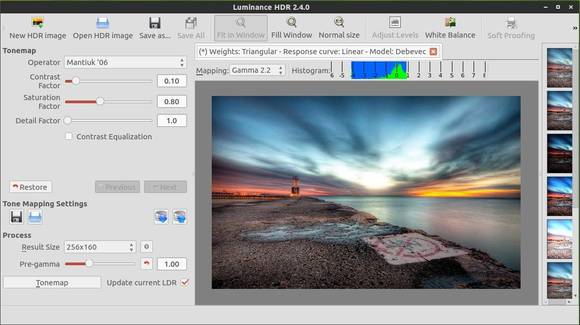
Luminance HDR, an open source graphical user interface application that aims to provide a workflow for HDR imaging, now is at version 2.4.0.

This release introduces a few new features: automatic anti-ghosting, FITS support, integration with Windows Task Bar, improved I/O with TIFF 32 bit (which will make possible to export to third party software for high-quality post processing), redesigned merge algorithms.

To install this build in Ubuntu 13.10 or Linux Mint 16, press Ctrl+Alt+T on your keyboard to open the terminal. When it opens, run below commands one by one:

sudo add-apt-repository ppa:dhor/myway

sudo apt-get update

sudo apt-get install luminance-hdr

These commands will also install the previous version 2.3.1 in Ubuntu 13.04, Ubuntu 12.10 and Ubuntu 12.04.

Luminance HDR website.

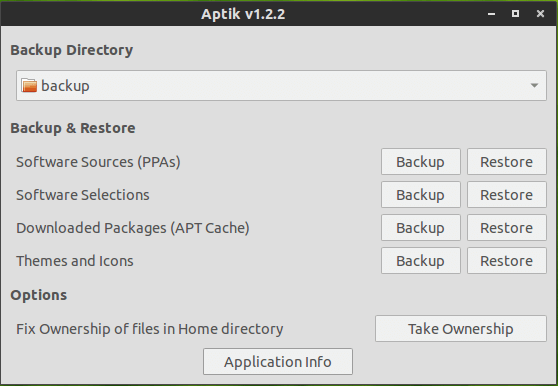
Aptik is a new tool to simplify re-installation of packages after doing a clean installation of an Ubuntu-based distribution. It can be used while re-installing or upgrading to the next Ubuntu/Linux Mint release.

With this simple tool, you can backup & restore:

  • Software Sources (PPAs.)
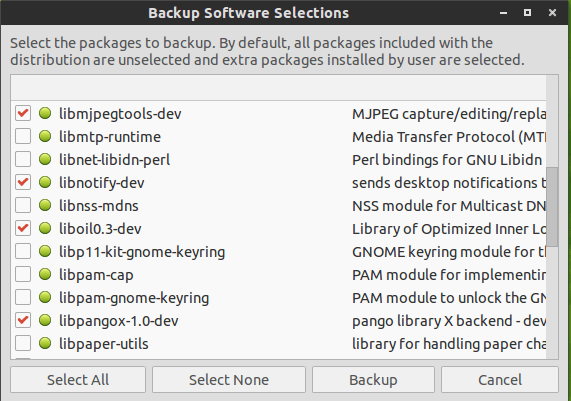
  • Software selections (list of installed packages)
  • Downloaded Packages (APT Cache)
  • Themes and Icons

How to Use Aptik:

Plug-in your pen drive and create a new folder on it named ‘backups’. Start Aptik and select the new folder as the backup directory.

1. Backup PPAs:

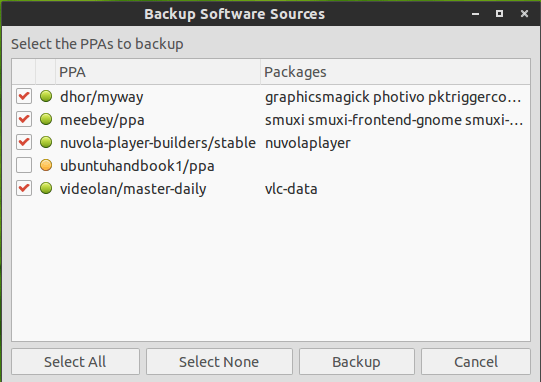
Click on the Backup button and you’ll see a list of third-party PPAs as well as the installed packages from PPAs.

  • PPAs with a green icon are active and have some packages installed.
  • PPAs with a yellow icon are active but unused (no packages installed).

Select the PPAs to backup and click the Backup button. A file named ‘ppa.list’ will be created in the backup directory.

2. Backup Software Selections:

Click on the Backup button will display a list of installed top-level packages. These packages are top-level packages. Dependency packages will not be listed.

All packages that are a part of the Linux distribution are un-selected by default. For example, Firefox is a package that is installed by default on most Linux distributions. Since it came with the distribution, it will be un-selected by default. It can be selected if required.

A file named ‘packages.list’ will be created in the backup directory after you clicked no the backup button.

3. Click the Backup button for Downloaded Packages will paste packages from your system cache (/var/cache/apt/archives) to backup folder.

4. Similarly, all themes and icons from the directories /usr/share/themes and /usr/share/icons can be zipped and saved in the backup folder.

To restore backups:

Connect your pen drive to the new system. Install and then start Aptik and select the backup folder on the pen-drive as the backup directory. Click on the Restore buttons and select packages, PPAs, themes and restore them one by one.

About the “Fix Ownership of Home folder”:

The home folder can be manually copied to another location and then restored after doing a fresh install. However, it can sometimes cause problems if the user’s login name or UID is different from the previous one. Click the Take Ownership button to change ownership of files in your home directory to your current login ID. This is same as running the following command:

sudo chown username -R /home/username

How to Install Aptik:

Press Ctrl+Alt+T on keyboard to open the terminal. When it opens, run below commands one by one:

sudo add-apt-repository -y ppa:teejee2008/ppa

sudo apt-get update

sudo apt-get install aptik

Works for Ubuntu 14.04, Ubuntu 13.10, Ubuntu 13.04, Ubuntu 12.10, Ubuntu 12.04 and their derivatives.

via: teejee

Laptop Power Saving: Enable Laptop Mode in Ubuntu

Last updated: January 28, 2014

Laptop mode is a kernel “mode” that allows you to extend the battery life of your laptop. It does this by making disk write activity “bursty”, so that only reads of uncached data result in a disk spinup. It causes a significant improvement in battery life (for usage patterns that allow it).

Laptop Mode Tools is the primary way to enable the Laptop Mode feature of the Linux kernel, which lets your hard drive spin down. In addition, it allows you to tweak a number of other power-related settings using a simple configuration file.

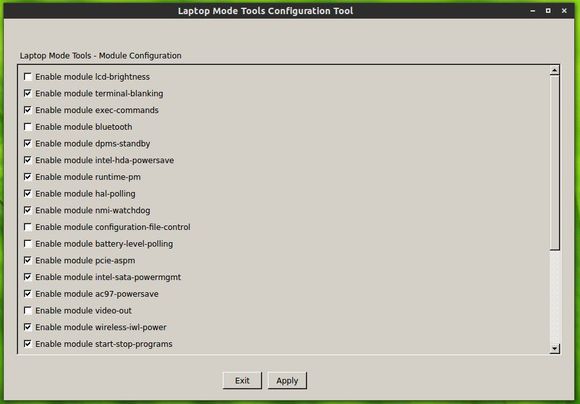
Laptop Mode Tools was a command line only tool until version 1.64, which introduces a GUI that lets you toggle individual power saving modules.

At the moment the version 1.64 is only available in the Ubuntu 14.04 repository. For Ubuntu 13.10, Ubuntu 12.10, Ubuntu 13.04 and Ubuntu 12.04, you can install it from the Webupd8 PPA.

Install Laptop Mode Tools:

NOTE: Laptop Mode Tools is in conflict with TLP. Don’t use them in the same time!

For Ubuntu 14.04, search for and install laptop-mode-tools from Ubuntu Software Center.

For Ubuntu 13.10, Ubuntu 13.04, Ubuntu 12.10 and Ubuntu 12.04, press Ctrl+Alt+T on your keyboard to open the terminal. When it opens, run the commands below one by one:

sudo add-apt-repository ppa:webupd8team/unstable

sudo apt-get update

sudo apt-get install laptop-mode-tools

If you don’t like the PPAs, you can manually download the deb from HERE.

Once installed, the Laptop Mode should be enabled by default. To launch the configuration tool, run the command below in terminal:

gksu lmt-config-gui

You can also find the configuration files in /etc/laptop-mode.

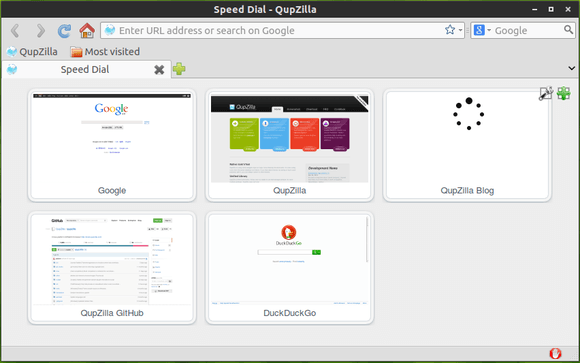
QupZilla is a lightweight and very fast QtWebKit browser. It has been originally started only for educational purposes. But from its start, QupZilla has grown into a feature-rich browser.

The latest version 1.6.1 added option to enable tab switching using the mouse scroll wheel; a toggle to disable inline URL completion in the address bar; and the ability to launch full-screen mode using the command line.

There are also other changes and a few bug fixes in QupZilla 1.6.1:

  • added undo/redo context menu actions in editable web elements
  • speedup loading rules from subscriptions in AdBlock dialog
  • fixed speed dial with disabled javascript
  • fixed showing tooltips on tabs when tab previews are disabled
  • fixed search shortcuts longer than one character in locationbar
  • fixed building issues on OS X and OS/2
  • fixed disabling tab previews from preferences
  • fixed building new Gnome/KDE keyring passwords
  • fixed building StatusBarIcons plugin on Windows
  • win: add new jumplist option to open private window

Install QupZilla in Ubuntu:

Press Ctrl+Alt+T on your keyboard to open the terminal. When it opens, run the commands below one by one:

sudo add-apt-repository ppa:nowrep/qupzilla

sudo apt-get update

sudo apt-get install qupzilla

These commands will install the QupZilla from its official PPA. Supports Ubuntu 14.04, Ubuntu 13.10, Ubuntu 12.10, Ubuntu 12.04, Linux Mint and their derivatives.

BTW: The developer announced in the release note that:

QupZilla will in future be ported to QtWebEngine, which will (amongst other improvements) bring multi-process architecture.
With QtWebEngine comes dependency on Qt 5, which means older platforms may not be supported.
QupZilla on QtWebEngine will be new major version 2.x.x and I hope it will be ready with Qt 5.3 (or Qt 5.4), depending on Qt devs.

The Linux Kernel 3.12 series now is at its 9th updates. All users of the 3.12 kernel series must upgrade. Here’s how to do it in Ubuntu 13.10, Ubuntu 13.04, Ubuntu 12.04, Linux Mint and their derivatives.

Linux Kernel 3.12.9 is a small release which brings improvements to arm and x86, updated driver including i915, as well as other fixes. See the announcement for details.

1. Download the .deb packages for this kernel from Ubuntu Kernel Page, or use below commands in terminal (Ctrl+Alt+T):

For 32-bit:

wget http://kernel.ubuntu.com/~kernel-ppa/mainline/v3.12.9-trusty/linux-headers-3.12.9-031209-generic_3.12.9-031209.201401251255_i386.deb

wget http://kernel.ubuntu.com/~kernel-ppa/mainline/v3.12.9-trusty/linux-headers-3.12.9-031209_3.12.9-031209.201401251255_all.deb

wget http://kernel.ubuntu.com/~kernel-ppa/mainline/v3.12.9-trusty/linux-image-3.12.9-031209-generic_3.12.9-031209.201401251255_i386.deb

For 64-bit:

wget http://kernel.ubuntu.com/~kernel-ppa/mainline/v3.12.9-trusty/linux-headers-3.12.9-031209-generic_3.12.9-031209.201401251255_amd64.deb

wget http://kernel.ubuntu.com/~kernel-ppa/mainline/v3.12.9-trusty/linux-headers-3.12.9-031209_3.12.9-031209.201401251255_all.deb

wget http://kernel.ubuntu.com/~kernel-ppa/mainline/v3.12.9-trusty/linux-image-3.12.9-031209-generic_3.12.9-031209.201401251255_amd64.deb

2. Install these debs:

sudo dpkg -i linux-headers-3.12.9-*.deb linux-image-3.12.9-*.deb

Restart your computer and done.

If you’re using a proprietary video driver, you may need to re-build or re-install to get it work with the new kernel.

If for some reason this kernel release doesn’t work properly for you, reboot into previous kernel (Grub -> Advanced -> select previous kernel) and run commands to remove Linux Kernel 3.12.9:

sudo apt-get remove linux-headers-3.12.9-* linux-image-3.12.9-*