I’ve posted a tutorial about how to install Google SketchUp 2013 in Ubuntu 13.04, but it seems to be outdated. So I decide to write this how-to and hope it will help those who are trying to get Google SketchUp Make 2014 working in Ubuntu 14.04 LTS through wine.
UPDATE 2024: This tutorial is outdated! It does no longer work in current Ubuntu releases!
First of all, press Ctrl+Alt+T on keyboard to open the terminal. When it opens, run the commands below one by one to install the latest development Wine 1.7 from its PPA:
sudo add-apt-repository ppa:ubuntu-wine/ppa

sudo apt-get update

sudo apt-get install wine1.7
Once wine is installed, config it by running:
winecfg
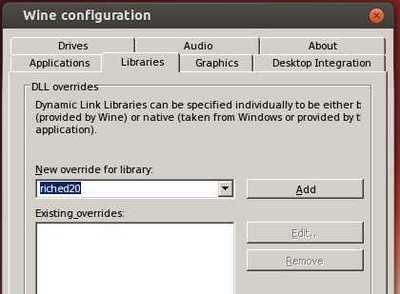
In “Wine Configuration” window, you may:
- Change Windows Version to Windows 7 in the bottom of the Applications tab.
- Under Libraries tab, select ‘Riched20’ library from the drop-down list and add it
Now download the Windows package of SketchUp EXE from the official link below:
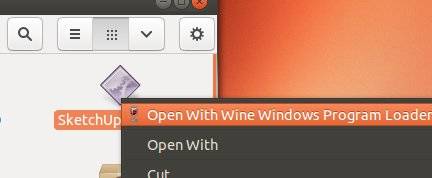
Right-click on the EXE and select open it via Wine:
Follow the install wizard and finally you’ll get SketchUp installed with shortcut icons on your desktop.
Tips:
1. On my 64 bit Ubuntu 14.04, SketchUp 2014 hangs after choosing a template. This has been reported as a bug and seemed to be fixed in Wine 1.7.19. However, I still get this error.
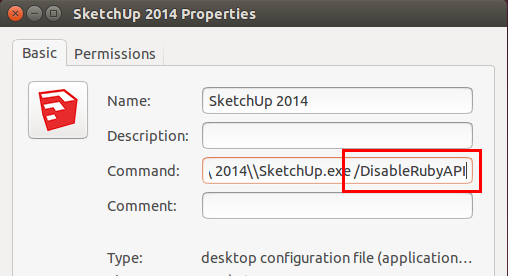
The workaround is disable Ruby API by launching SketchUp via:
wine "C:\Program Files (x86)\SketchUp\SketchUp 2014\SketchUp.exe" "/DisableRubyAPI"
Or, in the Properties window of the desktop shortcut, add /DisableRubyAPI to the end of command area:
2. If sketch up doesn’t work because of a problem with a graphics card
1. Run below command to bring up Registry Editor:
wine regedit2. Navigate to HKEY_CURRENT_USER -> Software -> Google -> SketchUp version -> GLConfig -> Display
3. Change the value of HW_OK to 1 (so that it shows up as 0×00000001 (1)