
This tutorial shows how to install the full mate desktop environment in Ubuntu 26.04 Resolute Raccoon.
Due to lack of maintainers, there’s no official MATE flavor (aka Ubuntu MATE) release for Ubuntu 26.04. If you want, it’s however easy to install this MATE desktop environment to turn your Ubuntu to “Ubuntu MATE 26.04”.
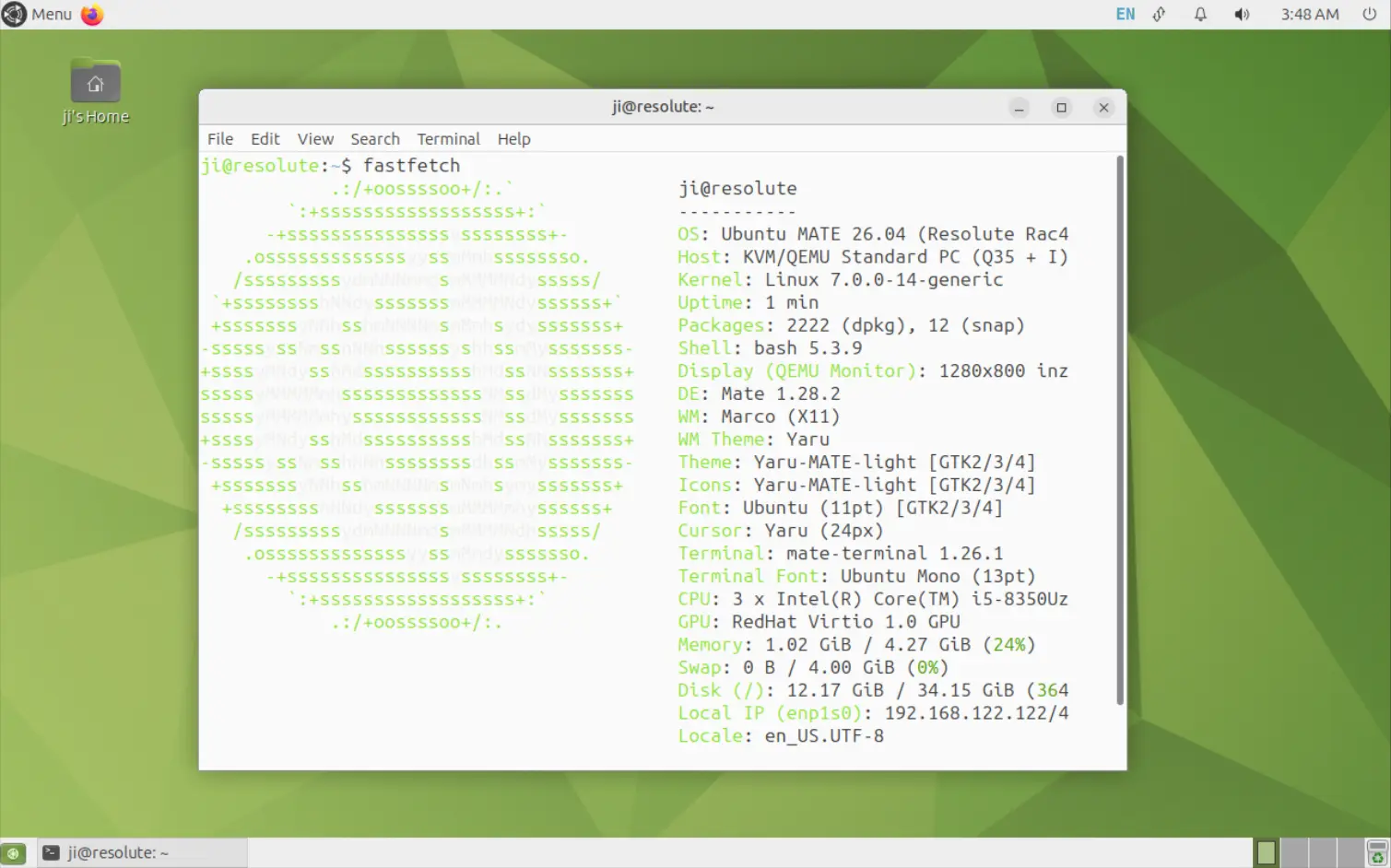
Ubuntu 26.04 with MATE desktop
Back in December 2025, Ubuntu announced that Ubuntu MATE will be non-LTS for 26.04 because it missed the LTS requalification requests.
The community discussed about the future about Ubuntu MATE, and, the project lead made a post last month seeking maintainers. But, until the final release of Ubuntu 26.04, I didn’t know that there’s NO Ubuntu MATE 26.04.
Install MATE in Ubuntu 26.04
For MATE users who don’t want to switch to Debian, Linux Mint, or other Linux distributions with MATE edition, then you may try the MATE desktop in Ubuntu 26.04 repository by following steps.
NOTE: MATE Desktop in Ubuntu 26.04 repository is backported from Debian upstream (Debian Unstable). The Desktop has only community support (through e.g., volunteers and enthusiasts), but NO desktop related security updates or features.
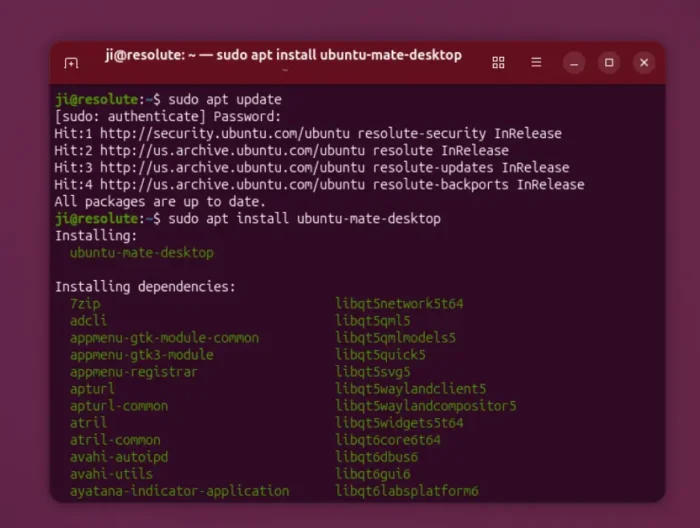
1. First, press Ctrl+Alt+T on keyboard to open up a terminal window. Then, run command to refresh cache:
sudo apt update
2. Next, run the command below to get the full MATE desktop environment:
sudo apt install ubuntu-mate-desktop

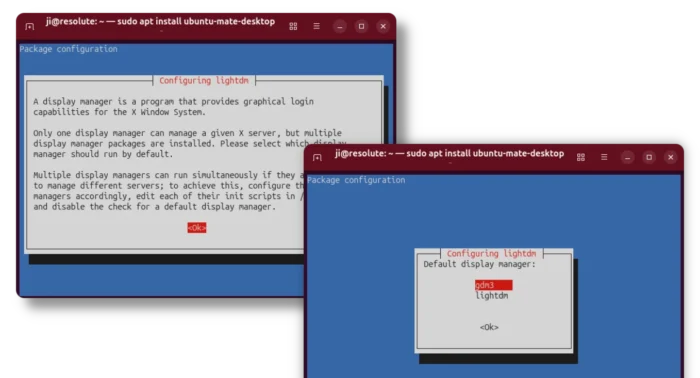
During the installing process, it will ask you to choose the display manager for login screen. Choose either lightdm for Ubuntu MATE style login screen, or gdm3 to keep the current one.

3. After that, simply restart computer. And, choose MATE session from the login screen.
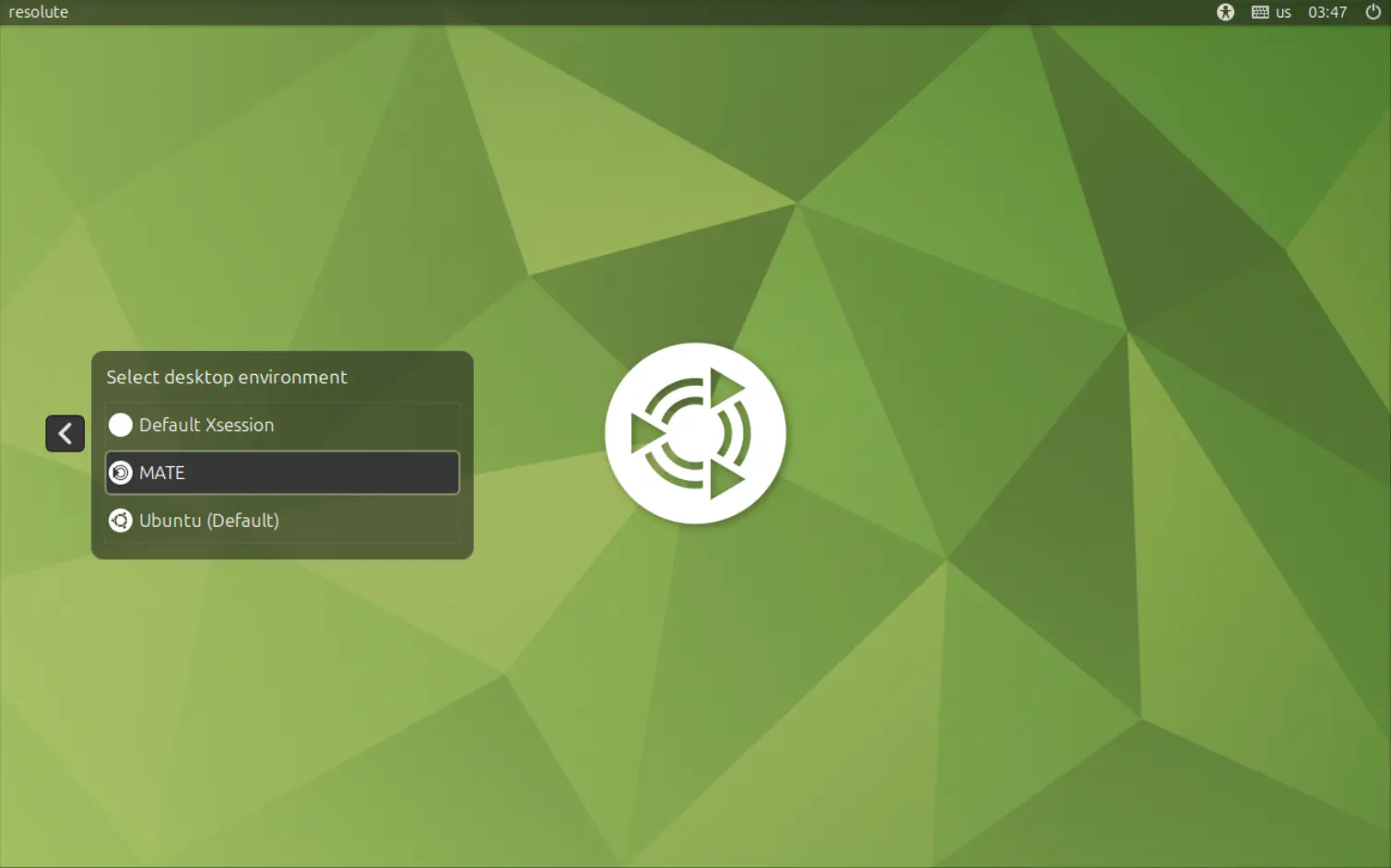
4. As you see, the login screen also include a “Default Xsession” session. It’s an non-functional example session file that comes with lightdm by default.
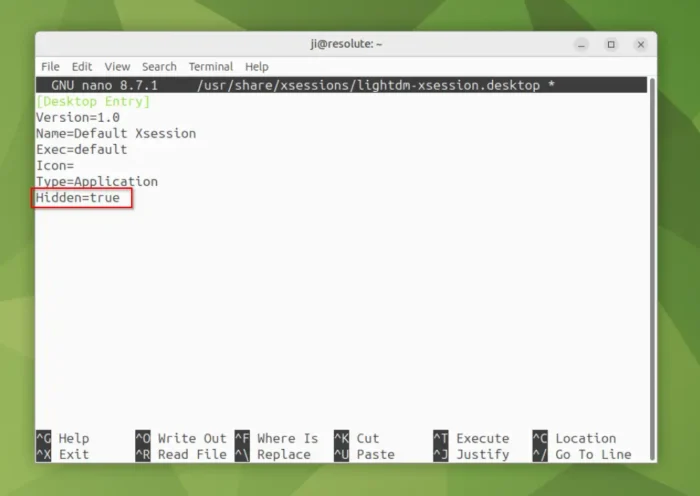
To get rid of it, open terminal (Ctrl+Alt+T) and run command below to edit the config file:
sudo nano /usr/share/xsessions/lightdm-xsession.desktop
When file opens (in terminal), add new line Hidden=true in the end. Finally, press Ctrl+S to save and Ctrl+X to exit.

Uninstall MATE Desktop
To remove the MATE desktop in Ubuntu 26.04, run command in terminal (Ctrl+Alt+T):
sudo apt remove --autoremove ubuntu-mate-desktop mate-session-manager plymouth-theme-ubuntu-mate-logo
Keep an eye in the terminal output. It will probably remove some useful apps, such as Gnome Maps, Transmission, Shotwell, that also default in Ubuntu Desktop, though you may install them back afterwards.
To switch back default boot animation screen, run the command below and choose bgrt.plymouth (usually 0 if no other themes) from the output.
sudo update-alternatives --config default.plymouth

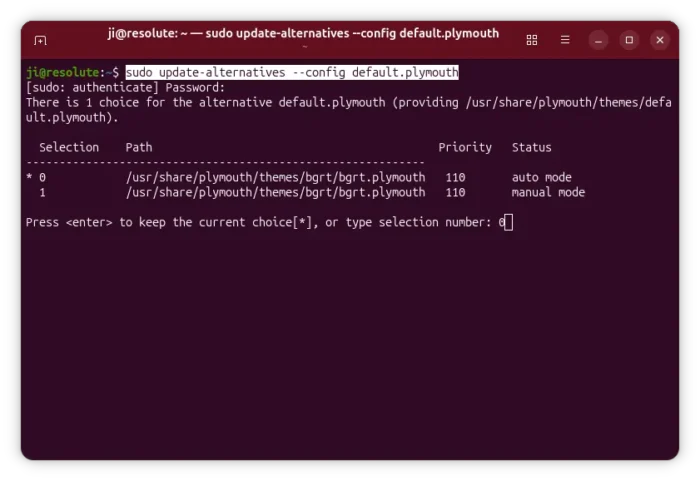
configure boot/shutdown splash theme