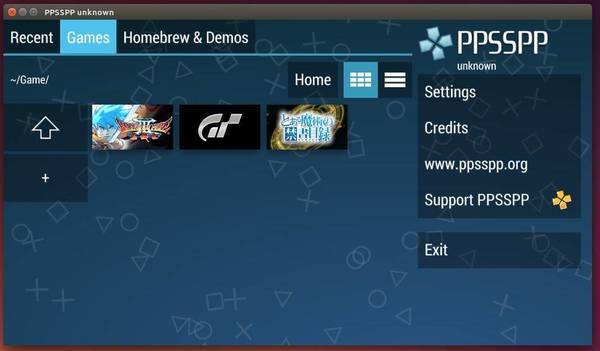
This simple tutorial is going to show you how to play your PSP games in Ubuntu desktop with ppsspp Sony PSP emulator.
Install PPSSPP psp emulator:
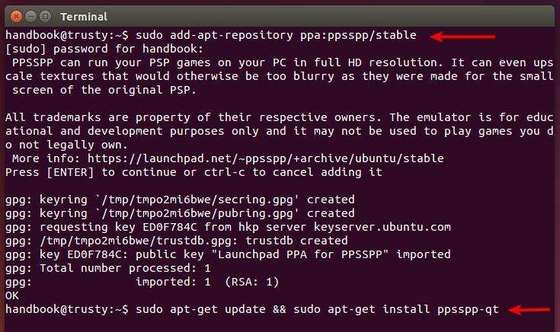
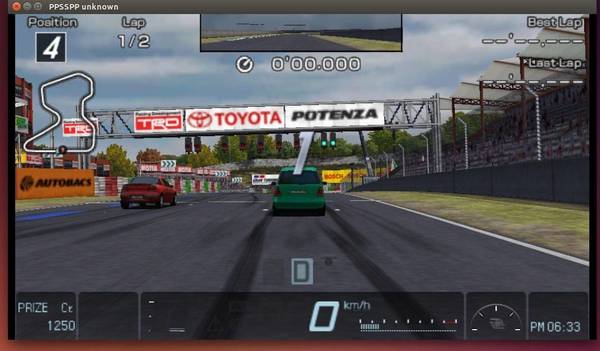
PPSSPP can run your PSP games on your PC in full HD resolution. It can even upscale textures that would otherwise be too blurry as they were made for the small screen of the original PSP.
All trademarks are property of their respective owners. The emulator is for educational and development purposes only and it may not be used to play games you do not legally own.
PPSSPP is available in its official PPA for Ubuntu 14.10, Ubuntu 14.04 and their derivatives. To install it, press Ctrl+Alt+T on keyboard to open the terminal. When it opens, run the commands below one by one:
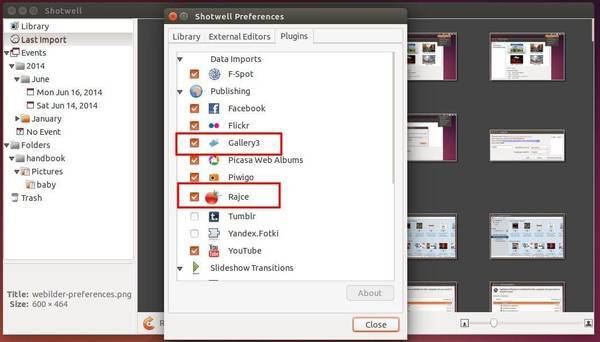
Gnome 3 photo manager shotwell 0.19.0, an unstable pre-release of the upcoming version 0.20, has been released with support for Rajce.net and Gallery 3 photo services.
Shotwell is a popular photo manager for Gnome 3 with below great features:
Import from disk or camera
Organize by time-based Events, Tags (keywords), Folders, and more
View your photos in full-window or fullscreen mode
Crop, rotate, color adjust, straighten, and enhance photos
Slideshow
Video and RAW photo support
Share to major Web services, including Facebook, Flickr, and YouTube
The latest 0.19.0 has been released as a pre-release of the upcoming version 0.20 with below changes:
Support for Rajce.net and Gallery 3 photo services added
Set background image for lock screen
Better detection of corrupt images during import
Various bug fixes
Updated translations
The .deb installer is available in Yorba’s daily build PPA for Ubuntu 14.04 and Ubuntu 14.10. Check your OS type: 32-bit = i386 or 64-bit = amd64, and download & install the appropriate package from the link below:
The .deb package can be installed by double-click on it to open with Ubuntu Software Center and click the install button.
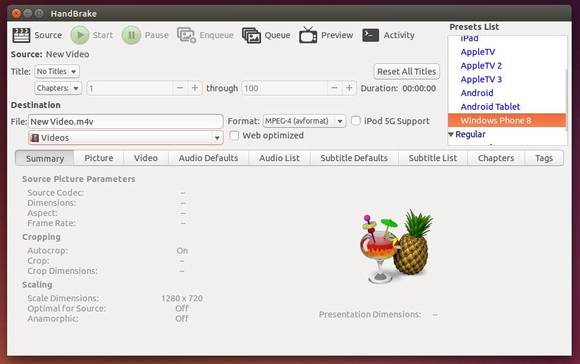
HandBrake, a free and open source video transcoder, finally gets an update by releasing 0.10 beta. It has been such a long time since the last v0.9.9.
Today we are releasing the first of several beta’s for the 0.10 release with the hope of releasing a final build sometime in the next couple of months.
The 0.10 release will give us the opportunity to push out many improvements, but allow us to continue working on the new API we have planned for the 1.0 release.
Changes in HandBrake 0.10:
Core:
Intel QuickSync Video Encode / Decode support.(Windows only currently)
DXVA Hardware Decode support (Experimental and Windows only)
Choice of Scalers: Lanczos, Bicubic (OpenCL) (Experimental)
hqdn3d filter now accepts individual settings for both chroma channels (Cr, Cb)
New NlMeans? denoiser. This is very slow, but results are significantly better than hqdn3d.
Libavformat is now used for muxing instead of mp4v2 and libmkv
The LibAV AAC encoder is now the default as FAAC has been removed.
H.265 encoder (Experimental – available when compiled from source with –enable-x265)
Added VP8 Encoder (using libvpx), available in MKV files only.
Removed mcdeint deinterlace and decomb modes. This relied on the snow encoder in libav which has been was removed by upstream.
Bug fixes and Misc Improvements
Linux:
Automatic audio and subtitle track selection behaviours which can be stored per preset.
Improvements to Auto-Naming feature.
Batch Add to queue by list selection.
Russian and Czech Translations
Bug fixes and Misc Improvements
Requires GTK3
Install HandBrake 0.10 beta in Ubuntu 14.04:
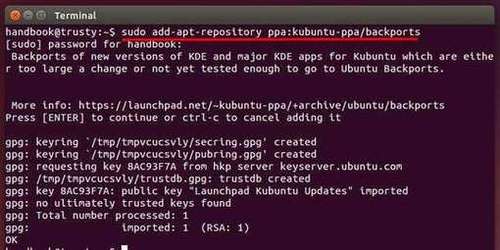
The new release is available in the snapshots PPA for Ubuntu 14.04 and its derivatives. To install it, press Ctrl+Alt+T on keyboard to open the terminal. When it opens, run the commands below one by one:
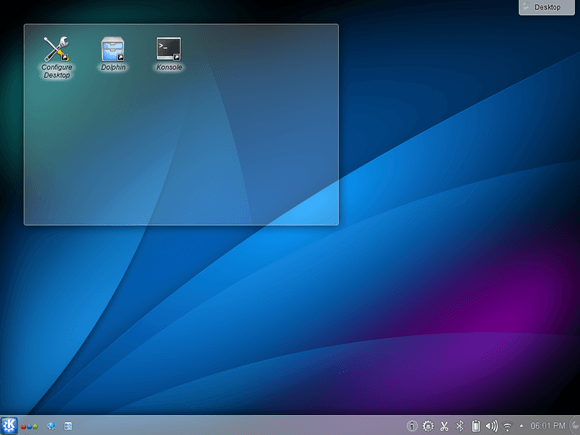
The KDE Community has just announced the KDE Applications 4.14. The new release offers more software stability, with little emphasis on new and less-proven stuff.
The KDE Community announces the latest major updates to KDE Applications delivering primarily improvements and bugfixes. Plasma Workspaces and the KDE Development Platform are frozen and receiving only long term support; those teams are focused on the transition to Plasma 5 and Frameworks 5.
Changes in KDE 4.14 Applications:
Kopete: supports for SOCKS5 proxy in ICQ protocol (before only HTTP type was supported)
Kopete: supports for audio calls (both protocols Google libjingle and real jingle) for *all* jabber accounts, enabled by default
a new Lua backend has been added to Cantor
the VI mode for Kate has been improved in Kate
Dolphin now shows thumbnails of .gpx, .kml and other file types supported by Marble, and various KML improvements have been implemented for Marble.
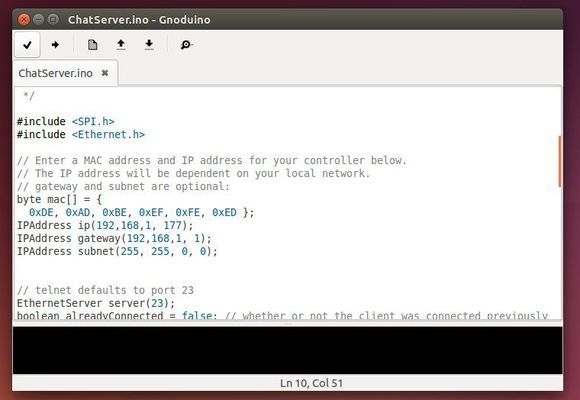
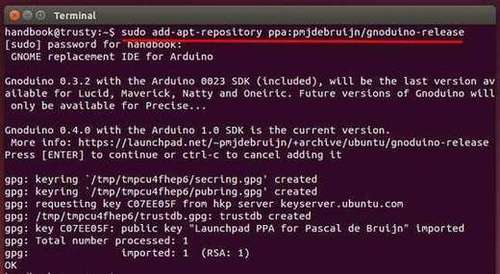
This simple tutorial shows how to install Gnoduino IDE, implementation of well-known Arduino IDE for GNOME, in Ubuntu 14.04 & Ubuntu 12.04.
Why Gnoduino?
The original Arduino IDE is written in Java however, and that makes for poor integration on the Linux platform, particularly with Ubuntu Unity. Luckily enough someone has been busy to do a simple rewrite of the original IDE in Python and GTK, making a fully Linux native IDE, and it’s called Gnoduino. This implementation is targeted at GNOME and its purpose is to be light.
How to Install Gnoduino IDE in Ubuntu:
Besides building from source, the IDE is available in PPA for Ubuntu 14.04 and Ubuntu 12.04.
Press Ctrl+Alt+T on keyboard to open the terminal. When it opens, paste the command below and hit enter to run. Type in your password when prompt.
For Ubuntu 14.04, Ubuntu 12.04 and their derivatives, press Ctrl+Alt+T on keyboard to open terminal. When it opens, run the commands below one by one to get this release from PPA:
Gcalcli is a command line tool for Linux users to manage Google Calendar. It allows you to get your agenda, search for, add, delete, edit events and even import those annoying ICS/vCal invites from Microsoft Exchange and/or other sources.
Additionally, gcalcli can be used as a reminder service and execute any application you want when an event is coming up.
Gcalcli features:
OAuth2 authention with your Google account
list your calendars
show an agenda using a specified start/end date and time
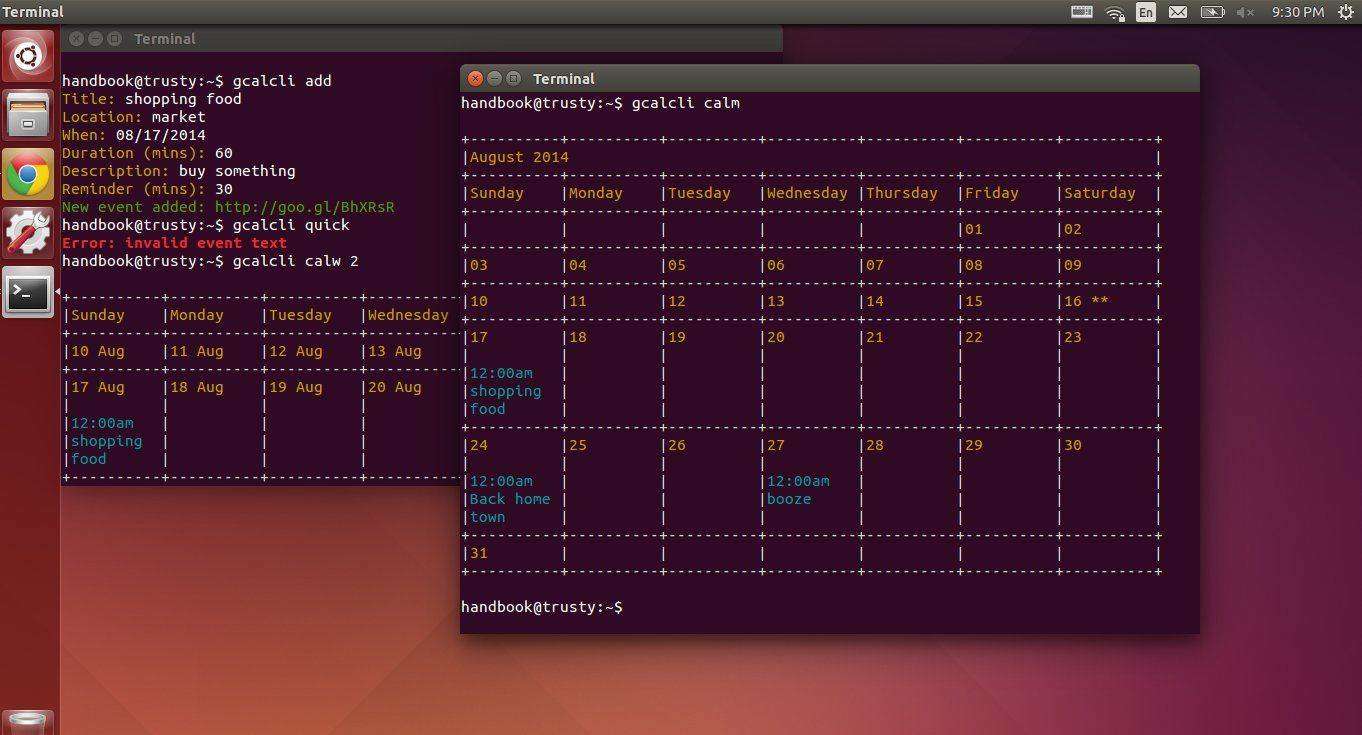
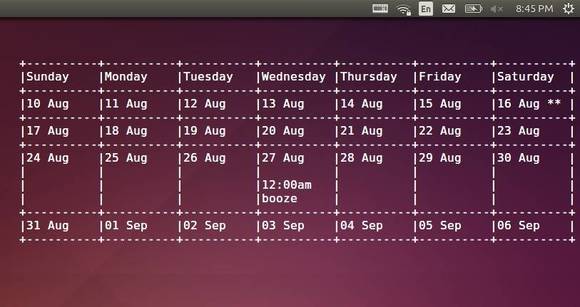
ascii text graphical calendar display with variable width
search for past and/or future events
“quick add” new events to a specified calendar
“add” a new event to a specified calendar (interactively or automatically)
“delete” event(s) from a calendar(s) (interactively or automatically)
“edit” event(s) interactively
import events from ICS/vCal files to a specified calendar
support for URL shortening via goo.gl
easy integration with your favorite mail client (attachment handler)
run as a cron job and execute a command for reminders
work against specific calendars (by calendar name w/ regex)
flag file support for specifying option defaults
colored output and unicode character support
super fun hacking with shell scripts, cron, screen, tmux, conky, etc
Install Gcalcli in Ubuntu:
This python app is available in the default repositories of Ubuntu 14.04, Ubuntu 14.10, and Ubuntu 12.04. So we can easily install it by running below command (or via Software Center):
sudo apt-get install gcalcli
For Ubuntu 14.04 LTS, due to this bug, we need to download & install the latest parsedatetime 1.2 to get gcalcli work.
cd /tmp

wget https://launchpad.net/ubuntu/+archive/primary/+files/python-parsedatetime_1.2-1_all.deb

sudo dpkg -i python-parsedatetime_1.2-1_all.deb
How to Use Gcalcli:
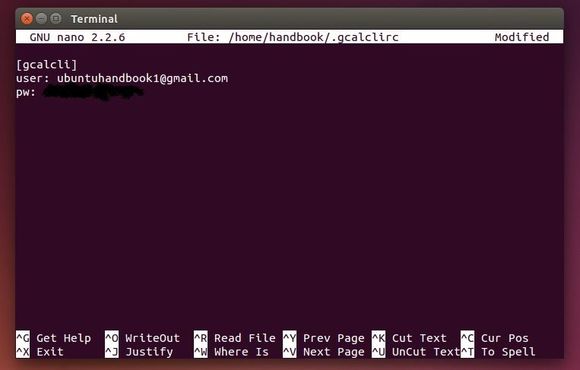
Before getting started, set up your Google Account via:
nano ~/.gcalclirc
Type in below as its content:
[gcalcli]
user: GMAIL-ACCOUNT
pw: PASSWORD
After saving the changes by Ctrl+X, type y, and hit Enter, use the tool via below commands:
To get your agenda:
gcalcli agenda
To get a month agenda in a nice calendar format:
gcalcli calm
Quick add an event:
gcalcli quick 'text here'
For more, run:
gcalcli --help
Display Google Calendar as Desktop Widget:
With this command line tool, you can also display Google Calendar on your desktop through conky. To do so, first install the required packages:
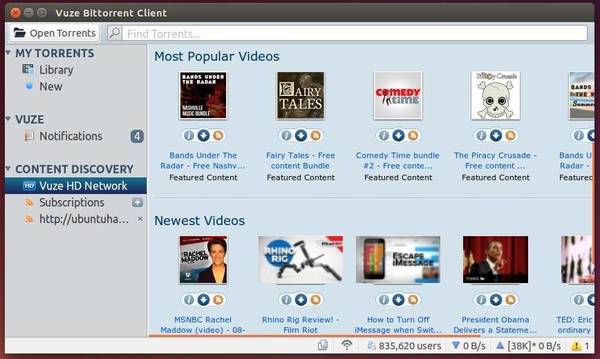
Vuze BitTorrent client has finally reached v5.4.0 with new features, UI changes and various bug fixes.
Vuze is a multimedia BitTorrent client based on Azureus intended for DVD and HD video. It includes some social-networking features to share videos among friends.
User Interface
Added ‘force start’ and ‘super seeding’ options to the create-torrent wizard
File filter added to torrent-options dialog
Minimum/Target share ratio setters added to column menu and torrent options view
Added ‘SHA1′ column to files-view
Added a default save directory to apply when ‘best guess’ is enabled and nothing matches
File path names can now be entered into the search box to open the torrent
New column showing the date of completion of the most recent file
Added ‘initial tags’ to the create-torrent wizard
Enabled networks can now be specified in torrent-options dialog
Added an ‘apply to current’ function to tags with initial-save/move-on-complete set
Added ‘availability’ button to torrent-options to allow a torrent’s availability to be checked before addition
Tag buttons can now be enabled in Library view; category buttons can be hidden
Added ‘pause for’ option for selected torrents in Library view via Advanced menu
Client Core
Added simple tag constraint language (e.g. to define a tag that contains downloads whose title matches a regex)
BEP 40: Canonical Peer Priority
Added ‘copy-on-complete’ function to tags
HTTPS support for web-seeds
Speed limit handler can now start/stop downloads assigned to particular tags
Install Vuze in Ubuntu:
The getdeb apps repository contains the latest packages for Ubuntu 14.04, see: GetDeb.net
If you don’t want to add this repository, go to the link below:
Download Vuze .DEB
Download and install below packages via Gdebi (available in Software Center):
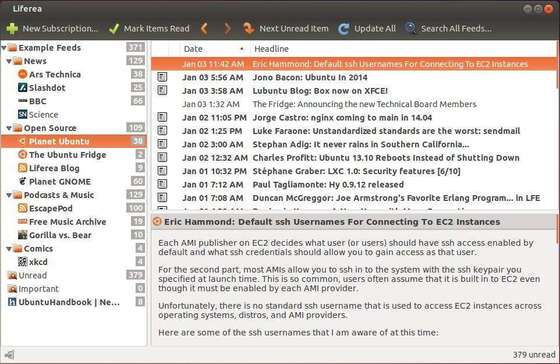
Liferea 1.11.0, the first release of the new unstable release line, has been released with experimental InoReader and Reedah support.
Liferea is an open source feed reader and news aggregator with an embedded graphical browser (supports playing video, audio). It’s a Linux native app comes with below distinguishing Features:
Read articles when offline.
Synchronizes with InoReader, Reedah (since 1.11), TheOldReader, TinyTinyRSS.
Permanently save headlines in news bins.
Match items using search folders.
Play Podcasts in Liferea
According to the release note, the latest 1.11.0 also added tray icon plugin (removed build in tray icon support), category/folder support for TheOldReader, folder auto-removal for TinyTinyRSS & TheOldReader. And support for libindicate and libnotify has been removed (to be added as plugin maybe).
The new release has fixed below bugs:
Mistakenly claims “TinyTinyRSS source is not self-updating”
Crash on font resize at startup.
Honor preferences when opening links
Selecting last unread item in reduced feed list jumps to next feed
Fixed missing “Via” metadata type
Fixed incorrect new count reset handling in item_state.c and some of the node source implementations.
missing installation of liferea.convert file
liferea-add-feed doesn’t process feed:https//
startup race with LifereaHtmlView
Parsing errors not visible with dark themes
Do not use bold text for feeds/folders with unread items in the leftmost treeview
Liferea does not update feeds with TinyTinyRSS
subscription prop/source: not all fields and buttons visible
RTL comments appear incorrectly
Images do not autosize to fit the available space
Add TinyTinyRSS Enclosure Support
“Any of the following” search condition doesn’t work
Some dialogs scrolling areas do not request enough height
Doesn’t automatically update feed name and favicon for new feed
Update to new libxml2 buffer API
Avoid copying list in itemset_merge_items
Make Liferea use ETags and send If-None-Match
Support NOCONFIGURE for RPM builds
Known Bugs:
issue #48: Need to start Liferea twice simultaneously before it shows the window.
Install Liferea 1.11.0 in Ubuntu:
As an unstable release line it might have bugs. I’ve uploaded it into a new PPA, available for Ubuntu 14.10, Ubuntu 14.04 and Ubuntu 12.04.
To add the PPA, press Ctrl+Alt+T to open the terminal and run:
If you want the latest stable release (1.10.10 so far), remove the previous PPA by running above command with parameter -r and then add the below one:
sudo add-apt-repository ppa:ubuntuhandbook1/apps
After added an appropriate PPA, install or upgrade Liferea via Synaptic or Software Updater after checking for updates. Or just run below commands one by one:
sudo apt-get update

sudo apt-get install liferea
(Optional) To purge the PPA as well as downgrade Liferea, run:
Nvidia Team has announced the latest Linux driver 340.32 a few hours ago with new GPUs support, various OpenGL, G-SYNC monitor, and other important bug fixes.
According to the release highlights, the new driver added support for Quadro K420, Quadro K620, Quadro K2200, Quadro K4200, Quadro K5200 GPUs. Also there are various important fixes:
Fixed a regression that prevented the internal stereo infrared emitter built into some 3D Vision monitors from working.
Fixed a bug that could cause some Java-based OpenGL applications using JOGL to crash on startup on systems with Xinerama enabled.
Fixed a bug that could prevent OpenGL Framebuffer Objects (FBOs) from being properly redrawn after a modeswitch.
Fixed a memory leak that occurred when starting OpenGL applications.
Fixed a bug that prevented the EDID-Like Data (ELD) of audio-capable displays from being updated when hotplugged/unplugged.
Fixed a bug that caused Xid errors when using stereo mode 12 (HDMI 3D) on Quadro boards without an onboard stereo DIN connector.
Fixed a video corruption issue for VDPAU decoding of VC-1 and WMV video streams utilizing range remapping on Maxwell GPUs.
Fixed a “black window” bug in Ubuntu 14.04 when using the Xinerama and Composite extensions.
Fixed a bug that caused the screen’s contents to be shifted downward when a G-SYNC monitor is unplugged and replaced by a non-G-SYNC monitor.
Fixed a bug that prevented G-SYNC from working when a G-SYNC monitor was unplugged and plugged back in without a modeset.
Install Nvidia 340.32 in Ubuntu:
For Ubuntu 14.04 and Ubuntu 14.10, this driver has been made into the Xorg Edgers PPA. Press Ctrl+Alt+T on keyboard to open the terminal. When it opens, run the commands below one by one: