The default desktop wallpaper for Ubuntu 16.10 Yakkety Yak has been unveiled. PNG-8, PNG-24, and the same for greyscale, along with mobile formatted ones are available for download.
The new desktop wallpaper looks not all that different from the previous releases’ wallpapers:
Ubuntu 16.10 Wallpaper
Ubuntu 16.10 Wallpaper Gray version
Here are the old releases wallpapers:
Ubuntu 16.04 default wallpaper
Ubuntu 15.10 default wallpaper
Ubuntu 15.04 default wallpaper
Download:
All the Ubuntu 16.10 default wallpaper version, provided by Will Cooke, is available for download at Bug #1621413.
The best-looking Linux distro, Elementary OS, has reached the 0.4 release, code name “Loki” and base on Ubuntu 16.04 package system.
The Elementary OS team announced the stable release of Loki last night:
After a little over a year of development, elementary is proud to announce the stable release of elementary OS Loki!
Loki is the newest version of elementary OS, a design-oriented and open source Linux-based operating system for desktops and laptops. It succeeds Freya which was released in April of 2015.
…
What’s new in Elementary OS Loki:
Linux Kernel 4.4 and Ubuntu 16.04 base
redesigned indicators change to be dark or light depending on your wallpaper.
redesigned audio indicator with more compact set of controls and large icons
new network indicator and redesigned network settings, bluetooth indicator
A new lid close setting and related behavior
Notification center now caches notifications and offers Do Not Disturb toggle
Quick tutorial for beginners how to install μTorrent (uTorrent) in Ubuntu 16.04, by setting up μTorrent server in Ubuntu so you can easily access and control your BitTorrent downloading any where (over LAN or internet) using a web browser.
1. Download μTorrent for Ubuntu:
The latest packages in Linux download page are said for Ubuntu 13.04, however, it works on all current Ubuntu releases including Ubuntu 16.04:
For Ubuntu server, grab the package via wget command:
Open a web browser and go to http://server-ip-address:8080/gui or http://yourdomain.com:8080 to get into the login screen. (get you ip via ifconfig command).
For the first login, type admin as username and leave the password box empty.
username: admin
password: none
Once you’re in, go to Settings -> Web UI to change username and password, remote access IPs. And you may enable Remote Access to allow remote access from anywhere on the internet.
Today we are updating the beta channel with Linux NPAPI Flash Player by moving it forward and in sync with the modern release branch (currently version 23). We have done this significant change to improve security and provide additional mitigation to the Linux community.
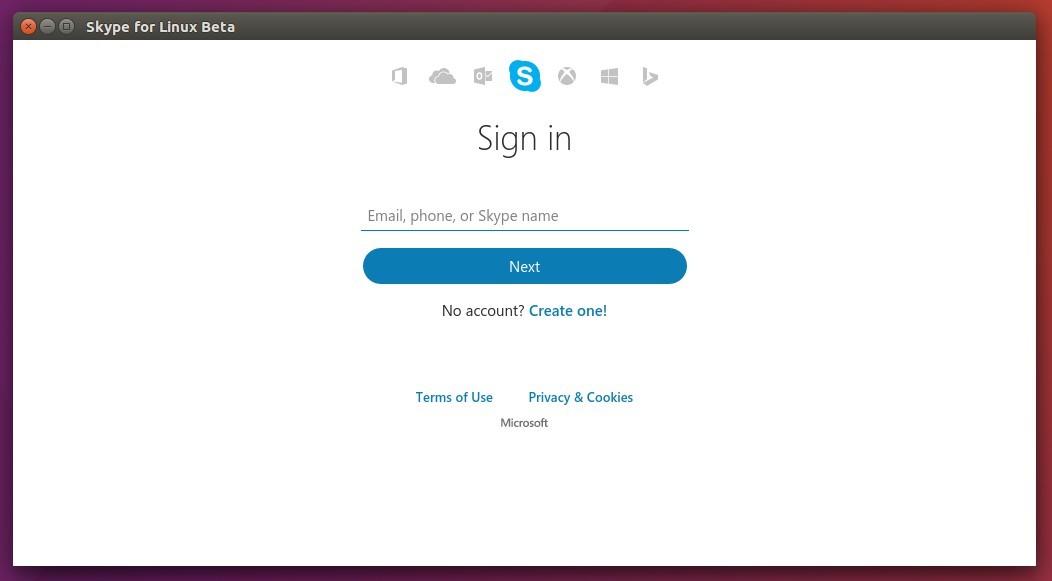
In the past, we communicated that NPAPI Linux releases would stop in 2017. This is no longer the case and once we have performed sufficient testing and received community feedback, we will release both NPAPI and PPAPI Linux builds with their major version numbers in sync and on a regular basis.

Adobe says it will release both the NPAPI and PPAPI (used in Chrome) versions of Flash Player for Linux. However, the NPAPI version will not support or add any advanced features and capabilities, like DRM, GPU acceleration, Stage 3D, etc.
The open-source desktop twitter client Corebird has reached the 1.3.1 release with some fixes to 1.3 release. For those who prefer this modern twitter app, it’s available for upgrade in my PPA (unofficial) for Ubuntu 16.04 and Ubuntu 16.10.
Fix muted and/or blocked tweets still showing up in timelines
Fix accounts not getting saved when first created
Fix retweets of the authenticating user not getting theiry correct seen status
Fix profiles descriptions containing ampersand characters and links
Fix profile banner fade-in transition
Fix doubly-escaped ampersands in link tooltips
Fix missing underlines in @screen_names in the profile popover
Corebird with Numix GTK theme
How to install Corebird 1.3.1 in Ubuntu:
For Ubuntu 16.04, and/or Ubuntu 16.10, you can either download the .deb binary from the PPA file archive, or run the commands below one by one in terminal to add PPA and install Corebird:
Tip: The GetDeb repository also maintains Corebird packages for Ubuntu 16.04, now it contains Corebird 1.3 and the 1.3.1 release should be available soon.
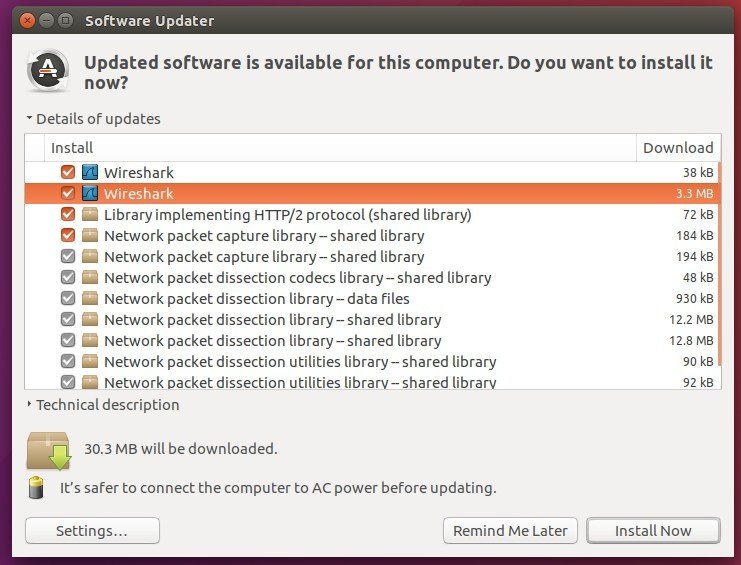
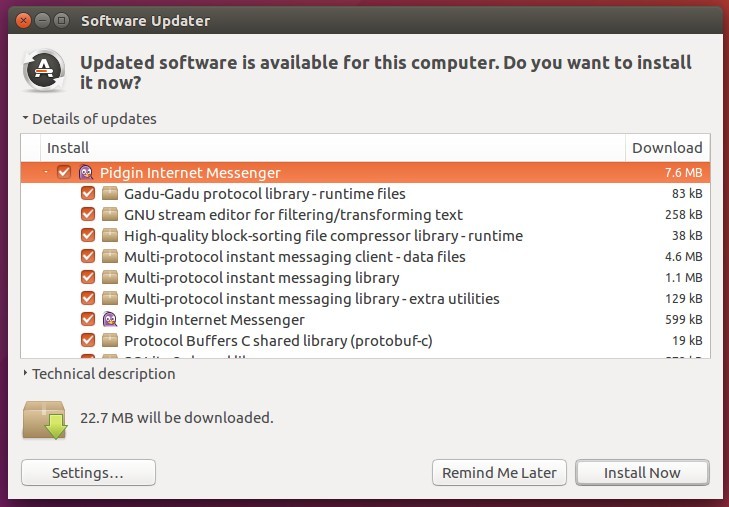
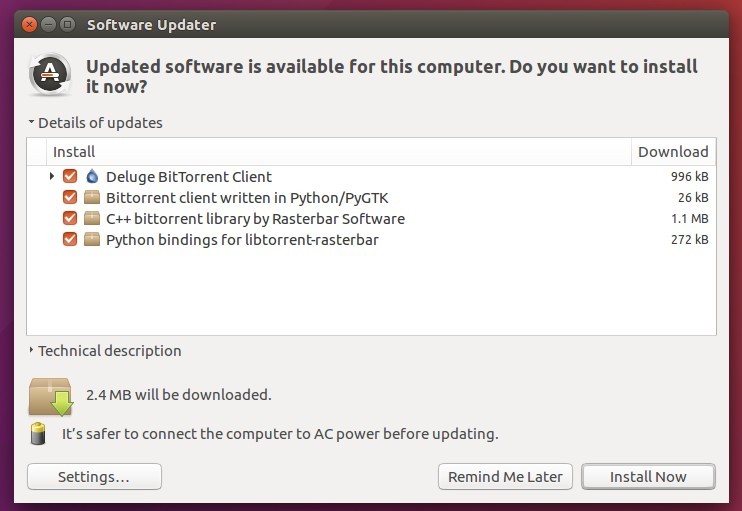
With the PPA added, you can upgrade Corebird along with other system updates via Software Updater when a new release is out and uploaded into PPA.
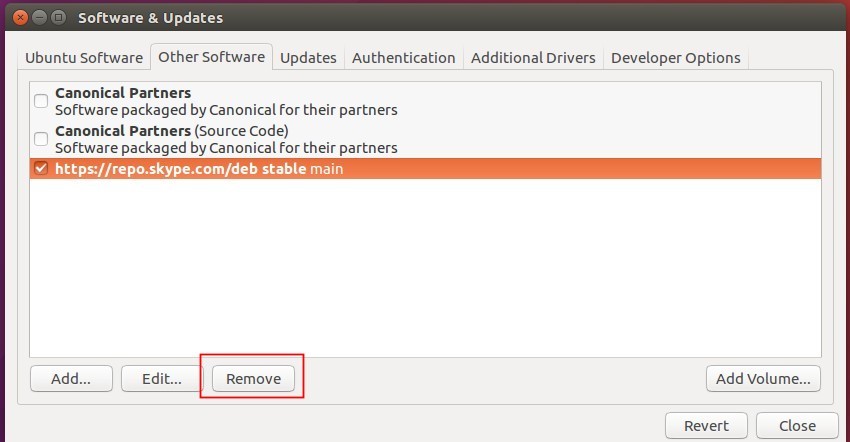
And the PPA can be easily disabled or removed via Software & Updates utility under Other Software tab.
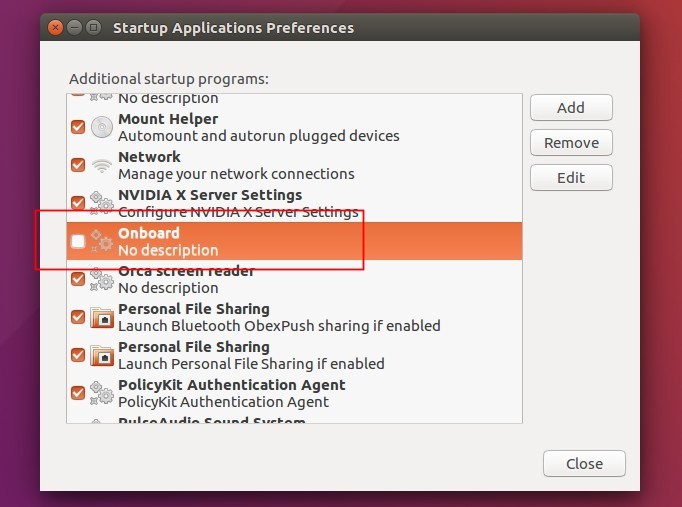
Ubuntu 16.04 does not play a startup / login sound in my laptop, but it’s easy to play a sound at login and customize the sound file by adding a new startup program using Startup Applications utility.
And below steps will show you how:
1. Launch Startup Applications utility from the Dash.
2. When it opens, click Add to add a new startup program and:
Type any word in Name and Comment boxes.
For the Command box, paste below line to play the default Gnome login sound:
Gambas has recently reached the 3.9.0 release. Available in its official PPA repository for Ubuntu 16.04, Ubuntu 14.04, and Ubuntu 12.04.
Gambas 3.9.0 brings hundreds of new features, bug fixes and optimizations. The main feature is gb.web.form, a new component that allows to make the GUI of your web application from the Gambas IDE. Other features are:
gb.form.terminal, a new component providing a full-featured terminal emulation.
A new IDE output console based on the previous component.
A new and better project argument list interface.
Project creation is now based on project templates. Custom templates can be defined.
New library management system.
The Expression class is now inheritable and allows to customize the interpreter evaluator.
FileView and DirView controls automatically refresh themselves if your project uses the gb.inotify component.
TextEditor now can display thin vertical lines to emphasize indentation.
Menu can have a proxy, i.e. pop up the children of another menu.
Paint.StretchImage() is a new method that scales an image to fit a rectangle, keeping the image proportions.
gb.net.smtp component support PLAIN and CRAM-MD5 authentication.
How to install Gambas 3.9.0 in Ubuntu via PPA:
1. Before installing Gambas 3.9.0, remove the previous release if installed:
For those who prefer light skins in desktop applications, ‘spotio‘ is open-source project offers a proof-of-concept Rdio-inspired skin for Spotify desktop app.
The project provides a setup script that automatically downloads the latest Spotify client binary from its official repository, extracts it, and rebuilds the package with Spotio theme so your Spotify app looks like:
To get started:
1. Download Spotio from the link below:
2. Extract the package, and go to the result directory in terminal by:
either right-clicking on the folder and choosing “Open in terminal”.
or launching terminal (Ctrl+Alt+T) and running cd ~/Downloads/spotio* command
3. Now run the setup script to download Spotify for its official repository and repack it with spotio theme:
./setup-linux.sh
4. The new package will be generated in dist/ folder and named spotio.deb, install it when done:
cd dist/ && sudo dpkg -i spotio.deb
It will replace previous Spotify version you installed.
Restore Spotify with Dark UI:
So far the easiest way to restore changes is to download and re-install the official package
Converseen, a free and open-source batch image resizer and converter, has reached the 0.9.5 a few days ago.
Converseen 0.9.5 is the first Qt5 port release written in C++. It works on Windows, Linux, and FreeBSD. With Magick++ image libraries it supports more than 100 image formats.
Features:
Convert an unlimited number of images
Create thumbnails to any of the most popular formats
Carry out a single or a multiple conversion
Resize, compress images.
Rotate and flip images.
How to install Converseen 0.9.5 in Ubuntu 16.04, 14.04
While Ubuntu offers the 0.9.2 release in its main repository, you can install or upgrade Converseen from an third-party PPA.
1. Open terminal (Ctrl+Alt+T) and run command to add PPA:
sudo add-apt-repository ppa:ubuntuhandbook1/apps
2. To upgrade from a previous release, launch Software Updater and install available updates after checking for updates:
Or just run the commands below in terminal to install or upgrade the software:
sudo apt update && sudo apt install converseen
For those who don’t want to add PPA, grab the .deb package from the file archive.
3. (Optional) To remove converseen image processor, run:
sudo apt remove converseen && sudo apt autoremove
And the PPA can be disabled or removed via Software & Updates utility in Other Software tab.
OpenShot video editor finally reached the new major 2.1 stable release. Here’s how to install it in Ubuntu 16.04, Ubuntu 14.04 via PPA.
OpenShot 2.1 adds support for displaying audio waveforms on clips, improves property editing, provides a new selection dropdown, supports user-configurable keyboard mapping, Windows 64-bit support, timeline improvements, a new startup tutorial, performance gains for effects, improved transitions, and much more.
The OpenShot Stable PPA has made the 2.1 release packages (Qt5 built) for Ubuntu 16.04, Ubuntu 14.04. To install it, do:
1. Launch terminal (Ctrl+Alt+T) and run command to add PPA: