Archives For Howtos

RawTherapee

The RawTherapee RAW file processor has reached the new stable 5.0 release a few days ago. Now it’s available in PPA for Ubuntu 16.04, Ubuntu 16.10, Linux Mint 18, Elementary OS Loki, and derivatives.

RawTherapee 5 supports most raw formats, including some unusual ones like those from cameras using Foveon and X-Trans sensors. If your camera’s raw format is not supported, read ‘Adding Support for New Raw Formats‘.

New Features in RawTherapee 5:

  • Wavelets tool.
  • Retinex tool.
  • Monitor profile and rendering intent support.
  • Print soft-proofing support.
  • Automatic chroma noise reduction, manual luminance noise reduction using sliders and curves.
  • The “Inspect” tab in the File Browser lets you see a 100% preview of the image whose thumbnail your mouse cursor hovers over, which is either the largest JPEG image embedded in the raw file or the image itself when hovering over non-raw images.
  • The curve pipette allows you to pick the right point of a curve by clicking in the preview, and input/output values so that you can set the desired output value for a given input value.
  • Post-resize sharpening, to give your photos that subtle crispness after resizing them.
  • Dual-illuminant DCP support with curves, base tables, look tables and baseline exposure.
  • New exposure tone curve modes “Luminance” and “Perceptual”.
  • Queue processing will stop if an error is encountered while saving, e.g. if you run out of disk space.
  • The Contrast by Detail Levels tool received the “Process Locate Before/After Black-and-White” option.
  • Rec. 2020 ICC profile added.
  • The Navigator can show RGB, HSV and L*a*b* values in a range of 0-255, 0-1 or %.
  • The Lockable Color Picker allows you to place multiple sample points over the preview to measure colors and see them change in real time as you manipulate the image. They support the same ranges as the Navigator.
  • Grayscale JPEG and TIFF images are now supported.
  • 32-bit TIFF files are supported.
  • In addition to these new features, RawTherapee received over two years worth of amazing speedups, code cleanups and bug fixes, making it faster and more stable than ever before!

How to Install RawTherapee 5 in Ubuntu

1. Open terminal (Ctrl+Alt+T) and run command to add the PPA:

sudo add-apt-repository ppa:dhor/myway

Type in password (no visual feedback) when it prompts and hit enter.

2. Then install or upgrade RawTherapee either via Synaptic Package Manager or by running the commands below one by one:

sudo apt update

sudo apt install rawtherapee

For those who don’t want to add PPA, grab the DEB package from here.

Note: you won’t be able to upgrade the software using Software Updater utility since the PPA build miss data and debug files.

How to Restore:

To uninstall RawTherapee 5.0 and restore to the stock versions in Ubuntu main repositories, run command to install ppa-purge and purge the PPA:

sudo apt install ppa-purge && sudo ppa-purge ppa:dhor/myway

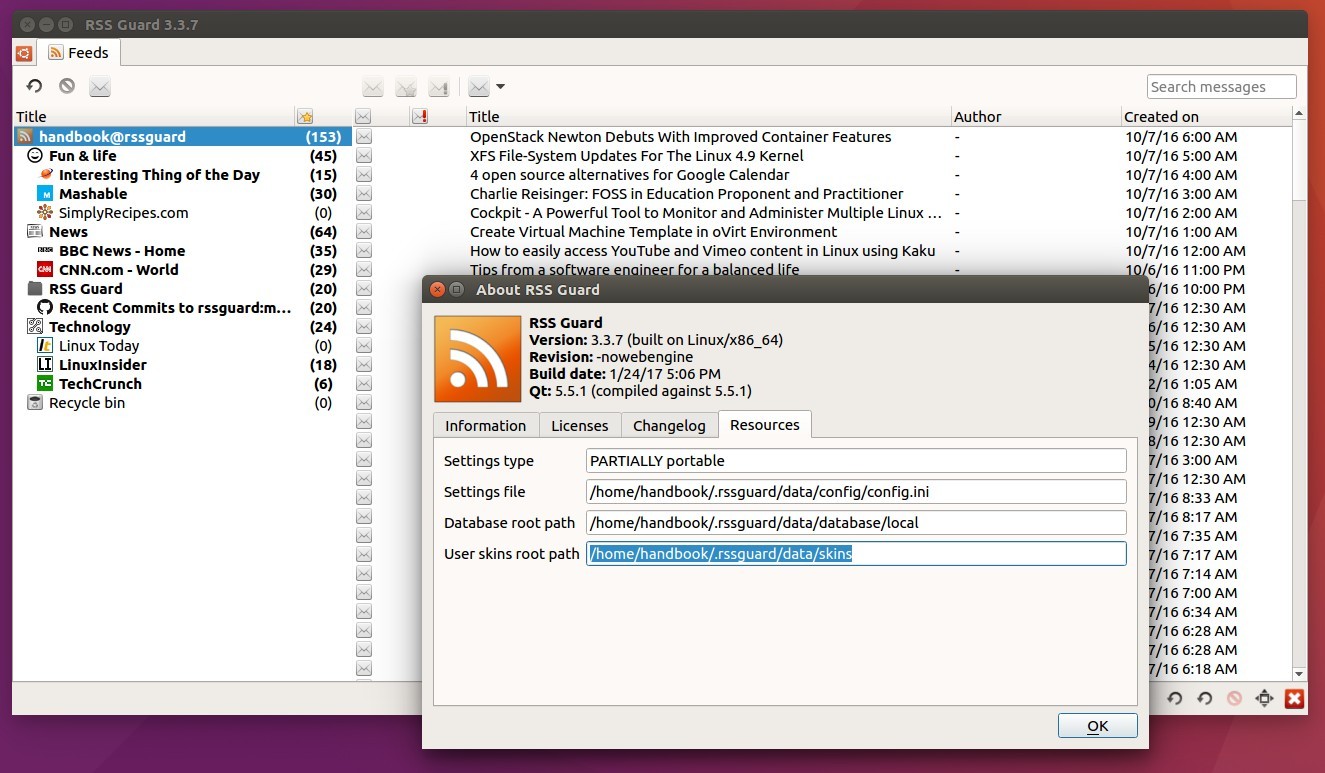
RSS Guard, a simple, light RSS and ATOM feed reader, has reached the 3.3.7 release with new features and some fixes.

According to the release note, the open-source Qt feed reader RSS Guard 3.3.7 features:

  • support custom user skins
  • option to switch on/off DB transactions
  • require MySQL >= 5.5
  • MySQL database backend now requires at least version 5.5
  • Size of attachment image is now configurable
  • All textual contents now locally saved in explicit UTF-8 encoding.
  • updated localizations and some fixes.

How to Install RSS Guard 3.3.7 in Ubuntu 16.04, 16.10:

The GetDeb repository has built the new release for Ubuntu 16.04, Ubuntu 16.10, and their derivatives.

Open terminal (Ctrl+Alt+T) and run following commands to add the PPA and install RSS Guard news reader:

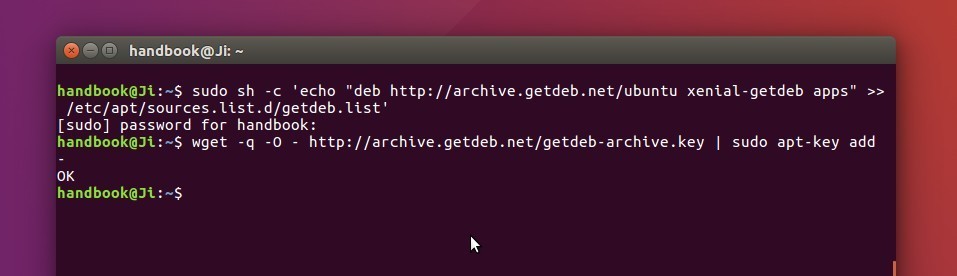
1. Paste the command below in terminal and hit Enter to add the repository:

sudo sh -c 'echo "deb http://archive.getdeb.net/ubuntu xenial-getdeb apps" >> /etc/apt/sources.list.d/getdeb.list'

You may replace the code name xenial (Ubuntu 16.04) with yakkety for Ubuntu 16.10.

Then setup the key via command:

wget -q -O - http://archive.getdeb.net/getdeb-archive.key | sudo apt-key add -

2. After that, either search for and install rssguard via Synaptic Package Manager, or run the commands below in terminal:

sudo apt update

sudo apt install rssguard

Uninstall:

To uninstall the software, either use Synaptic Package Manager or run the apt remove command with sudo privilege:

sudo apt remove rssguard && sudo apt autoremove

And you can remove the GetDeb repository via Software & Updates utility under Other Software tab.

For those who want to install the latest AVRDude 6.3 (AVR Downloader / Uploader), here are the backport PPA for Ubunu 16.04, Ubuntu 14.04, Linux Mint 17/18, and derivatives.
AVRDUDE is a utility to download/upload/manipulate the ROM and EEPROM contents of AVR microcontrollers using the in-system programming technique (ISP).

It provides a command-line interface for all downloading and uploading features. Supports a wide range of programming hardware, from cheap ISP plugs that connect the AVR’s ISP interface directly to a computer’s parallel port or serial port. Supports Intel Hex, Motorola S-Record, and raw binary files for input and output.

While the current two Ubuntu LTS offer old versions in their main repositories, I’ve uploaded the 6.3 release into PPA to make it easy to install.


AVRDude 6.3 features:

  • New devices support: ATmega48PB, ATmega88PB, ATmega168PB, ATtiny28 (HVPP-only device), AT90PWM216, ATmega32M1
  • New programmers support:
    • Atmel mEDBG: xplainedmini, xplainedmini_dw
    • ftdi_syncbb
    • uncompatino, ttl232r (FTDI TTL232R-5V with ICSP adapter)
    • Atmel DFU, using FLIP protocol version 1 (AT90USB and ATmegaU devices), or version 2 (Xmega devices)
    • Atmel-ICE (ARM/AVR), JTAG, PDI, debugWIRE, ISP modi
  • The stk500v2 implementation now uses its own higher-level command implementation for byte-wide access
  • The -B option can be suffixed with “Hz”, “kHz”, or “MHz”, in order to specify a bitclock frequency rather than period.
  • Print part id after signature
  • buspirate: Also support “cpufreq” extended parameter in binary mode
  • The “-P net:” syntax (forwarding of serial data over TCP) is now also implemented for Win32 systems.
  • Atmel EDBG protocol support added (JTAGICE3, XplainedPro, Atmel-ICE)

Install AVRDude 6.3 in Ubuntu / Linux Mint:

Either run the following commands one by one in terminal (Ctrl+Alt+T) to add PPA and install the utility:

sudo add-apt-repository ppa:ubuntuhandbook1/apps

sudo apt-get update

sudo apt-get install avrdude avrdude-doc

Or grab the DEB packages for both avrdude and avrdude-doc from the link below and click install via Gdebi or Ubuntu Software App:

SMPlayer, a cross-platform graphical front-end for MPlayer and MPV, has reached the 17.1.0 release last night. The new release features experimental support for Chromecast.

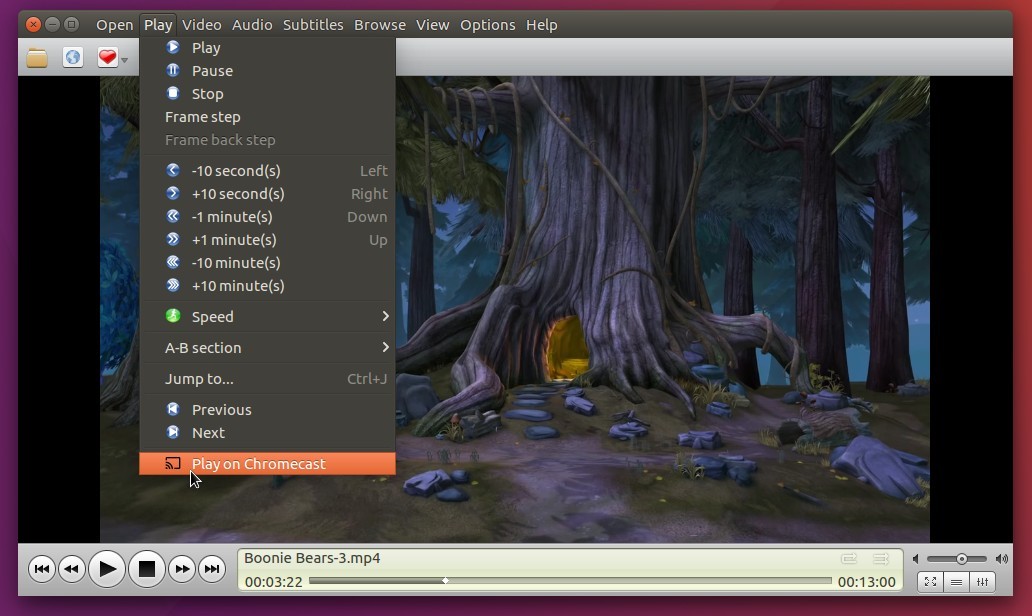
With SMPlayer 17.1, you can send local videos or online streams like TV channels, YouTube or Vimeo videos from SMPlayer to Chromecast device.

Just play a video in SMPlayer, then select the option “Play on Chromecast” from the Play menu. A web page will be opened (need Google Chrome or Chromium with Google Cast installed) and give the url of the video.

This web page can communicate with your Chromecast device with options to connect/disconnect, start playback and controls for play, pause, volume, seek…

How to Install SMPlayer 17.1 in Ubuntu via PPA:

The new release has made into the official PPA, available for Ubuntu 16.10, Ubuntu 16.04, Ubuntu 14.04, Ubuntu 12.04, and their derivatives.

1. Open terminal and run the following command to add the PPA:

sudo add-apt-repository ppa:rvm/smplayer

For those who prefer Qt4 version, use the new PPA instead:

sudo add-apt-repository ppa:rvm/smplayer-qt4

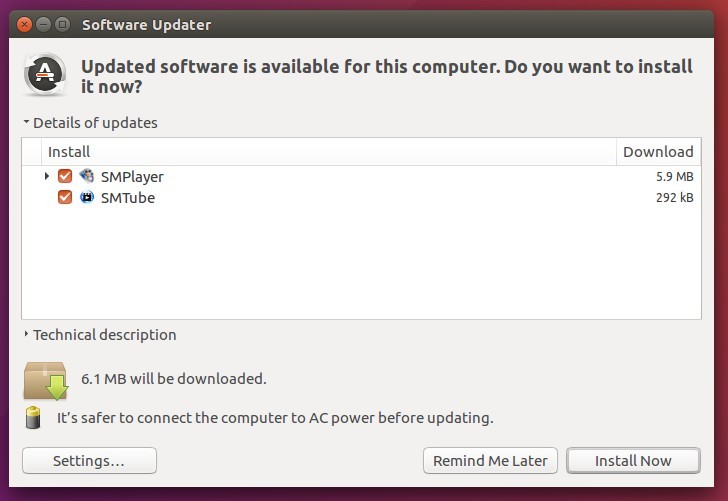
2. Then you can upgrade SMPlayer from a previous release via Software Updater (Update Manager) after checking for updates:

Or you can run the commands below in terminal to do install or upgrade SMPlayer:

sudo apt-get update 

sudo apt-get install smplayer smtube smplayer-themes smplayer-skins

How to Restore:

For any reason, you can easily restore the installation to the stock version via the ppa-purge tool:

sudo apt-get install ppa-purge && sudo ppa-purge ppa:rvm/smplayer

For the qt4 ppa, replace ppa:rvm/smplayer with ppa:rvm/smplayer-qt4 in the code.

To simplify re-installation of software packages after upgrading or re-installing Ubuntu, aptik is a simple tool allows to backup software sources (PPA), installed software, and other user data with just a few clicks.

Aptik features:

  • Backup and restore Launchpad PPAs.
  • Backup and restore installed software.
  • Backup and restore downloaded packages (apt cache).
  • Backup and restore themes and icons from /usr/share directory.
  • Backup and restore application settings.
  • Backup and restore user home directory data (.config excluded)
  • One-click backup and restore user selected items.

While doing backup and restore (exclude one-click backup / restore), it lists available items and allows you to choose which to backup / restore. Some backups are encrypted with given passwords.

How to Install Aptik in Ubuntu:

To install the utility in Ubuntu 16.04, Ubuntu 14.04, Ubuntu 12.04, and derivatives, either run the commands below in terminal (Ctrl+Alt+T) to get it from the developer’s PPA:

sudo add-apt-repository ppa:teejee2008/ppa

sudo apt-get update

sudo apt-get install aptik

or grab the DEB package (amd64 for 64bit, i386 for 32bit) from THIS PAGE.

Tip: The DEB packages for Ubuntu 16.04 also works on Ubuntu 16.10.

Uninstall:

To remove aptik, either use Synaptic Package Manager or run the following command in terminal:

sudo apt-get remove aptik && sudo apt-get autoremove

The PPA can be removed by Software & Updates utility under Other Software tab.

Disk Indicator is a simple system tray indicator applet for managing devices in Ubuntu.

The simple tool allows you to quickly access disk partitions and mount points. It also allows mount / unmount devices, view disk usage, and mount ISO images.

The software is developed by Tony George, the man behind Timeshift (system restore app). You can easily get this applet by adding the developer’s PPA:

1. Open terminal (Ctrl+Alt+T) and run command to add the PPA:

sudo add-apt-repository ppa:teejee2008/ppa

So far the PPA contains the packages for Ubuntu 17.04, Ubuntu 16.10, Ubuntu 16.04, Ubuntu 14.04, and their derivatives.

2. Then update and install the disk indicator:

sudo apt update

sudo apt install indicator-diskman

For those who don’t want to add PPA, grab the DEB package from HERE.

How to uninstall:

To remove the applet, either use Synaptic Package Manager or run the command below in terminal:

sudo apt remove indicator-diskman && sudo apt autoremove

The PPA can be removed by going to System Settings -> Software & Updates -> Other Software tab.

The Telegram Desktop App finally reached the 1.0 release! Here’s how to install it via PPA or Snap in Ubuntu 16.10, Ubuntu 16.04, Ubuntu 14.04, Linux Mint 17/18 and derivatives.

The popular instant messaging app, Telegram 1.0 for desktop, was released a few days ago with a fabulous new design. It features:

  • Consistent material design
  • Smooth animations
  • Support for custom themes
  • Auto sync messages from phone with computer using Telegram’s encrypted cloud.
  • Ability to start typing on phone, then continue on computer.

Install Telegram Desktop App via Snap in Ubuntu:

To install the Telegram snap package in Ubuntu 16.04 and higher, simply open terminal (Ctrl+Alt+T) and run command:

sudo snap install telegram-sergiusens

Type in password (no visual feedback) and hit Enter. It will automatically download the snap package and install it in your system.

Uninstall Telegram (Snap):

To uninstall it, simply run the snap command with remove option:

sudo snap remove telegram-sergiusens

Install Telegram Desktop via PPA in Ubuntu:

For all current Ubuntu releases, including Ubuntu 12.04, Ubuntu 14.04, Ubuntu 16.04, Ubuntu 16.10, and derivatives, e.g., Linux Mint and Elementary OS, Telegram is also available as .deb package in an unofficial PPA.

1. Open terminal (Ctrl+Alt+T) and run command to add the PPA:

sudo add-apt-repository ppa:atareao/telegram

Type in password (no visual feedback) and hit Enter.

2. Then search for and install the app via Synaptic Package Manager:

or just run the commands below one by one:

sudo apt update

sudo apt install telegram

Uninstall:

To uninstall it, simply run apt command with remove option:

sudo apt remove telegram && sudo apt autoremove

And the PPA can be removed by launching Software & Updates and navigating the Other Software tab.

Corebird, an open-source and native GTK+ twitter client, has reached the 1.4 release a few hours ago with some enhancements and bug-fixes.

The changes in Corebird 1.4 according to the release page:

  • Images in quoted tweets now look more like they actually belong to the quoted tweet instead of the quoting tweet.
  • Allow deleting tweets from the tweet info page and not just from timelines.
  • Fix the user completion not showing all possible results
  • Focus the already opened window for an account if the account gets selected in the accounts popover
  • Avoid window resizing when typing in the Direct Message text box
  • Add ‘q’ accelerator to tweet rows for quoting
  • Add spellchecking. This add a dependency to gspell
  • Increase gtk+ dependency to 3.18 to get rid of some workarounds.
  • Increase avatar size in profiles and slightly overlap them over the banner. Also, always show the full banner.
  • Fix completion popup positioning under Wayland
  • Add experimental meson build files
  • Fix some videos not playing correctly
  • Add a minimal video progress indicator to the video dialog
  • Fix the retweet/favorite count updating in the tweet info page

How to Install Corebird 1.4 in Ubuntu / Linux Mint:

The new release has been made into unofficial PPA, available for Ubuntu 16.04, Ubuntu 16.10, Linux Min 18 and derivatives. Spellcheck feature disabled due to build error.

Tip: The GetDeb repository also maintains the Corebird packages, see here.

1. Open terminal (Ctrl+Alt+T) and run command to add the PPA:

sudo add-apt-repository ppa:ubuntuhandbook1/corebird

Type in your password (no visual feedback) when it asks and hit Enter.

2. Then update and install Corebird 1.4 via commands:

sudo apt update

sudo apt install corebird

If you have a previous release installed, you can also launch Software Updater to upgrade the software after checking for updates:

Or grab the .deb package directly from PPA archive page.

How to Uninstall:

To remove Corebird, simply run the command below in terminal:

sudo apt remove corebird && sudo apt autoremove

The PPA can be removed by going to System Settings -> Software & Updates -> Other Software tab.

The open source Aria Maestosa midi tracker/editor has reached the 1.4.13 release a few days ago with some bug-fixes. Here’s how to install it in Ubuntu 16.04, Ubuntu 16.10, and Linux Mint 18.

Aria Maestosa lets you compose, edit and play midi files with a few clicks in a user-friendly interface offering score, keyboard, guitar, drum and controller views. It features:

  • Import and play MIDI files
  • Easily compose and edit music
  • See and use musical score notation, as well as piano roll, tablature and/or drum views
  • Print musical notation
  • Record from a MIDI instrument

How to Install Aria Maestosa in Ubuntu:

The GetDeb repository contains the latest packages of Aria Maestosa, available for Ubuntu 16.04, Ubuntu 16.10, and derivatives.

1. To add the repository, open terminal (Ctrl+Alt+T) and run command:

sudo sh -c 'echo "deb http://archive.getdeb.net/ubuntu xenial-getdeb apps" >> /etc/apt/sources.list.d/getdeb.list'

You may replace xenial (for 16.04 and derivatives) in the code with yakkety for Ubuntu 16.10.

Then setup the keyring via command:

wget -q -O - http://archive.getdeb.net/getdeb-archive.key | sudo apt-key add -

2. After adding the repository, either search for and install the software using Synaptic Package Manager, or run the commands below one by one in terminal:

sudo apt update 

sudo apt install ariamaestosa

Uninstall:

To remove the software, either use Synaptic Package Manager or simply run the command below in terminal:

sudo apt remove ariamaestosa && sudo apt autoremove

The getdeb repository can be removed by going to System Settings -> Software & Updates -> Other Software tab.

DVDStyler 3.0.3, a cross-platform free DVD authoring tool, was released on New Year’s Day 2017. Here’s how to install it in Ubuntu via PPA.

Changes in DVDStyler 3.0.3:

  • disabled copy option for non-MPEG2 video streams
  • added parameter “-pix_fmt yuv420p” to transcoder
  • fixed displaying first video frame in frame button
  • changed transcoding caching to allow put multiple equal video files on DVD (e.g. with different cut points)
  • added support of EXIF metadata in slideshow
  • added CBR option for menu and slideshow enoding settings (disabled by default)
  • added Bulgarian translation (thanks to Ivan Dobrev)
  • win32/win64: updated Manolito’s VBR plug-in

How to Install DVDStyler 3.0.3 via PPA:

DVDStyler does not offer official binary packages for Linux. An unofficial PPA is available with the latest packages for Ubuntu 16.10, Ubuntu 16.04, Ubuntu 14.04, and Linux Mint 17 / 18.

1. To add the PPA, open terminal (Ctrl+Alt+T) and run command:

sudo add-apt-repository ppa:ubuntuhandbook1/dvdstyler

Type in your password (no visual feedback) when it asks and hit Enter to continue.

2. After that, search for and install dvdstyler via Synaptic (or other) Package Manager. Or run the commands below in terminal to update and install the tool:

sudo apt update

sudo apt install dvdstyler

With the PPA repository added, you can receive future updates via Software Updater once a new release is out and made into PPA.

How to Uninstall:

To remove DVDStyler, either use Synaptic Package Manager or run the command below in terminal:

sudo apt remove dvdstyler dvdstyler-data && sudo apt autoremove

And the PPA can be removed by going to System Settings -> Software & Updates -> Other Software tab.