GIMP, the popular free open-source image editor, release new major 3.2 version after a year of development!
The new version of this GTK3 software added many exciting new feature, new file formats support, and UI/UX improments.
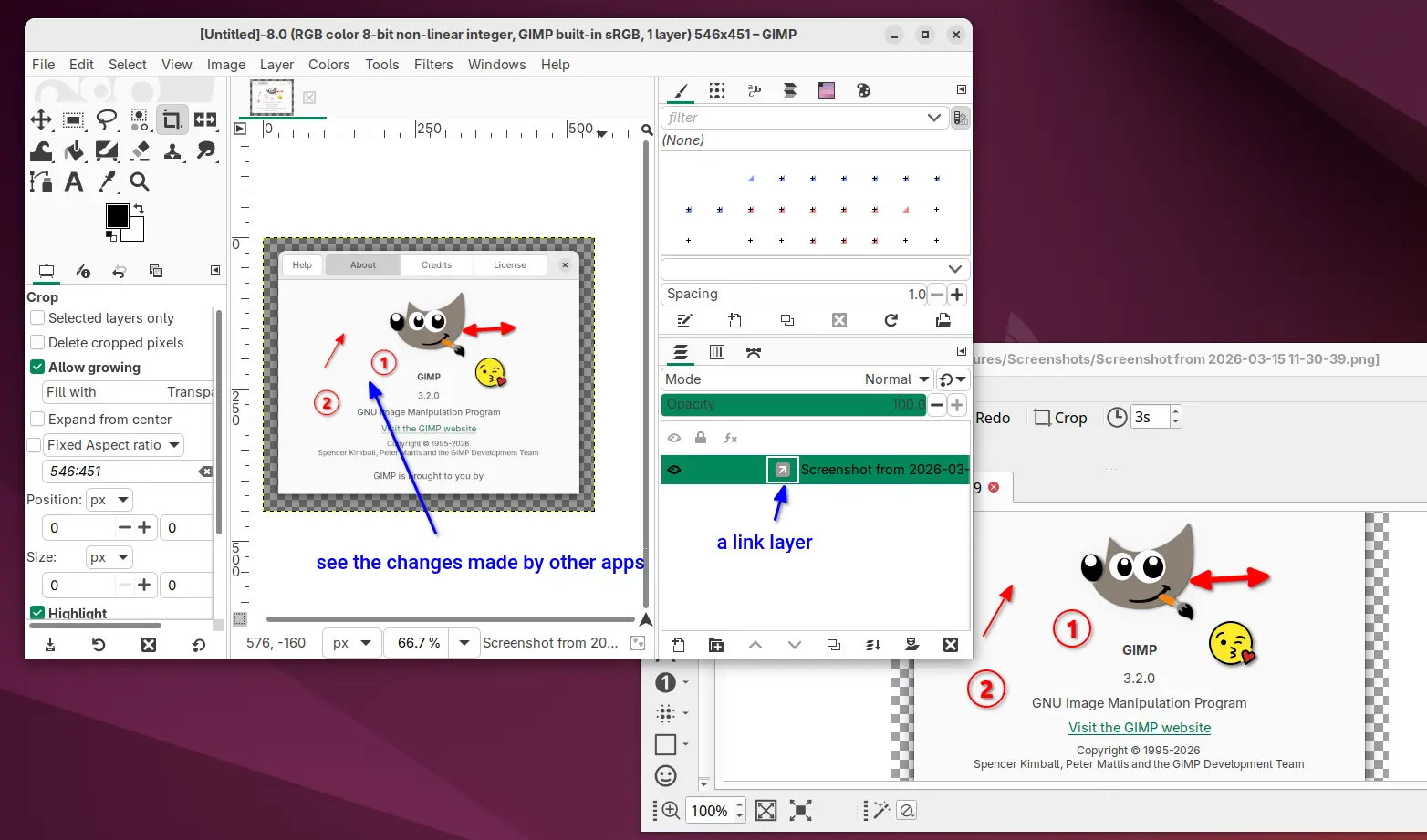
First, GIMP 3.2 introduced a new link layer feature. When you have an image opened as link layer (File -> Open as Link Layer... or Ctrl+Alt+Shift+O), you can edit that image via other apps (e.g., Krita, Inkscape) at the same time, and see it instantly updated inside GIMP!
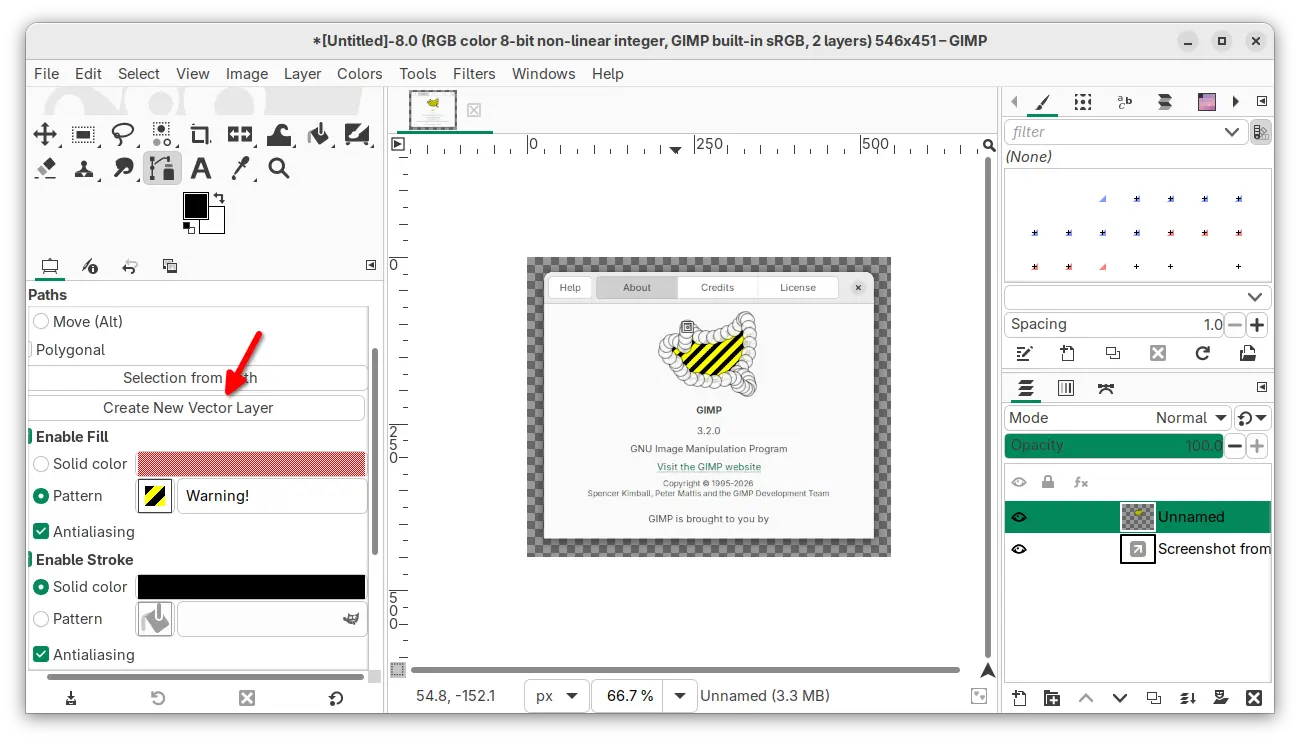
The new version as well added the long-awaited vector layers. After drawing a path via Paths tool, you can now click the new “Create New Vector Layer” button to generate a vector layer associated with that path, then set the fill, stroke colors, width, and other properties.
Both link layer and vector layer are non-destructive layers. And, they can be easily convert to regular raster layers (allow destructive edits) and revert back via context menu options.
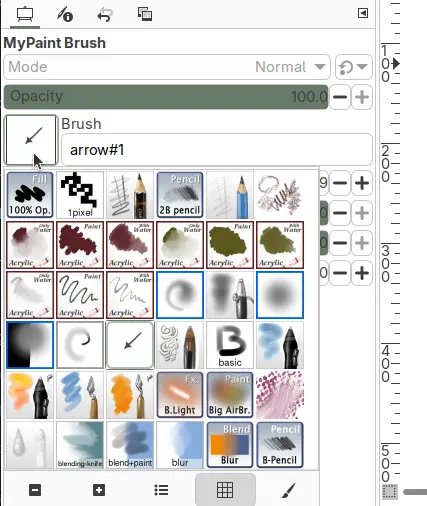
MyPaint Brushes has been updated to version 2, with 20 new brushes from the Dieterle set, including the long requested arrow brush and Posterizer brush. And, it now supports barrel rotation for user with a stylus pen when relevant to the specific brush selected
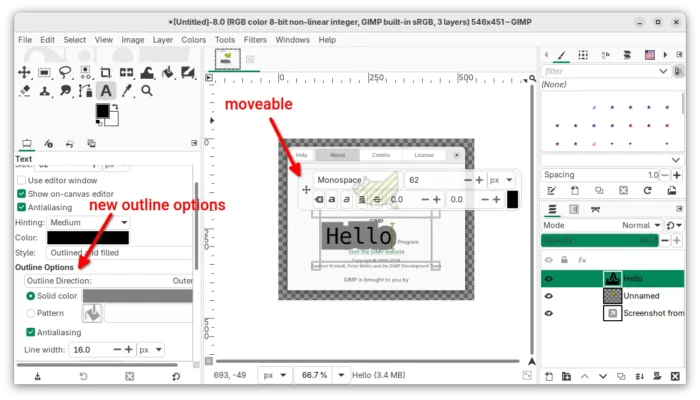
The Text tool has been updated with new Outline Direction option, allowing to grow text outline inward, outward, or in both directions. The on-canvas editor is now movable by dragging on the four-direction arrow icon.
There are as well a new paint mode: Overwrite, allowing to directly replace the pixels over the area you paint, without blending the transparency values of the brush and the existing pixels in that area.

GIMP 3.2 also added new image and palette formats support.
It can now export to JPEG 2000, SVG, BC7 (.dds), HEJ2, Krita .kpl palette, and Photoshop PSB (large document) files, and import AVCI, Photoshop RGB and grayscale patterns (.pat), APNG animations, multi-layer OpenEXR images, Over-the-Air Bitmap format, Jeff’s Image Format (.jif).
For Linux, the Flatpak package finally supports automatically switching between light and dark mode by using the “System” theme. And a new official Snap package is added making easy to install the image editor for Ubuntu on both amd64 and arm64 platforms.
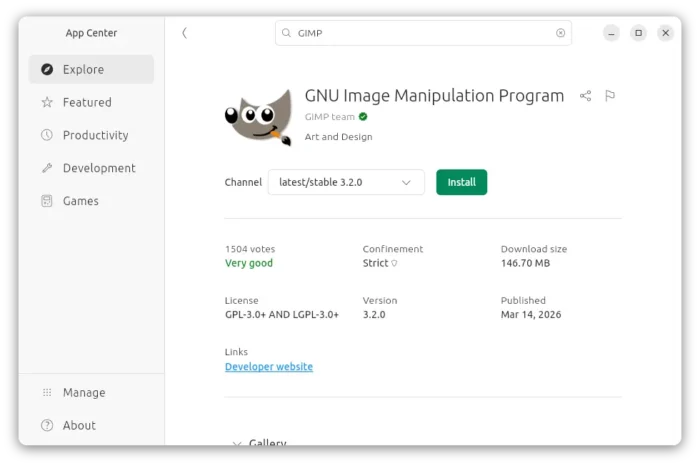
GIMP official snap package
Other changes include:
- Improve dark support with new brush preview toggle.
- Left/Right arrow keys support for flip and Shear tools.
- Initial global menu support for Flatpak package.
- New Shift + Ctrl + V keyboard shortcut to paste unformatted text in the on-canvas editor.
- Import PowerVR (PVR) texture files
- New Shift+X shortcut to switch between current and last used tools
- Don’t show welcome dialog when launch GIMP with image open.
There are as well lots of other changes and improvements in GIMP 3.2. See the official release note for details.
Get GIMP 3.2
GIMP provides official installers for Linux, Windows, and macOS which are available to download via the link below:
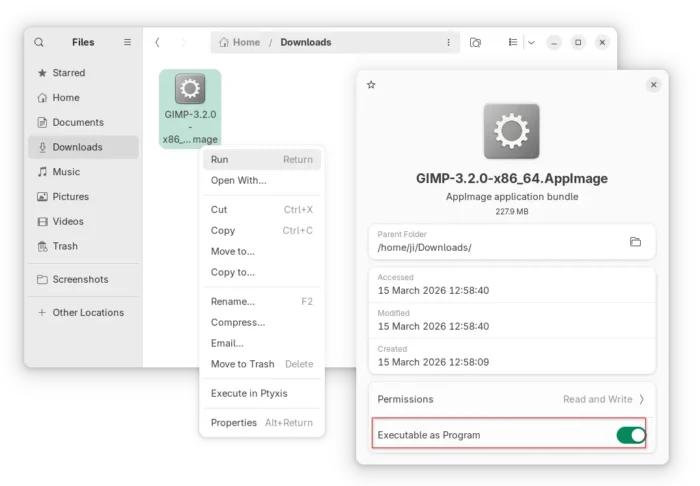
For Linux, they include the non-install AppImage package. Just download it, add executable permission, and run to launch the image editor.
For Ubuntu, simply launch App Center (or Ubuntu Software) then search and install GIMP as the new official Snap package.
And, most Linux can also install the flatpak package, which is available in Linux Mint Software Manager or Fedora (with 3rd party repository enabled) GNOME Software.
For those who don’t like running the image editor in sandbox environment, I’ve built GIMP 3.2 into this unofficial PPA for Ubuntu 22.04, Ubuntu 24.04, and Ubuntu 25.10, while 26.04 will probably include it in system repository.
To add the PPA and install GIMP 3.2 .deb package, use commands:
sudo add-apt-repository ppa:ubuntuhandbook1/gimp-3
sudo apt update
sudo apt install -t "o=LP-PPA-ubuntuhandbook1-gimp-3" gimp libbabl-0.1-0 libgegl-0.4-0t64
(Optional) For any reason, you may purge the PPA and downgrade GIMP to the stock version:
sudo apt install ppa-purge && sudo ppa-purge ppa:ubuntuhandbook1/gimp-3