



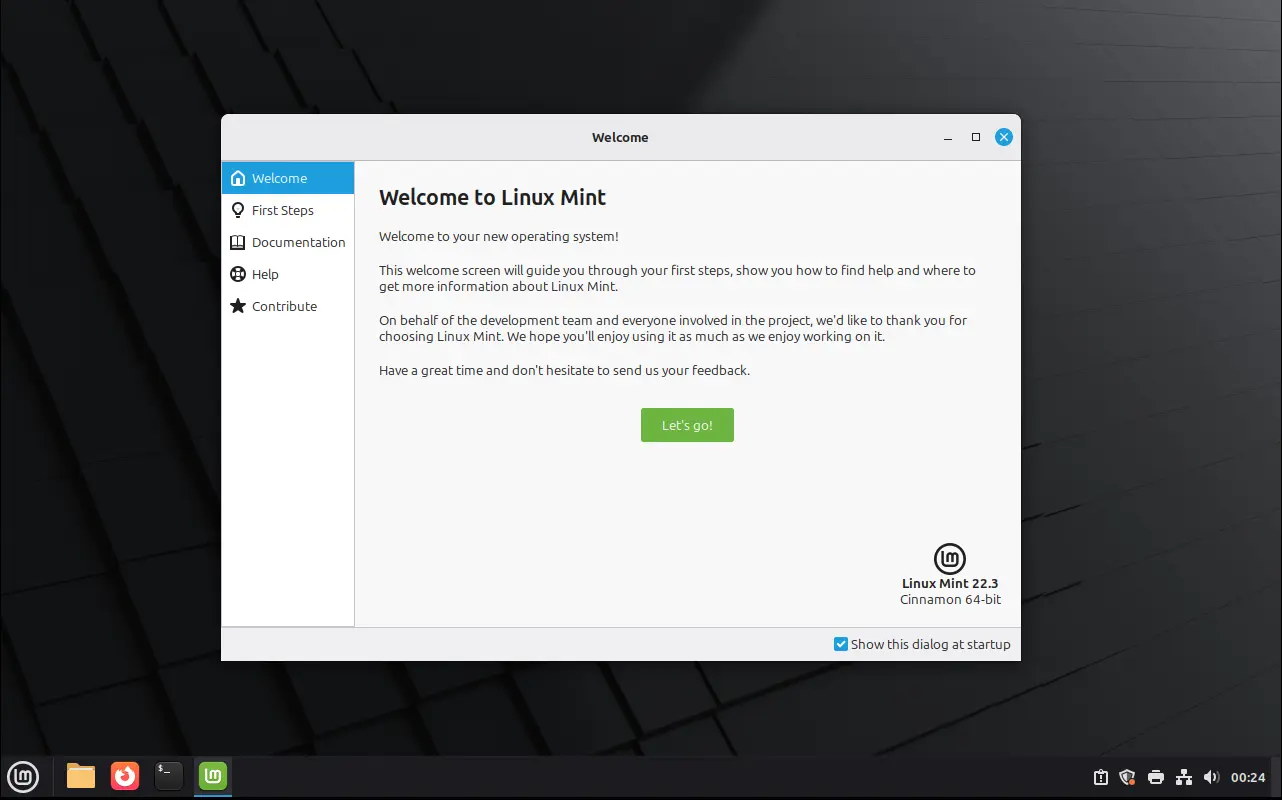
Linux Mint 22.3, code-name Zena, is available to download after almost one month of beta testing.
The new version of this popular Ubuntu 24.04 LTS based distribution features Kernel 6.14, Cinnamon Desktop 6.6.4, redesigned start menu (aka application menu), and new tool to configure the boot menu.
First, the Cinnamon application menu has been redesigned with modern new layout. It features a full height left-bar displays user avatar, folders, Settings, favorite apps, and power buttons.
User has the choice to hide any of them, including the whole side-bar. And, the power buttons (power-off, log-out, and screen lock) can be placed to along side the search box.
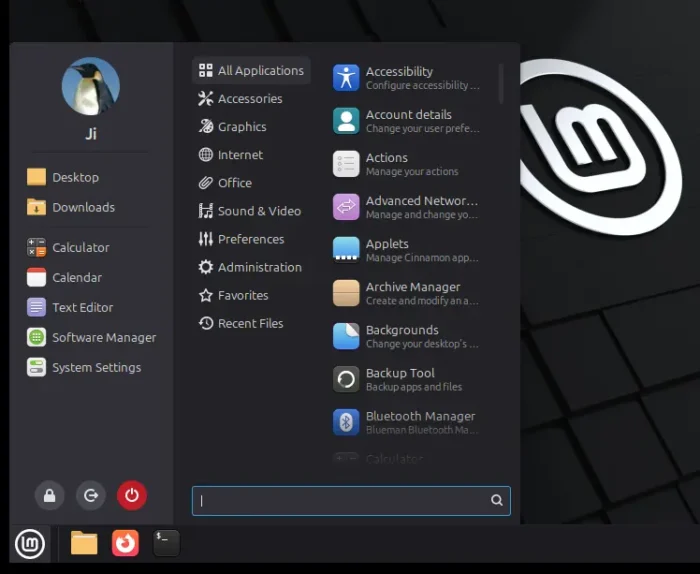
Cinnamon Application Menu in Linux Mint 22.3
The categories now use new XApp Symbolic Icons, though there’s also option to disable to restore the previous full color icons. And, they are now compact and full displayed without needing a scroll-bar.
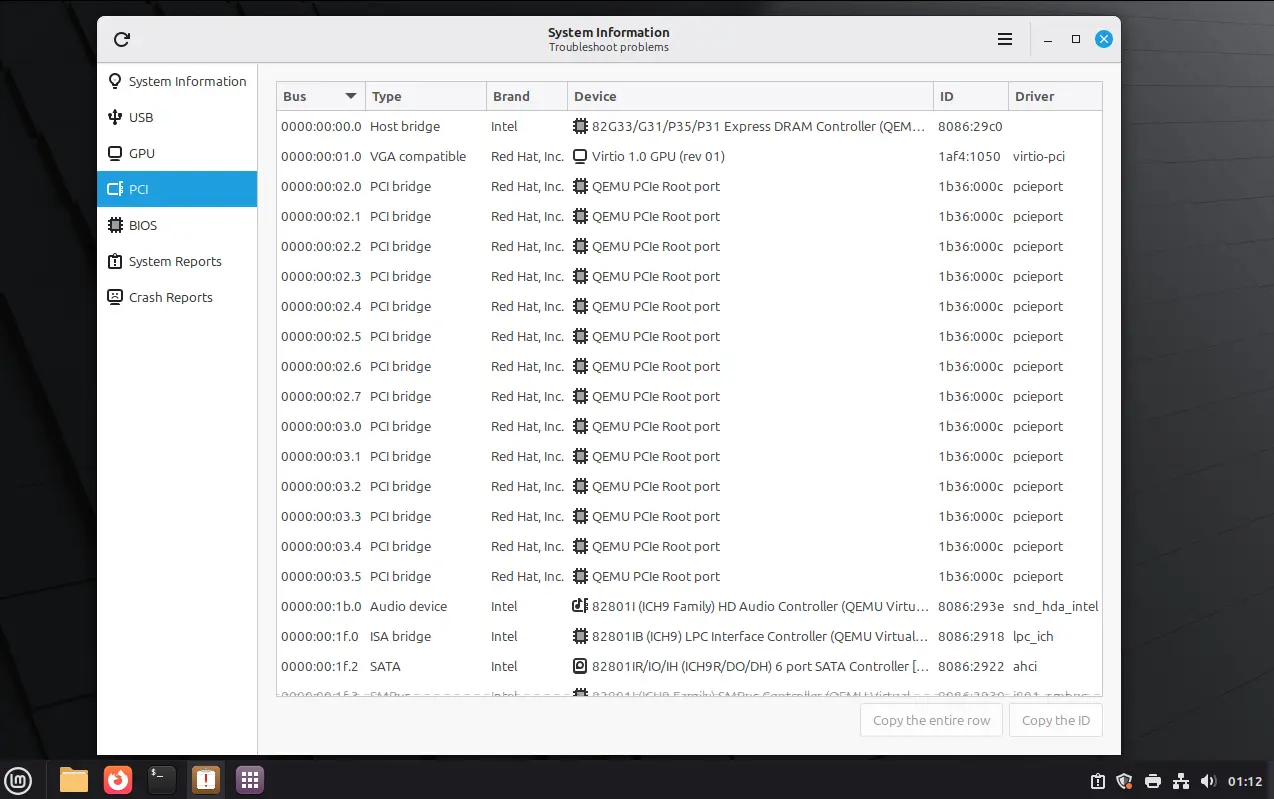
Linux Mint 22.3 introduced new System Information tool, which merged the previous “System Info”, “System Reports”, and “Error Reports” into tabs, and added new info about your computer devices, including:
- USB – displays all plugged-in devices, as well as their types, names, and IDs.
- GPU – shows information about the default graphics card and the status of hardware acceleration support.
- PCI – with detailed look of internal computer components, and their bus IDs, device names, and drivers.
- BIOS – shows the information about the motherboard, BIOS version, boot mode (UEFI or legacy boot), and secure-boot enabled or not.
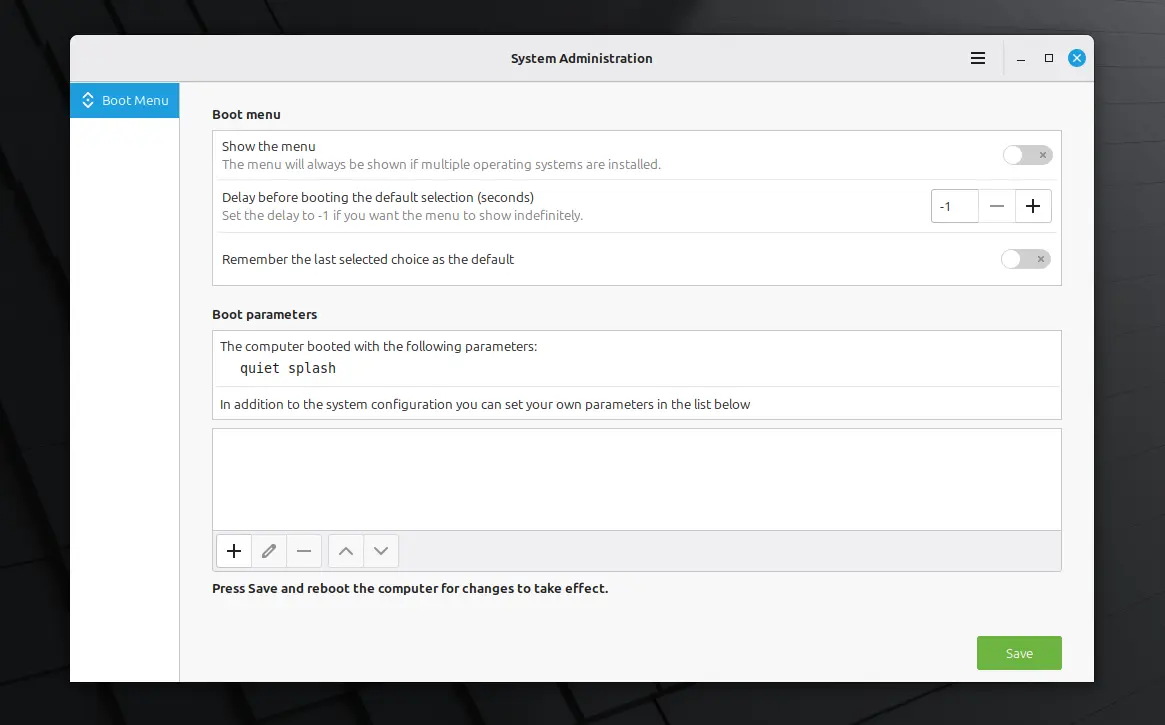
This version also introduced new System Administration app, allowing to configure the boot menu, aka Grub boot-loader.
With it, you may choose whether to show the boot menu or not, configure how long the menu being displayed before booting the default entry, and select to remember and boot the last choice. As well, it supports adding/editing Kernel and boot parameters.
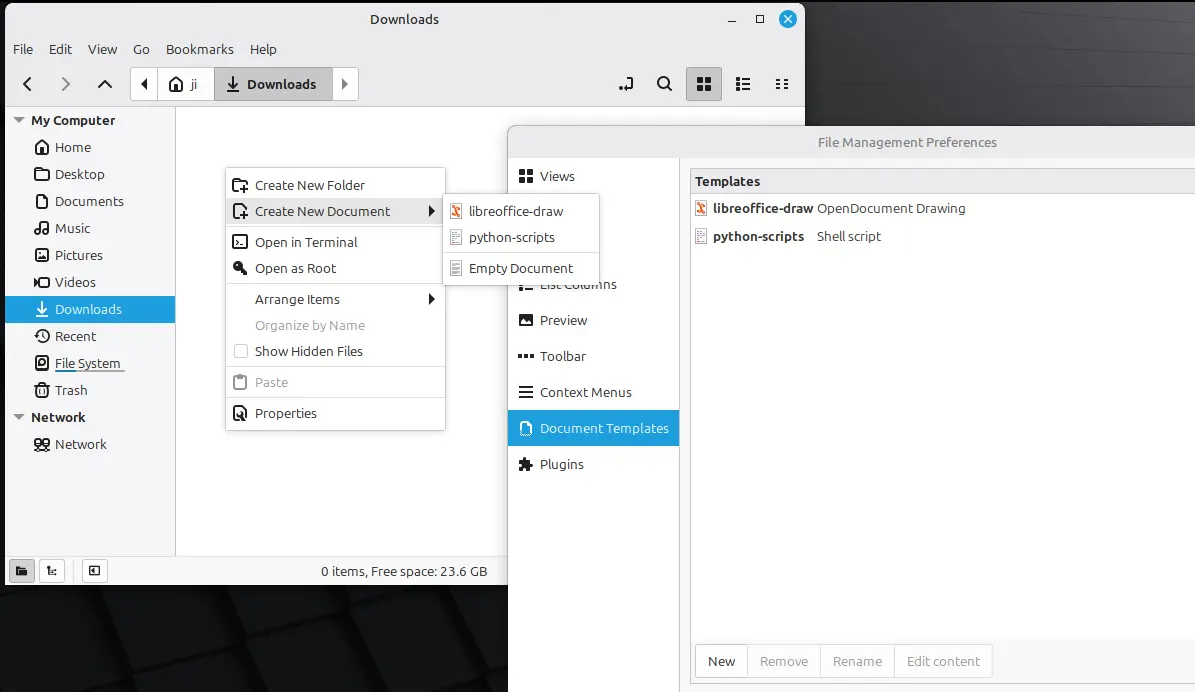
The Nemo file manager in this version added new Document Templates setting page in its Preferences dialog. It allows to open any files as templates, so that they will be available in the “Create New Document” context menu options, to quickly create documents with templates.
The feature does the same as you manually create template files in user’s Templates folder, though it’s great for beginners who don’t know about it.
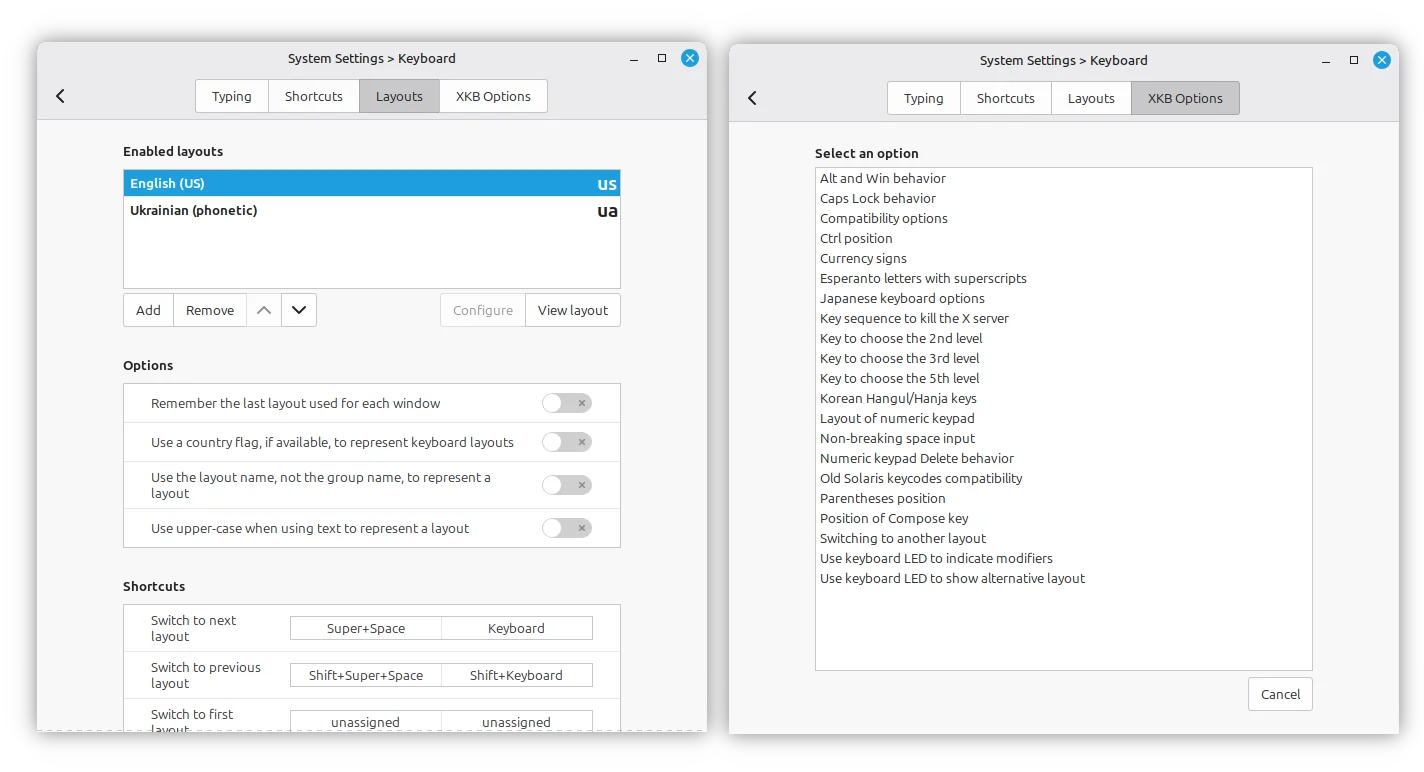
The new version also redesigned the Keyboard settings dialog. The Layouts tab now supports adding both keyboard layouts and input methods, and, it provides options to configure keyboard shortcuts to switch layout, and allows to remember the last layout used for each window.
And, the advanced layout options to such as Ctrl, Alt, Caps Lock position or behavior, have been moved the new “XKB Options” tab.
Other changes in Linux Mint 22.3 include:
- Option to move Cinnamon Application Menu’s search box to top or bottom.
- Update keyboard handling to fully compatible with Wayland.
- Redesigned on-screen keyboard (OSK) to work natively on Cinnamon.
- Ability to pause/resume file operations, such as copy’n’paste and move.
- Shows badge number in app icons for new, unread or pending information.
- New configuration tool for Thunderbolt.
- Add “always on” option for Night Light.
- Add suspend to battery-critical actions.
- Ability to pause/resume Timeshift during snapshots.
- Add IPv6 and send text messages support for Warpinator.
For more about Linux Mint 22.3, see the official release note.
Download or Upgrade to Linux Mint 22.3
The official .iso images for Cinnamon, MATE and XFCE editions are now available to download via the link below:
There are as well many download mirrors all over the world. You may choose one near to you for faster downloading speed.
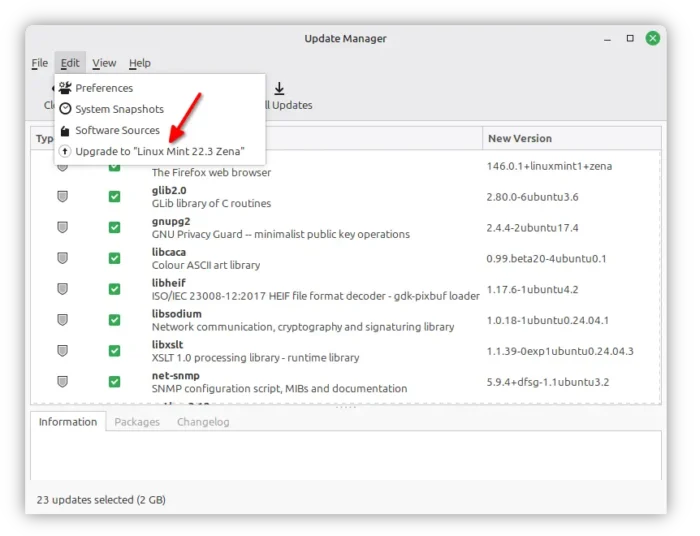
For Linux Mint 22.2, simply launch Update Manager, update the app itself, then you can go to “Edit -> Upgrade to “Linux Mint 22.3 Zena”” to start upgrading to Mint 22.3.














Is there a way to change the appearance of the start menu? I went to System Settings > Themes and couldn’t find an option for it.
You may right-click on the mint icon and select “Configure” to configure the start menu layout.
Or, go to System Settings -> Themes -> Advanced settings -> Themes to change the Desktop theme which also apply to the start menu (mostly the color and border).
Thanks Works nicely
is there a way to change the font color in the menu without changing the theme? I am using Cinnamox Heather, which makes the font black. Changing it to cinnamon makes the font white, so its a least visible but not the optimal solution
If you meant the font color of the text in start menu, then you need to manually edit the CSS file for the theme that in use.
For Cinnamonx Heather, edit the
.cinnamon.cssunder ~/.themes/Cinnamonx-Heather/cinnamon directory, and change the color value of the section below:.popup-combo-menu, .menu { padding: 8px; border: 1px solid #516370; border-radius: 10px; color: #0c1419; }It should work after you switched to another theme and then switched back.
why can’t i find a classic desktop layout? i don’t like that modern panel!
You mean you want it thinner, with small icons and text instead of just the large icons?
I have not used Cinnamon in years, but it had that option the last time I used it. I would imagine it still has it in there somewhere, even though they jumped on the bandwagon and copied the terrible Windows UI.
I now use KDE Plasma, and while it too has gone for the trendy huge panel with large icons/no text by default, it definitely has an option built in for the slim, small icons and text on the panel. I’m using that option now as I write this… I insist on it!
I happen to think that Microsoft got the UI just right on Windows 95. While the OS was unstable and crashed if you looked at it funny, the UI was a hit with me. I don/t mean the stark gray appearance, but the layout and positions of the elements.
Microsoft spent a lot of money on UI research to see how real people, from complete beginners to experienced experts, use graphical user interfaces. The result was a revolution in usability, and that formed the Windows 95 UI. The ultimate evolution of that from Microsoft was in Windows 2000, which was peak Windows in UI terms.
I have to have the classic type menu bar (the File, Edit, View…), classic titlebars for the windows, and a usable main menu. KDE has options for all of this, including the application menu, which has a classic cascading style like Windows 95 through Windows 2000, but with the usual improvements (like the search bar in the menu itself that is automatically focused on open). It’s what the Windows2000 UI would have been if MS continued to evolve it rather than abandoning it.
Mint unfortunately discontinued its KDE version, but there are many choices that use it. Kubuntu and Neon are my favorites in the Ubuntu orbit. I’m using Mint on this laptop, but I have Kubuntu 26.04 on two others. For me, nothing else comes close to KDE.