GIMP, the popular free and open-source cross-platform image editor, now is available as Snap app for Ubuntu 14.04, Ubuntu 16.04, and higher.
GIMP has been made into the beta channel of Ubuntu Snappy Store for testing for days. Now the latest GIMP 2.8.22 is available in stable channel:
1. For Ubuntu 14.04 and Ubuntu 16.04 users that have not installed any Snap app, install snapd daemon first via command (open terminal via Ctrl+Alt+T):
sudo apt-get install snapd
Input your password (no visual feedback while typing due to security reason) and hit Enter.
2. Then install GIMP snap app either via command:
sudo snap install gimp
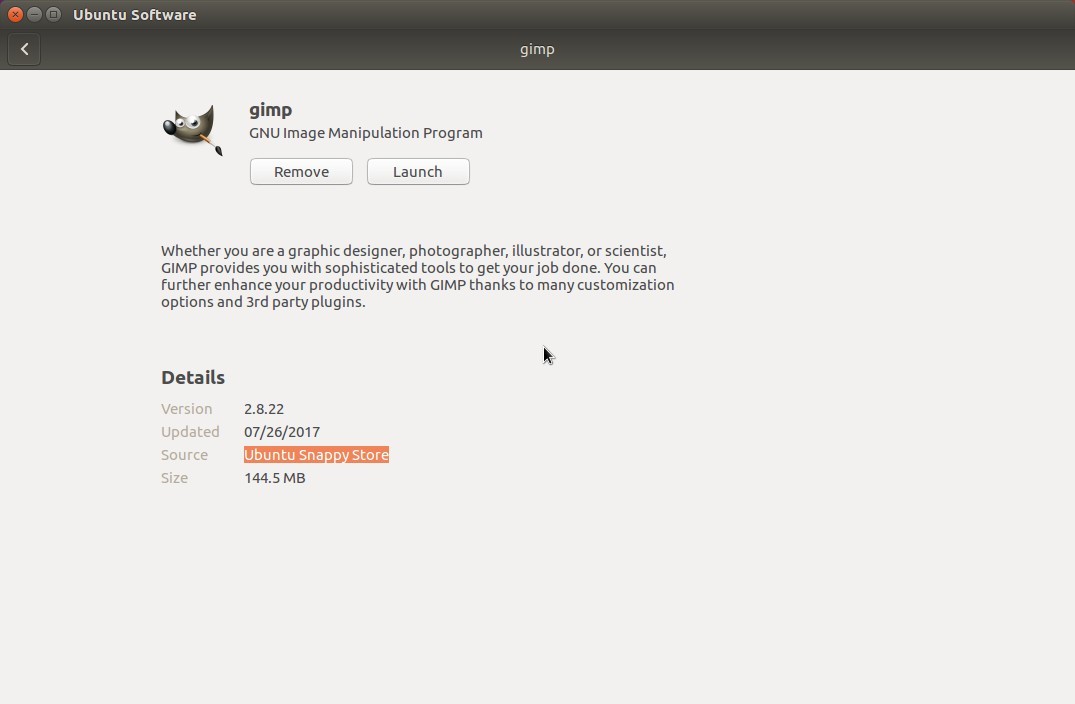
Or by using Ubuntu Software Center (need login):
The snap app can co-exist with the traditional GIMP package. So if you have both versions installed, you have to launch GIMP Snap app via following command since the app launcher opens the traditional one:
/snap/bin/gimp
How to Remove GIMP Snap app:
To remove the app, simply run command in terminal:
Microsoft Visual Studio Code is available via Snap app in Ubuntu, though it’s not updated to version 1.15 at the moment of writing, see how to install VS Code vis Snap in Ubuntu.
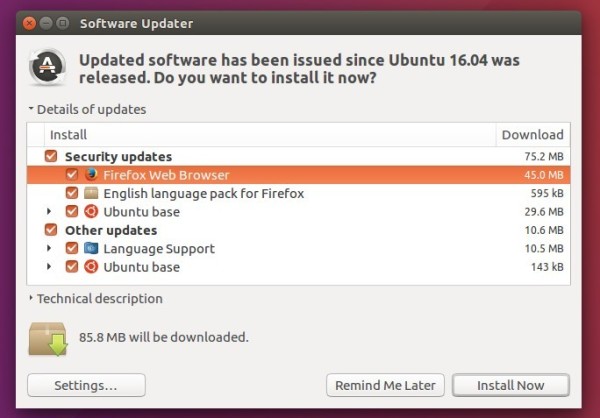
Although Mozilla website offers non-install version Linux binaries, the best way to get the latest Firefox in Ubuntu is using Software Updater to upgrade it through Ubuntu main (security & updates) repository.
NOTE that there will some delay for the new release being published in main repositories, check the build page.
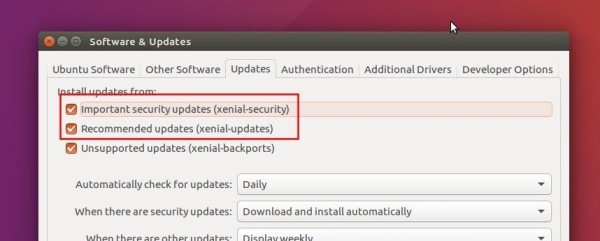
The security and updates repositories are enabled by default. If you don’t see the Firefox updates even after Ubuntu published it in these repositories, check out the Updates tab in Software & Updates utility.
The binary packages are very small in size. For those who don’t want to add the PPA, grab the .deb package from PPA page. Ubuntu 14.04 and Ubuntu 16.04 need to install python-pydbus package first from the link page.
Uninstall:
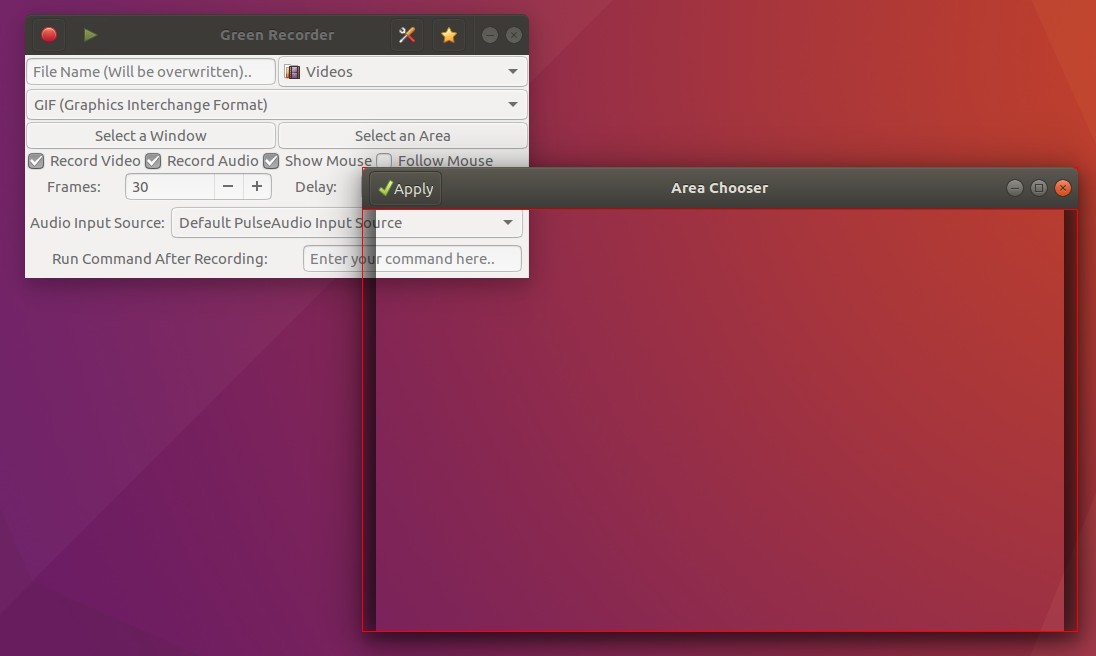
To remove the screen recording application, either use Synaptic package manager or run command:
sudo apt-get remove --autoremove green-recorder
And remove the PPA via Software & Updates utility under ‘Other Software’ tab.
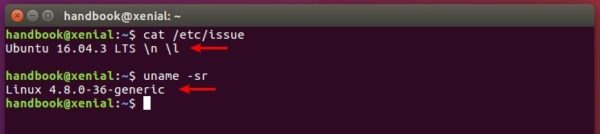
The third point release of Ubuntu 16.04 LTS Xenial Xerus, Ubuntu 16.04.3, was released 1 day ago with Linux Kernel 4.10 and new graphic stack from Ubuntu 17.04.
The Ubuntu team is pleased to announce the release of Ubuntu 16.04.3 LTS (Long-Term Support) for its Desktop, Server, and Cloud products, as well as other flavours of Ubuntu with long-term support.
Like previous LTS series’, 16.04.3 includes hardware enablement stacks for use on newer hardware. This support is offered on all architectures except for 32-bit powerpc, and is installed by default when using one of the desktop images. Ubuntu Server defaults to installing the GA kernel, however you may select the HWE kernel from the installer bootloader.
As usual, this point release includes many updates, and updated installation media has been provided so that fewer updates will need to be downloaded after installation. These include security updates and corrections for other high-impact bugs, with a focus on maintaining stability and compatibility with Ubuntu 16.04 LTS.
Install all system updates via either Software Updater or apt command will bring you to the latest Ubuntu 16.04.3 from an old point release, though it does not install the new Kernel and graphics stacks.
To install new hardware enablement stacks from Ubuntu 17.04
Open terminal via Ctrl+Alt+T or by searching for “Terminal” from app launcher. When it opens, run command:
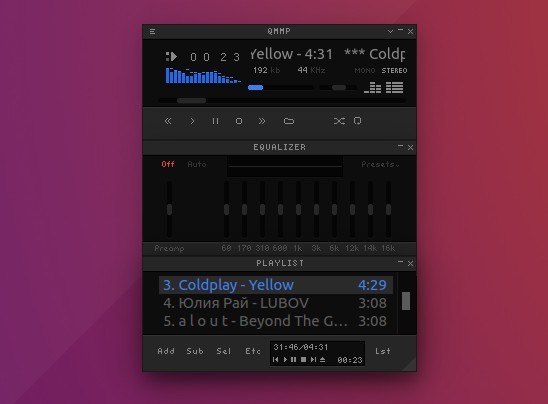
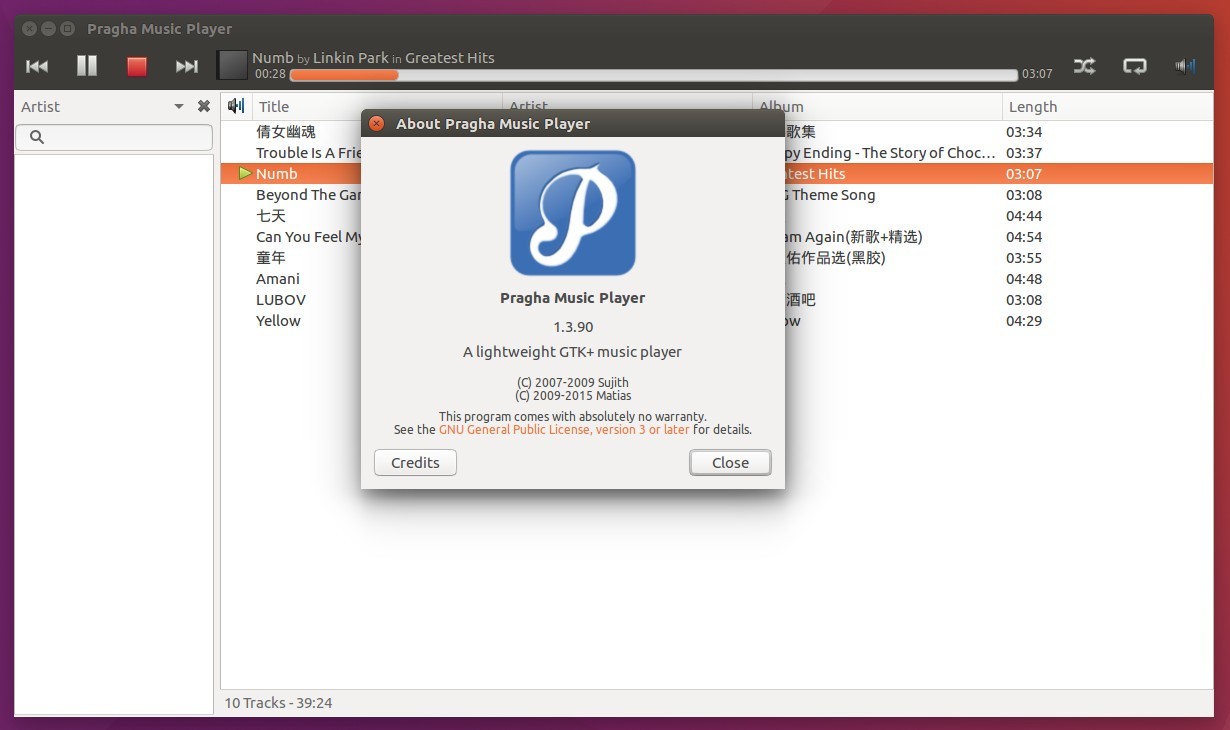
Pragha, a lightweight music player for Linux, has reached the 1.3.90 release earlier today. It’s marked as the first beta release for the next major 1.4 release.
What’s New in Pragha 1.4 beta:
New Ampache plugin.
Uses a new concept of ‘provider’ that allows show music from multiple
collections independently.
New standard widget to display progress of long tasks.
Allow apply a custom css.
Register session in GtkApplication now compatible with xfce 4.14
Misc fixes to Gtk 3.20 and GCC 6.0.
Various other changes, bug-fixes, and translation updates.
While the project page provides only source tarball, you can easily install Pragha via an unofficial PPA for Ubuntu 16.04, Ubuntu 17.04, and Ubuntu 17.10.
1. Open terminal via Ctrl+Alt+T or from app launcher. When it opens, run command to add the PPA: