Want to monitor the usage and/or temperature of your CPU, GPU, Memory with an indicator applet on panel? Here’s a simple indicator that can do the job in Ubuntu with most desktop environments.
There are quite a few Gnome Shell Extensions (e.g., Vitals and Resource Monitor) allow to monitor hardware utilization and temperature within Ubuntu top-bar. But what if you’re not using the default Gnome desktop or you just don’t like extensions?
Indicator System-Monitor
Try indicator-sysmonitor, a very simple and lightweight applet made by David Mohammed, the project lead of Ubuntu Budgie.
It’s quite simple and customizable. It uses few Python scripts to fetch sensor data (only function when needed), and user can choose which one or ones to display, in which order with which description texts and separators.
By default, it supports monitoring:
- Average CPU usage, and CPU temperature.
- NVIDIA GPU, and NVIDIA GPU temperature.
- AMD GPU utilization.
- Memory usage.
- Network activity.
- Battery capacity.
- Available file system space.
- Average swap usage.
- Public Country and public IP address.
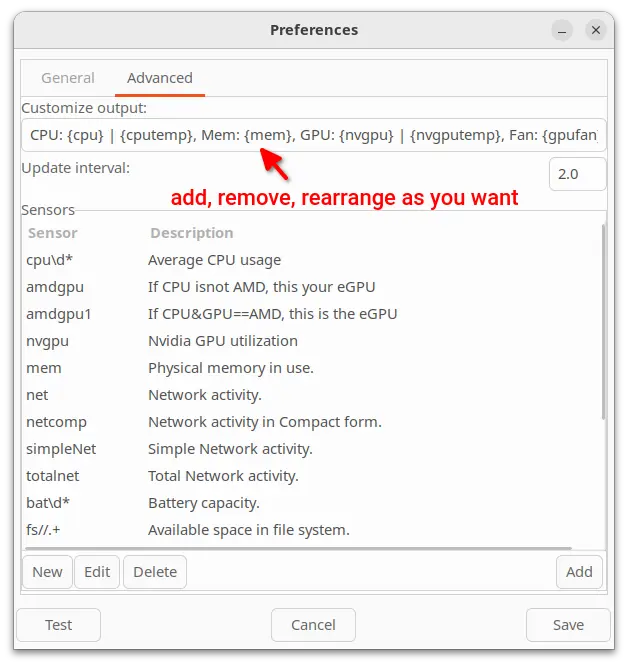
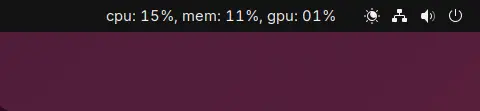
For example, you may set customize output to cpu: {cpu}, mem: {mem}, gpu: {nvgpu} to show only CPU, Memory, and Nvidia GPU usage, so it will look like:
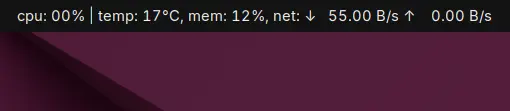
Or set cpu: {cpu} | temp: {cputemp}, mem: {mem}, net: {net} to show CPU usage and temperature, memory usage and network upload/download speed, that will look like:
Advanced users can monitor more sensors (such as fan speed, CPU/GPU frequency) that are NOT available in the preferences, by clicking on “New” button and add custom command to report the target sensor data.
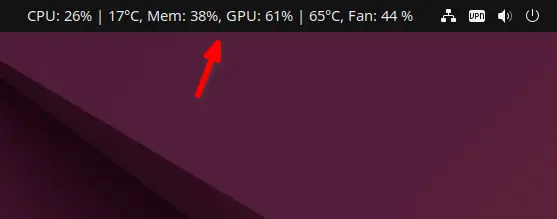
In my case I’ve a NVIDIA graphics card running with a proprietary driver. Use the command below will report the fan speed, so I added it as {nvgpufan}, and it worked as you see in the top screenshot.
nvidia-smi -q |grep "Fan Speed" | cut -f2- -d:
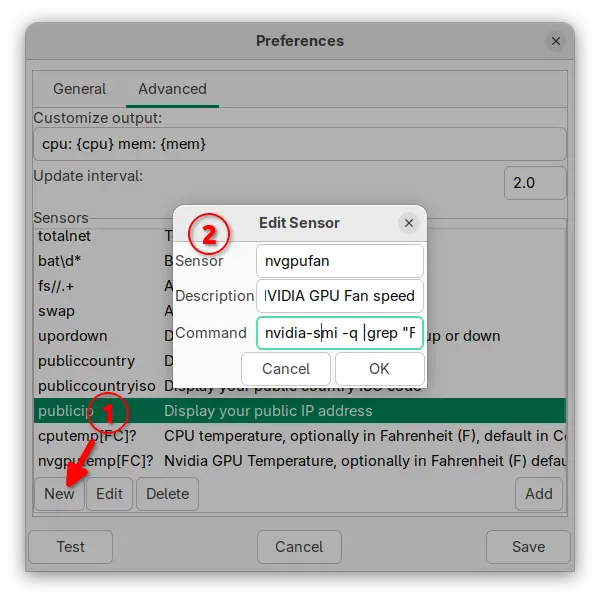
If you have a dedicated NVIDIA GPU too, then following commands may help:
- GPU Memory utilization in percentage:
nvidia-smi --query-gpu=utilization.memory | awk 'NR==2'
- GPU Clock speed (core):
nvidia-smi --query-gpu=clocks.gr | awk "NR==2"
- The video engine clock speed:
nvidia-smi --query-gpu=clocks.video | awk "NR==2"
- SM Clock Speed:
nvidia-smi --query-gpu=clocks.sm | awk 'NR==2'
- GPU Memory clock speed:
nvidia-smi --query-gpu=clocks.mem | awk "NR==2"
How to Install Indicator-Sysmonitor in Ubuntu
The developer has an Ubuntu PPA contains the packages for Ubuntu 18.04, Ubuntu 20.04, Ubuntu 22.04, Ubuntu 24.04, and 25.10.
I tested it in Ubuntu 24.04. It works out-of-the-box in the default GNOME Desktop. While, XFCE4 (XUbuntu) needs to first add “Indicator Plugin” applet into panel, and other desktops (e.g., Plasma and Cinnamon) need to move mouse cursor over the indicator applet to show the sensor data.
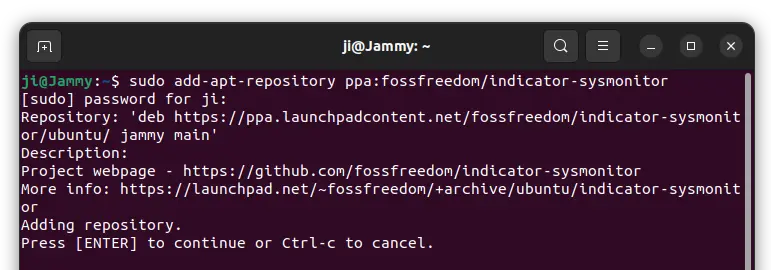
1. First, press Ctrl+Alt+T on keyboard to open a terminal window. When it opens, run command to add the PPA:
sudo add-apt-repository ppa:fossfreedom/indicator-sysmonitor
Type user password when it asks and hit Enter to continue.
2. For Linux Mint, you need to manually refresh package index after adding PPA:
sudo apt update
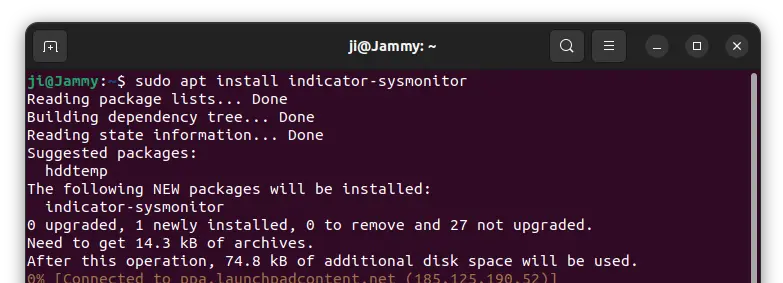
3. And, install the indicator applet via command:
sudo apt install indicator-sysmonitor
NOTE: For Ubuntu Budgie, run the command below instead to install the applet:
sudo apt install budgie-sysmonitor-applet
Finally, search for and open the applet like a normal application (it has same icon to System Monitor).
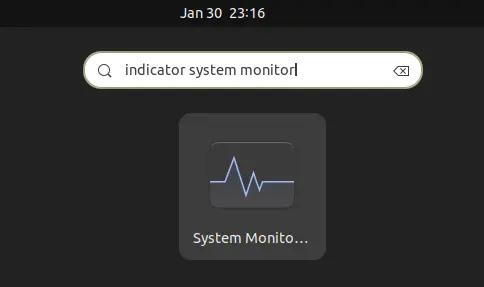
And click on the applet for the menu to open Preferences, turn on start at login, configure output layout, refresh interval, etc and enjoy!.
Tips: If you’ve auto-start issue, try launching “Startup Applications” tool and add custom one via following setup to start the applet when a time delay:
- Name: whatever
- command:
sleep 10; indicator-sysmonitor - Comment: whatever
For Ubuntu 25.10 or higher that does not have “Startup Applications”, see this tutorial instead to add startup items at login.
Uninstall
You can stop the applet by clicking on it in panel and select “Quit”. And remove the package at any time by running the command below in a terminal window:
sudo apt remove indicator-sysmonitor
Also remove the PPA repository, by either running the command below or launching “Software & Updates” and remove the source line under “Other Software” tab.
sudo add-apt-repository --remove ppa:fossfreedom/indicator-sysmonitor