Looking a way to automatically type text on your PC by speaking? Here’s a new app to do the job in Linux desktop!
It’s Speed of Sound, a free open-source tool that uses local AI model to convert your speech to text and write anywhere that’s currently in focus.
The app comes with a Whisper Tiny model (made by OpenAI). Just press a key to start recording, speak your text, stop recording, then it will use the model to convert the speech to text, and automatically type into any focused application.
The whole process works offline on user’s computer. Though, it supports downloading more voice models, connecting to cloud services such as Anthropic, Google, or OpenAI, or using self-hosted Ollama, vLLM or llama.cpp services on your local server that require network permission.
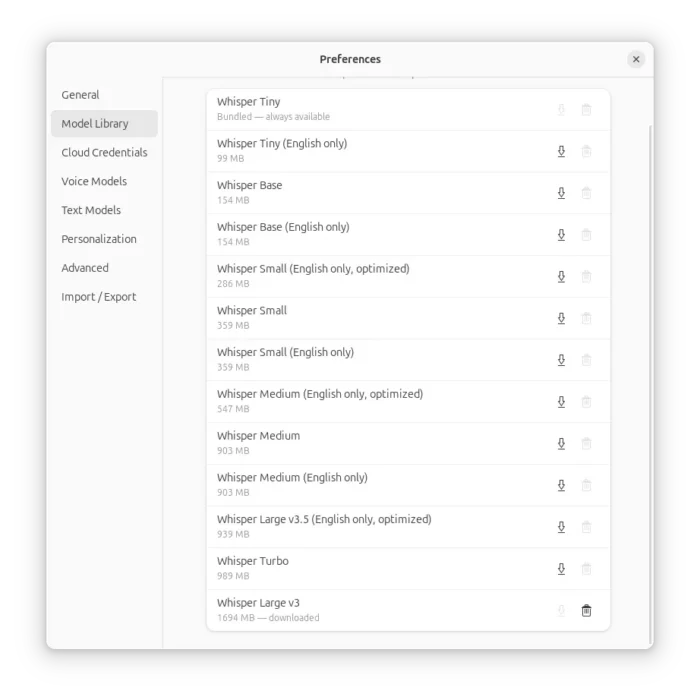
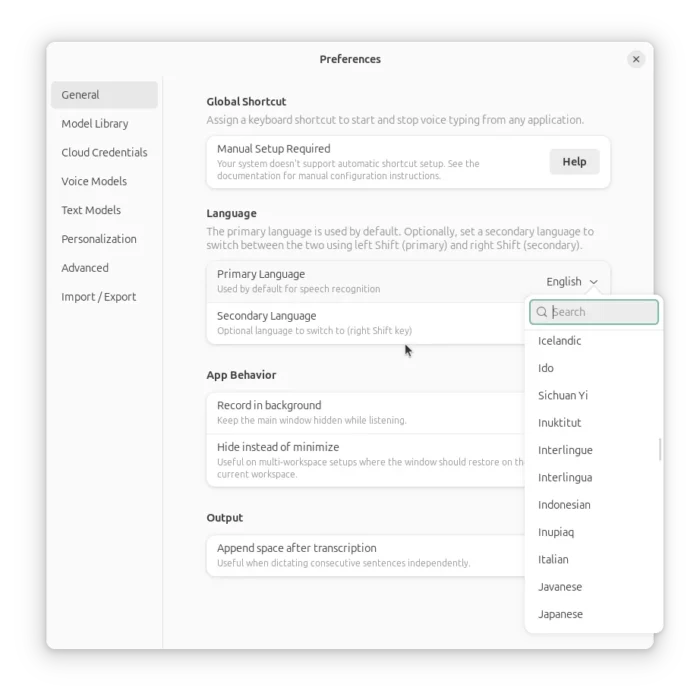
It supports multiple languages. You can set the primary and secondary languages, then switch between them on the fly.
As non-native speaker, it can accurately type out what I said in English. Though, probably due to language model, it somehow does not work as expected when speaking in my native language.
How to Install Speed of Sound
The app works on both X11 and Wayland, and it’s available to install in different package formats, choose any one of them that you prefer:
- Flatpak package, runs in sandbox for both
amd64andarm64/aarch64processors. - Snap package, runs in sandbox (
amd64only, meaning Intel/AMD processors). - AppImage package, non-install required (
amd64only). - DEB package for Debian, Ubuntu, Linux Mint, etc distros (
amd64only). - RPM package for Fedora/RHEL, etc distros (
amd64only).
Flatpak package
The flatpak package can be installed directly from Linux Mint’s Software Manager, Fedora Workstation GNOME Software, and other Linux’s package manager that support this package format out-of-the-box.
For other distributions, do the following steps one by one to get it:
- First, enable Flatpak support. For Debian/Ubuntu, open terminal (Ctrl+Alt+T) and run command:
sudo apt install flatpak
- Then, install the package via command (log out and back in if you don’t see app icon afterwards):
flatpak install https://dl.flathub.org/repo/appstream/io.speedofsound.SpeedOfSound.flatpakref
Snap package
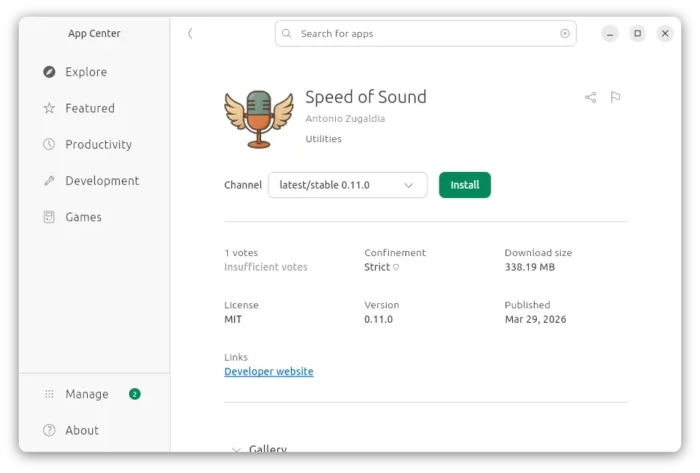
The snap package is available to install in Ubuntu through Ubuntu Software or App Center.
AppImage, DEB, RPM
The other 3 packages are available to download in the Github releases page via the link below:
For AppImage, simply add executable permission from its properties dialog, then run to launch it.
While, modern Debian, Ubuntu, Fedora, etc distros support double-clicking open then install DEB/RPM package.
Set up Speed of Sound
The first launch of the application will show you a welcome dialog, telling the basic use. You need to click Allow remote interaction, so it can type anything in other application windows.
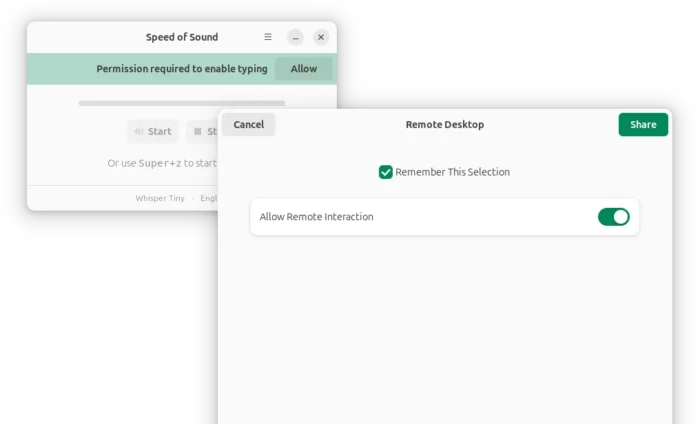
grant permission to type in other applications
It by default supports Super+Z keyboard shortcuts to start/stop listening, though it only works when the Speed of Sound window is open and focused.
To set a global shortcut that works when it’s in background, open Preferences and click “Set up” button under Global Shortcut.
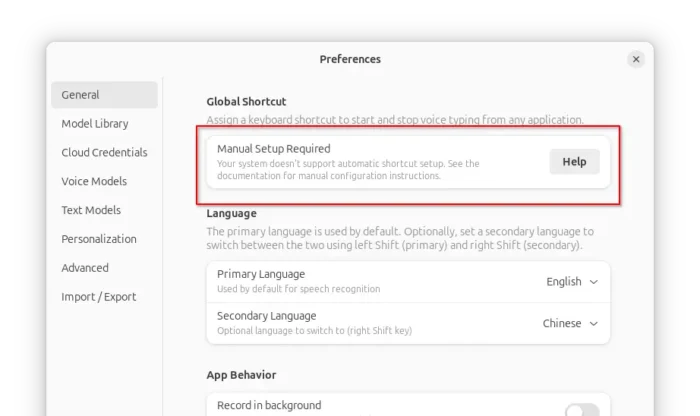
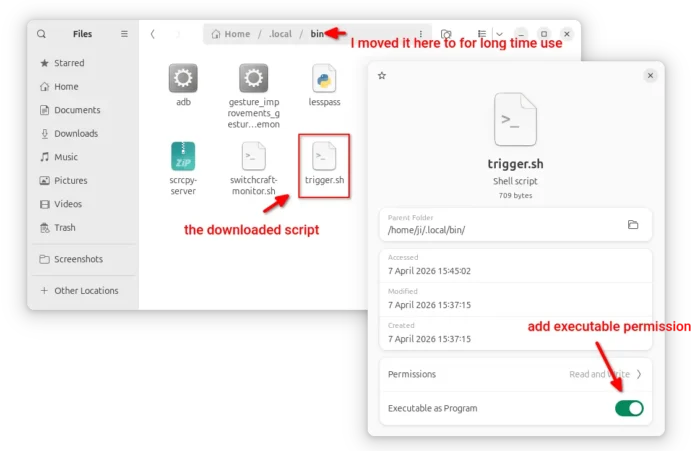
If that button is NOT available like me (see the last screen), then download the script “trigger.sh” from Github releases page (under Assets section), put it anywhere for long time use, and add executable permission.
Finally, create a custom keyboard shortcut bind to that script.
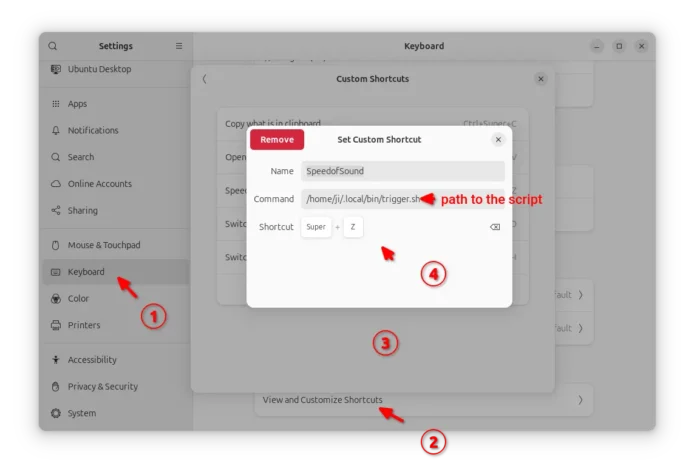
After that, you may press that keyboard shortcut to start listening, and press again to stop. For more about the app, see www.speedofsound.io.