
In Ubuntu 26.04 (Beta so far), OpenVPN connection does not work out-of-the-box due to a bug in AppArmor. Here’s a quick workaround to fix the issue.
For security reason, Ubuntu by default uses AppArmor (Application Armor), a Linux Kernel security mode, to restrict programs’ capabilities for file access, networking and permissions.
It uses a list of profiles under /etc/apparmor.d directory to define and restrict the applications’ capabilities. And, AppArmor in Ubuntu since 25.04 added a profile for openvpn to restrict its capabilities.

When import or create a OpenVPN connection, and then connect to the VPN, the Network Manager will copy the certificate keys into memory (/run directory). However, the new AppArmor profile in 26.04 does not allow openvpn to access the files there.
So, it immediately return “connection failed”, and the /var/log/syslog file will show you something like below:
2026-03-30T04:47:32.996275-07:00 Resolute nm-openvpn[70487]: Cannot pre-load keyfile (/run/NetworkManager/cert/NVIziP)
2026-03-30T04:47:32.996332-07:00 Resolute nm-openvpn[70487]: Exiting due to fatal error
2026-03-30T04:47:32.996558-07:00 Resolute kernel: audit: type=1400 audit(1774871252.994:2433): apparmor=”DENIED” operation=”open” class=”file” profile=”openvpn” name=”/run/NetworkManager/cert/NVIziP” pid=70487 comm=”openvpn” requested_mask=”r” denied_mask=”r” fsuid=0 ouid=0
Apparently, the issue is that AppArmor denied openvpn from accessing the /run/NetworkManager/cert/NVIziP file.
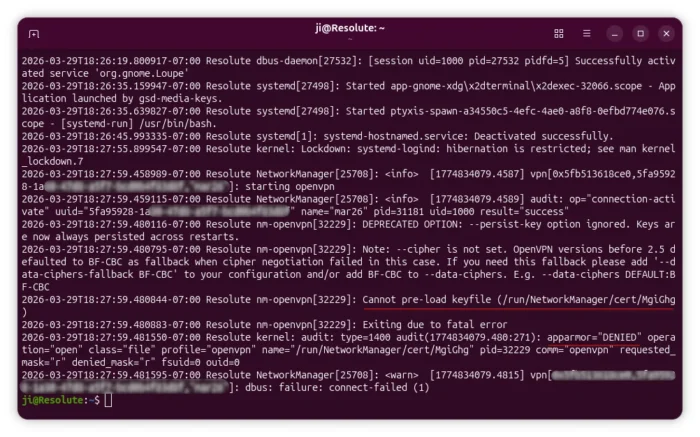
AppArmor denied openvpn from accessing the key file
And, the solution is simply add read access to the files under /run/NetworkManager/cert directory for openvpn.
It’s said that the issue has been fixed in version 5.0.0~beta1-0ubuntu3 according to this bug report, though it still occurs in my case, so I write a workaround via the steps below.
1. Edit the AppArmor profile.
First, press Ctrl+Alt+T to open terminal. When terminal opens, run the command below to navigate to AppArmor config files directory and list all the default profiles.
cd /etc/apparmor.d/ && ls
There you’ll see the openvpn config file.
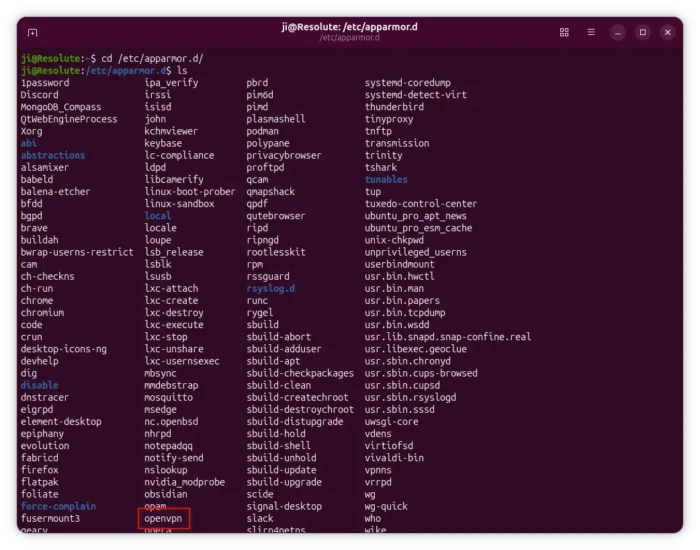
To edit it, run command:
sudo gnome-text-editor /etc/apparmor.d/openvpn
Tips: Here gnome-text-editor is for the default GNOME, replace it with your desktop text editor, or use nano that works in most desktops.
2. Add read access
When file opens in text editor, add the line file r /run/NetworkManager/cert/*, between the main section, so it will look like:
profile openvpn /usr/sbin/openvpn flags= ( ... ) {
    ...
    ...
    file r /run/NetworkManager/cert/*,
    ...
    ...
}
It tells to allow read access to any files under /run/NetworkManager/cert directory. Remember to add comma (,) in line end.
To be strict, use file r @{run}/NetworkManager/cert/@{rand6}, instead, so it only has read access to any 6-character name files under that directory.
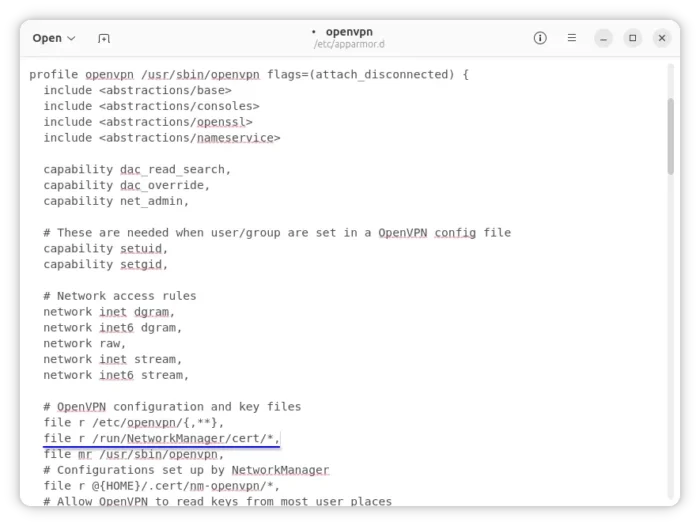
3. Apply Changes
After made changes to the AppArmor profiles, restart the service to reload the rules:
sudo systemctl restart apparmor.service
Finally, try to connect to your OpenVPN and hope it works!