Want to configure the login screen in Ubuntu, Fedora Workstation, and other Linux with GNOME Desktop? Here’s an extension to do the job for GNOME from version 42 to 50.
As you may know, it’s not easy for beginners to configure the GNOME login screen manually, as it requires GDM user permission. And, the login screen background is even hard-coded in a binary file, that user needs to manually extract, edit, and re-pack it to change the background image. See this wiki for details.
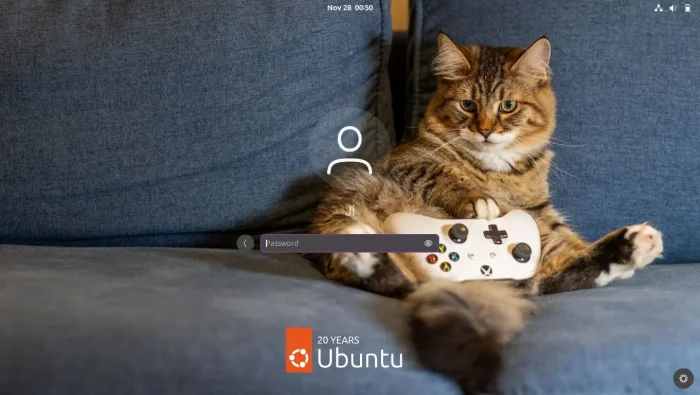
GNOME Login Screen with custom background
To make life easier, a free open-source GDM Settings tool was born to cover the most login screen settings, e.g., the background, fonts, themes, and power management, with a simple graphical user interface.
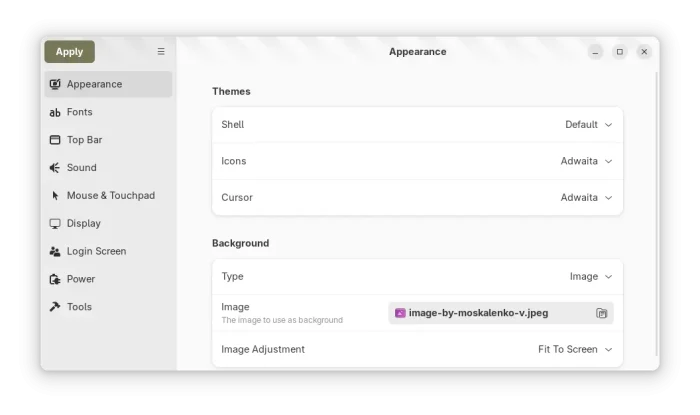
GDM Settings
GDM settings is great! I made an unofficial PPA contains the app packages for Ubuntu users who prefer native .deb package. It however does NOT support GNOME 50 (Ubuntu 26.04) so far.
While waiting for the GDM settings update, I found another choice, GDM Extension, a free open-source tool that can do the similar things for GNOME login screen, which so far supports GNOME version from 42 to 50.
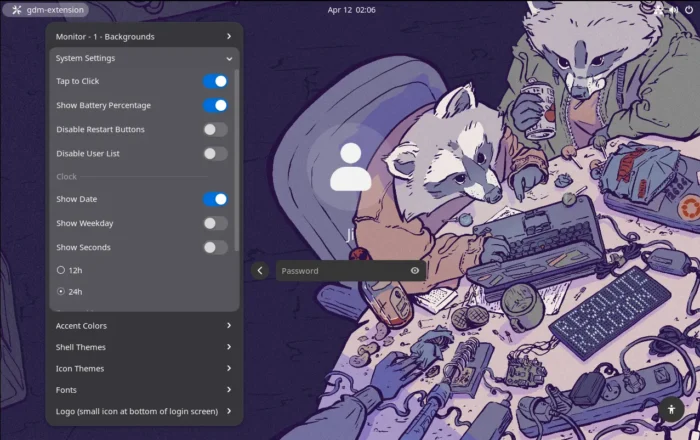
GDM Extension
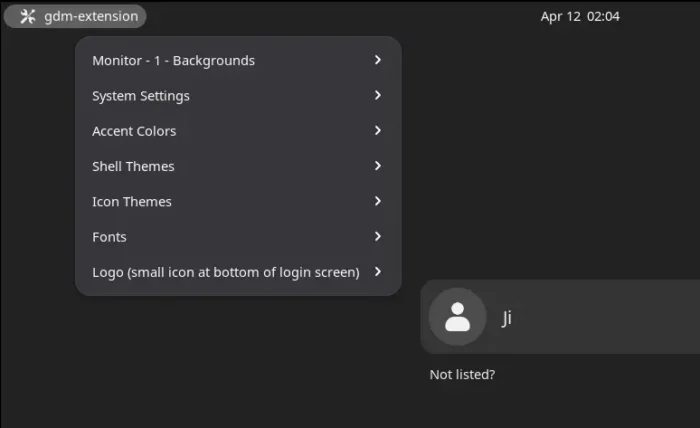
As the name says, it’s a Gnome Shell Extension. It provides a menu in the login screen, allowing to configure the following things:
- Background color, image, blur for multiple monitors (up to 4 monitors).
- Accent Colors, Fonts, Icons, Themes.
- Logo image, welcome message.
- And some other settings, e.g., disable user list.
All the configure options are available when you’re at login screen, and changes you made apply immediately. However, it only shows images and themes in the /usr/share/backgrounds, /usr/share/themes, etc directories.
How to Install GDM Extension
NOTE: Same to GDM Settings, the extension has potential to break your login screen (though in rare cases)! Don’t install it on production machine, and use it as your own risk!
It said it’s experimental and primarily tested on Arch Linux with GNOME Shell v42 and v50, though, it’s working good in my case in Ubuntu 25.10 and Ubuntu 26.04 Beta.
Probably due to permission issue (gdm), the extension is not available in EGO (extensions.gnome.org), and, it’s installed to /usr/local/share/gnome-shell/extensions directory instead of user’s .local/share.
Step 1. First, press Ctrl+Alt+T on keyboard to open terminal. Then, run command to install the required libraries:
sudo apt install git zip unzip
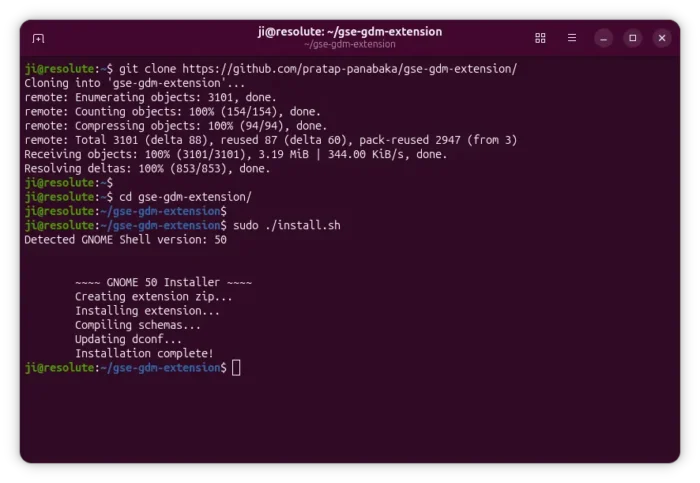
Step 2. Next, run command to clone the source from github:
git clone https://github.com/pratap-panabaka/gse-gdm-extension/
Step 3. Finally, navigate to the source folder, and run the installer script:
cd gse-gdm-extension && sudo ./install.sh
The script will automatically detect your GNOME version, then run the corresponding script to install the extension to /usr/local sub-directory, generate dconf schemas, and apply changes.
After successfully installed the extension, log out and use the top-left menu to configure the login screen.
Tips: in case for beginners who don’t know how to display user’s own images as login background, open terminal (Ctrl+Alt+T) and run command copy image to system backgrounds directory, then log out.
sudo cp drag-and-drop-image-file-into-terminal /usr/share/backgrounds
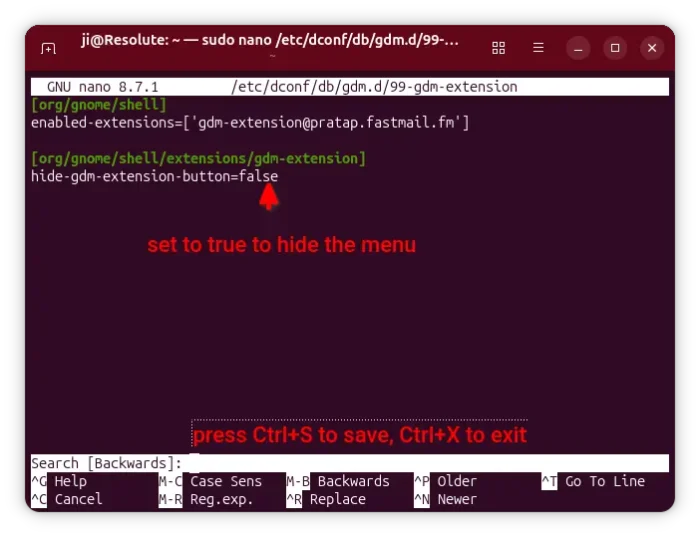
After properly set your login screen, you may hide the gdm extension menu from login screen, by running command in terminal to edit the config file:
sudo nano /etc/dconf/db/gdm.d/99-gdm-extension
Then, set “hide-gdm-extension-button” value to true. Press Ctrl+S to save file, Ctrl+X to exit.
Finally, run sudo dconf update command to apply change.
And to uninstall GDM Extension, simply run sudo ./uninstall.sh command from in the source folder (see Step 2 and Step 3).