KGX is a simple and user-friendly terminal emulator for GNOME. It aims to be a “Core” app for GNOME and Phosh, graphical shell for mobile devices like Purism’s Librem 5.
Rather than replacing GNOME Terminal, it’s on target to serve casual Linux user who rarely needs a terminal to carry out simple command line tasks. Via libhandy library, the terminal adjusts nicely to small screen sizes and for touch usage.
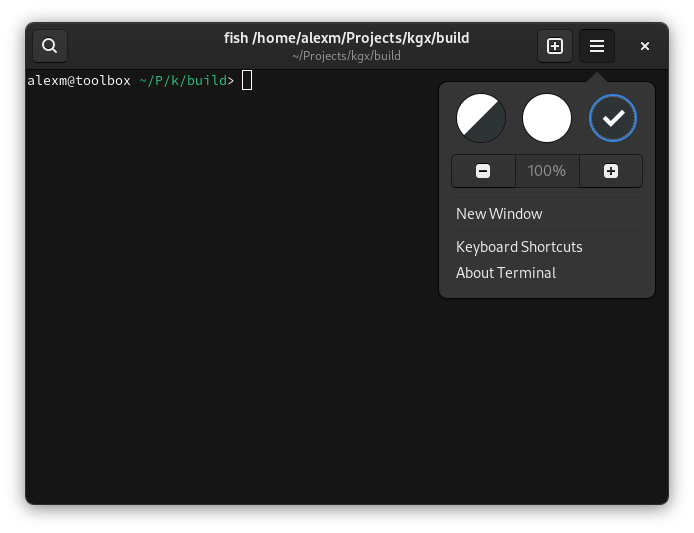
KGX terminal emulator. Image from thisweek.gnome.org
The name KGX is the station code for King’s Cross, the London terminus of the East Coast Main Line. The app is available in Ubuntu repositories since Ubuntu 21.04, though the package version is lag behind.
The stock KGX in Ubuntu 21.10 has a semi-transparent app window and the UI looks kinda like Gnome terminal. Though it’s lightweight and has less features.
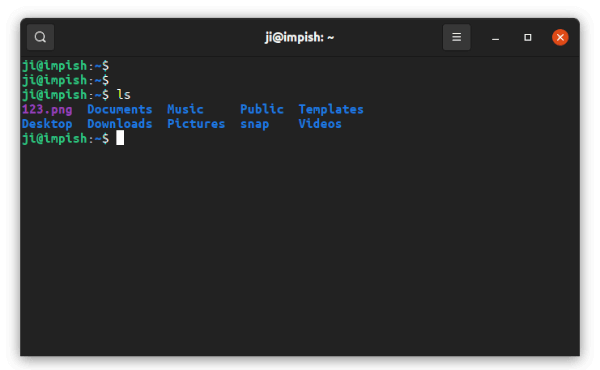
KGX in Ubuntu 21.10
Install KGX in Ubuntu 21.10 / 22.04:
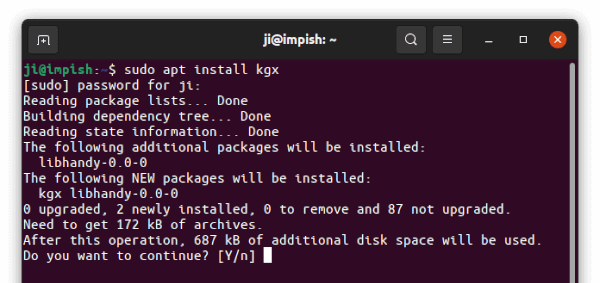
For Ubuntu 21.04, Ubuntu 21.10 and next Ubuntu 22.04, it’s easy to try out this terminal emulator by pressing Ctrl+Alt+T on keyboard, and then run command in terminal to install it:
sudo apt install kgx
Then, search for and open the terminal emulator from activities overview.
While the stock package is always old, you may build it from source which is available at KGX project page.