



This is a step by step guide shows how to install Sigil ePub ebook editor (v2.7.0 so far) in current Ubuntu releases and their based systems.
Sigil is a popular free and open-source ePub ebook editor that works in Windows, Linux, and macOS. However, it does not provide official packages for Linux.
While Sigil in Ubuntu system repository is always old, user can easily install the latest version via the official AppImage, or by compiling it from the source tarball.
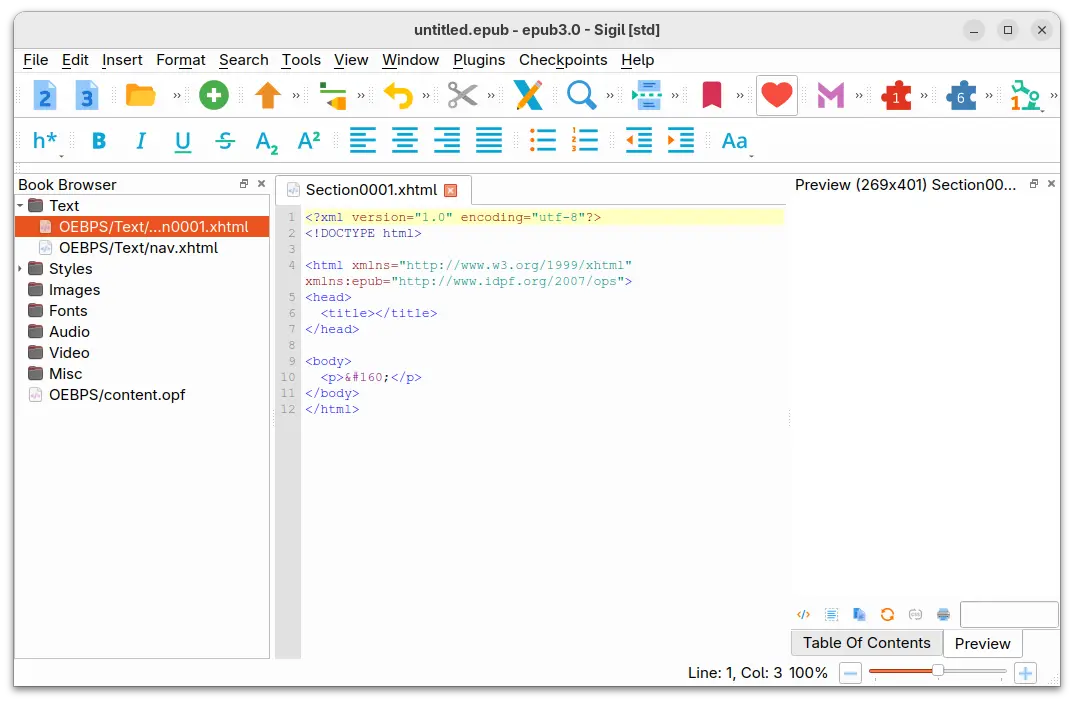
As far as I know, there are 3 ways to get most recent Sigil running in Ubuntu 24.04 and higher. They are:
- AppImage, non-install package that mounts all app files and run-time libraries into a temporary directory at run time.
- Flatpak, universal Linux package format runs in sandbox environment.
- Compile from source, for those don’t like running the app in sandbox.
Method 1: Use Sigil AppImage
Since version 2.5.0, the app added AppImage support for Linux on modern AMD/Intel platform.
The AppImage works in most Linux, without installation required. Just grab the package from the link below:
Then, add executable permission from file properties dialog. Finally, click run the AppImage to launch the editor.
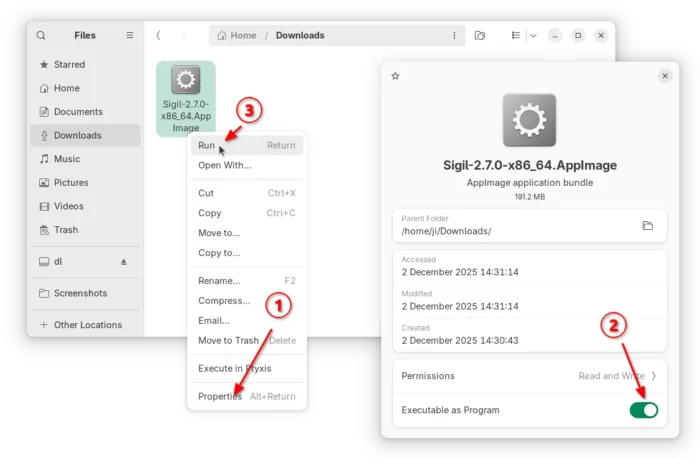
NOTE: Ubuntu since 22.04 does NOT support AppImage out-of-the-box. You need to press Ctrl+Alt+T to open terminal and run command to install the required library:
sudo apt install libfuse2
Method 2: Install Sigil through Flatpak package
For most Linux on amd64 and arm64 platform, there’s an unofficial (community maintained) Sigil Flatpak package available in Flathub that allows to install and run the app in sandbox environment.
Tips: Though the Flathub page (see the last link) always says “Changes in version 2.3.1”, the package has been updated to v2.6.2 at the moment of writing.
For Linux Mint, simply launch Software Manager, enable “unverified Flatpaks” in preferences, then search & install the Sigil Flatpak package:
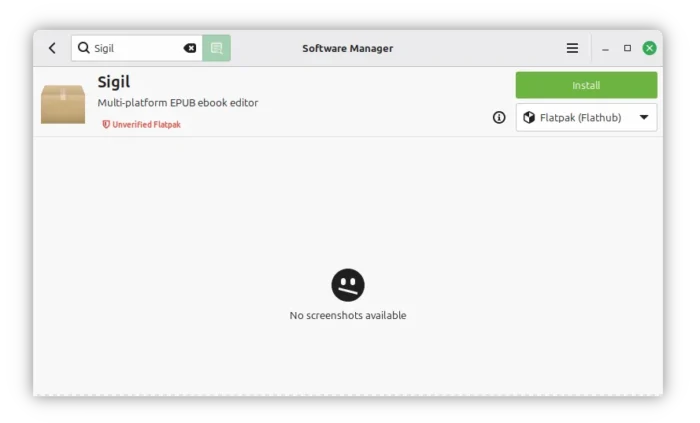
For Ubuntu, open terminal (Ctrl+ALt+T) and run the 2 commands below one by one instead:
- First, install the daemon package:
sudo apt install flatpak
- Next, install Sigil flatpak package:
flatpak install https://dl.flathub.org/repo/appstream/com.sigil_ebook.Sigil.flatpakref
If this is the first Flatpak package you installed, then you may need a log out and back in to make the app icon visible. Or, run the command below to start it from terminal:
flatpak run com.sigil_ebook.Sigil
And, you may replace run with update in the last command to check updates.
Method 3: Compile Sigil 2.7.0 from the source tarball
If you don’t like running the app in sandbox environment, then you may build it from source tarball by yourself.
NOTE: Sigil now needs Qt6 >= 6.4, this method works only in Ubuntu 24.04, Linux Mint 22, Debian 12 and higher.
Building an app from source usually includes following steps:
- Install the build tools and dependency libraries (xxx-dev packages).
- Download the source and extract.
- Configure the source.
- Build & install.
- And cleanup
If all the requirements matches and there’s no compiler bugs, then the process is NOT hard.
1. First, press Ctrl+Alt+T to open up a terminal window. When it opens, run command to install all the required tools and dependency libraries:
sudo apt install build-essential cmake qt6-webengine-dev qt6-webengine-dev-tools qt6-base-dev-tools qt6-tools-dev qt6-tools-dev-tools qt6-l10n-tools qt6-5compat-dev qt6-svg-dev libqt6webenginecore6-bin libhunspell-dev libpcre2-dev libminizip-dev libxkbcommon-dev python3-dev python3-pip python3-lxml python3-six python3-css-parser python3-dulwich python3-pil.imagetk python3-html5lib python3-regex python3-pil python3-cssselect python3-chardet
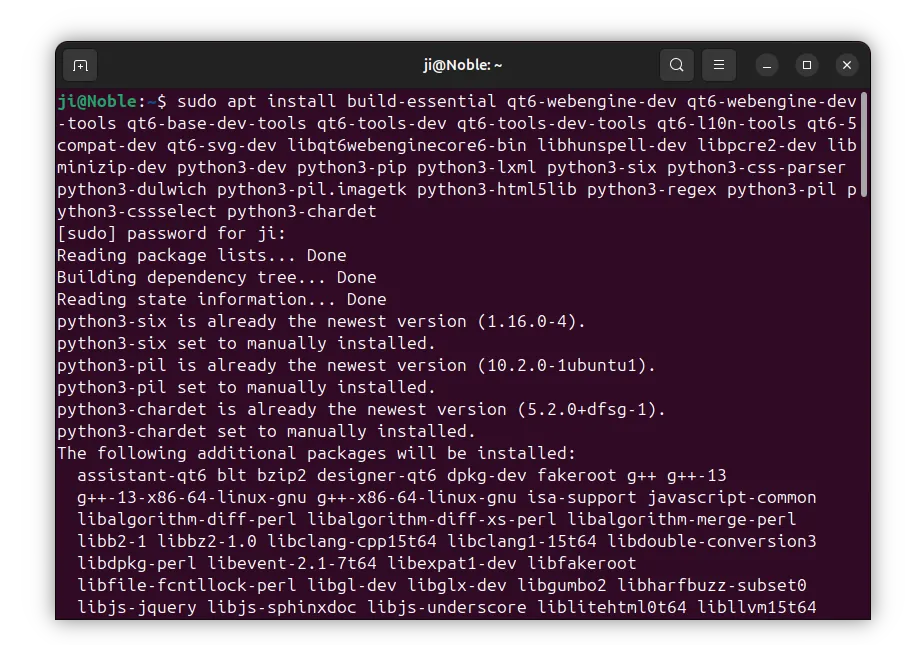
2. Then, download the latest Sigil source tarball from the Github release page under “Assets” section:
Select download the Source code (either zip or tar.gz), then extract, right-click on source folder and select “Open in Terminal” to open a terminal window with that folder as working directory.
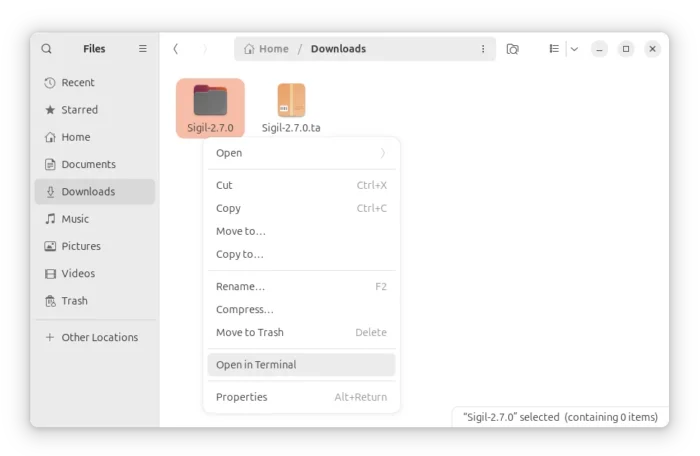
3. When terminal opens with the Sigil source folder as working directory, start configure the source, build and install it by running the commands below one by one.
- First, create a build folder and navigate into it:
mkdir build && cd build
- Then, configure the source via cmake command:
cmake -G "Unix Makefiles" -DCMAKE_BUILD_TYPE=Release ../
If it outputs errors, then you miss something that the app required. Though, in my case everything went well in Ubuntu 24.04.
- Next, start building the package via make command:
make -j4
Here
-j4means to start 4 threads in parallel. Depends on how many CPU cores you have, replace it withj8,-j16or just skip it. - If there’s no compiler bug, you may then install Sigil now via command:
sudo make install
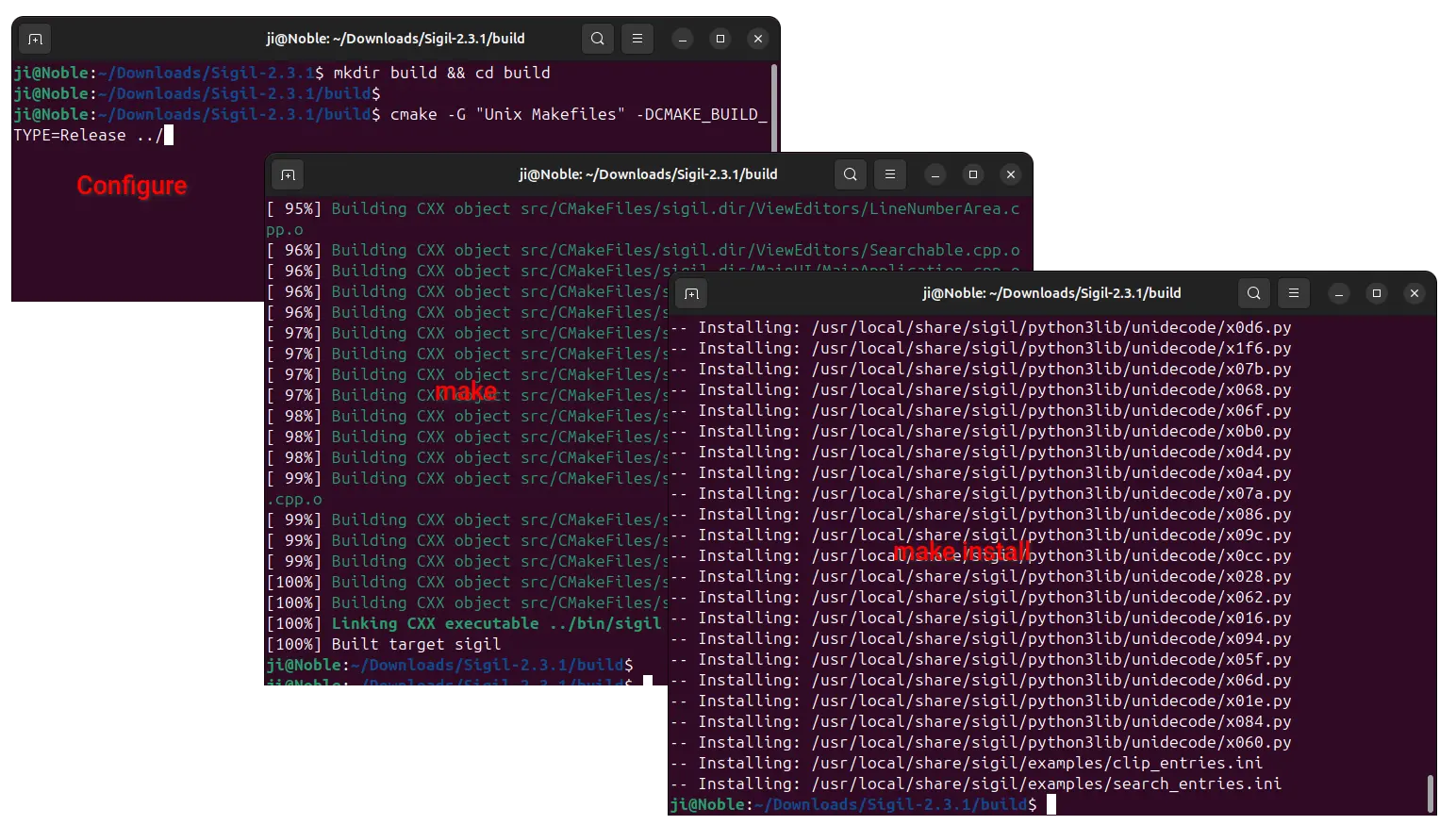
4. As you see in the screenshot above, the commands above by default install Sigil into /usr/local directory. It won’t cover the native .deb package if you installed it from system repository.
So, if you have multiple app icons in start menu, either remove other Sigil packages, or run /usr/local/bin/sigil to start the one you just compiled from terminal.
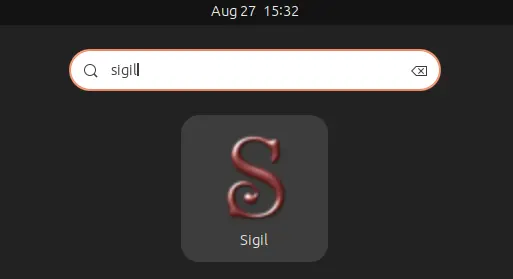
5. If everything goes well, you may cleanup by removing the source tarball as well as the extracted folder from the Downloads folder.
You can also run the command below to remove the useless -dev packages (optional).
sudo apt remove build-essential qt6-webengine-dev qt6-webengine-dev-tools qt6-base-dev-tools qt6-tools-dev qt6-tools-dev-tools qt6-l10n-tools qt6-5compat-dev qt6-svg-dev libhunspell-dev libpcre2-dev libminizip-dev libxkbcommon-dev python3-dev
NOTE: After removed the -dev package above, run apt remove --autoremove at any time MAY remove the required run-time libraries that can cause Sigil app launching issue!!
Uninstall Sigil
For the Sigil AppImage, just delete the file from your Downloads folder.
To uninstall Sigil that was building from the source (via the steps above), then just delete all the installed files:
- First, remove the library and share folders:
sudo rm -R /usr/local/share/sigil /usr/local/lib/sigil
- Then, remove the icon, app shortcut, and executable files:
sudo rm /usr/local/share/pixmaps/sigil.png /usr/local/share/applications/sigil.desktop /usr/local/bin/sigil
To uninstall the Flatpak package, run command:
flatpak uninstall --delete-data com.sigil_ebook.Sigil
Also run flatpak uninstall --unused to remove useless runtime libraries.













Case: After I ran the command in item 5 (sudo apt remove …etc) Sigil didn’t work anymore.
Solution: I ran the command from item 1 again and Sigil started working again, so there was no need to compile Sigil again.
Suggestion: The command in item 5 could be improved to remove only unnecessary packages, but unfortunately I don’t have enough knowledge for that.
Thank you for the instructions… but I would never struggle with compiling it from sources… So I used flatpak.
:D