
Use apt or apt-get to install/upgrade PPA packages but the download speed is slow? Here’s a workaround to speed it up in Ubuntu or Linux Mint.
By choosing a download mirror that nears to me using “Software & Updates” usually can fix slow downloading issue when installing packages from official Ubuntu repositories.
But for app packages from Ubuntu PPAs, in most time it downloads at a speed of few hundreds KB/S.
It’s OK for small apps, but for PPA packages with large file sizes (e.g. NVIDIA driver from Graphics Driver Team PPA, or Plasma Desktop from KUbuntu PPA), it can take half an hour and even more time to install due to slow download speed.
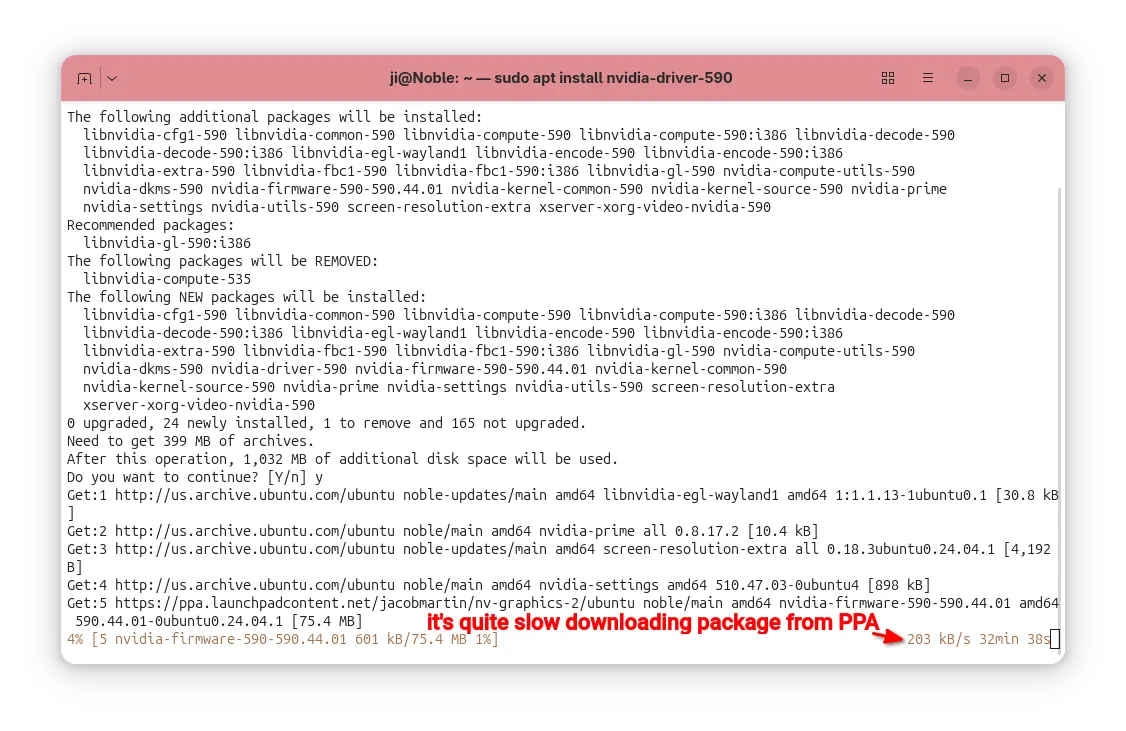
downloading packages from PPA using apt is quite slow
In the case, apt-fast can help!
It’s a free open-source shell script wrapper for apt/apt-get, by using aria2 multi-connection download utility. It works by splitting large file into multiple small pieces, then downloading them from multiple sources in parallel.
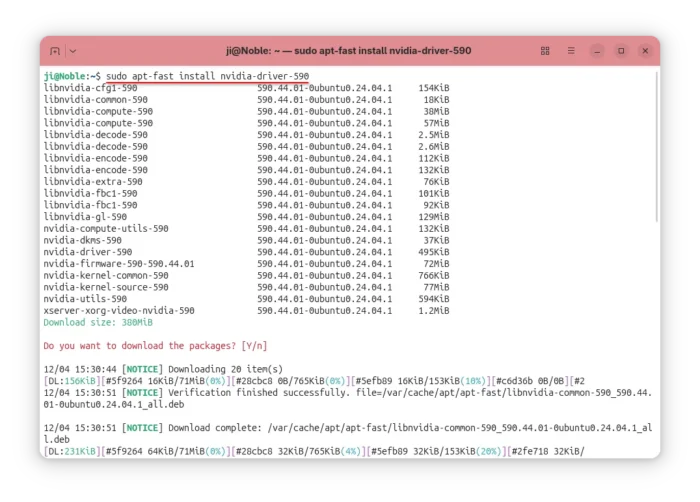
Though, the launchpad PPA does not have mirrors, it can still speed up the large file downloading probably due to multi-connections. In my case, it reduced the nvidia-590 packages downloading time from about 30 minutes to less than 3 minutes.
Step 1: Install apt-fast
apt-fast has an official PPA that contains the most recent packages for all current standard supported Ubuntu releases (e.g., Ubuntu 22.04, Ubuntu 24.04, Ubuntu 25.04/25.10), as well as the old Ubuntu 20.04, 18.04, 16.04, and even 14.04 LTS releases.
To add the PPA, press Ctrl+Alt+T to open terminal and run command:
sudo add-apt-repository ppa:apt-fast/stable
Type your user password when it asks (no visual feedback) and hit Enter to continue.
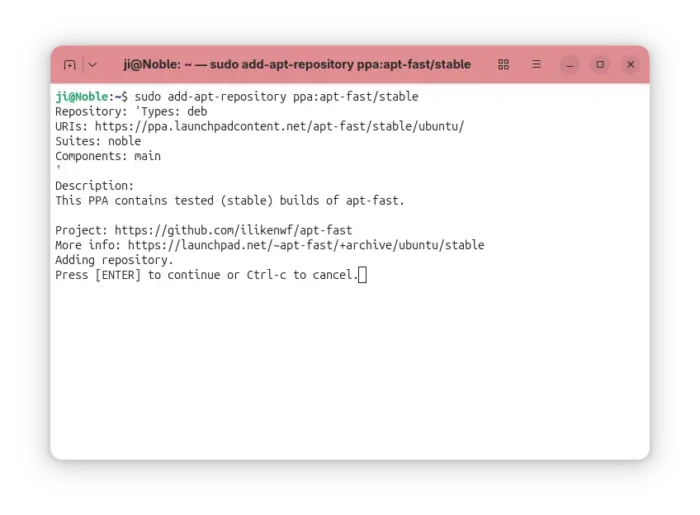
All current Ubuntu releases will automatically refresh cache while adding PPA. But for Linux Mint and old Ubuntu, you may run the command below to update cache manually:
sudo apt update
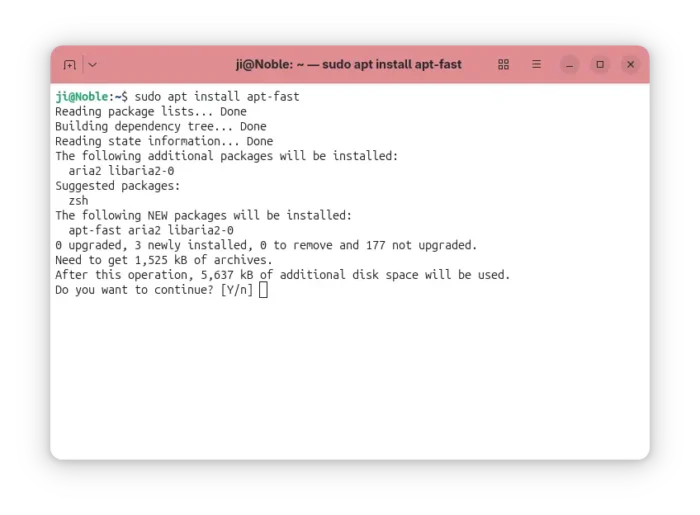
Finally, install the wrapper by running command:
sudo apt install apt-fast
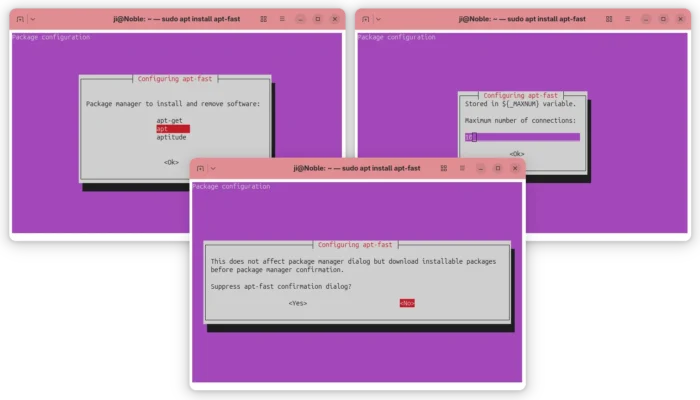
After installed the package, it will automatically run the post-install script to configure the basic things, like which package manager (apt, apt-get, or aptitude) to use for installing packages, maximum allowed number of connections, and, whether to ask for confirmation before downloading.
Step 2: Configure apt-fast (Optional)
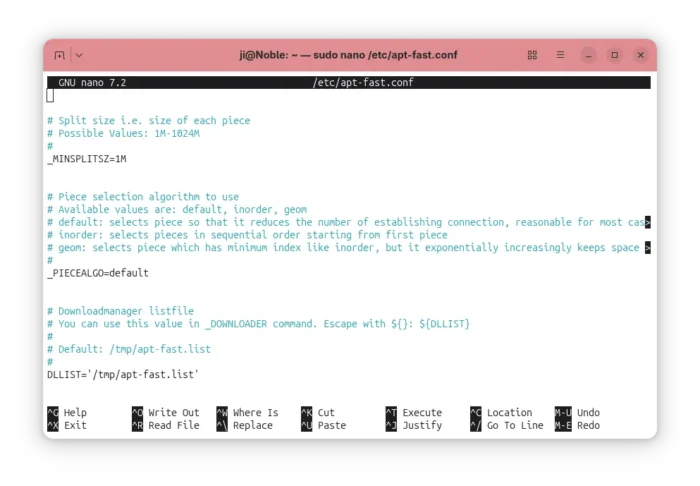
Besides the basic settings you set above, you can configure more about apt-fast, including:
- add/change downloads mirrors, if you want to use it for getting packages from Ubuntu repositories.
- change the minimum size of each piece, and piece selection algorithm.
- adjust the ‘aria2c’ download command.
- change the temporary download folder, and apt cache directory.
- enable/disable APT authentication support.
- change the colors, and more.
Simply, run the command below to open the configuration file via nano command line text editor:
sudo nano /etc/apt-fast.conf
Then edit according to the description text if need, finally Ctrl+S to save and Ctrl+X to exit.
Step 3: How to use apt-fast
You can use apt-fast just by replacing apt or apt-get in all install, upgrade, etc commands with apt-fast.
For example, install app packages:
sudo apt-fast install package1 package2 package3
Install all available updates, but never remove existing packages:
sudo apt-fast upgrade
Install all available updates, allow removing existing packages if required:
sudo apt-fast full-upgrade
Clean download files in cache directory and temporary download folder:
sudo apt-fast clean
For more, see manual by running man apt-fast command.
Uninstall apt-fast (Optional)
If something goes wrong, or you don’t need it anymore, then open terminal (Ctrl+Alt+T) and run command to remove it:
sudo apt remove apt-fast aria2 libaria2-0
And, remove the PPA either by using “Software & Updates -> Updates”(or Software Sources for Linux Mint) utility or by running command:
sudo add-apt-repository --remove ppa:apt-fast/stable
Also, you may need to run sudo apt update to refresh cache afterward in Linux Mint or old Ubuntu 14.04.