



Ubuntu finally retired the legacy NVIDIA driver 470 for all current Ubuntu releases! Here’s how to manually install it back for those who run Ubuntu on GeForce GT 710/730/780 etc Kepler GPUs (GeForce 700, 600, TITAN, and Tesla series).
Ubuntu announced the end of life of NVIDIA 470 driver support a few months ago. For Ubuntu 26.04, the legacy driver package is excluded in system repository. While, Ubuntu 24.04 and 22.04 have migrated the package to NVIDIA 535.
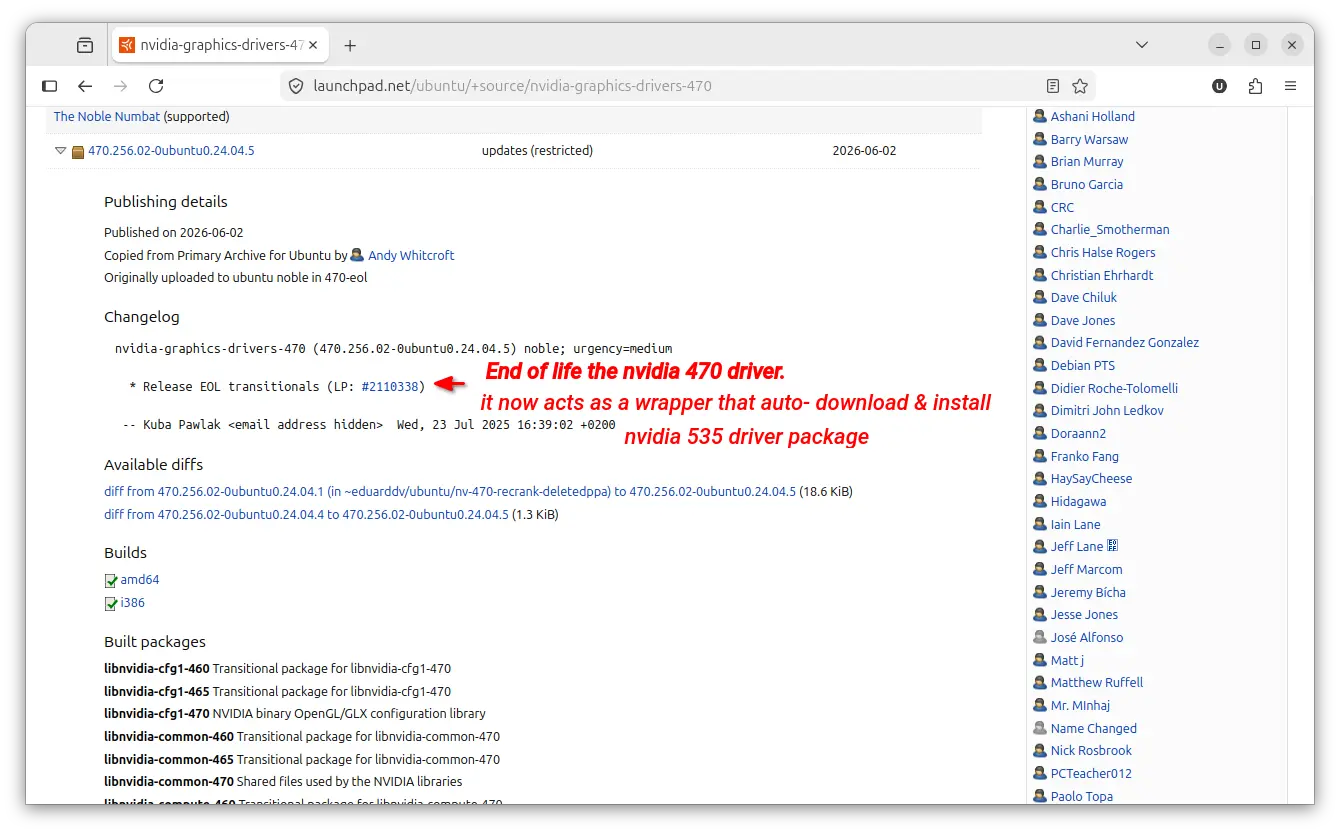
The legacy nvidia 470 driver package in launchpad build farm
In this tutorial, I’m going to show you how to install NVIDIA 470 driver in two ways:
- Option 1: Downgrade to the previous build of Ubuntu-provided 470 driver.
- Option 2: Install NVIDIA-provided driver with community patches.
Downsides
The legacy 470 driver needs to patch for being able to build on 6.14 and newer Linux Kernels (see this bug report). That’s possibly why Ubuntu decided to discontinue this driver support.
For Ubuntu 22.04 with default Kernel 6.8, it’s totally OK to downgrade to the previous build that will install the real 470 driver, but there’ll be no future updates for security fixes.
Ubuntu 24.04 may also downgrade the driver package, but it also requires to downgrade the kernel to be earlier than 6.14 due to missing patches.
For newer Kernels (6.14 and later), there’s a community maintain project that contains the patches to make NVIDIA-provided 470 driver build on Debian/Ubuntu based distributions, though it’s unofficial!
Option 1: Downgrade to the previous build of Ubuntu-provided 470 driver.
As mentioned, the latest build of NVIDIA 470 driver in Ubuntu 24.04 and 22.04 repository acts as a wrapper that will automatically download and install NVIDIA 535 driver. Thankfully, the previous build is still available and you can choose to downgrade to that build.
1. Uninstall NVIDIA 535
If you have already installed the latest nvidia 470 package update, then you have the 535 driver auto-installed on your system.
To uninstall it, press Ctrl+Alt+T to open terminal, and run command:
sudo apt --purge remove '*nvidia*470*' '*nvidia*535*'
For choice, you may replace number 470 in command to uninstall other driver series, e.g., 580, 595. When done, restart computer to apply change.
2. Downgrade Kernel (for Ubuntu 24.04 only)
For Ubuntu 24.04, run command in terminal (Ctrl+Alt+T) to install the original 6.8 Kernel:
sudo apt install linux-image-generic linux-headers-generic
or replace linux-image-generic with linux-image-6.11.0-29-generic to install the 6.11 Kernel.
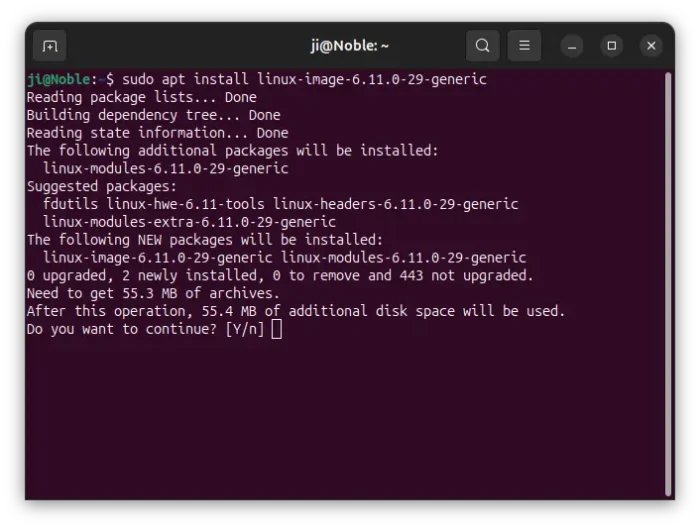
After that, restart computer and choose the 6.8 or 6.11 kernel (depends on which you installed) from “Advanced Options for Ubuntu” sub-menu in Grub boot-loader.
Finally, remove newer kernels, or it will try to build the models for these kernels when installing nvidia-470 causing errors.
sudo apt remove --autoremove linux-image-6.14.0-* linux-headers-6.14.0-* linux-image-6.17.0-* linux-headers-6.17.0-*
3. Add rule to block the latest build that auto-install NVIDIA 535.
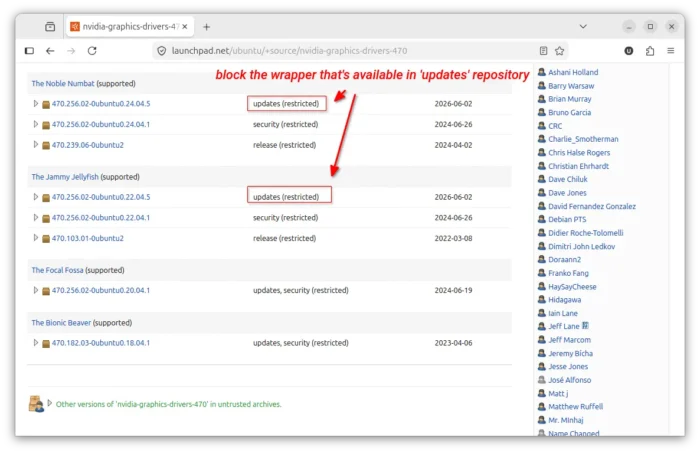
As you see via the screenshot above, the latest nvidia 470 driver update (wrapper of 535) is available in the “Updates” channel, while the previous build is in “Security” channel. To prevent auto-install nvidia 535, we need to add a rule to block the one from “Updates”.
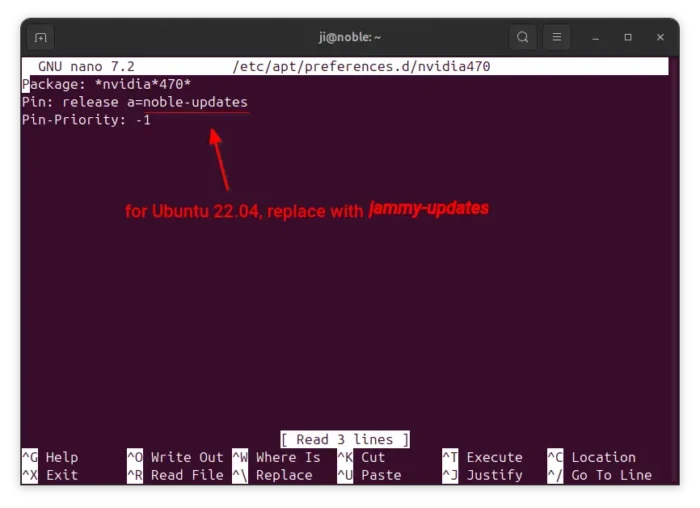
To do so, open terminal (Ctrl+Alt+T) and run the command below to create & edit an apt rule:
sudo nano /etc/apt/preferences.d/nvidia470
When file opens (in terminal), add the lines below to prevent installing any nvidia 470 related packages through the “updates” channel:
Package: *nvidia*470*
Pin: release a=noble-updates
Pin-Priority: -1
For Ubuntu 22.04, replace noble with jammy. Then, press Ctrl+S to save, and Ctrl+X to exit.
4. Reinstall nvidia 470 driver.
Now, run the command to refresh apt repository caches:
sudo apt update
And, run command below to show 470 driver package status:
apt policy nvidia-driver-470
If everything goes well, you’ll see that the previous build is available as candidate.
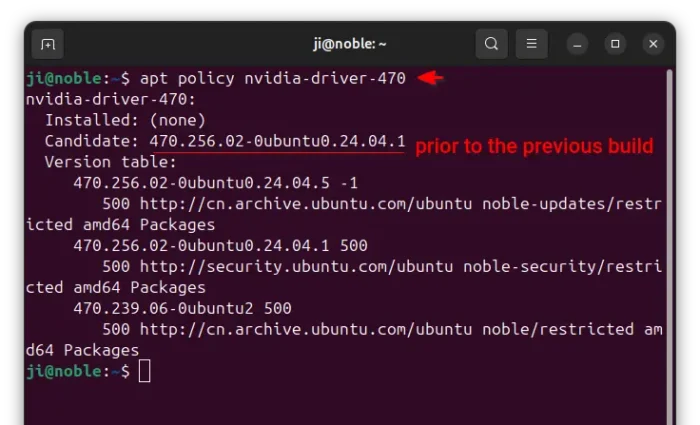
Finally, run the commands below to install kernel headers (required for building kernel models) and 470 driver:
sudo apt install linux-headers-$(uname -r)
sudo apt install nvidia-driver-470
And, restart computer to apply change if everything goes well without errors.
Option 2: Install NVIDIA-provided driver with community patches.
For Ubuntu 26.04 or Ubuntu 24.04 who don’t want to downgrade Kernel, you may install the NVIDIA-provided driver (.run installer) with community patches. And, the free open-source project contains the nvidia 470 patches for Kernel 6.13 ~ 7.2.
NOTE: This option does NOT work in Ubuntu 26.04 with default GNOME Desktop as it has NO Xorg support. And, KUbuntu 26.04 needs to install plasma-session-x11 package for Xorg session.
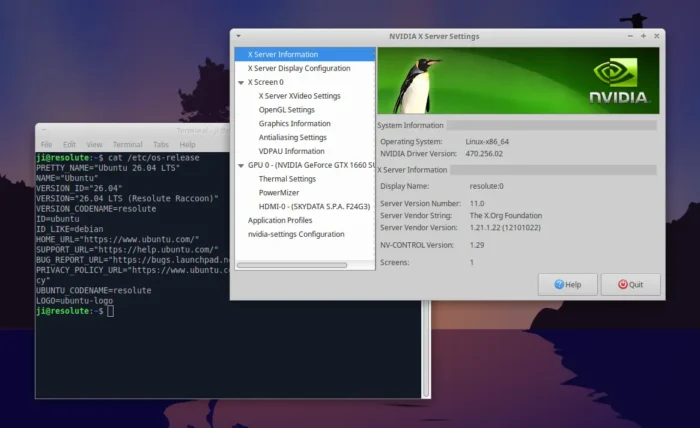
NVIDIA 470 in XUbuntu 26.04
1. First also uninstall NVIDIA 470, 535, or other versions of the proprietary drivers via first step in Option 1. And, restart computer.
2. Then, open terminal (Ctrl+Alt+T) and run command to install the dependency libraries:
sudo apt install git wget build-essential linux-headers-$(uname -r) libglvnd-dev
Then save you work, as next step will kill you desktop and run in full text console.
3. Next, press Ctrl+Alt+F3 ~ F6 to switch to TTY command console. And, input your username and password to login.
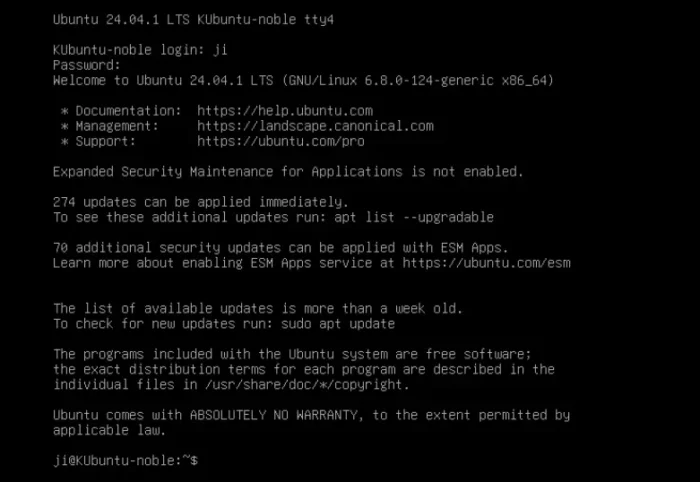
TTY command console
4. Now, run the command below which will kill all the graphical sessions. This is required for being able to run the NVIDIA-provided .run driver installer.
sudo systemctl isolate multi-user.target
Press Ctrl+C if the command stuck at blinking cursor.
5. Next run the command to clone the source which contains all the community patches, and the script to apply them.
git clone https://github.com/joanbm/nvidia-470xx-linux-mainline
Finally, navigate to the source folder and run install script:
cd nvidia-470xx-linux-mainline && ./install
The script will automatically download the nvidia-provided .run installer, extract and apply patches, and finally start the installer.
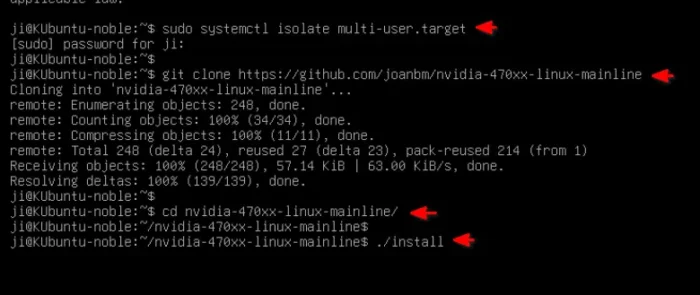
When the installer starts, select “Continue installation” to skip the “An alternative method of installing the NVIDIA driver was detected …” screen.
If kernel’s built-in Nouveau driver is in use, it will output error due to incompatibility. Just hit OK, then select Yes in next screen to auto-add config file to add nouveau driver into blacklist.
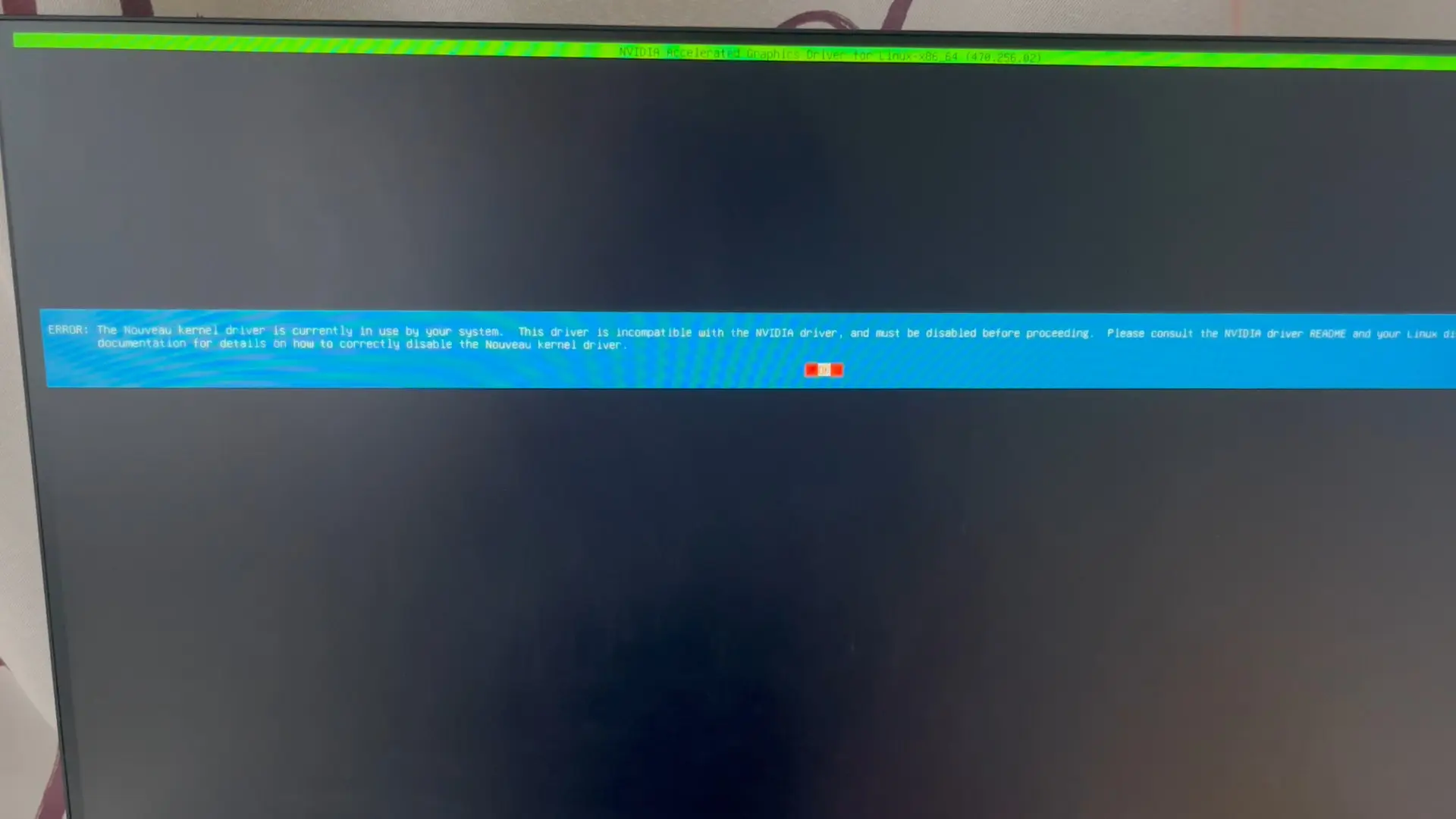
Finally, run reboot to reboot computer without nouveau driver and re-run step 3, step 4, step 5 (without git clone) to re-start the installer and answer yes/ok to all questions.
Uninstall:
If you installed the legacy 470 driver through the package from Ubuntu system repository, run the command below to uninstall it:
sudo apt --purge remove '*nvidia*470*'
For the driver installed through the NVIDIA-provided installer, then re-do step 3 & 4 in Option 2 to stop graphical sessions, then run the command below to uninstall:
sudo nvidia-uninstall
To un-blacklist the open-source nouveau Kernel driver, just remove the config files:
sudo rm /etc/modprobe.d/nvidia-installer-disable-nouveau.conf /usr/lib/modprobe.d/nvidia-installer-disable-nouveau.conf
Finally, restart computer to apply changes.


















Good work !
good info
sadly the ppa graphics-drivers has stopped updating their repository
the forced update from 570 -> 580 wasnt good either, but no issues with it
Option 2 works perfectly, thank you so much!