Archives For Howtos

Prefer the light mode appearance? Here’s how to change the system tray menu, date & time menu, notifications, and other top panel drop-down menus from dark to light in Ubuntu 21.04.

Different to previous Ubuntu releases, Ubuntu 21.04 now has top-panel menus in dark mode. It’s good for those prefer the dark themes. However, light mode fans need to change the Gnome Shell theme to get better experience.

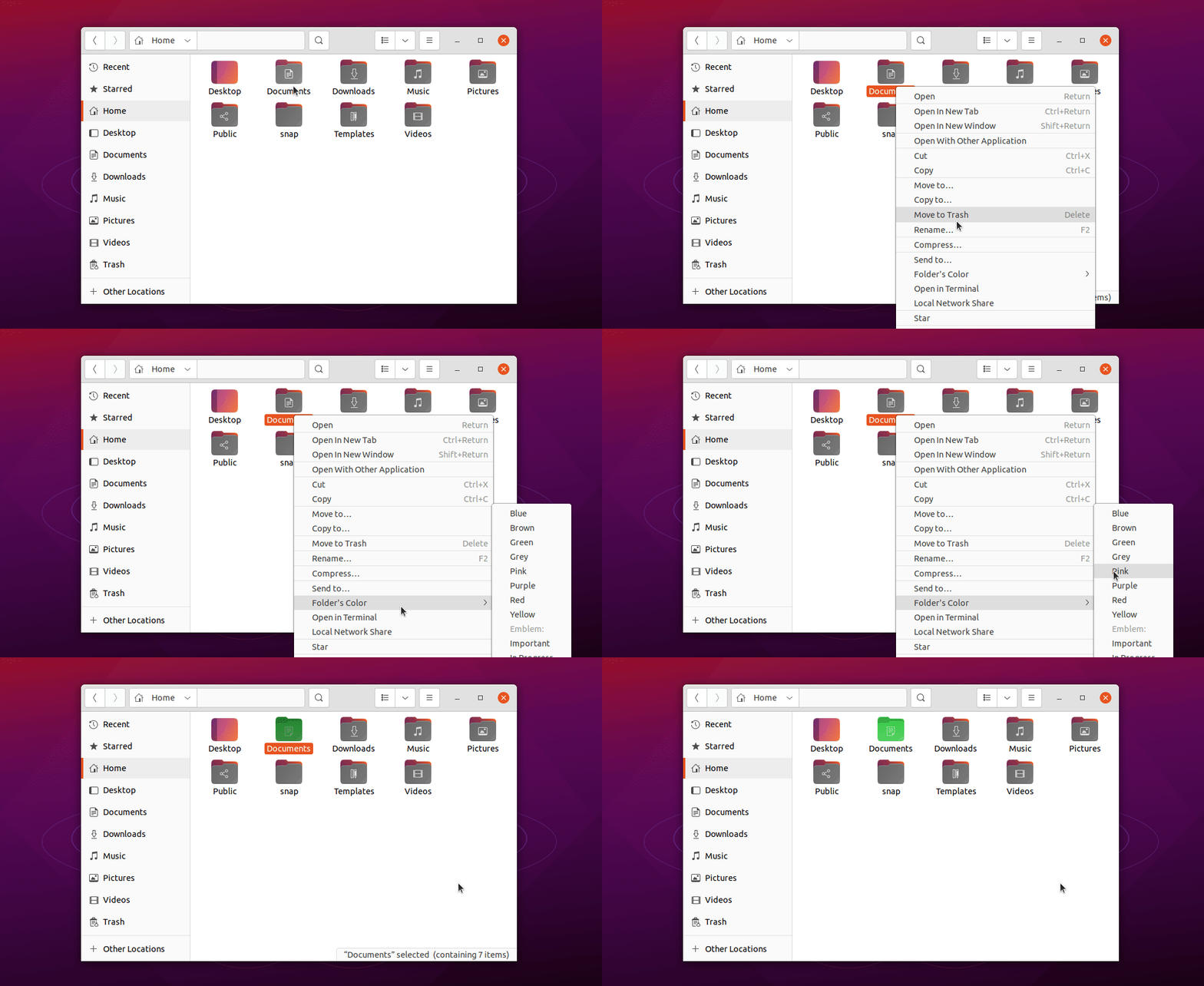
Before:

After:

1. Install User Themes Extension:

To get started, you have to first install the User Themes Gnome Shell extension, which enables ability to change the Gnome Shell Theme.

Method 1: Install the extension via single command:

Press Ctrl+Alt+T on keyboard to bring up a terminal window and run the command below will install a dozen of extensions, including User Themes, in Ubuntu:

sudo apt install gnome-shell-extensions

Once installed, log out and back in.

Method 2: Install the extension from extensions.gnome.org:

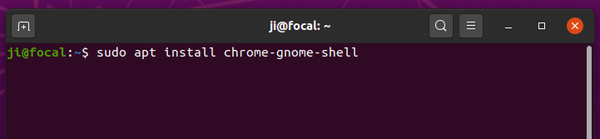
For clean freak just need the single extension, firstly install chrome-gnome-shell package via command:

sudo apt install chrome-gnome-shell

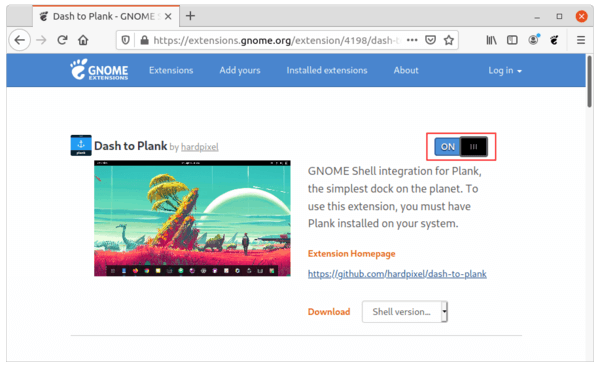
Then click to go to the extension web page and turn on the toggle icon to install the extension.

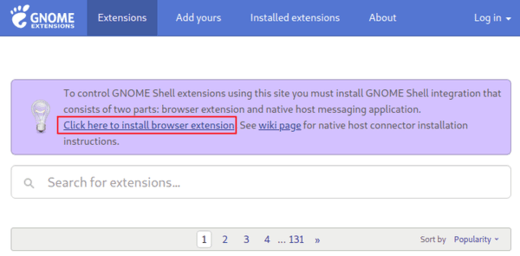
Don’t see the toggle icon? Click ‘Click here to install browser extension’ to install browser extension, and then refresh the web page.

2. Change Gnome Shell Theme:

After installed User Themes extension, launch Gnome Tweaks (install it from Ubuntu Software) and go to Extensions tab.

There scroll down, find out and turn on the extension, click the gear button to get into settings. And finally select Yaru-light or gnome classic for even light top panel.

That’s it. Enjoy!
GIMP extra color palettes

Before the next major GIMP 3.0, a new maintenance update for the 2.10 series GIMP 2.10.24 now is available to install.

Though it’s not officially announced at the moment of writing, GIMP has provided the 2.10.24 source tarball & Windows exe for downloading in its website.

And both the Flathub repository and unofficial Ubuntu PPA have updated the packages for the new release.

What’s new in GIMP 2.10.24 according to the release note:

  • Off-canvas point snapping
  • GeoTIFF metadata support (georeferencing information embedded within a TIFF file used by map makers)
  • Many improvements in the metadata viewer and editor
  • Many file format supports improved: HEIF, PSP, TIFF, JPEG, PNG, PDF, DDS, BMP, PSD
  • New “Negative Darkroom” operation to simulate enlargement prints from scans of photographic negatives.
  • The RAW image import now handles darktable 3.6 and over
  • New Kabyle translation

How to Install GIMP 2.10.24 in Ubuntu:

Method 1: Install GIMP via the universal flatpak package:

If you’re OK with the flatpak package which runs in sandbox, open terminal and run following commands one by one to install it:

1. Firstly add PPA for updated Flatpak package (required for Ubuntu 18.04 only):

sudo add-apt-repository ppa:alexlarsson/flatpak && sudo apt update

2. Install flatpak daemon if you don’t have it:

sudo apt install flatpak

3. Add flathub repository which hosts the software packages:

flatpak remote-add --if-not-exists flathub https://flathub.org/repo/flathub.flatpakrepo

4. Finally install GIMP flatpak package via command:

flatpak install flathub org.gimp.GIMP

NOTE: as flatpak runs in sandbox, it takes much more disk space for run-time libraries.

5. (Optional) If you want to remove the package, run command:

flatpak uninstall org.gimp.GIMP

Method 2: install GIMP via Ubuntu PPA:

For those prefer the classic .deb packages, the unofficial PPA has made the new release packages for Ubuntu 20.04, Ubuntu 20.10, and Ubuntu 21.04.

Due to compile issue, the package for Ubuntu 18.04 is stuck at v2.10.22 at the moment.

1.) Open terminal from system application launcher. When it opens, run command to add the PPA:

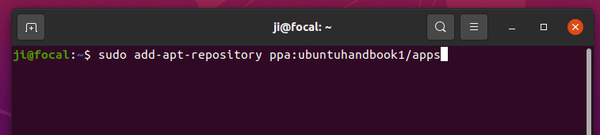
sudo add-apt-repository ppa:ubuntuhandbook1/gimp

Type user password (no asterisk feedback) for sudo prompts and hit Enter to continue.

2.) If an old version of GIMP .deb package was installed, upgrade it via Software Updater (Update Manager) utility.

or run apt commands in terminal to install GIMP:

sudo apt install gimp

If you’re going to upgrade the image editor from command line, I’d recommend to RUN this command instead, so to also install the updated dependency libraries.

sudo apt upgrade

3.) (Optional) To restore GIMP to the stock version in main Ubuntu repository, run command to purge the PPA:

sudo apt install ppa-purge && sudo ppa-purge ppa:ubuntuhandbook1/gimp

Want to automatically set the background & lock screen wallpaper once per day to Microsoft Bing image of the day? It’s easy to do this in Ubuntu via an Extension.

For Ubuntu 18.04, Ubuntu 20.04, Ubuntu 20.10, and all other Linux with Gnome Desktop, a lightweight Gnome Shell Extension “Bing Wallpaper” make it possible to set Microsoft Bing image as background and/or lock screen wallpaper.

The extension downloads Bing image and refreshes your wallpaper once per day. By providing system tray indicator menu, you can copy image to clipboard and change the extension preferences.

How to Install Bing Wallpaper Extension:

1.) Firstly open terminal (Ctrl+Alt+T) and run command to install the chrome-gnome-shell package, which will add Gnome Shell extensions integration for web browsers, if you don’t have it.

sudo apt install chrome-gnome-shell

2.) Then go to the extension web page, turn on the toggle icon to install it.

Don’t see the toggle icon? Follow the link to install the browser extension and refresh the web page.

Once installed the extension, an indicator applet should appear in the top-right corner. You can either click “Refresh Now” or wait till it refreshes wallpaper automatically.

For Bing locale, download folder, screen resolution, and other settings, just go to indicator menu ‘Settings’ option.

Uninstall the Exension:

To remove the extension, either turn off the toggle icon in the previous link page, or use Extensions tool (install it via sudo apt install gnome-shell-extension-prefs command).

The Audacity audio editor 3.0.0 was released a week ago as the new major release. Here’s how to install it in Ubuntu / Linux Mint via Flatpak package.

Audacity 3.0.0 features new all-in-one-file aup3 project file format, improved ‘Noise Gate’ effect, new ‘Label Sounds’ analyzer, and over 160 bug-fixes.

According to the Privacy Notice, Audacity may COLLECT personal data necessary for law enforcement, litigation and authorities. And it dissuade those under 13 years old from using the App.

It is incompatible with the GPL license. USE IT AT YOUR OWN RISK!

Why Flatpak?

Ubuntu PPA has updated via the 3.0.x built against wxWidgets 3.1.3. As well, you can install the Snap package from Ubuntu Software.

The distribution’s build and Ubuntu PPAs are mostly “incorrectly built packages” as they are built against the wrong wxWidgets (3.0.x), however Audacity 3.0.0 requires wxWidgets 3.1.3.

Though I’m not a fan of the containerized Flatpak package, it’s so far the only ‘correctly’ build binary package since the Snap is still under testing.

Install Audacity 3.0.0 via Flatpak:

Firstly open terminal from system app launcher. When it opens, run following commands one by one.

1.) For Ubuntu 18.04, add the PPA for updated version of Flatpak framework:

sudo add-apt-repository ppa:alexlarsson/flatpak && sudo apt update

2.) Install flatpak via command:

sudo apt install flatpak

3.) Add flathub repository that hosts the software packages:

flatpak remote-add --if-not-exists flathub https://flathub.org/repo/flathub.flatpakrepo

4.) Finally install Audacity flatpak package:

flatpak install flathub org.audacityteam.Audacity

The flatpak package won’t replace the classic deb package. If you have more than one app icon in launcher, either remove Audacity installed via apt, or launch Audacity Flatpak via command in terminal:

flatpak run org.audacityteam.Audacity

Remove Audacity Flatpak package:

To remove the software installed via flatpak, simply run command:

flatpak uninstall org.audacityteam.Audacity

Want to install the ClipGrab YouTube video downloader via classic deb package? Here’s a PPA available for Ubuntu 20.04, Ubuntu 20.10, and Linux Mint 20.

ClipGrab is a free and open-source downloading and converting application for YouTube, Vimeo, Facebook, and many other video sites.

Thanks to Youtube-DL and Qt framework, it provides a simple UI with ability to search videos via keywords. By clicking a video from the search result, it automatically inputs the video URL to “Downloads” tab.

You can also copy & paste the video URL directly from YouTube web page, and then select downloads format, MPEG4, MP3, etc, and choose the quality.

Finally click on “Grab this clip!” to start downloading process.

Install ClipGrab via Ubuntu PPA:

The software offers official Linux binary via non-install Appimage package in its website.

If you prefer the classic .deb package with better integration, the “xtradeb packaging” team maintains the software package in an unofficial PPA, which so far supports for Ubuntu 20.04 and Ubuntu 20.10.

1.) Open terminal from system app launcher. When it opens, run command to add the PPA:

sudo add-apt-repository ppa:xtradeb/apps

Type user password (no asterisk feedback) when it asks and hit Enter to continue.

2.) After adding the PPA, run command to install the tool:

sudo apt install clipgrab

And it will install the most recent YouTube-DL package, if you don’t have it or have an older version, from the PPA repository.

Uninstall ClipGrab:

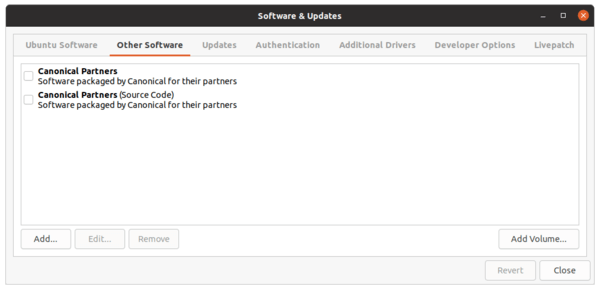
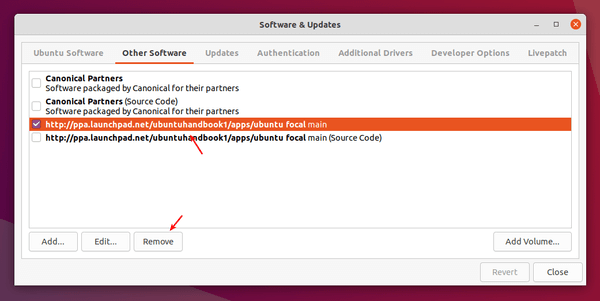
To remove the Ubuntu PPA, either go to Software & Updates -> Other Software or run command in terminal:

sudo add-apt-repository --remove ppa:xtradeb/apps

To remove the video downloader software, run command:

sudo apt remove --auto-remove clipgrab

Kid3 audio tag editor 3.8.6 was released a few days ago with new features and important bug-fixes. PPA has updated for Ubuntu 18.04, Ubuntu 20.04, and Ubuntu 20.10.

Kid3 3.8.6 adds support for building with Qt 6. And it now provides a nicer default style for Windows users.

The new release features:

  • adds sub tracks support in Discogs import
  • Integration test for Amazon import
  • Removed TrackType.org import.
  • Fix crash when using id3lib in 64-bit Windows.

How to Install Kid3 3.8.6 in Ubuntu via PPA:

The official Kid3 PPA has made the new packages for Ubuntu 18.04, Ubuntu 20.04, Ubuntu 20.10, and Linux Mint 20.

1. Open terminal either from application launcher or by pressing Ctrl+Alt+T on keyboard. When it opens, run command to add the PPA:

sudo add-apt-repository ppa:ufleisch/kid3

Type user password (no asterisk feedback) when it prompts and hit Enter to continue.

2. If an old version was installed, upgrade Kid3 using Software Updater:

upgrade kid3 via software updater

or run commands one by one in terminal to install or upgrade to the latest tag editor:

sudo apt update

sudo apt install kid3-qt

You may replace kid3-qt with kid3 in the code for KDE integration, and/or with kid3-cli for the command-line interface.

Uninstall

To remove the PPA repository, either open Software & Updates -> Other Software tab and remove the relevant line, or run command:

sudo add-apt-repository --remove ppa:ufleisch/kid3

To remove the audio tag editor, either use your system package manager or run command:

sudo apt remove --auto-remove kid3 kid3-*

Oracle Java 16 was announced as a short release with 6-month support. Here’s how to install it in Ubuntu 14.04, Ubuntu 16.04, Ubuntu 18.04, Ubuntu 20.04, Ubuntu 20.10 via PPA.

UPDATE: Oracle Java 17 has been released as the new LTS (Long Term Support Release). This tutorial also works for the new release!

New features in the release include:

  • Vector API (Incubator)
  • Enable C++14 Language Features
  • Migrate from Mercurial to Git
  • Migrate to GitHub
  • ZGC: Concurrent Thread-Stack Processing
  • Unix-Domain Socket Channels
  • Alpine Linux Port
  • Elastic Metaspace
  • Windows/AArch64 Port
  • Foreign Linker API (Incubator)
  • Warnings for Value-Based Classes
  • Packaging Tool
  • Foreign-Memory Access API (Third Incubator)
  • Pattern Matching for instanceof
  • Records
  • Strongly Encapsulate JDK Internals by Default
  • Sealed Classes (Second Preview)

The “Linux Uprising” team ppa has made the installer script, which automatically downloads and installs Oracle JDK 16 package, and sets Java 16 as the default Java version (setting JAVA_HOME, etc.) on 64-bit Ubuntu based system.

1.) Open terminal and run command to add the PPA:

sudo add-apt-repository ppa:linuxuprising/java

Type user password (no asterisk feedback) when it asks and hit Enter to continue.

2.) After adding PPA, refresh system package cache and install the script:

sudo apt update

sudo apt install oracle-java16-installer

For Java JDK 17, replace the package name so the command will be:

udo apt install oracle-java17-installer

Once the package is installed, you have to accept the license (press Tab to highlight) before starting the download process.

And after installed Oracle Java 16, check via java --version command:

(Optional) To uninstall the PPA repository, run command in terminal:

sudo add-apt-repository --remove ppa:linuxuprising/java

And remove Oracle Java 16 if you want by running command:

sudo apt-get remove oracle-java16-installer

0 A.D. PPA

0 A.D., a free open-source real-time strategy video game, released Alpha 24 “Xšayāršā” a few weeks ago. Here’s how to install the game in Ubuntu 20.04, Ubuntu 20.10 via PPA.

0 A.D. Alpha 24 new features in breaf:

  • Balancing adjustments
  • Building snapping
  • Renderer improvements
  • Hotkey editor
  • Formation improvements
  • Status effects (and modifiers)
  • World population setting
  • Lobby improvements
  • In-game user interface (GUI) improvements
  • Unit behaviour improvements
  • Reinforcement-learning interface
  • Art: new models
  • New Skirmish maps

How to Install 0 A.D. Alpha 24 in Ubuntu:

The game has an official PPA, which is however not updated for the new release almost a month after the release date.

For choice, xtradeb games PPA has made the package for Ubuntu 20.04, Ubuntu 20.10, Linux Mint 20.

1.) Open terminal from system application menu. When it opens, run command to add the PPA:

sudo add-apt-repository ppa:xtradeb/play

Type user password (no asterisk feedback) when it asks and hit Enter to continue.

2.) Then either install the game package via command:

sudo apt install 0ad

or update from an old release via Software Updater.

How to Remove 0 A.D.

As the PPA also contains many other game packages (e.g., openra, speed dreams, warzone2100, etc), you may remove it via Software & Updates tool under Other Software tab.

To remove 0 A.D. package, just run command:

sudo apt remove --auto-remove 0ad 0ad-data

SoundConverter is a nifty audio file converting software for Linux Gnome. Here’s how to install the latest version via PPA in Ubuntu.

SoundConverter is a simple and fast Gnome sound conversion software with multi-threading support. It reads anything GStreamer can read, and writes to Opus, Ogg Vorbis, FLAC, WAV, AAC, and MP3 files.

It can also be used to automated re-naming filenames and creating folders according to tags, extract the audio from videos.

Ubuntu includes the software package in its main repositories, however the package version is always old.

If you want to install the most recent 4.0.x version with latest bug-fixes and improvements, the “xtradeb packaging” team maintains the packages for Ubuntu 20.04 and Ubuntu 22.04.

1. Add the PPA:

Firstly open terminal either from system application launcher or by pressing Ctrl+Alt+T on keyboard. When terminal opens, run command:

sudo add-apt-repository ppa:xtradeb/apps

Type user password (no asterisk feedback) when it asks and hit Enter to continue.

2. Install or upgrade SoundConverter:

After adding the PPA, you can either install the sound converter via command:

sudo apt install soundconverter

Linux Mint users may need to run sudo apt update first to update package cache.

or upgrade it via update manager (Software Updater) if an old package version exist.

Once installed, open it from your system application launcher. Add audio file or folder, click the gear button to set result folder, format, quality etc, and convert!

3. (Optional) How to Remove SoundConverter:

The PPA contains also many other software packages, e.g, Shutter, GNU Cash, Avidemux. You may want to remove it after installation, by going to Software & Updates -> Other Software.

And remove the sound converter if you want by running command:

sudo apt remove --auto-remove soundconverter

Spotify

For Spotify users, you can add the currently playing song name displayed on the top panel in Ubuntu 20.04 via Gnome Extension.

There’s a Gnome Shell Extension called ‘Spotify Song Label’, which adds the current playing song as well as artist in the top bar.

It can be placed in the left, center, or right of the top panel, with options to change left / right padding. And it has ability to toggle between Spotify window and last focused app.

How to Install Spotify Song label Extension:

1.) Firstly make sure chrome-gnome-shell package is installed. And for the configuration tool (see the previous picture), install the gnome-shell-extension-prefs package:

sudo apt install chrome-gnome-shell gnome-shell-extension-prefs

2.) Go to the extension web page and turn on the toggle icon to install it.

Don’t see the toggle icon? Click the link which says “Click here to install browser extension” to install browser extension and refresh the web page.

That’s it. To change the extension settings, use either Gnome Tweaks or Extensions you installed via step 1.