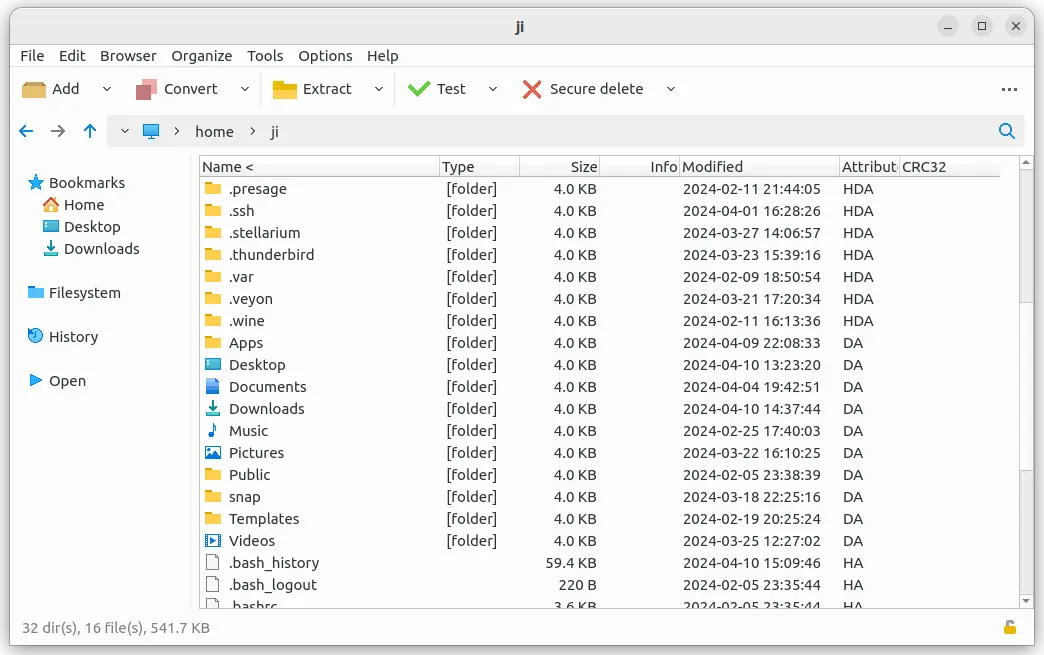
PeaZip, the free open-source file manager and archive utility, released new major 11.0.0 version few days ago.
The new version sped up the archive browsing, improved bookmarks and internal drag and drop feature, and added new test function.
News, Tutorials, Howtos for Ubuntu Linux
PeaZip, the free open-source file manager and archive utility, released new major 11.0.0 version few days ago.
The new version sped up the archive browsing, improved bookmarks and internal drag and drop feature, and added new test function.


This tutorial shows how to install PeaZip file archive manager and setup file manager integration in Ubuntu Desktop.
PeaZip is a free open-source archive manager for Windows, Linux, macOS, and BSD. It’s based on open source technologies of 7-Zip, p7zip, Brotli, FreeArc, PAQ, Zstandard, and PEA projects. And, supports over 200 archive types including 7Z / XZ / TXZ, ACE (*), BZ2 / TBZ, Brotli BR, GZ / TGZ, ISO, RAR, TAR, WIM, ZIP, ZIPX, ZPAQ, Zstandard ZST and more.
The free file archiver is easy to install in Ubuntu and other Linux through its official binary package. It provides a GUI window, and integrates well into file manager context menu.

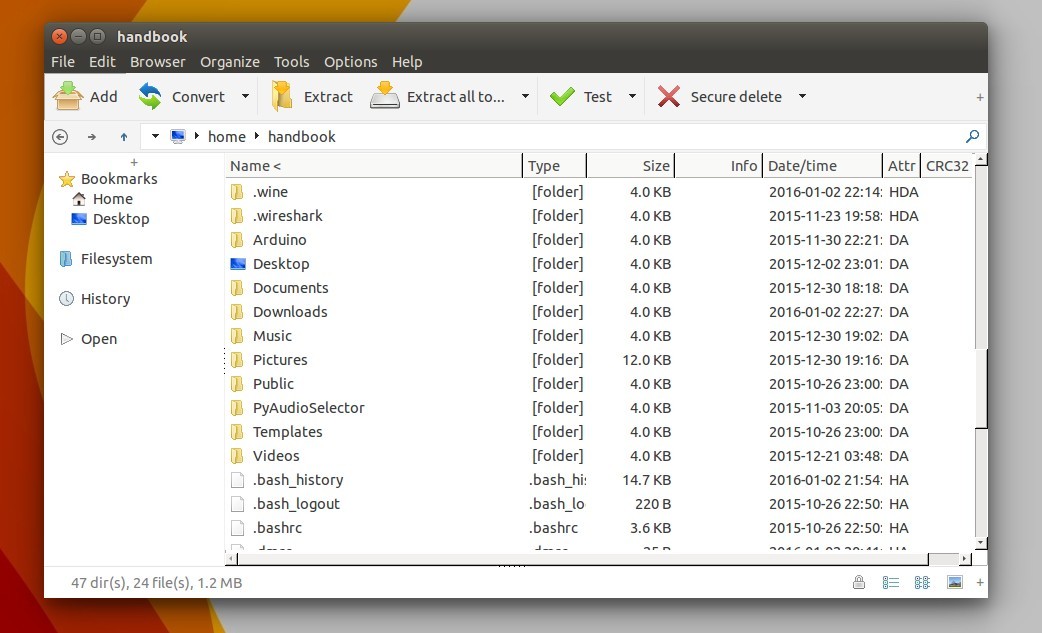
PeaZip file manager and file archiver has reached the 5.9.1 release recently. Here’s a quick tip for you how to install it in 64-bit Ubuntu.
PeaZip website provides the .deb binaries for Debian/Ubuntu based systems, but the software does not launch after installing it on 64-bit Ubuntu. The workaround is to simply install the 32-bit dependency libraries.
1. Go to link below:
select download
2. For 32-bit machine just install the package and you’re done.
The 64-bit package requires ia-32 libs, which is no available in Ubuntu since Ubuntu 13.10. The “fix” is to simply install the 32bit dependency libraries on 64bit Ubuntu, and that’s how multiarch works.
So first open terminal from Unity Dash, App Launcher, or via Ctrl+Alt+T shortcut key. When it opens, paste below command and run to install dependencies:
sudo apt-get install libatk1.0-0:i386 libc6:i386 libcairo2:i386 libgdk-pixbuf2.0-0:i386 libglib2.0-0:i386 libgtk2.0-0:i386 libpango1.0-0:i386 libx11-6:i386 libcanberra-gtk-module:i386
Then click to open and install downloaded PeaZip binary via Software Center or Gdebi.
3. You may right-click on one of your RAR, ZIP, TAR, etc. files, go to the Properties -> Open With tab. Finally select PeaZip as the default application to open these file formats.

PeaZip 5.2.0, the free and open-source file and archive manager has been released recently. This version contains mainly 177 new files support and very_fast mode to Secure delete.
PeaZip 5.2.0 changelog:
BACKEND
FILE MANAGER
EXTRACTION and ARCHIVING
177 file extensions supported
The source code, Windows EXE, Ubuntu DEB, Fedora RPM packages are available in sourceforge page
For Ubuntu 13.04, Ubuntu 13.10, Ubuntu 14.04 and higher, you may need the libgmp3c2 package.
For Nautilus integration, read this post
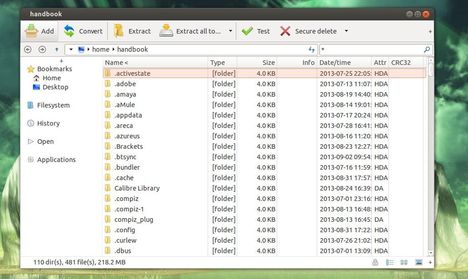
Want to use ‘Extract Here’, ‘Add to Archive’, and so forth with PeaZip in Nautilus’ context menu? Well, here’s how to well integrate PeaZip into Ubuntu 13.10 Saucy & Ubuntu 13.04 Raring via Nautilus scripts.
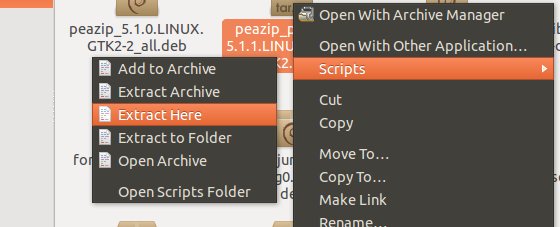
integrate peazip into nautilus
Because PeaZip for Linux comes default with the scripts, all you need to do is move them into the correct location.
To get started, press Ctrl+Alt+T on your keyboard to open terminal. When it opens, follow the steps below:
1. For installed version, the PeaZip should be installed under /usr/local/share/PeaZip. Run command to move the scripts:
cd /usr/local/share/PeaZip/FreeDesktop_integration/nautilus-scripts/Archiving/PeaZip/

sudo mv * ~/.local/share/nautilus/scripts
2. For portable version, just go to the PeaZip directory “FreeDesktop_integration/nautilus-scripts/Archiving/PeaZip/”, copy and paste all scripts to “user HOME/.local/share/nautilus/scripts”.
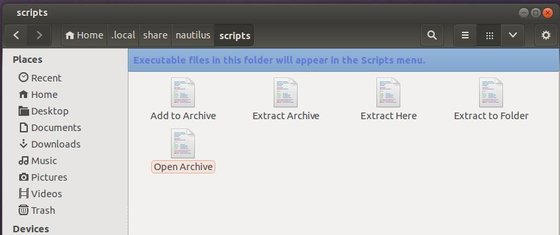
3. After that, restart Nautilus file browser and done.
nautilus -q
This tutorial shows how to install PeaZip 5.1 in Ubuntu 13.04 and fix the dependency problem. PeaZip depends on libgmp3c2, but it’s no longer available in Ubuntu 13.04 Raring and Ubuntu 13.10 Saucy.
As you may know, PeaZip is a free Zip files utility which supports 150+ archive formats. With it, you can compress, convert, split, encrypt, secure delete, open RAR TAR 7Z ZIP ZIPX CAB ISO files.
To get started, first download and install the libgmp3c2 package from the below links. You may check 32-bit or 64-bit by System Settings -> Details.
NOTE: I don’t know why this package is removed from Ubuntu repository. It may conflict with other packages on your system and cause problem. Use it at your own risk!
Now, download and install the peazip_5.1.0.LINUX.GTK2-2_all.deb from Sourceforge.net
You may need a restart to see the PeaZip icon in Unity Dash.