
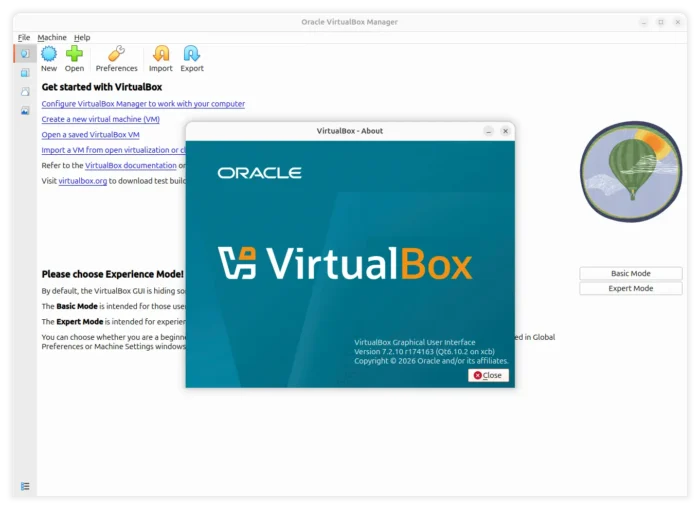
VirtualBox, the popular virtualization software made and maintained by Oracle, released new 7.2.10 version yesterday.
The new version of this free open-source software added initial support for the most recent Linux Kernel 7.1 and fixed various issues.
First, the new version added support Linux Distributions with Kernel 7.1, running either as guest OS in virtual machine or as host machine that Virtualbox runs on.
It also fixed a bug that all VMs failed to start on Linux host has the kernel.kptr_restrict=2 sysctl set, which enforces the strongest possible rule for hiding kernel memory addresses exposed through /proc, sysfs, debugfs, and kernel logs that use the %pK format.
The new 7.2.10 version also features some improvements and fixes to Linux Guest Additions, the drivers and system integrations installed inside a Linux virtual machine for running faster, smoother and enhanced functions.
As Fedora is planning to deprecate YASM, the assembler converts human‑written assembly language into machine code that CPU can execute, VBox 7.2.10 added the patch to allow building Linux Guest Additions with NASM only.
It also added initial support for Extended Data Control Protocol, allowing for clipboard sharing with KDE Plasma Desktop on Wayland in VM. And, the Linux Guest Additions has been updated with fixes for build failure on Red Hat Enterprise Linux 9.8 VM, and building issue on Kernel 7.0+,
Besides the changes for Linux host and guest, VirtualBox 7.2.10 also fixed the wrong location of crash report file placement, OS/2 guest booting issue, and VIRTIO-SCSI device recognition issue for guest system.
Other changes are mostly bug-fixes. They include:
- Kernel modules build failure with openSUSE 16.0 kernel.
- Shared Folders automount and clipboard sharing issue for OS/2 Guest Additions.
- USB device failed to attach to headless VM on Apple Silicon.
- Booting issue when ARM virtual machine had less than 1024 MiB of RAM assigned.
- “Fatal glibc error: CPU does not support x86-64-v3” VM boot issue on Windows host.
For more about VirtualBox 7.2.10, see the official Changlog page.
Get VirtualBox 7.2.10
The new version of this virtualization software is available to download for Linux, Windows, macOS, and Solaris hosts hosts via the link below:
For Linux, it so far support Oracle Linux/RHEL 8 ~ 10, Ubuntu 22.04 ~ 26.04, Debian 11 ~ 13, openSUSE 15.6/16.0, and Fedora 40 ~ 44.
Other Linux (even old Linux Distribution) may try downloading the .run installer via the “All distributions” link, then open terminal and run commands below to install:
NOTE: The Virtualbox version number may vary as time goes on. Replace “7.2.10-174163” in the commands below according the package you downloaded.
- Say you saved it in user Downloads folder. First, navigate to that folder.
cd ~/Downloads/
- Add executable permission:
chmod u+x ./VirtualBox-7.2.10-174163-Linux_amd64.run
- Finally run the installer:
sudo ./VirtualBox-7.2.10-174163-Linux_amd64.run
The script will automatically check your CPU architecture. If supported, it will then remove previous installation (if any) and install the new one on your system.
NOTE: The .run installer also includes script to uninstall Virtualbox (only for the one installed via this installer). You can run the commands below to run the script:
- Also navigate to the downloads folder, then extract the installer script into a target directory (
vboxin the command below):cd ~/Downloads/ && ./VirtualBox-7.2.10-174163-Linux_amd64.run --target ./vbox
- Finally, run the uninstall script under the extracted folder:
sudo ./vbox/uninstall.sh