
Missing Wi-Fi drivers in your Ubuntu PC or laptop? If you happen to have Realtek Wi-Fi adapter, this tutorial may help!
Linux has out-of-the-box driver support for the most modern network adapters. But, there are always some devices lack of properly support due to various reasons. Thanks to the open-source community, there are always a group of people maintaining missing drivers.
Tips: This tutorial also works in Ubuntu 24.04, Ubuntu 22.04, Linux Mint 22.x, and their based systems.
Tell Which Wi-Fi Chipset you have?
Firstly, you need to find out the device name of your wireless network card.
In Ubuntu or Linux Mint, simply search for and install “hardinfo” from App Center (or Ubuntu Software for 22.04 and earlier), then launch it from start menu or GNOME app grid.
For choice, you may press Ctrl+Alt+T on keyboard to open up a terminal window, then, run the command below instead to install the tool:
sudo apt install hardinfo
After that, launch hardinfo and, navigate to “Devices -> PCI Devices“. Then, find out the network controller information in the right. For USB Wi-Fi adapter, go find it under “Devices -> USB Devices“.

Without installing the hardinfo graphical tool, use lspci command instead (or lsusb for USB adapter) to check your network adapter:
lspci |grep "Network controller"
Install Realtek Wi-Fi Driver from PPA:
There’s a github repository that maintains rtl8188eu, rtl8852au, rtl8723bu, rtw8922ae, and rtw8852be, driver source codes. Advanced users may go to that page, grab the source and build by yourself.
Step 1: Disable Secure Boot
The drivers are built in DKMS mode that will work (rebuild automatically) even after update to new Kernel series. If you have your system installed in UEFI mode, you have to disable secure boot first.
1. To verify if your system is installed in UEFI mode, open terminal (Ctrl+Alt+T) and run command:
[ -d /sys/firmware/efi ] && echo "EFI" || echo "BIOS"
2. To check the status of secure boot:
mokutil --sb-state
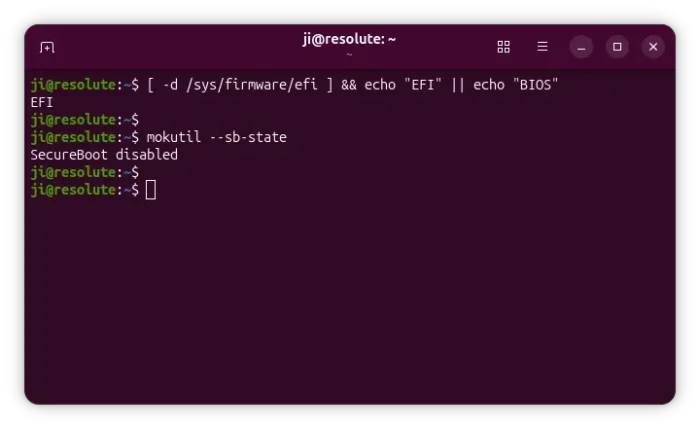
If secure boot is enabled, reboot into BIOS/UEFI settings and disable it!
Step 2: Add the Ubuntu PPA
First, open terminal by pressing Ctrl+Alt+T key combination on keyboard. When it opens, run the command below to add the PPA:
sudo add-apt-repository ppa:kelebek333/kablosuz
The PPA so far contains:
rtl8188eu/rtl8188eus,rtl8188fu,rtl8192eu,rtl8821certw88(for most Wi-Fi 4/5 Realtek chips), andrtw89(for newer Wi-Fi 6/6E Realtek chips) drivers for Ubuntu 26.04. See THIS and THIS page for supported chipsets.- It as well contains many drivers for Ubuntu 24.04, Ubuntu 22.04, and old Ubuntu 20.04. See the PPA packages page for details.
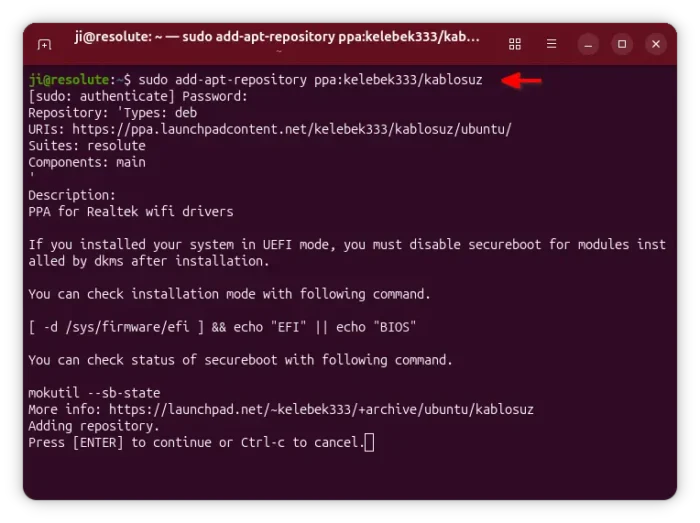
For choice, you may also add another PPA that contains r8101, r8125, r8126, r8127, r8152, r8168 drivers, though Linux Kernel may already have them support through r8169.
sudo add-apt-repository ppa:kelebek333/drivers
Step 3: Update the cache
Ubuntu now automatically refreshes the apt cache while adding PPA. But, Linux Mint does not. In the case, manually run the command below to refresh cache:
sudo apt update
Step 4: Select install driver package for your chipset
After adding the PPA and updating cache, either install and use the graphical Synaptic Package Manager (available in App Center) to search & install the WiFi driver:

Or, run apt install command to install a driver package (rtl8188eu for example):
sudo apt install rtl8188eu-dkms
Keep an eye on output info while installing the package. It tells where to install the Kernel modules.
Step 5: Load the driver (Kernel Module)
After installing the driver package, restart your computer. Then, you may find out the modules via:
ls /usr/lib/modules/$(uname -r)/updates/dkms
The command should outputs the previously installed Kernel modules in .ko files.
You can finally, load the driver (8188eu for example) via command:
sudo modprobe 8188eu
And, verify via lsmod command with ‘grep’ filter:
lsmod |grep '8188eu'
If you have loaded the correct network driver, Wi-Fi should work now!
How to Uninstall:
To unload the driver module, use modprobe command with -r flag. For example, unload ‘8188eu’ via command:
sudo modprobe -r 8188eu
And, to remove the driver package, either use “Synaptic Package Manager” or run apt remove command:
sudo apt remove package_name
To remove the Ubuntu PPAs, use command:
sudo add-apt-repository --remove ppa:kelebek333/kablosuz
sudo add-apt-repository --remove ppa:kelebek333/drivers
That’s all. Enjoy!