Want to display your lovely photo images as desktop widget, here’s an extension that can do the job for Ubuntu and other Linux with recent GNOME Desktop.
It’s Desktop Frames, a GNOME Shell extension that can create multiple desktop widgets that display random images from user selected folders.
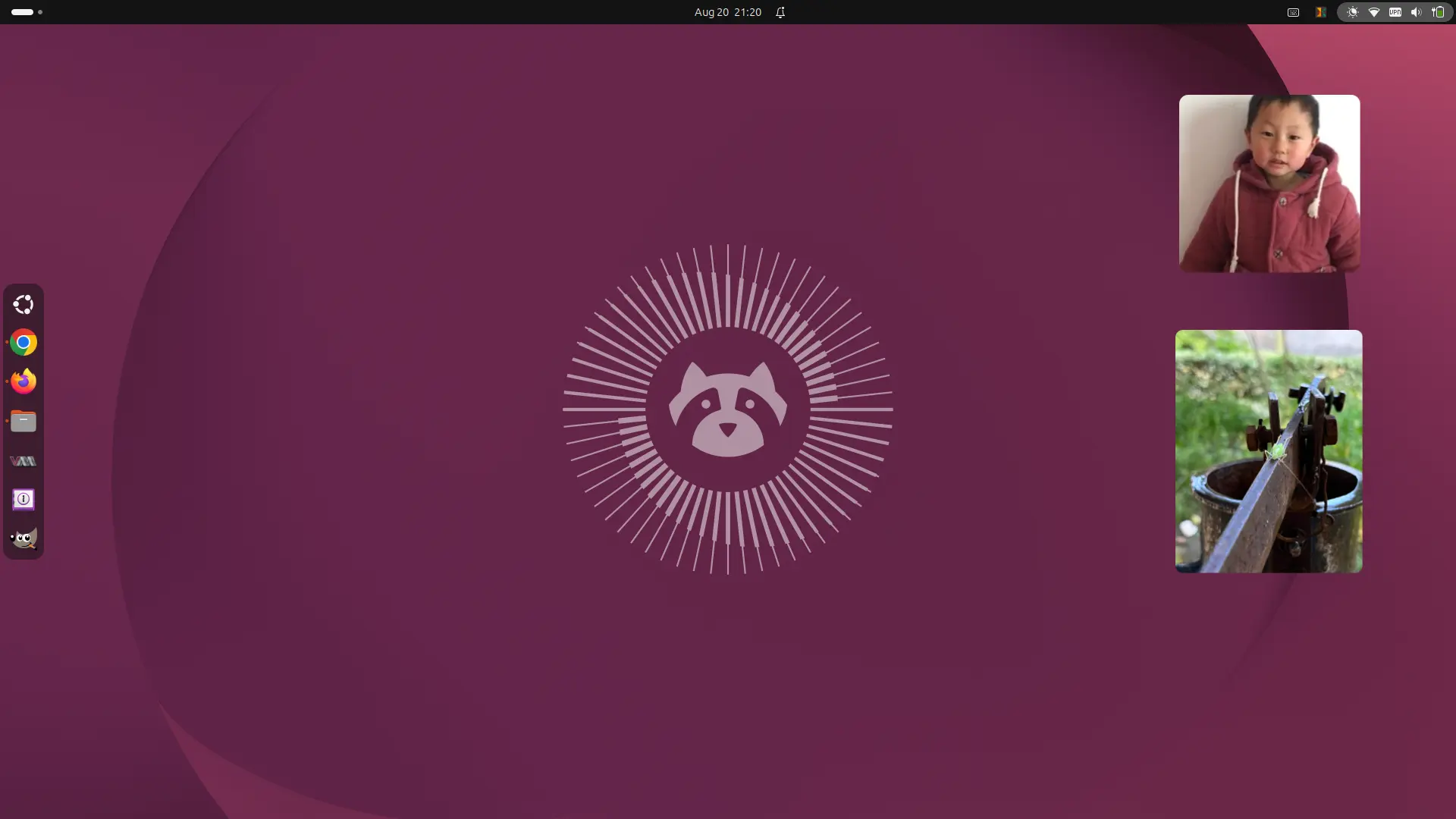
It is a remake of the original Picture Desktop Widget, but with support for multiple widgets and more flexible customization.
User can create as many desktop image widgets as possible. And, each widget has its own image folder, size, position, corner radius, aspect ratio and refresh interval, as well as toggle to show or hide without deleting it.
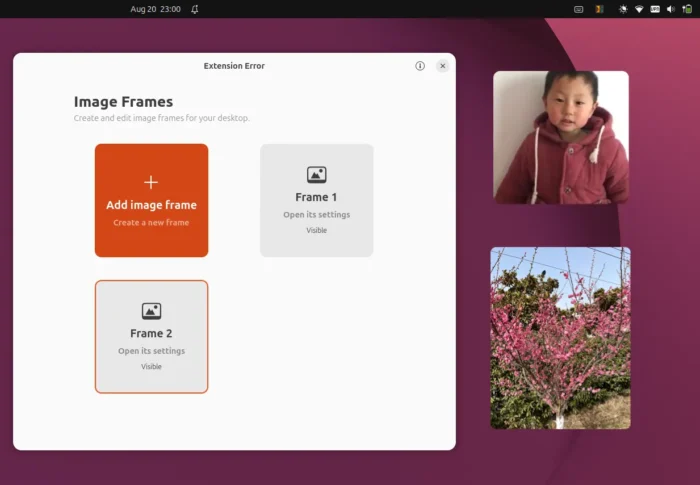
Features of the extension include:
- Multiple desktop image widgets.
- Customize image folder, size, position, corner radius, and aspect ratio on per widget basis.
- Adjust how often new images are selected.
- Supports JPEG, PNG, GIF, BMP, and WebP.
How to Install this Desktop Image Widget Extension
The extension so far support GNOME from version 46 to 50. Meaning you can install it on Ubuntu 24.04 ~ 26.04, Debian 13, current supported Fedora Workstation, and Arch etc Linux with GNOME Desktop.
1. First, search for and install Extension Manager app from your system software app, such as Gnome Software, Ubuntu App Center.
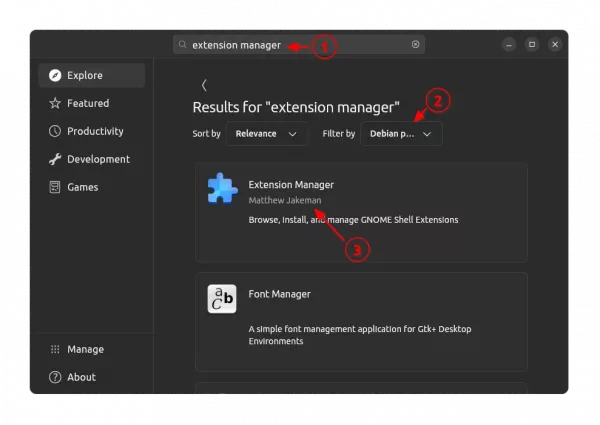
Install Extension Manager in Ubuntu Software/App Center
2. Then, launch the app and use it to search & install the “Desktop Frames” extension from Browse tab.
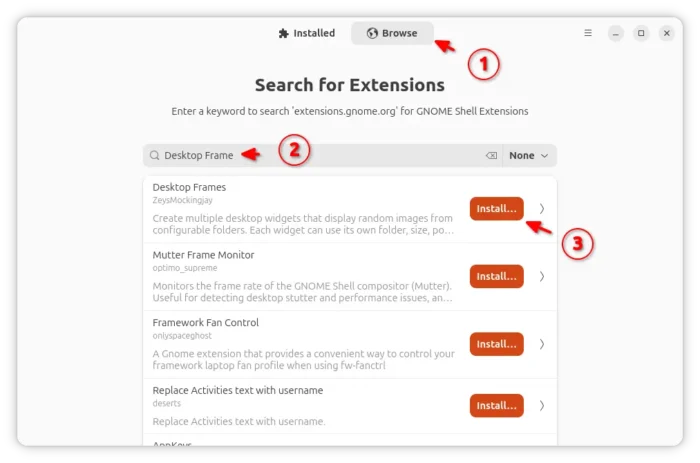
Once installed, switch back to the Installed tab and click open the extension preferences dialog to add widget and configure image folder, size, position, etc.
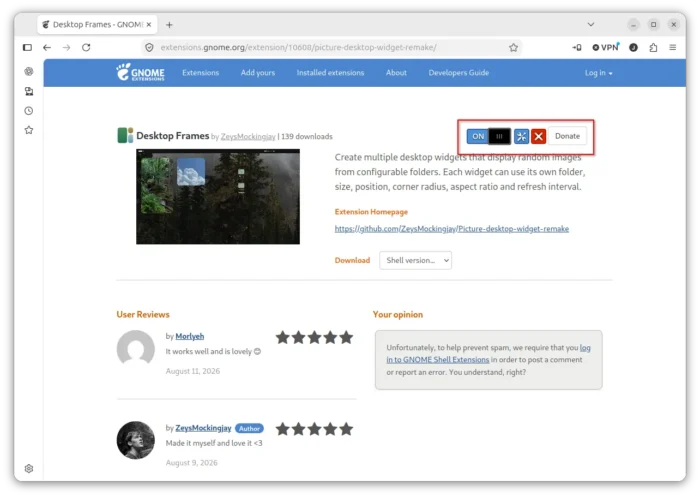
For choice, you may visit the extension page via the link below:
Then use the ON/OFF toggle to install the extension. You however need to install browser extension (if it prompts), and, Debian/Ubuntu need to install the agent package via the command below and finally refresh.
sudo apt install chrome-gnome-shell