Archives For Howtos

Gnome Feeds, a free and open-source news reader with a neat user interface, now is available to install via Ubuntu PPA for those prefer the classic apt method.

Gnome Feeds is a GTK+3 application written in Python 3. It features a simple responsive user interface based on Purism’s libhandy library. Feeds can be added via URL address and support importing and exporting large feed collection from and to OPML.

The software has been made into main repositories since Ubuntu 20.10 Groovy. For request, I’ve uploaded the latest packages into the unofficial PPA for Ubuntu 20.04, Linux Mint 20, and Ubuntu 20.10, with Ubuntu 18.04 excluded as libhandy requires at least GTK 3.24.

NOTE: It’s recommended to install the official Flatpak package, while the PPA offers unofficial .deb binary package for choice.

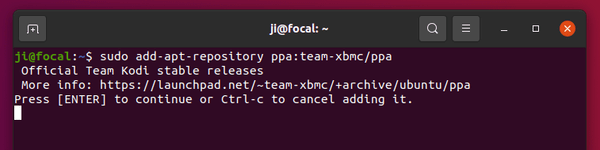
1.) Open terminal from your system application launcher, then run command to add the PPA:

sudo add-apt-repository ppa:ubuntuhandbook1/gfeeds

Type user password (no asterisk feedback) for sudo prompts and hit Enter to continue.
2.) While adding PPA will automatically refresh the system package cache, you can then install the feed reader via command:
sudo apt install gnome-feeds

Once installed, launch it from system application launcher and enjoy!

Uninstall Gnome Feeds:

To remove the feed reader, simply run command in terminal:

sudo apt remove --autoremove gnome-feeds

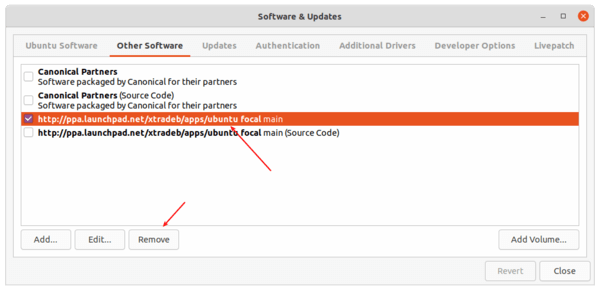
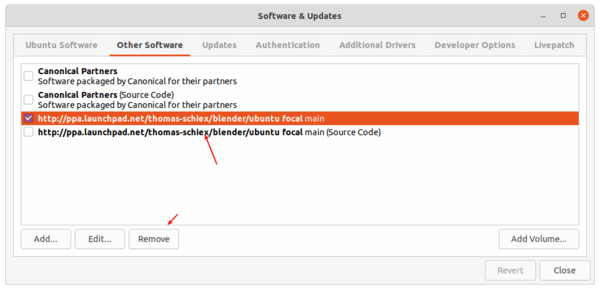
And remove the PPA either using Software & Updates utility under Other Software tab, or run command:

sudo add-apt-repository --remove ppa:ubuntuhandbook1/gfeeds

This simple tutorial shows how to install VeraCrypt and create encrypted hard drive, USB stick in Ubuntu 20.04, Ubuntu 18.04, Linux Mint 20, Ubuntu 20.10.

VeraCrypt is a free and open-source disk encryption software based on TrueCrypt 7.1a. It works on Linux, Windows, and Mac OS.

With VeraCrypt, you can:

  • Creates a virtual encrypted disk within a file and mounts it as a real disk.
  • Encrypts an entire partition or storage device such as USB flash drive or hard drive.
  • Encrypts a partition or drive where Windows is installed.

How to Install VeraCrypt in Ubuntu via PPA:

The software offers official 64-bit .deb binaries for all current Ubuntu releases.

For arm64, armhf, ppc64el packages, there’s an unofficial PPA maintained by the administrator of “XUbuntu Developers” team.

1.) To add the PPA, open terminal from system application launcher and run command:

sudo add-apt-repository ppa:unit193/encryption

2.) Then refresh system package cache and install the encryption software via commands:

sudo apt update

sudo apt install veracrypt

How to Create an Encrypted Disk via VeraCrypt:

Once installed the software, open it from system application launcher. Then click on the “Create Volume” button to start creating an encrypted disk.

Then either select “Create an encrypted file container” for a virtual encrypted disk within a file, or “Create a volume within a partition/drive” to encrypt non-system partition, external hard drive, or entire USB stick.

Then follow the setup wizard to choose volume type, encryption algorithm, volume password, file system type, and finally click “Format”.

When everything’s done, mount the volume and you’ll be able to access it via Nautilus file browser.

For more, read the official Documentation.

Uninstall:

To remove VeraCrypt, simply run command in terminal:

sudo apt remove --autoremove veracrypt

To remove the Ubuntu PPA, run command:

sudo add-apt-repository --remove ppa:unit193/encryption

This is a beginner’s guide shows how to install and setup Tor service and Tor Browser in Ubuntu 26.04, Ubuntu 24.04, and Ubuntu 22.04, and their based systems, .e.g, Linux Mint 22/21. It should also work in Debian 13/12.

Tor, The Onion Router, is a free and open-source service enables people to browser the internet anonymously. While Tor in Ubuntu main repositories is always old, here’s how to install the LATEST version and receive updates via its apt repository.

How to Install Tor via the Official Apt Repository:

Tor has an official apt repository that supports for all current standard supported Ubuntu and Debian releases.

1.) Open terminal either from start menu or by pressing Ctrl+Alt+T on keyboard. Then run command to enable the usage of https support for apt package manager:

sudo apt install apt-transport-https

Type user password (no asterisk feedback) for sudo prompt and hit Enter. NOTE: In recent Debian/Ubuntu, this command is no longer required since apt now support https out-of-the-box!

2.) Create and add source repository for Tor.

Also in terminal window, run the command below to create an apt source config file and edit via nano command line text editor:

sudo nano /etc/apt/sources.list.d/tor-project.sources

When file opens (in terminal), add following lines and edit accordingly.

Types: deb
URIs: https://deb.torproject.org/torproject.org
Suites: resolute
Components: main
Architectures: amd64
Signed-By: /usr/share/keyrings/deb.torproject.org-keyring.gpg

Here you need to replace resolute (for 26.04) with noble for Ubuntu 24.04, or jammy for Ubuntu 22.04. For Debian /Ubuntu based systems, run cat /etc/os-release to tell the code-name your system is based on.

Also, replace amd64 with arm64 for ARM device, such as Raspberry Pi and Snapdragon X laptops.

3.) Download and install the key that you specified in last step (via “Signed-By” section), by going to the link button below:

Select download the latest version of .deb package, then click open with App Center (or Ubuntu Software) and install.

The .deb so far will install two copies of the key files. The one in /etc/apt/trusted.gpg.d is deprecated due to security reason! Run the command below to remove it:

sudo rm /etc/apt/trusted.gpg.d/deb.torproject.org-keyring.gpg

4.) Finally, refresh system package cache by running command:

sudo apt update

The output should include something looks like: “Get:x https://deb.torproject.org/torproject.org …

Then, install tor package via command:

sudo apt install tor

Or update it, if an old version was installed, via Software Updater

5.) Once installed, you can check Tor version and if it’s running via commands:

tor --version

systemctl status tor

NOTE: In case the service is not in active status, try systemctl daemon-reload then start with systemctl start tor.

How to Install Tor Browser in Ubuntu:

If everything goes OK, let’s now install the Tor web browser.

1.) Simply open terminal and run command:

sudo apt install torbrowser-launcher

UPDATE: Due to package bug in Ubuntu 22.04, it may refuse to launch. To workaround it, open ‘terminal’ and run command to edit the ‘__init__.py‘ (2 underscores before & after ‘init’) file:

sudo gedit /usr/lib/python3/dist-packages/torbrowser_launcher/__init__.py

When the file opens, change the line 98, 99, 100 and save it:

gui.move(
(desktop.width() – window_size.width()) // 2,
(desktop.height() – window_size.height()) // 2
)

2.) Then search for and open Tor Browser from system application launcher. It will automatically download & install the browser in your system.

For choice, you may open Tor Browser Launcher to select mirror, change listening port, and reinstall Tor browser.

3.) Once the download process finished, select ‘Configure’ if you’re in a Country censors Tor or behind proxy in next window, or select ‘Connect’:

When everything’s done, the Tor browser starts. That’s all. Enjoy!

Uninstall Tor and Tor Browser:

To remove Tor Browser, open terminal and run command:

sudo apt remove torbrowser-launcher

To remove Tor network service, run command:

sudo apt remove --autoremove tor

And, remove the tor repository by deleting the source file:

sudo rm /etc/apt/sources.list.d/tor-project.sources

Also, remove the keyring files via command:

sudo rm /usr/share/keyrings/deb.torproject.org-keyring.gpg

And, finally refresh system package cache via sudo apt update command.

Parole, Xfce’s default media player, released version 4.15.0 a few days ago. Here’s how to install it in Ubuntu 20.04, Linux Mint 20, and Ubuntu 20.10.

Parole 4.15.0 features a in-window popover Playlist instead of a slide-out panel. The shuffle functionality now utilizes a sort filter instead of randomly selecting the next track, making it possible making the playback history more accurate.

The new release also features improved DVD support, including a menu option to activate the subpicture menu, DVD menu load automatically if playback does not start successfully.

Other changes include:

  • Each dialog ported to CSD with some cleanup and default buttons marked as “suggested”.
  • Add new icon.
  • Fix build and missing-prototypes errors.
  • Play control improvements and translation updates.

How to install Parole 4.15.0 in Ubuntu:

The unofficial PPA has made the new release package for Ubuntu 20.04 and Ubuntu 20.10. Ubuntu 18.04 is not supported at the moment due to a compile issue.

1. Open terminal either via Ctrl+Alt+T shortcut key or by searching for “Terminal” from application menu. When it opens, run command:

sudo add-apt-repository ppa:ubuntuhandbook1/apps

Type user password (no asterisk feedback when typing due to security reason) when it prompts and hit Enter.

2. Then either upgrade the media player via Software Updater utility:

upgrade parole media player

or run following command to install / upgrade it:

sudo apt install parole

For those who don’t want to add PPA, grab the .deb package from HERE.

Uninstall:

Run following command to purge the PPA repository which also downgrade installed packages to the stock version in your Ubuntu:

sudo apt-get install ppa-purge && sudo ppa-purge ppa:ubuntuhandbook1/apps

TeXstudio, an open-source fully featured LaTeX editor, released version 3.0.2 a few hours ago. Here’s how to install it in Ubuntu, Linux Mint.

Though it’s a bug-fix version, TeXstudio 3.0.2 was released after two beta test releases. It features:

  • Add large number of default dictionaries.
  • Handle \tabularnewline correctly
  • Fix text insertion on selected text
  • Change behavior for cut buffer and Ctrl+e (insert env).
  • Add texdoc as selectable command
  • Windows build now uses 64 bit and can handle larger documents

How to Install TeXstudio 3.0.2 in Ubuntu:

Non-install Appimage:

The editor offers official Appimage package, available to download at the link below:

TeXstudio Github Releases

Just grab the .appimage package, add “allow executing as program” in file’s Properties -> Permissions dialog, and finally run it to launch TeXstudio.

Install the LaTeX editor via PPA:

The official TeXstudio PPA maintains the software packages for Ubuntu 16.04, Ubuntu 18.04, Ubuntu 20.04, Ubuntu 20.10.

While the PPA is not updated for the new release at the moment, you may grab the .deb binary from OBS repository (official).

Once the PPA is updated with the new release packages, you can do following steps one by one to install it:

1. Open terminal either by pressing Ctrl+Alt+T on keyboard or by searching for ‘terminal’ from software launcher. When it opens, run command:

sudo add-apt-repository ppa:sunderme/texstudio

Type user password (no asterisk feedback) when it asks and hit Enter to add the PPA.

2. If the stock version in Ubuntu main repository was installed, remove the texstudio-doc, texstudio-l10n (if any) package before upgrading the software:

sudo apt-get remove texstudio-doc texstudio-l10n

3. After adding the PPA, you can either upgrade it via Software Updater:

or run commands in terminal to install or upgrade the software:

sudo apt-get update && sudo apt-get install texstudio

Uninstall:

To remove the LaTeX editor, run command in terminal:

sudo apt-get remove --autoremove texstudio

And go to Software & Updates -> Other Software to remove PPA repositories.

Whisker Menu, an alternate application launcher for Xfce, released version 2.5.0 with updated icons and refactor code for the new Xfce 4.16 desktop.

Whisker Menu 2.5.0 release highlights:

  • Add option to show all applications by default
  • Rearrange sidebar buttons to match default category
  • Show panel button title as tooltip in icon-only mode
  • Always sort top-level categories
  • Vertically center contents of header
  • Use new Xfce action icons
  • Use new desktop ids for default programs
  • Rewrite to hide menu on focus out
  • Refactor code to use new Xfce functions
  • Refactor building translations
  • Translation updates

How to Install Whisker Menu in Ubuntu:

If you use Xubuntu QA Staging PPA, you’ll find Whisker Menu is available for updating along with Xfce 4.16 packages.

The software is also available in the developer’s PPA for Ubuntu 18.04, Ubuntu 20.04, Ubuntu 20.10, and Linux Mint 19.x, 20.

1. Open terminal from system application menu. When it opens, run command to add the PPA:

sudo add-apt-repository ppa:gottcode/gcppa

Type user password (no asterisk feedback) for sudo prompts and hit Enter to continue.

2. Then either run commands one by one to install the application menu:

sudo apt update

sudo apt install xfce4-whiskermenu-plugin

or upgrade the package via system package manager.

Uninstall:

To remove the PPA, run command:

sudo add-apt-repository --remove ppa:gottcode/gcppa

It’s not recommended to remove Whisker Menu on Xfce desktop unless you use another application menu. You can however purge the PPA, which will downgrade the app menu to the stock version:

sudo apt install ppa-purge && sudo ppa-purge ppa:gottcode/gcppa

Want to disable the top panel, left dock launcher, search box, and other Gnome UI elements in Ubuntu 20.04, Ubuntu 22.04, and Ubuntu 24.04 LTS? You can now do it via a Gnome Shell extension.

Just Perfection is an extension allows you to get a super minimal GNOME desktop. It offers a list of options to toggle on / off the visibility of Gnome top bar, Dash (dock launcher), Search (search box in both Activities view and ‘Show Applications’), Hot Corner, OSD (notification pop-up), Workspace popup and workspace switcher, Background Menu, App Gesture.

It also overrides the current GNOME shell theme while user themes extension is not required.

To install the extension in Ubuntu 20.04, Ubuntu 22.04, and Ubuntu 24.04., do following steps one by one:

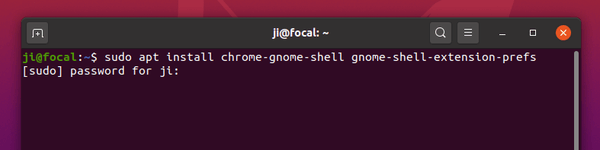
1. Open terminal and run command to install chrome-gnome-shell package if you don’t have it.

sudo apt install chrome-gnome-shell

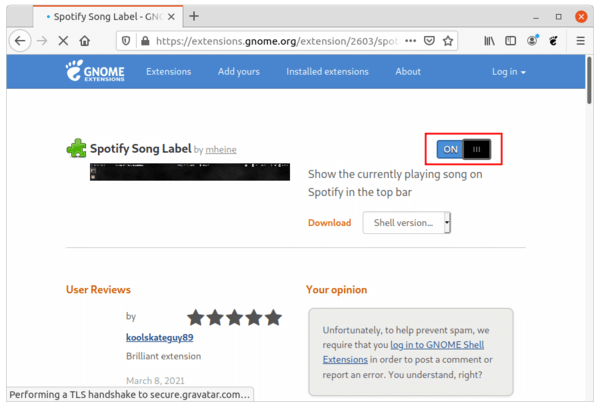
2. Then go to the extension web page, turn on the toggle icon to install it.

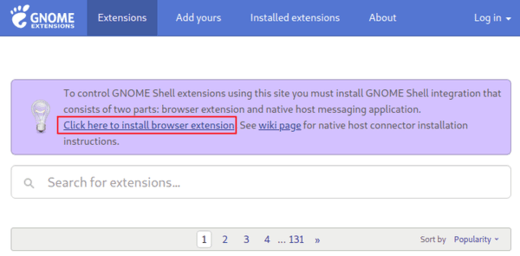
Don’t see the toggle icon? Click the link which says “Click here to install browser extension” to install browser extension and refresh the web page.

NOTE 1: the extension by default disable all the available options. If you want to re-enable any of them, press Ctrl+Alt+T to open terminal and run command:

gnome-tweaks

to bring up Gnome Tweak tool (install it via sudo apt install gnome-tweaks command) and change the settings in Extensions tab.

NOTE 2: At the moment of writing, the extension supports for Gnome from 3.36 to 46. Check the ‘Shell version…’ drop-down box before installing it on your system.

This simple tutorial shows how to install the fastest terminal emulator, Alacritty, in Ubuntu 20.04, Linux Mint 20 via PPA. UPDATED: Ubuntu 22.04 & Linux Mint 21 also supported.

Alacritty is a cross-platform, GPU-accelerated terminal emulator works on macOS, Linux, BSD, and Windows. It’s free and open-source software that strongly focus on simplicity and performance. And it features Vi mode, search, Vi search etc.

To install the software, there’s a PPA repository contains the latest packages for Ubuntu 20.04 and Ubuntu 22.04. Also an old version is available for Ubuntu 18.04.

1. Open terminal from your system application launcher. When it opens, run command to add the PPA:

sudo add-apt-repository ppa:aslatter/ppa

Type user password (no asterisk feedback) for sudo prompts and hit Enter to continue.

2. While adding the PPA will also automatically refresh system package cache, run apt command to install the terminal emulator:

sudo apt install alacritty

Once installed, either open it either from system application launcher or by pressing Ctrl+Alt+T on keyboard.

Uninstall Alacritty:

To remove the terminal emulator, run command:

sudo apt remove --auto-remove alacritty

To remove the Ubuntu PPA, either run command in terminal:

sudo add-apt-repository --remove ppa:aslatter/ppa

or open Software & Updates and remove the repository line under Other Software tab.

Hugin, free open source panorama photo stitching and HDR merging program, finally released version 2020.0.0.

Hugin 2020.0.0 release highlights include:

  • Fixes fast preview on HiDPI screens under GTK+3 and MacOS.
  • Make fast preview screen zoom-able with mouse wheel.
  • Make hugin_hdrmerge aware of cropped intermediate images.
  • Several improvements for command line tools (pto_var, pto_move, pto_gen, autooptimiser).
  • More checks in GUI for strange user input.
  • Fixes for several bugs, and translation updates.

How to Install Hugin 2020.0.0 in Ubuntu:

Hugin 2020.0.0 is available as universal Linux Flatpak package, which runs in sandbox, and you can get it from flathub repository.

For those prefer an Ubuntu PPA, the new release package is available in the unofficial PPA for Ubuntu 18.04, Ubuntu 20.04, and Ubuntu 20.10. The package was backported from official Ubuntu 21.04 build and there’s known issues, e.g., loading copyright file in about page and “An assertion failed!” dialog when launching calibrate_lens_gui.

1. Open terminal either via Ctrl+Alt+T or by searching for ‘terminal’ from app launcher. When it opens, run command to add the PPA:

sudo add-apt-repository ppa:ubuntuhandbook1/apps

Type user password (no asterisk feedback) when it prompts and hit Enter to continue.

2. Then run commands to check updates and install Hugin:

sudo apt update

sudo apt install hugin

or upgrade it via Software Updater if a previous release was installed.

Uninstall:

To remove Hugin panorama stitcher, run command in terminal:

sudo apt-get remove --autoremove hugin hugin-tools

To remove PPA, launch Software & Updates and navigate to ‘Other Software’ tab.

Linux Kernel

Linux Kernel 5.10 was released a day ago as the latest LTS (Long Term Support) release. Here’s how to install in Ubuntu & Linux Mint.

Linus Torvalds announced the release of Kernel 5.10: “Ok, here it is – 5.10 is tagged and pushed out. I pretty much always wish that the last week was even calmer than it was, and that’s true here too. There’s a fair amount of fixes in here, including a few last-minute reverts for things that didn’t get fixed, but nothing makes me go “we need another week”. Things look fairly normal.

Kernel 5.10 features include:

  • New hardware support including Intel Rocket Lake and Alder Lake
  • AMD Zen 3 temperature monitoring support.
  • Raspberry Pi VC4 support
  • The Creative Labs SoundBlaster AE-7 sound card support.
  • Nintendo Switch controller support
  • Initial support for NVIDIA Orin.
  • AMDGPU DC display support for GCN 1.0 (Southern Islands) GPUs.
  • And much more other changes.

How to Install Linux Kernel 5.10 in Ubuntu:

The mainline build kernels do not include any Ubuntu-provided drivers or patches. They are not supported and are not appropriate for production use.

For a graphical tool to install mainline kernel packages, try Ubuntu Mainline Kernel Installer.

[/ac-box]

The mainline kernel packages for Linux 5.10 (64-bit) are now available for download at the link below:

Download Kernel 5.10

Select generic for common system, and lowlatency for a low latency system (e.g. for recording audio):

  1. linux-headers-5.10.0-xxxxxx_all.deb
  2. linux-headers-5.10.0-xxx-generic(/lowlatency)_xxx_amd64.deb
  3. linux-modules-5.10.0-xxx-generic(/lowlatency)_xxx_amd64.deb
  4. linux-image-xxx-5.10.0-xxx-generic(/lowlatency)_xxx_amd64.deb

Alternatively you can download and install the kernel binaries via terminal commands ( open terminal via Ctrl+Alt+T):

cd /tmp/

wget -c https://kernel.ubuntu.com/~kernel-ppa/mainline/v5.10/amd64/linux-headers-5.10.0-051000_5.10.0-051000.202012132330_all.deb

wget -c https://kernel.ubuntu.com/~kernel-ppa/mainline/v5.10/amd64/linux-headers-5.10.0-051000-generic_5.10.0-051000.202012132330_amd64.deb

wget -c https://kernel.ubuntu.com/~kernel-ppa/mainline/v5.10/amd64/linux-image-unsigned-5.10.0-051000-generic_5.10.0-051000.202012132330_amd64.deb

wget -c https://kernel.ubuntu.com/~kernel-ppa/mainline/v5.10/amd64/linux-modules-5.10.0-051000-generic_5.10.0-051000.202012132330_amd64.deb

sudo dpkg -i *.deb

Once installed, restart your computer and enjoy!

Uninstall Linux Kernel 5.10:

Restart your machine and select boot with the previous kernel in boot menu ‘Grub2 -> Advanced Option for Ubuntu’. Then run command to remove Linux Kernel 5.10:

sudo dpkg --purge linux-image-unsigned-5.10.0-051000-generic