Archives For August 31, 2021

This is a step by step tutorial shows how to add “open as root (or administrator)” option in Pantheon file browser in Elementary OS 6 Odin.

Elementary OS now is at version 6.0 based on Ubuntu 20.04 LTS. For those looking for the “Open as Administrator” function to open system file via root user permission, or do copy & paste things outside of user’s home directory, things have changed.

The executable command for the file manager now is io.elementary.files, and the command to start text editor is io.elementary.code. Both are named in Flatpak app style. Gksu has gnone, and “pkexec” takes the place to allow an authorized user to execute program as root.
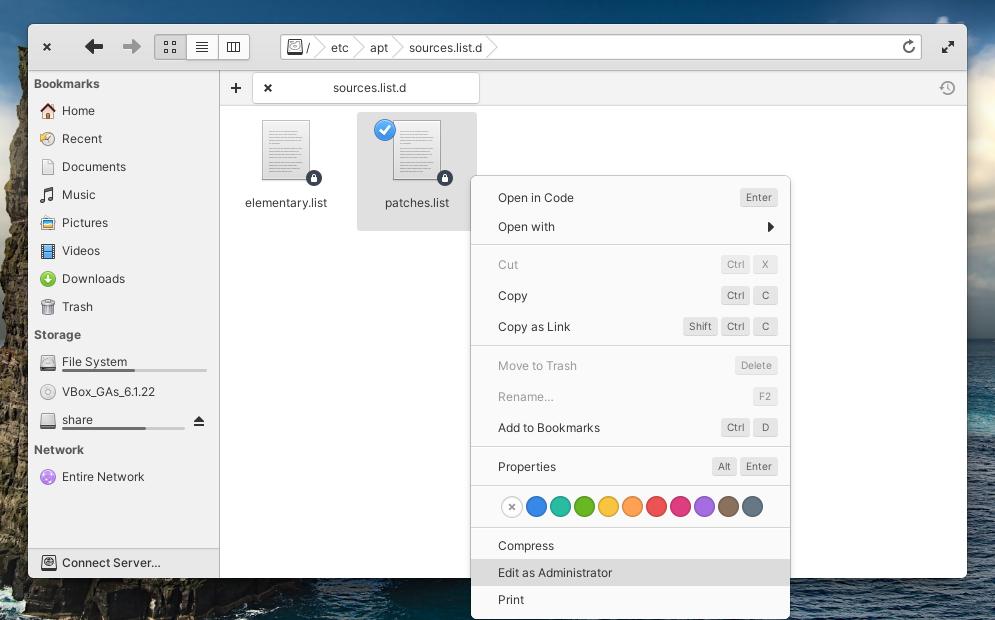
Add Open as Admin action in Elementary OS 6:

1. ) Firstly, search for and open “terminal” from the top-left corner Applications menu.

2. When terminal opens, run command to create (& edit via nano) the configuration file for option to edit file as root user privilege:

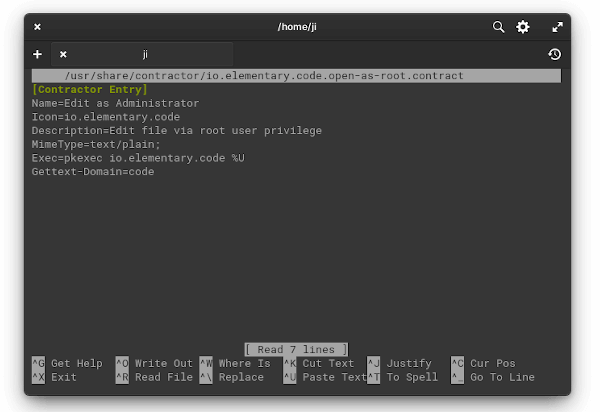
sudo nano /usr/share/contractor/io.elementary.code.open-as-root.contract

When the file opens in terminal, paste following lines and save via Ctrl+X, type y and hit Enter.

[Contractor Entry]
Name=Edit as Administrator
Icon=io.elementary.code
Description=Edit file via root user privilege
MimeType=text/plain;
Exec=pkexec io.elementary.code %U
Gettext-Domain=code
3. And create another config file for an option to open folder as root permission:

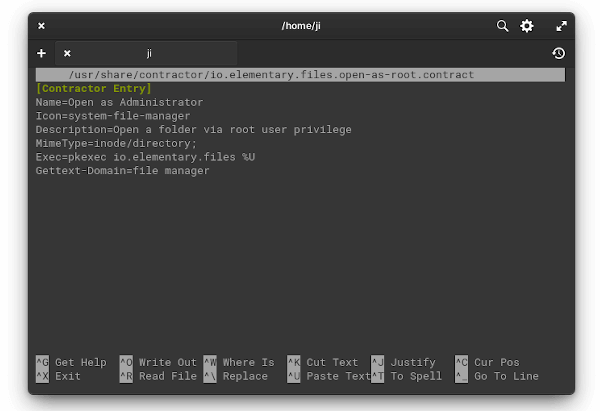
sudo nano /usr/share/contractor/io.elementary.files.open-as-root.contract

Then paste the following lines and save it (Ctrl+X, type y, and hit Enter):

[Contractor Entry]
Name=Open as Administrator
Icon=system-file-manager
Description=Open a folder via root user privilege
MimeType=inode/directory;
Exec=pkexec io.elementary.files %U
Gettext-Domain=file manager
After creating the two files, “Edit as Administrator” and “Open as Administrator” context menu option appear when right-clicking a file or folder immediately without restart.

As you see, you can create more actions by creating files with “.contract” extension under /usr/share/contractor directory. The name will be displayed as menu option, and you can find value of icon, MineType and Exec by checking the app shortcut file (.desktop) under /usr/share/applications directory.

That’s all. Enjoy!

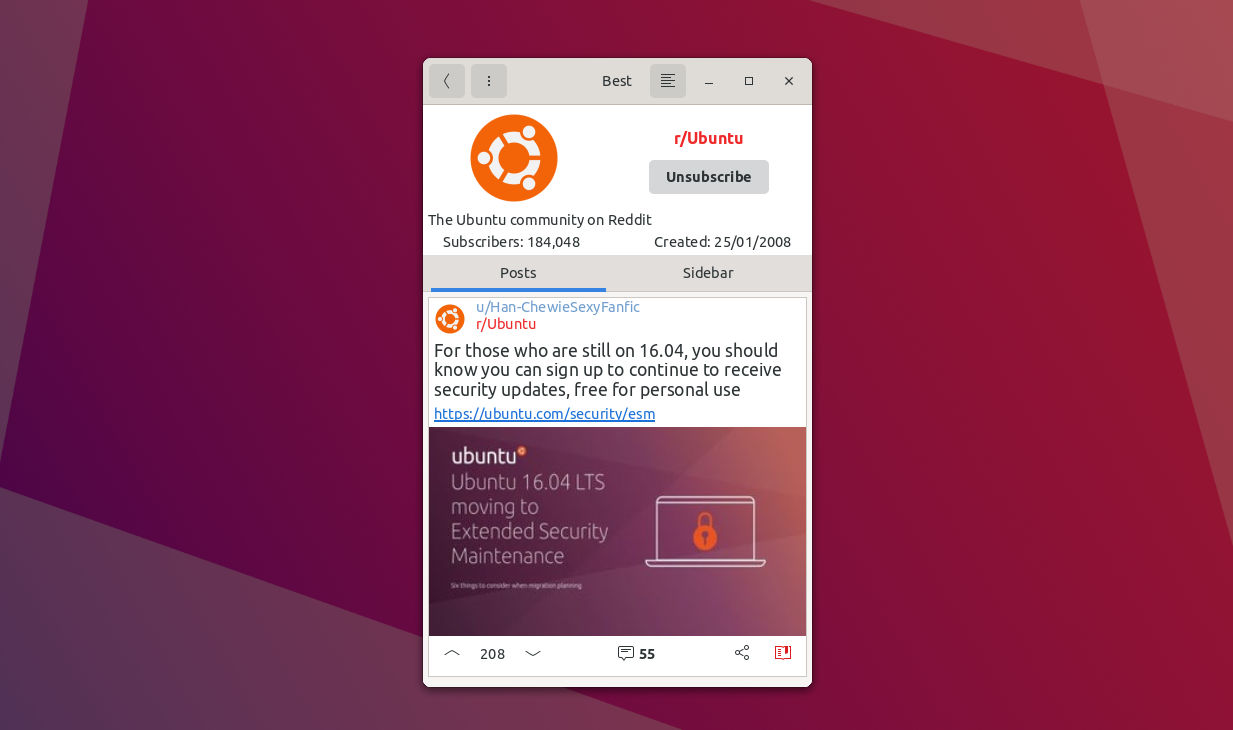
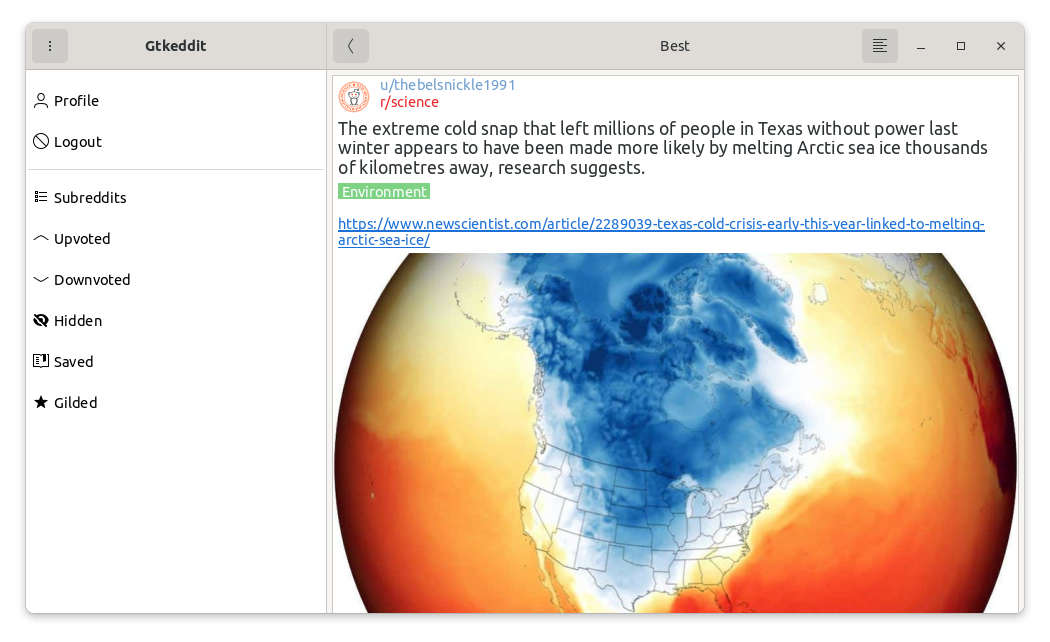
For Reddit users, Gtkeddit is another GTK app for Linux desktop and mobile.

It’s a free and open-source app written in C++. With the libadwaita library (formerly libhandy), it has an adaptive UI that works on Linux phones such as the Pinephone.

The software has dark mode for working at night, though I don’t find how to enable it in Ubuntu using the Flatpak package. And it allows you to browser without an account.

Compare to Giara, another Reddit App written in Python with GTK4, the UI navigation feels good and smoother in Gtkeddit. Though it freezes every time during loading new content, maybe due to my poor VPN network connection.

All functions including new post, rely and comment work in new navigation page instead of a pop-over dialog. And the developer promoted that it works better on Pinephone, boots and runs faster on slow hardware.

Other features in Gtkeddit:

  • Browse home feed
  • Search subreddits/users/posts
  • Submit Text/Url/Images/Videos
  • View images, galleries
  • Watch Reddit/Youtube videos in app
  • View and reply to posts/comments
  • Save posts / comments
  • Browse user Saved/Upvoted/Downvoted/Hidden/Gilded posts
  • Browse user Subreddits

How to Install Gtkeddit:

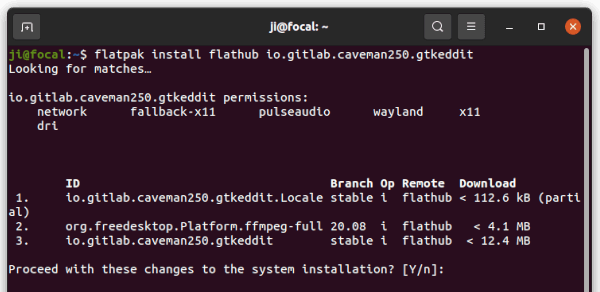
Most Linux can install the app via the Flatpak package from the flathub page. For Ubuntu users, there’s a step by step guide for Ubuntu 18.04, Ubuntu 20.04 and higer.

1.) Firstly, open terminal (Ctrl+Alt+T) and run command to install the daemon if you don’t have it:

sudo apt install flatpak

Flatpak supports Ubuntu 18.04 and even Ubuntu 16.04, you have to add the Ubuntu PPA first!

2.) Then add the flathub repository, the preferred place to get Flatpak apps.

flatpak remote-add --if-not-exists flathub https://flathub.org/repo/flathub.flatpakrepo

3.) Finally, install the Reddit App via command:

flatpak install flathub io.gitlab.caveman250.gtkeddit

Like normal apps, open it by searching from start menu and enjoy!

Uninstall Gtkeddit:

To remove the app, simply use command:

flatpak uninstall --delete-data io.gitlab.caveman250.gtkeddit

Remove the --delete-data if you want to keep the personal data for the app. And run command to run unused runtime which may free up more disk spaces.

flatpak uninstall --unused

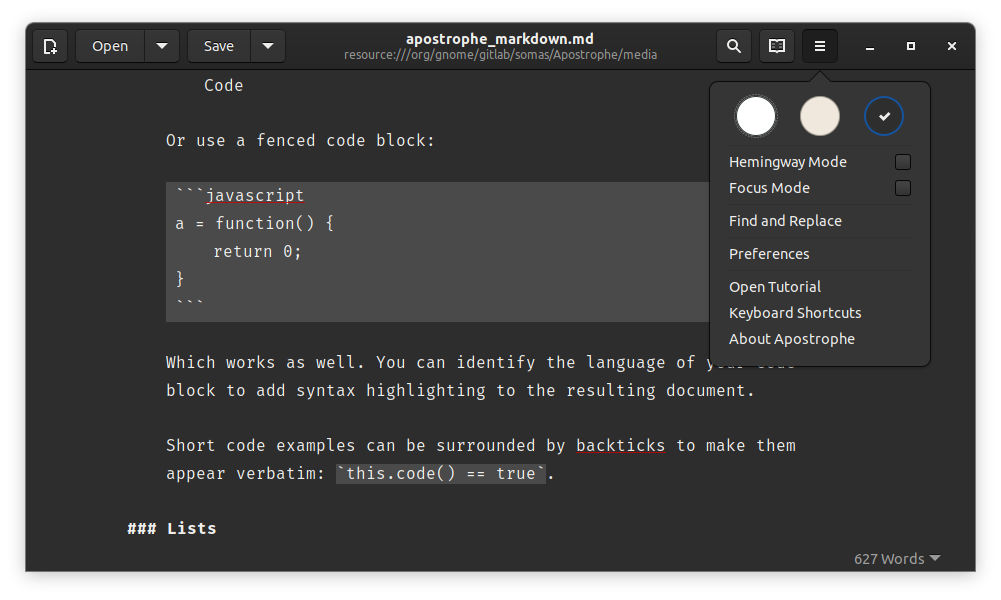
For Gnome fans, Apostrophe is a clean and intuitive Markdown editor you should try!

Apostrophe is one of the Gnome Circle Apps that provides a modern and distraction-free writing environment for Linux.

The editor supports for inputting via Pandoc’s Markdown, CommonMark, GitHub Flavored Markdown, MultiMarkdown and Plan Markdown formats.

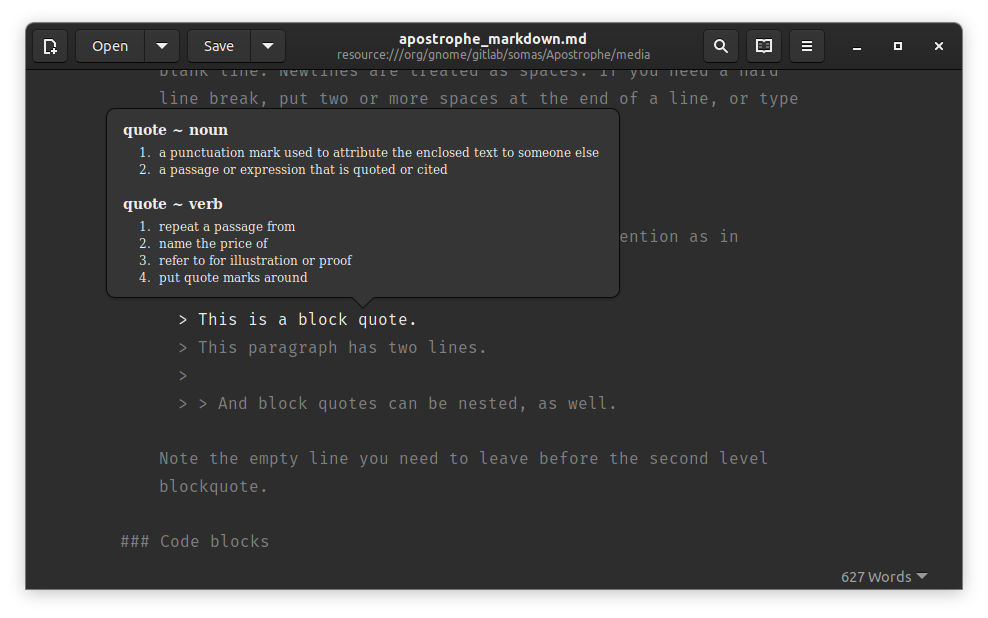
The app has Light, Dark, and Gray (maybe) UI appearance. The ‘Hemingway Mode’ is available which will disable the backspace key. And ‘Focus Mode’ will highlight the current line, remove header and bottom bar to provide a zen-like environment when writing.

With inline preview, it formats your text automagically for you. By Ctrl+Clicking on anything, it shows popover preview, links, footnotes, equations.

Live Preview can be set to full window, right / bottom part, or a separate window. In bottom right it indicates how many words you wrote. It also counts characters, sentences, paragraphs, and read time.

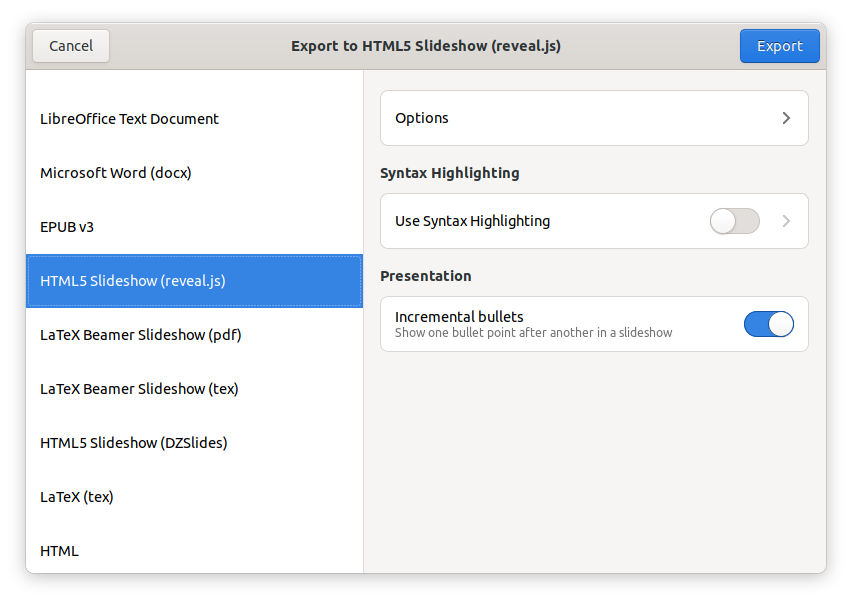
And you can save you work as PDF, HTML, ODT. An advanced export dialog allows exporting to more formats including:

  • LibreOffice Text Document.
  • Microsoft Word(docx).
  • EPUB v3.
  • HTML5 Slideshow (reveal.js, DZSlides)
  • LaTeX (tex)
  • LaTeX Beamer Slideshow (tex, pdf)
  • Textile, Texinfo, and more.

How to Install Apostrophe in Ubuntu Linux:

The software is available as universal Flatpak package. You can install it in Ubuntu 16.04, Ubuntu 18.04, Ubuntu 20.04 and higher via following steps:

1.) Open terminal from start menu, and run command to add the Flatpak PPA for Ubuntu 16.04 and Ubuntu 18.04:

sudo add-apt-repository ppa:flatpak/stable

And run sudo apt-get update command to update cache afterwards.

2.) Install the Flatpak daemon if you don’t have it:

sudo apt install flatpak

3.) Add Flathub repository (considered official) that hosts the package:

flatpak remote-add --if-not-exists flathub https://flathub.org/repo/flathub.flatpakrepo

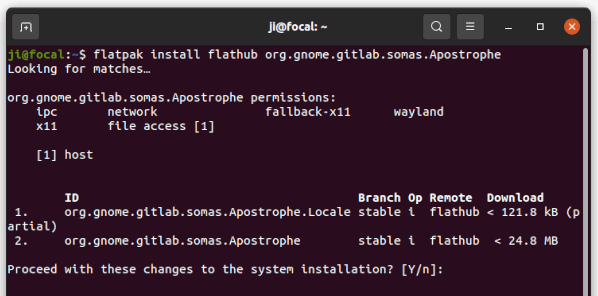
4.) Finally install Apostrophe Markdown editor:

flatpak install flathub org.gnome.gitlab.somas.Apostrophe

Uninstall:

To remove the editor as well as your personal app data, run command in terminal:

flatpak uninstall --delete-data org.gnome.gitlab.somas.Apostrophe