Archives For Howtos

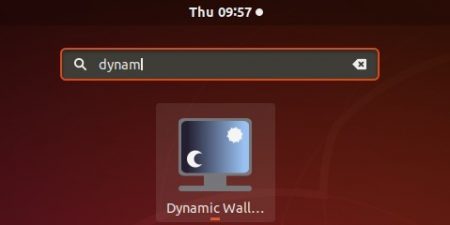
Dynamic Wallpaper Editor is a simply utility to create or edit background slideshows for Gnome Desktop.

Different from other desktop wallpaper tools (e.g., Variety, Wallch.), Dynamic Wallpaper Editor can set duration of each picture and each transition separately or globally. The total duration can be 24 hours to do a wallpaper fitting the daylight.

It can create and edit slideshows, and adjust the start time of the slideshow. An existing XML file can be set as your wallpaper (or as your lock screen) from the app.

How to Install Dynamic Wallpaper Editor in ubuntu:

For Ubuntu 18.04, Ubuntu 19.04, and higher, the utility can be easily installed via the flatpak package.

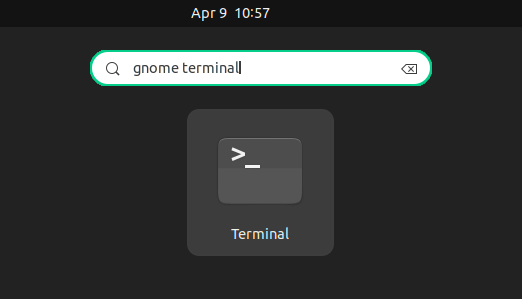
1. Open terminal either via Ctrl+Alt+T shortcut key or by searching for ‘terminal’ from application menu. When it opens, run command to install flatpak framework:

sudo apt-get install flatpak

3. Add flathub repository, which hosts a large list of flatpak applications:

flatpak remote-add --if-not-exists flathub https://flathub.org/repo/flathub.flatpakrepo

4. Finally install the software via command:

flatpak install flathub com.github.maoschanz.DynamicWallpaperEditor

Once installed, launch the software from application menu and enjoy!

Uninstall:

To remove the TeamSpeak flatpak package, run command in terminal:

flatpak uninstall com.github.maoschanz.DynamicWallpaperEditor

Blender 2.79

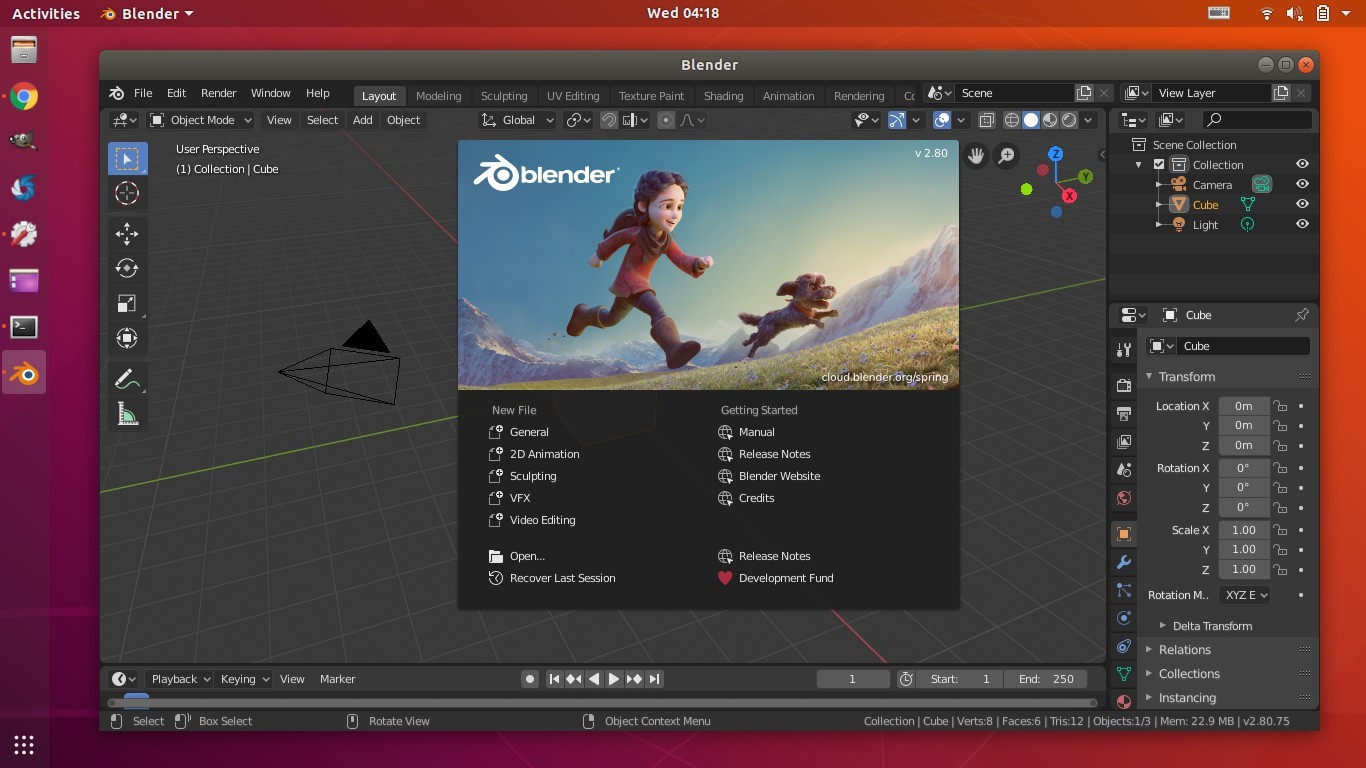
Blender 2.80 was officially released yesterday with redesigned UI, new render engine, and other improvements. Here’s how to install it in Ubuntu.

Blender 2.80 features:

  • Redesigned user interface with:
    • New dark theme and modern icon set
    • Use the left mouse button for selection by default.
    • Right-click context menu, and Quick Favorites menu (Q key)
    • Templates, and Workspaces
  • A new Workbench render engine
  • The 3D viewport and UV editor have new interactive tools and gizmos, along with a new toolbar.
  • Eevee – a new physically based real-time renderer.
  • Grease Pencil gets full 2D drawing and animation support
  • Combined CPU+GPU rendering for the Cycles renderer

How to Install Blender in Ubuntu:

Blender offers official Snap packages (runs in sandbox) for Linux Desktop.

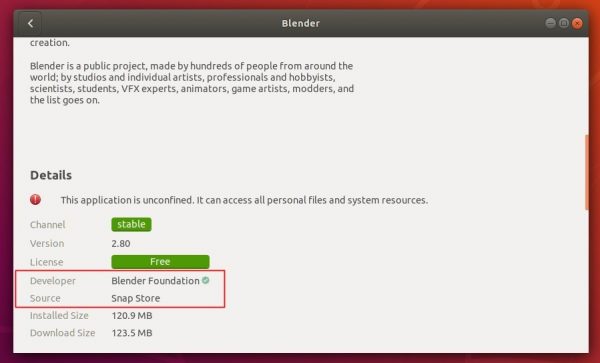
For Ubuntu 18.04 and higher, simply search for and install it from Ubuntu Software:

Note there are 3 Blender packages in Ubuntu Software: blender snap, native .deb package, and blender-tpaw (abandoned).

Go check the package details, and install the one from Snap store.

For Ubuntu 16.04, first open terminal (Ctrl+Alt+T) and run command to install snapd:

sudo apt install snapd

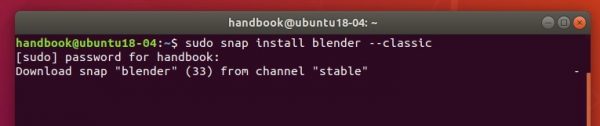
Then install the official Blender snap package via command:

sudo snap install blender --classic

Once installed, launch it from your system application launcher and enjoy!

In addition, for those who previously installed the snap of Blender 2.80 Beta, remove it before installing the stable package via command:

sudo snap remove blender

gImageReader 3.3.1, open source GTK/Qt front-end of tesseract-ocr, was released a few days ago. Here’s how to install it in Ubuntu 18.04, Ubuntu 19.04, and derivatives.

gImageReader 3.3.1 release highlights:

  • Allow specifying a DPI to assume for image sources when exporting to PDF
  • Allow to choose whether to sanitize hyphens when exporting to PDF
  • Attempt to map 639-2 language codes to ISO 639-1 to set spelling language
  • Allow specifying character whitelist / blacklist for recognition
  • Various other improvements, bug-fixes, and translation updates.

How to Install gImageReader 3.3.1 in Ubuntu:

The PPA repository has made the new release packages for Ubuntu 18.04, Ubuntu 19.04, and derivatives.

1. Open terminal either via Ctrl+Alt+T keyboard shortcut or from application menu. When it opens, run command to add the PPA:

sudo add-apt-repository ppa:sandromani/gimagereader

Type user password (no asterisk feedback due to security reason) when it prompts and hit Enter to continue.

2. You may remove old gImageReader package if installed from Ubuntu Software:

sudo apt remove --autoremove gimagereader

3. Finally install the latest packages via command:

sudo apt update; sudo apt install gimagereader-gtk

For qt version, replace gimagereader-gtk with gimagereader-qt in last command.

Uninstall gImageReader:

To remove the software, open terminal and run command:

sudo apt remove --autoremove gimagereader-qt gimagereader-gtk

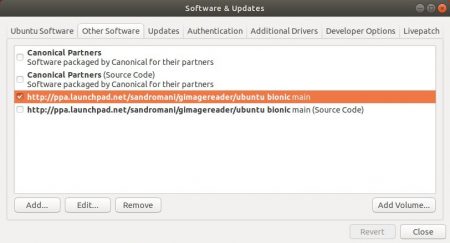
And remove the PPA repository by going to Software & Updates -> Other Software tab.

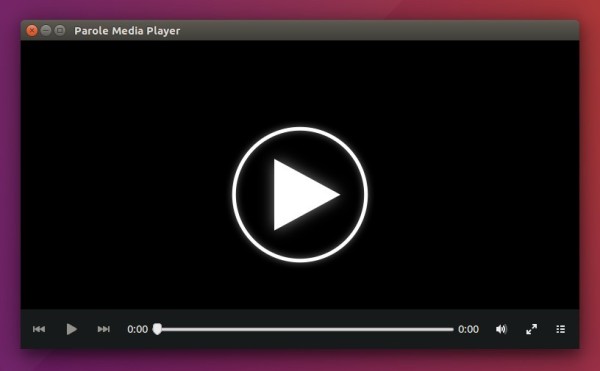
Xfce’s lightweight Parole media player released the third bug-fix update for the 1.0 series today. Here’s how how to install it in Ubuntu 18.04, Ubuntu 19.04, and their derivatives.

Parole 1.0.3 release highlights:

  • Drop deprecated OnlyShowIn keys in desktop actions
  • Ensure the time divider is shown/hidden correctly
  • Fix closing of Parole process with Ctrl-Q
  • Fix Gtk-CRITICAL when closing main window
  • Change text ‘…’ to ‘…’ for consistency with other Xfce apps
  • Change text ’60 seconds’ to ‘1 minute’
  • Move appdata to metainfo

How to Install Parole 1.0.3 in Ubuntu 18.04, 19.04:

The unofficial PPA has made the new release package for Ubuntu 18.04 and Ubuntu 19.04.

1. Open terminal either via Ctrl+Alt+T or by searching for “Terminal” from application menu. When it opens, run command:

sudo add-apt-repository ppa:ubuntuhandbook1/apps

Type user password (no asterisk feedback when typing due to security reason) when it prompts and hit Enter.

2. Then upgrade the media player via Software Updater utility:

upgrade parole media player

or run following commands to install / upgrade it:

sudo apt update

sudo apt install parole

For those who don’t want to add PPA, grab the .deb package from HERE.

Uninstall:

Run following command to purge the PPA repository which also downgrade installed packages to the stock version in your Ubuntu:

sudo apt-get install ppa-purge && sudo ppa-purge ppa:ubuntuhandbook1/apps

Linux Kernel

Ubuntu mainline kernel packages for Linux 5.2 finally available to download & install in 32-bit and 64-bit operating systems.

Due to build failure, Ubuntu mainline kernel packages for Linux 5.2 missed 32-bit & 64-bit packages for a few weeks.

Linux Kernel 5.2 release highlights:

  • Nouveau suppport for GeForce GTX 1650.
  • Intel Icelake graphics considered production-ready.
  • Intel Comet Lake support
  • Improved AMD Ryzen laptop support.
  • Better Logitech wireless device support.
  • New “RTW88” 802.11ac WiFi driver.
  • Various other improvements and updated drivers.

At the moment, Linux 5.2 series is at the second 5.2.2 maintenance release. And here’s how to install it in Ubuntu, Linux Mint.

How to Install Linux Kernel 5.2.2 in Ubuntu:

The mainline kernels do not include any Ubuntu-provided drivers or patches. They are not supported and are not appropriate for production use

The mainline kernel packages for Linux 5.2.2 are available for download at the link below:

Download Kernel 5.2.2

Depends on your OS type, download and install the packages in turns:

  1. linux-headers-5.2.2-xxxxxx_all.deb
  2. linux-headers-5.2.2-xxx-generic(/lowlatency)_xxx_amd64(/i386).deb
  3. linux-modules-5.2.2-xxx-generic(/lowlatency)_xxx_amd64(/i386).deb
  4. linux-image-xxx-5.2.2-xxx-generic(/lowlatency)_xxx_amd64(/i386).deb

Select generic for common system, and lowlatency for a low latency system (e.g. for recording audio), amd64 for 64bit system, i386 for 32bit system, or armhf, arm64, etc for other OS types.

Alternatively you can download and install the kernel binaries via terminal commands (Ctrl+Alt+T):

For 64-bit OS:

cd /tmp/

wget -c https://kernel.ubuntu.com/~kernel-ppa/mainline/v5.2.2/linux-headers-5.2.2-050202_5.2.2-050202.201907231250_all.deb

wget -c https://kernel.ubuntu.com/~kernel-ppa/mainline/v5.2.2/linux-headers-5.2.2-050202-generic_5.2.2-050202.201907231250_amd64.deb

wget -c https://kernel.ubuntu.com/~kernel-ppa/mainline/v5.2.2/linux-image-unsigned-5.2.2-050202-generic_5.2.2-050202.201907231250_amd64.deb

wget -c https://kernel.ubuntu.com/~kernel-ppa/mainline/v5.2.2/linux-modules-5.2.2-050202-generic_5.2.2-050202.201907231250_amd64.deb

sudo dpkg -i *.deb

for 32-bit OS:

cd /tmp/

wget -c https://kernel.ubuntu.com/~kernel-ppa/mainline/v5.2.2/linux-headers-5.2.2-050202_5.2.2-050202.201907231250_all.deb

wget -c https://kernel.ubuntu.com/~kernel-ppa/mainline/v5.2.2/linux-headers-5.2.2-050202-generic_5.2.2-050202.201907231250_i386.deb

wget -c https://kernel.ubuntu.com/~kernel-ppa/mainline/v5.2.2/linux-image-5.2.2-050202-generic_5.2.2-050202.201907231250_i386.deb

wget -c https://kernel.ubuntu.com/~kernel-ppa/mainline/v5.2.2/linux-modules-5.2.2-050202-generic_5.2.2-050202.201907231250_i386.deb

sudo dpkg -i *.deb

Once installed, restart your computer and enjoy!

Uninstall Linux Kernel 5.2.2:

Restart your machine and select boot with the previous kernel in boot menu ‘Grub2 -> Advanced Option for Ubuntu’. Then run command to remove Linux Kernel 5.2.2:

sudo dpkg --purge linux-image-5.2.2-050202-generic linux-image-unsigned-5.2.2-050202-generic

PyCharm IDE

PyCharm 2019.2 was released today with exciting new features, initial Python 3.8 support, improved Jupyter Notebook experience, and many more other changes.

PyCharm 2019.2 release highlights:

  • Improved Jupyter Notebook integration. Some of the most requested features have been implemented.
  • Syntax highlight support for many other languages, C#, C++, Groovy, Lua, Makefiles, and more.
  • cURL format is now supported for HTTP requests.
  • Add support for some major Python 3.8 features.
  • Full-text search across multiple data sources
  • Improved debugging and variable refactoring experiences.
  • For more details, see the release note.

How to Install PyCharm 2019.2 in Ubuntu:

Jetbrains offers official Snap package for Linux desktop, which keeps the IDE always up-to-date.

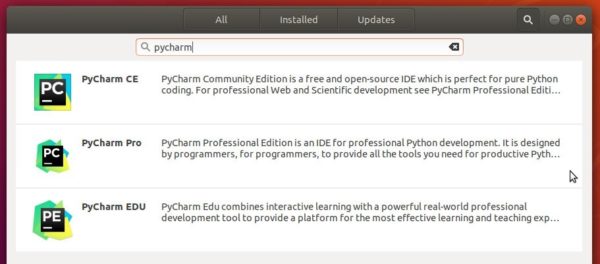
For Ubuntu 18.04 and higher, simply open Ubuntu Software, search for and install pycharm packages:

For Ubuntu 16.04, open terminal (Ctrl+Alt+T) and install snapd daemon via command:

sudo apt install snapd snapd-xdg-open

Then install PyCharm snap package via command:

sudo snap install pycharm-community --classic
In the command replace pycharm-community with pycharm-professional for the professional edition.

Uninstall:

To remove the PyCharm snap package, either use Ubuntu Software or run command in terminal:

sudo snap remove pycharm-professional pycharm-community

Ubuntu will by default go sleep when your laptop battery is running into critical low. For those who want to apply anther action, here’s how to do the trick in Ubuntu with the default GNOME desktop.

NOTE: This tutorial is tested and works in Ubuntu 22.04 with default GNOME. It may also works in current other Ubuntu releases.

1. First, open terminal either by searching from ‘Activities’ overview or by pressing Ctrl+Alt+T on keyboard.

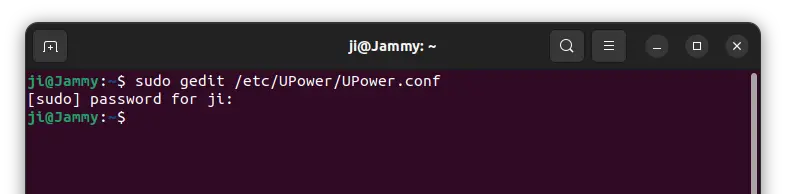
2. When terminal opens, run command to edit the upower config file:

sudo gedit /etc/UPower/UPower.conf

For Ubuntu 22.10+, replace gedit in command with gnome-text-editor, or use nano instead for other Linux.

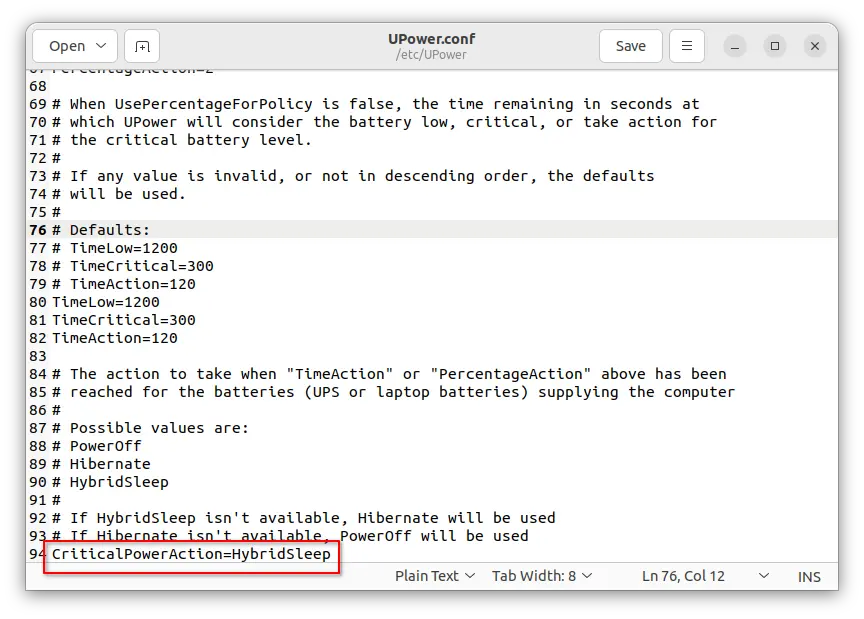
3. Once file opens, scroll down and find out the line CriticalPowerAction=HybridSleep (the last line in my case). As the description says, you can change the value into:

(Optional) 4. For choice, you may also edit the value of following lines:

  • PercentageLow=20 – battery low when percentage 20% left.
  • PercentageCritical=5 – battery critical when percentage 5% left.
  • PercentageAction=2 – perform the action you set in step 3 when battery 2% left.

In case you want to use time remaining instead, find out and change UsePercentageForPolicy=false. So, following values will be in active:

  • TimeLow=1200 – battery low when 1200 seconds left.
  • TimeCritical=300 – battery critical when 300 seconds left.
  • TimeAction=120 – perform action (step 3) when 120 seconds left.

5. Once you saved the file (for nano text editor, press Ctrl+X, type y and hit Enter), run the command to restart upower service to apply changes:

sudo systemctl restart upower.service

That’s all. Enjoy!

Gscan2pdf 2.5.5, GTK tool to produce PDF / DjVu from scanned document, was released yesterday with bug-fixes, some improvements, and updated translations.

Gscan2PDF 2.5.5 changelog:

  • Fix occasional error messages when clearing all pages
  • Only set paper to Manual if not applying profile
  • Update OCR view switching between pages with and without OCR output
  • xz compress log file if xz available
  • Fix bug applying paper after profile set SANE_INFO_INEXACT
  • When saving current settings as new profile, actually set the profile
  • If a device throws an error when opening it, add it to a session blacklist
  • option tolerance to cover buggy backends that return inexact options without setting SANE_INFO_INEXACT
  • Update translations.

How to Install gscan2pdf 2.5.5 in Ubuntu:

The official Ubuntu PPA has made the new release packages for Ubuntu 16.04, Ubuntu 18.04, Ubuntu 18.10, Ubuntu 19.04 and their derivatives.

1. Open terminal either by pressing Ctrl+Alt+T on keyboard or searching for ‘terminal’ from software launcher. When it opens, run command to add the PPA:

sudo add-apt-repository ppa:jeffreyratcliffe/ppa

Type user password (no asterisk feedback due to security reason) when it prompts and hit Enter.

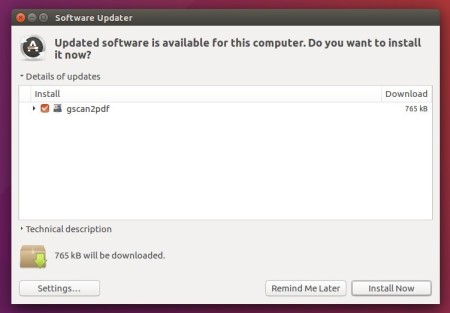
2. For those who have a previous release installed, upgrade it through Software Updater:

upgrade gscan2pdf

For the first time, you can either install it via Synaptic Package Manager or by running following commands in terminal:
sudo apt-get update

sudo apt-get install gscan2pdf

How to Remove:

To remove gscan2pdf, either use your system package manager or run command:

sudo apt-get remove --autoremove gscan2pdf

And the PPA can be removed via Software & Updates utility, under Other Software tab.

gnome shell

The default Gnome desktop has a built-in desktop magnifier. This quick tutorial will show you how to enable this feature in Ubuntu 18.04 and higher.

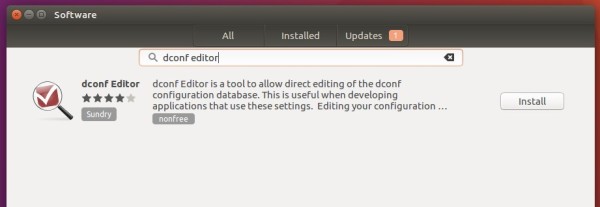
First of all, install dconf editor from Ubuntu Software utility if you don’t have it.

To enable screen magnifier in Ubuntu:

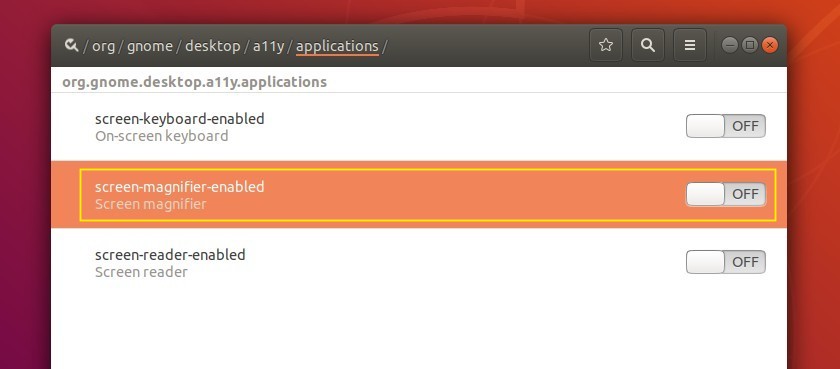
Open Dconf Editor, then navigate to org/gnome/desktop/a11y/applications.

There turn on the toggle for “screen-magnifier-enabled”.

To change screen magnifier preferences:

I don’t like the default magnified view which fills entire screen. Fortunately, there are options to change the maginifier preferences.

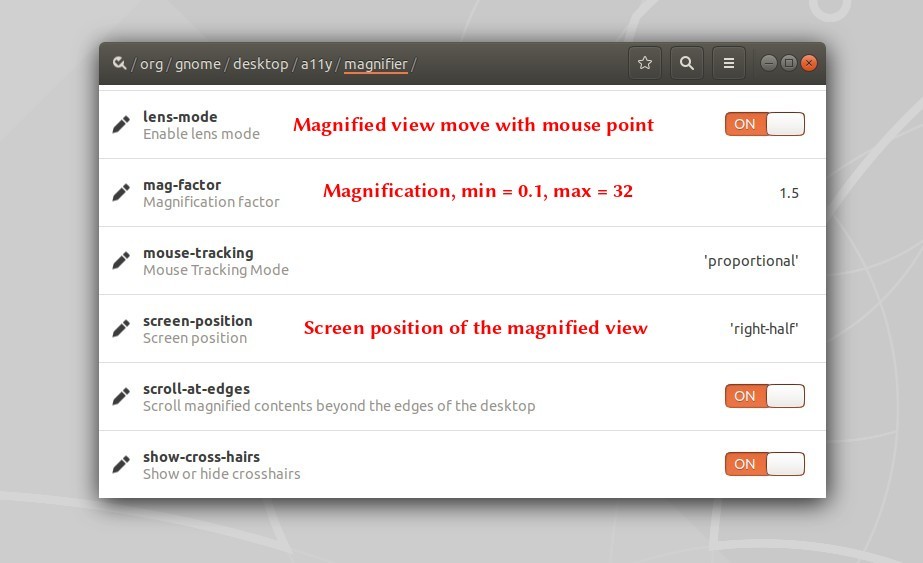
Also in Dconf Editor, navigate to org/gnome/desktop/a11y/magnifier, there are many preference options including:

  • lens-mode: move the magnified view with the mouse pointer.
  • screen-position: screen position of magnified view, left-half, right-half, top-half, bottom-half, or full-screen.
  • mag-factor: magnification factor, minimum = 0.1, maximum = 32.
  • mouse-tracking: determine the position of the magnified mouse image within the magnified view, and how it reacts to system mouse movement.

There are also options to enable crosshairs, inverse lightness, scroll beyond the edges of desktop, etc.

Mesa 3D graphics library 19.0.8 now is available to install in Ubuntu 18.04, Ubuntu 19.04 via PPA repository.

For those sticking to the open-source RadeonSI / RADV / Intel / Nouveau drivers, Mesa 19.0.8 is the latest bug-fix release for 19.0 series which fixes a critical bug found in the 19.0.7 release.

Canonical’s Timo Aaltonen has made Mesa 19.0.8 package into “Ubuntu-X” team PPA for Ubuntu 18.04 and Ubuntu 19.04.

To get better open-source graphics driver performance, you may install Mesa 19.0.8 via following steps:

1. Open terminal either via Ctrl+Alt+T keyboard shortcut or from software launcher. When it opens, run command:

sudo add-apt-repository ppa:ubuntu-x-swat/updates

Type user password (no asterisk feedback) when it prompts and hit Enter to continue.

2. After adding the PPA, do system update via command:

sudo apt-get dist-upgrade

apt-get update is not required any more in Ubuntu 18.04 since adding PPA automatically refreshes system package cache.

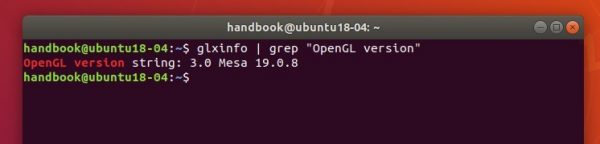
3. Finally check your driver version via command:

glxinfo | grep "OpenGL version"

Uninstall:

To restore changes and downgrade to the default drives shipped in Ubuntu 18.04, run command:

sudo apt-get install ppa-purge && sudo ppa-purge ppa:ubuntu-x-swat/updates