Archives For Howtos

install the latest filezilla ubuntu

This simple tutorial shows you how to install the latest FileZilla Client in all versions of Ubuntu currently supported on the desktop. So far, they are Ubuntu 14.04, Ubuntu 13.10, Ubuntu 12.10, and Ubuntu 12.04.

The current FileZilla release is version 3.7.4. It comes with below new features and bug fixes:

  • Added SOCKS4 support
  • Added Corsican and Kabyle translations
  • SFTP now supports the hmac-sha2-256 algorithm
  • Additional bugfix for site-specific bookmarks
  • Improve compatibility with servers sending directory listings in Polish language or in EBCDIC encoding
  • Handle set user id bit when populating permissions dialog.
  • MSW: Show local timestamps for old files using the correct daylight saving time (DST) offset.
  • Fix loading of transfer queue if starting FileZilla while another instance is in the process of shutting down
  • Fix interaction between site-specific bookmarks and multiple tabs
  • Don’t resume uploads when there’s zero octets left to transfer
  • Improve symbolic link detection when using MLSD
  • If processing a queue with files queued on multiple servers and not storing passwords, the password was not always asked prior to switching servers
  • Use the correct name element when importing sites
  • MSW: Show actual Windows version in about dialog regardless of app-compat settings

Install FileZilla:

If you don’t like PPAs, you can always follow the steps below to install the latest FileZilla Client in Ubuntu.

1. First go to System Settings -> Details and check out your OS type: 32 bit or 64 bit
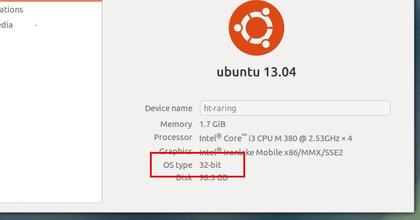
System-type-32bit-64-bit

2. Download FileZilla from the official download page.

  • 32 bit system download the “FileZilla_x.x.x_i586-linux-gnu.tar.bz2”
  • 64 bit system download the “FileZilla_x.x.x_x86_64-linux-gnu.tar.bz2”

3. Press Ctrl+Alt+T on your keyboard to open the terminal. When it opens, run the command below to extract FilaZilla to /opt/.

cd /opt/ && sudo tar jvxf FileZilla_*-linux-gnu.tar.bz2

In the code, you may replace the file name to yours!

4. Change the ownership of extracted folder:

cd /opt/ && sudo chown -R root:root FileZill*

5. Now, you’re able to launch FileZilla Client via the command below:

/opt/FileZill*/bin/filezilla

6. To create a launcher. Run the command below to edit the config file:

sudo gedit /usr/share/applications/filezilla.desktop

Copy and paste below lines into the file and save it.

[Desktop Entry]
Name=FileZilla
GenericName=FTP client
GenericName[de]=FTP-Client
GenericName[fr]=Client FTP
Comment=Download and upload files via FTP, FTPS and SFTP
Comment[de]=Dateien über FTP, FTPS und SFTP übertragen
Comment[fr]=Transférer des fichiers via FTP, FTPS et SFTP
Exec=/opt/FileZilla3/bin/filezilla
Terminal=false
Icon=filezilla
Type=Application
Categories=Network;FileTransfer;
Version=1.0

Change the FileZilla3 to the exact folder name and done.

Pidgin PPA Ubuntu

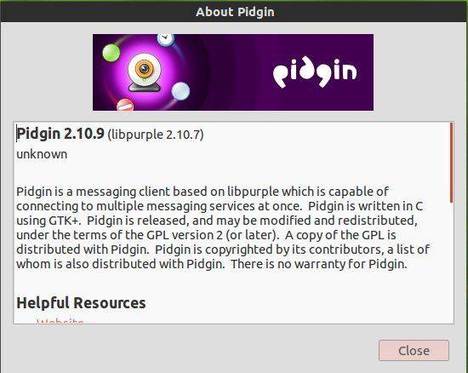
The instant messaging program Pidgin 2.10.9 has been released recently. It mainly fixed problems logging into some servers including jabber.org and chat.facebook.com.

The default Pidgin versions in Ubuntu universe repositories are quite old (See Pidgin changelog history). The Pidgin Developers PPA provides the most recent version of Pidgin for Ubuntu 14.04, Ubuntu 13.10, Ubuntu 12.10, and Ubuntu 12.04. Here’s how to add the PPA and install / upgrade your Pidgin from it.

Install the latest Pidgin Release in Ubuntu

To get started, press Ctrl+Alt+T on your keyboard to open the terminal. When it opens, run the command below to add Pidgin PPA to your system:

sudo add-apt-repository -y ppa:pidgin-developers/ppa

After that, update your system package lists and then you’re able to install packages from the PPA:

sudo apt-get update

Now install the Pidgin:

sudo apt-get install pidgin

That’s it. Enjoy!

For the Off-the-Record (OTR) plug-in, which is designed for use with Pidgin ensures authenticated and secure communications between Pidgin users, just search for and install pidgin-otr from Ubuntu Software Center. Finally enable the plugin from Pidgin menu Tools -> Plugins.

VLC 2.1.2 Ubuntu 12.04

 
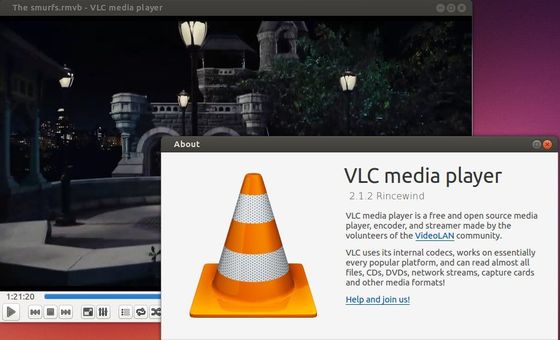
The popular VLC media player has reached version 2.1.x with some fantastic new features, bug fixes and performance improvements. However, the official PPA for Ubuntu 13.10 and earlier is stuck at version 2.0.8.

There’s now a third-party PPA that provides the most recent build of VLC (it’s 2.1.2 so far) to Ubuntu 12.04, Ubuntu 12.10, Ubuntu 13.04, and Ubuntu 13.10 users. The PPA is maintained by djcj

install vlc 2.1.2 ubuntu 13.10

The PPA is not officially endorsed, supported or otherwise backed by the Videolan team. Use it at your own risk!

Press Ctrl+Alt+T on your keyboard to open the terminal. When it opens, run the commands below to add the PPA and install VLC.

sudo add-apt-repository ppa:djcj/vlc-stable

sudo apt-get update

sudo apt-get install vlc

If you don’t like the PPAs, directly download & install the DEBs from the launchpad page.

minitube icons logo

Minitube, the YouTube desktop application has just released version 2.1.6 with a fix for the playback of some YouTube videos. A minor change in Minitube’s Browse tab removes some so-called standard feeds like Most Shared, etc.

This simple tutorial will show you how to install or upgrade to the latest build of Minitube in Ubuntu 14.04, Ubuntu 13.10, Ubuntu 12.10, Ubuntu 12.04, Linux Mint and their derivatives via the PPA repository.

What is Minitube:

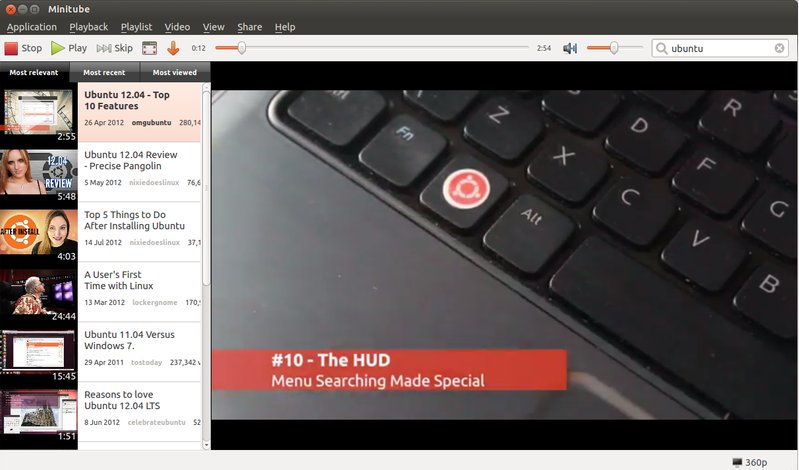
Minitube is a lightweight and stylish YouTube application. With it you can watch YouTube videos in a new way: you type a keyword, Minitube gives you an endless video stream.

By automatically playing videos one after another, Minitube aims to create a TV-like experience. Stop fiddling, just sit back and enjoy.

Minitube is designed to be very easy to use. This simplicity is great for kids and grandparents. Consider getting Minitube as a gift for the whole family.

Minitube consumes less CPU, preserves battery life and keeps your laptop cool. That’s because Minitube does not use the Flash Player. Minitube plays HD videos up to 1080p. Go full-screen and watch them play smoothly.

With Minitube you can search by keyword, search YouTube channels or just paste a YouTube link. Related videos are always a click away. You can also browse top videos for your favorite category and country. You can subscribe to YouTube channels and be notified of new videos.

Minitube is translated in more than 30 languages including German, French, Italian, Russian, Danish, Spanish, Portuguese, Arabic, Hebrew and Chinese.

minitube

Install Minitube:

Press Ctrl+Alt+T on your keyboard to open the terminal. When it opens, run the commands below one by one:

sudo add-apt-repository ppa:nilarimogard/webupd8

sudo apt-get update

sudo apt-get install minitube

This will install the latest build of minitube from the webupd8 team PPA.

Linux Kernel 3.10.29 LTS

Today, Greg Kroah-Hartman has announced the Linux Kernel 3.12.10, Kernel 3.13.2, Kernel 3.10.29 LTS and Kernel 3.4.79 LTS. All users of each kernel series are urged to upgrade as soon as possible.

I’ve written about how to install or upgrade to Kernel 3.13.2 & Kernel 3.12.10. This tutorial is going to talk about Kernel 3.10.29 LTS.

Linux kernel 3.10.29 LTS brings updated architectures, including ARM, s390, PowerPC, and x86, numerous updates drivers (wireless, rtc, scsi, tty, usb, etc.), some filesystem improvements (mainly Btrfs and EXT4), a couple of networking fixes for IPv4 and IPv6, and some sound improvements. See the announcement.

Install / upgrade to Kernel 3.10.29:

The Ubuntu Kernel Team has build the deb packages which are available in this page.

If you’re comfortable with command line, you can also follow the steps below to download & install this kernel:

1. Download Kernel DEBs:

For 32-bit system:

wget http://kernel.ubuntu.com/~kernel-ppa/mainline/v3.10.29-saucy/linux-headers-3.10.29-031029-generic_3.10.29-031029.201402061535_i386.deb

wget http://kernel.ubuntu.com/~kernel-ppa/mainline/v3.10.29-saucy/linux-headers-3.10.29-031029_3.10.29-031029.201402061535_all.deb

wget http://kernel.ubuntu.com/~kernel-ppa/mainline/v3.10.29-saucy/linux-image-3.10.29-031029-generic_3.10.29-031029.201402061535_i386.deb

For 64 bit system:

wget http://kernel.ubuntu.com/~kernel-ppa/mainline/v3.10.29-saucy/linux-headers-3.10.29-031029-generic_3.10.29-031029.201402061535_amd64.deb

wget http://kernel.ubuntu.com/~kernel-ppa/mainline/v3.10.29-saucy/linux-headers-3.10.29-031029_3.10.29-031029.201402061535_all.deb

wget http://kernel.ubuntu.com/~kernel-ppa/mainline/v3.10.29-saucy/linux-image-3.10.29-031029-generic_3.10.29-031029.201402061535_amd64.deb

2. Install all the packages:

sudo dpkg -i linux-headers-3.10.29-*.deb linux-image-3.10.29-*.deb

Once installed, restart your computer and done.

If you’re using a proprietary video driver, you may need to re-build or re-install to get it work with the new kernel.

If for some reason this kernel release doesn’t work properly for you, reboot into previous kernel (Grub -> Advanced -> select previous kernel) and run this command to remove Linux Kernel 3.10.29:

sudo apt-get remove linux-headers-3.10.29-* linux-image-3.10.29-*

Linux Kernel 3.12.10

Greg Kroah-Hartman has also announced the Linux Kernel 3.12.10 and urged users of 3.12 series to upgrade as soon as possible.

Similar to Kernel 3.13.2, Linux kernel 3.12.10 brings updated architectures, including ARM, s390, PowerPC, PA-RISC, and x86, numerous updates drivers (wireless, rtc, scsi, tty, usb, etc.), some filesystem improvements (mainly Btrfs, HPFS and EXT4), a couple of networking fixes for IPv4 and IPv6, and some sound improvements. See the announcement.

Install / Upgrade to Kernel 3.12.10:

The Ubuntu Kernel Team has build the deb packages which are available in this page. Low-latency Kernel packages are also included.

If you’re comfortable with command line, you can also follow the steps below to download & install this kernel:

1. Download Kernel DEBs:

For 32-bit system:

wget http://kernel.ubuntu.com/~kernel-ppa/mainline/v3.12.10-trusty/linux-headers-3.12.10-031210-generic_3.12.10-031210.201402061553_i386.deb

wget http://kernel.ubuntu.com/~kernel-ppa/mainline/v3.12.10-trusty/linux-headers-3.12.10-031210_3.12.10-031210.201402061553_all.deb

wget http://kernel.ubuntu.com/~kernel-ppa/mainline/v3.12.10-trusty/linux-image-3.12.10-031210-generic_3.12.10-031210.201402061553_i386.deb

For 64 bit system:

wget http://kernel.ubuntu.com/~kernel-ppa/mainline/v3.12.10-trusty/linux-headers-3.12.10-031210-generic_3.12.10-031210.201402061553_amd64.deb

wget http://kernel.ubuntu.com/~kernel-ppa/mainline/v3.12.10-trusty/linux-headers-3.12.10-031210_3.12.10-031210.201402061553_all.deb

wget http://kernel.ubuntu.com/~kernel-ppa/mainline/v3.12.10-trusty/linux-image-3.12.10-031210-generic_3.12.10-031210.201402061553_amd64.deb

2. Install all the packages:

sudo dpkg -i linux-headers-3.12.10-*.deb linux-image-3.12.10-*.deb

Once installed, restart your computer and done.

If you’re using a proprietary video driver, you may need to re-build or re-install to get it work with the new kernel.

If for some reason this kernel release doesn’t work properly for you, reboot into previous kernel (Grub -> Advanced -> select previous kernel) and run this command to remove Linux Kernel 3.12.10:

sudo apt-get remove linux-headers-3.12.10-* linux-image-3.12.10-*

Linux Kernel 3.13.2

Greg Kroah-Hartman has announced the Linux Kernel 3.13.2 and urged users of 3.13 series to upgrade as soon as possible.

Linux kernel 3.13.2 brings updated architectures, including ARM, s390, PowerPC, PA-RISC, and x86, numerous updates drivers (mmc, wireless, rtc, scsi, tty, usb, etc.), some filesystem improvements (mainly Btrfs, HPFS and EXT4), a couple of networking fixes for IPv4 and IPv6, and some sound improvements. See the announcement.

Install / Upgrade to Kernel 3.13.2:

The Ubuntu Kernel Team has build the deb packages which are available in this page. Low-latency Kernel packages are included.

If you’re comfortable with command line, you can also follow the steps below to download & install this kernel:

1. Download Kernel DEBs:

For 32-bit system:

wget http://kernel.ubuntu.com/~kernel-ppa/mainline/v3.13.2-trusty/linux-headers-3.13.2-031302-generic_3.13.2-031302.201402061638_i386.deb

wget http://kernel.ubuntu.com/~kernel-ppa/mainline/v3.13.2-trusty/linux-headers-3.13.2-031302_3.13.2-031302.201402061638_all.deb

wget http://kernel.ubuntu.com/~kernel-ppa/mainline/v3.13.2-trusty/linux-image-3.13.2-031302-generic_3.13.2-031302.201402061638_i386.deb

For 64 bit system:

wget http://kernel.ubuntu.com/~kernel-ppa/mainline/v3.13.2-trusty/linux-headers-3.13.2-031302-generic_3.13.2-031302.201402061638_amd64.deb

wget http://kernel.ubuntu.com/~kernel-ppa/mainline/v3.13.2-trusty/linux-headers-3.13.2-031302_3.13.2-031302.201402061638_all.deb

wget http://kernel.ubuntu.com/~kernel-ppa/mainline/v3.13.2-trusty/linux-image-3.13.2-031302-generic_3.13.2-031302.201402061638_amd64.deb

2. Install all the packages:

sudo dpkg -i linux-headers-3.13.2-*.deb linux-image-3.13.2-*.deb

Once installed, restart your computer and done.

If you’re using a proprietary video driver, you may need to re-build or re-install to get it work with the new kernel.

If for some reason this kernel release doesn’t work properly for you, reboot into previous kernel (Grub -> Advanced -> select previous kernel) and run this command to remove Linux Kernel 3.13.2:

sudo apt-get remove linux-headers-3.13.2-* linux-image-3.13.2-*

Wireless access point for Android

If you have a single wired Internet connection, you can easily setup an ad-hoc wireless network with Ubuntu and share the Internet connection among multiple devices. Unfortunately, some devices including Android & Windows Phones may not support ad-hoc wireless networks.

UPDATE 2024: This tutorial is outdated! It may no longer works in current Ubuntu releases!

ubuntu ad-hoc wifi hotspot

So this tutorial is going to show you how to turn your Ubuntu laptop into a wireless access point in another way with Android phones support.

UPDATE 2: Seems that Ap-hotspot is not working good on Ubuntu 14.04, please try this post using KDE’s network manager.

Or use the default Network Manager with a little hack.

To get started, press Ctrl+Alt+T on keyboard to open the terminal. When it opens, run the commands below one by one to install ap-hotspot.

Ap-hotspot is an open-source project that automatically creates an infrastructure (Access Point mode) wireless hotspot in Ubuntu that should work with Android and Windows Phone devices

sudo add-apt-repository ppa:nilarimogard/webupd8

sudo apt-get update

sudo apt-get install ap-hotspot

Supports for Ubuntu 13.10, Ubuntu 13.04, Ubuntu 12.10, Ubuntu 12.04 and Ubuntu 14.04. download & install the ap-hotspot deb for saucy at this page.

For Ubuntu 14.04, due to bug you need to downgrade hostapd to make ap-hotspot work.

  1. First uninstall the buggy hostapd in Ubuntu 14.04 via:
    sudo apt-get remove hostapd
  2. Copy and paste the command below into terminal that matches your OS type – check out via System Setting -> Details – and hit run to download, install, and hold the old version of hostapd.While running the commands below, type in your user password in terminal when prompt.

    For 64-bit system:

    cd /tmp && wget http://archive.ubuntu.com/ubuntu/pool/universe/w/wpa/hostapd_1.0-3ubuntu2.1_amd64.deb && sudo dpkg -i hostapd*.deb && sudo apt-mark hold hostapd

    For 32-bit system:

    cd /tmp && wget http://archive.ubuntu.com/ubuntu/pool/universe/w/wpa/hostapd_1.0-3ubuntu2.1_i386.deb && sudo dpkg -i hostapd*.deb && sudo apt-mark hold hostapd

Once installed, execute below command to configure your wifi hotspot:

sudo ap-hotspot configure

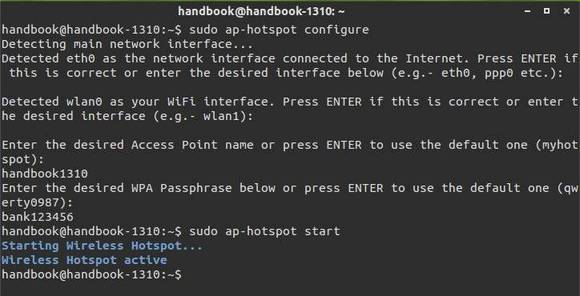
It will detect the wired & wireless interfaces and ask you to confirm that if they are correct (run ifconfig if you’re not sure). Then you’ll be asked to enter a wifi hotspot name and setup a password.

ap-hotspot config

Finally start the wireless hotspot via:

sudo ap-hotspot start

Now you’re able to connect to wifi hotspot via your Android phone!

ubuntu wifi hotspot android phone

To stop the wireless hotspot, execute this command in Ubuntu terminal:

sudo ap-hotspot stop

UPDATE: Please report issues at: https://github.com/hotice/AP-Hotspot/.

Tip: For the error “Access Point Mode is not supported by this device”, you may take a look at this page.

Keystroke Visualizer

Keystroke is a Qt based keystroke visualization tool for Linux. This is a new KDE project just created a few days ago. It is helpful when creating screencasts where you want to show what you are typing. E.g. when using vim.

See the video:

This keystroke visualization tool only works on K Desktop Environment (KDE). For Ubuntu users, you can easily install it by running the commands below one by one in terminal (Press Ctrl+Alt+T to open the terminal):

sudo add-apt-repository -y ppa:samrog131/ppa

sudo apt-get update

sudo apt-get install keystroke

This will install the tool in (K)ubuntu 14.04, (K)ubuntu 13.10, (K)ubuntu 12.10, and (K)ubuntu 12.04.

Once installed, search for and run keystroke-gui in the start menu and then type anything to see the magic!

keystroke visualization tool KDE

keystroke on github

DeadBeef 0.6.1

DeaDBeeF music player has recently released a new version with lots of bug fixes. This is the first update after deadbeef added the gui layout designer.

Deadbeef 0.6.1 changelog:

  • fixed crash in AAC plugin when mp4 file reports 0 samples (e.g. radio rips)
  • fixed libsupc++ linking issues
  • fixed support for gcc<4.5
  • changed description of hotkeys plugin in configure
  • fixed 100% CPU load issues with certain hotkeys
  • fixed opening files from command line into default playlist
  • don’t allow spawning multiple instances of converter
  • fixed EQ drawing past the bottom margin
  • fixed progress dialog while loading playlists
  • fixed M3UINF parser
  • reverted MP3 bugfixes which introduced incorrect duration calculation
  • fixed ungrabbing deleted global hotkeys
  • added config option to help debug buffering/streaming
  • ffmpeg plugin can now handle dynamic data format changes
  • fixed rare buffering problem which was causing stuttering for some users
  • fixed running without X and/or without GUI plugin
  • fixed mp3 duration rounding bug
  • fixed incorrect scroll/cursor after deleting playlists
  • added support for loading plugins from ~/.local/lib{32|64}/deadbeef, depending on running deadbeef build version
  • fixed bug imposing 256 byte limit on file pathes in archives
  • fixed column autoresize issues
  • removed libstdc++ hacks from C++ plugins
  • fixed “Remove from disk” menu item not being hidden by corresponding option
  • fixed applying “Pin group titles” config on startup (patch from Christian Boxdörfer)
  • improved charset detection in CUE files, not longer allowing invalid utf-8 to go through
  • paused network streams don’t attempt to prebuffer until played
  • unpausing network streams always restarts them
  • prevent loading playlists from archives (treat them like folders)
  • hide the “Hotkeys” tab from preferences if hotkeys plugin is not available
  • don’t build shellexecui if not building shellexec
  • fixed memleak when drag-dropping pls/m3u playlists from file managers
  • prevent passing non-utf8 filenames to progress dialog
  • fixed crash when opening invalid VTX files
  • fixed crash when opening invalid WMA files
  • don’t delete replaygain info from FLACs when writing tags
  • fixed really old buffer overflow bug in dnd handler (kudos to Megabaks)

Install DeadBeef:

Deb, Arch, and source packages are available at official download page.

You can also run the commands below one by one in terminal (Ctrl+Alt+T) to install it from PPA. Supports Ubuntu 13.10, Ubuntu 12.04, Ubuntu 12.10 and their derivatives.

sudo add-apt-repository ppa:starws-box/deadbeef-player

sudo apt-get update

sudo apt-get install deadbeef
customized deabeef music player in Ubuntu 13.10

customized deabeef music player in Ubuntu 13.10