Archives For Howtos

Ubuntu 17.10 Reached End of Its Life

Last updated: July 20, 2018

Ubuntu 18.04

Ubuntu 17.10 Artful Aardvark reached end of life on July 19 2018. It was announced last night:

This is a follow-up to the End of Life warning sent earlier this month to confirm that as of today (July 19, 2018), Ubuntu 17.10 is no longer supported. No more package updates will be accepted to 17.10, and it will be archived to old-releases.ubuntu.com in the coming weeks.

The original End of Life warning follows, with upgrade instructions:

Ubuntu announced its 17.10 (Artful Aardvark) release almost 9 months ago, on October 19, 2017. As a non-LTS release, 17.10 has a 9-month support cycle and, as such, the support period is now nearing its
end and Ubuntu 17.10 will reach end of life on Thursday, July 19th.

At that time, Ubuntu Security Notices will no longer include information or updated packages for Ubuntu 17.10.

Users of Ubuntu 17.10 are recommended to upgrade to Ubuntu 18.04 LTS. Before following the official documentation, you need to first make backups, uninstall proprietary drivers, purge third-party PPAs.

And it’s always a good choice to do a fresh install of Ubuntu 18.04 LTS.

Download Ubuntu 18.04

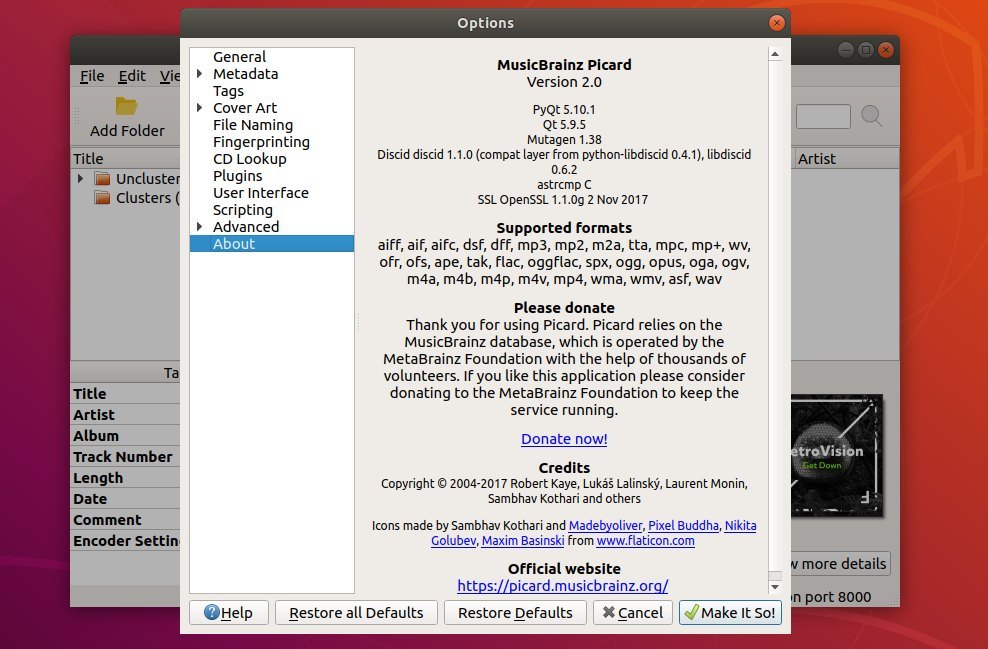
MusicBrainz Picard 2.0 stable was released today many fixes and new features and much needed upgrades!

MusicBrainz Picard 2.0 release highlights:

  • Add Retina and Hi-DPI display support.

  • Add DSF file support
  • Add keyboard shortcut for deleting scripts from options > scripting page
  • Support only 64 bit Picard builds from 2.0
  • Update dependencies minimal requirements: Python 3.5, PyQt 5.7, and Mutagen 1.37.
  • And numerous bug-fixes, UI and performance improvements.

How to Install MusicBrainz Picard 2.0 in Ubuntu:

The official PPA has built the music tagger for Ubuntu 17.10, Ubuntu 18.04, and Ubuntu 18.10.

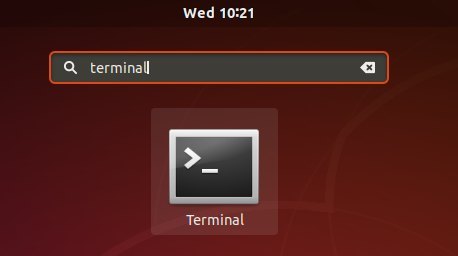
1. Launch terminal either via Ctrl+Alt+T keyboard shortcut or searching for ‘terminal’ from software launcher. When it opens, run command to add the PPA:

sudo add-apt-repository ppa:musicbrainz-developers/stable

Type your user password (no asterisks feedback) when it prompts and hit Enter to continue.

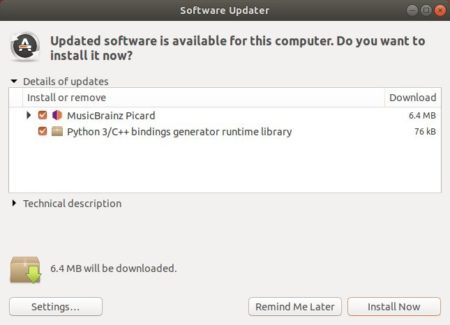
2. If a previous version was installed, upgrade the software via Software Updater:

or run following commands one by one in terminal to install or upgrade to MusicBrainz Picard 2.0:

sudo apt-get update

sudo apt-get install picard

Uninstall:

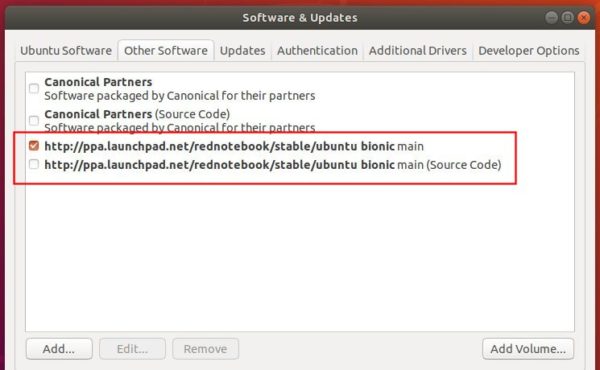
To remove the PPA, launch Software & Updates and navigate to Other Software tab.

To remove MusicBrainz Picard music tagger, run command in terminal:

sudo apt-get remove --autoremove picard

wireshark

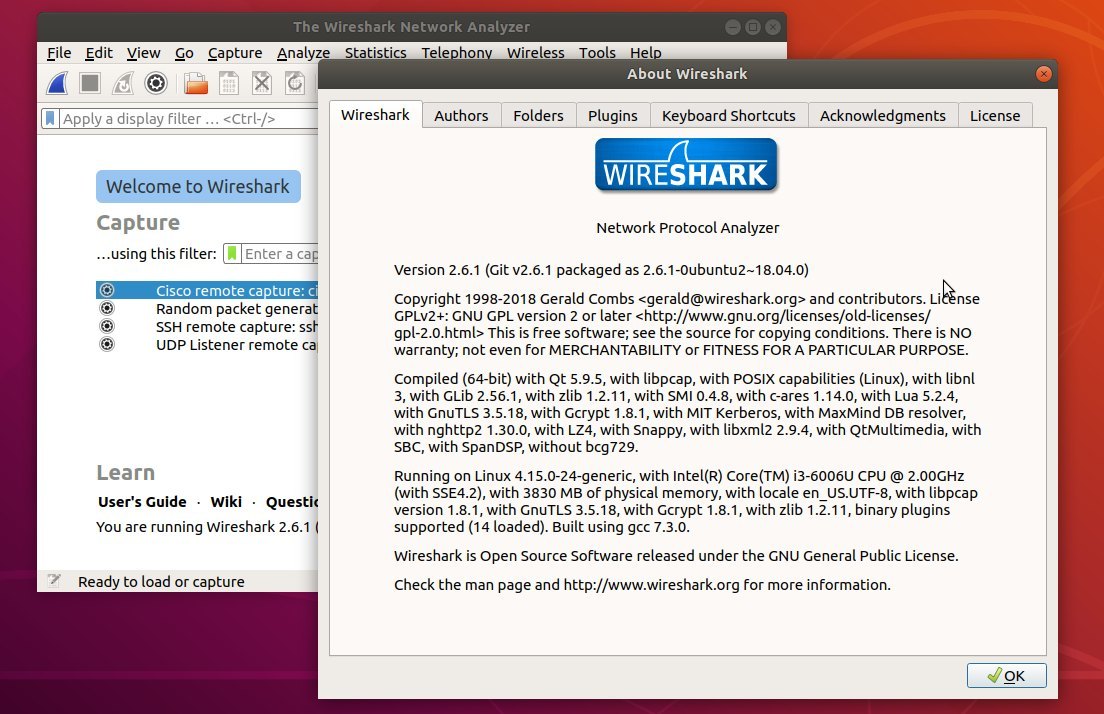
Wireshark network packet analyzer 2.6 stable series now is available to install in all current Ubuntu releases via the stable PPA.

Wireshark 2.6 was released 3 months ago in Apirl. It mainly features:

  • Support for HTTP Request sequences
  • Support for MaxMind DB files. Support for GeoIP and GeoLite Legacy databases has been removed.
  • The Windows packages are now built using Microsoft Visual Studio 2017.
  • The IP map feature (the “Map” button in the “Endpoints” dialog) has been removed.

Install Wireshark 2.6 via PPA in Ubuntu:

So far the PPA contains Wireshark 2.6.1 for Ubuntu 18.04, Ubuntu 17.10, Ubuntu 16.04, Ubuntu 14.04.

1. Open terminal by either pressing Ctrl+Alt+T or searching for ‘terminal’ from app launcher. When it opens, run command:

sudo add-apt-repository ppa:wireshark-dev/stable

Type your user password (no asterisks feedback due to security reason) when it prompts and hit Enter.

2. If you’ve the previous Wireshark 2.4.x installed on your system, remove it first via command:

sudo apt-get remove --autoremove wireshark

3. Finally run following commands one by one in terminal to install Wireshark 2.6:

sudo apt-get update

sudo apt-get install wireshark

Uninstall:

To remove the software, open terminal and run command:

sudo apt-get remove --autoremove wireshark wireshark-*

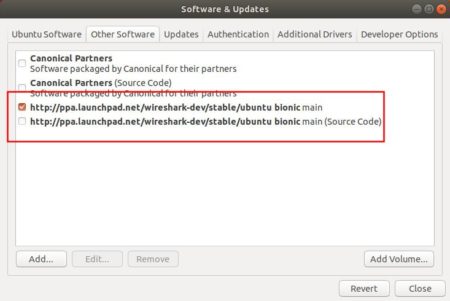
And remove the PPA by launching Software & Updates -> Other Software tab.

Nvidia Linux driver

For Ubuntu 18.04 users plagued by screen tearing issue while using NVIDIA proprietary drivers, this quick tutorial may help you via enable PRIME Synchronization on Optimus.

Screen tearing usually happens on Ubuntu Linux laptop that uses Prime to switch between NVIDIA and Intel drivers.

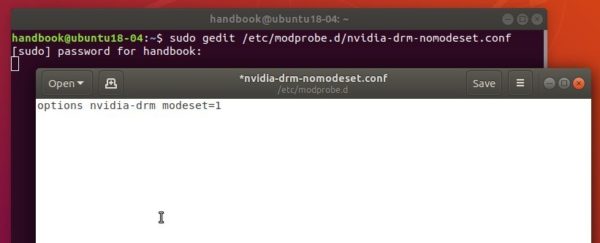
1. Open terminal (either via Ctrl+Alt+T or by searching for ‘terminal’ from software launcher) and run command to create a new config file:

sudo gedit /etc/modprobe.d/nvidia-drm-nomodeset.conf

Type your password (no asterisks feedback) when it prompts and hit Enter.

2. When the file opens after running the previous command, add following line and save the file.

options nvidia-drm modeset=1

3. Finally update intramfs and reboot your machine.

sudo update-initramfs -u

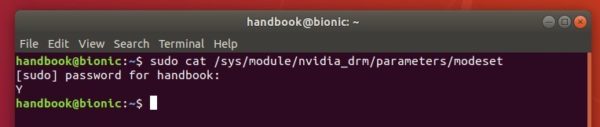
To check if previous changes work after reboot, run command:

sudo cat /sys/module/nvidia_drm/parameters/modeset

It should output ‘Y’.

In addition, to get much SMOOTHER Nvidia window dragging experience, you can also do:

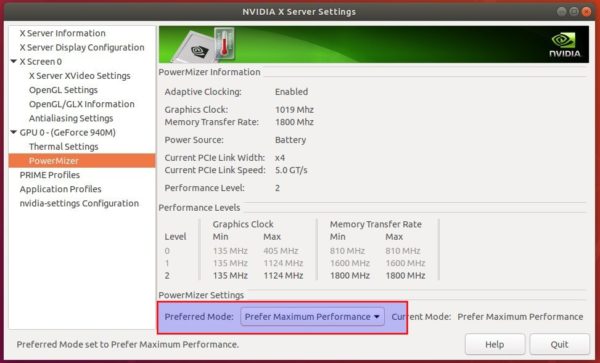
1. Set maximum performance in Nvidia X Server Settings -> PowerMizer.

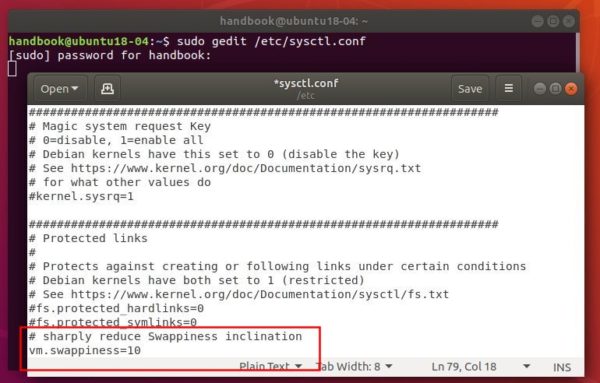
2. If you have MORE than enough RAM, set swap tendency to a MUCH lower value by running command to edit sysctl.conf:

sudo gedit /etc/sysctl.conf

and add following 2 lines when the file opens:

via: ubuntuforums

gnome shell

After doing a fresh install of Ubuntu 18.04 on my old ASUS laptop, I found that the touchpad right-click does not work. This is because Ubuntu 18.04 by default acts right-click when you perform two-finger click on touchpad.

While my laptop touchpad does not have physical buttons, I have to do two-finger click to perform right-click.

So following steps will show you how to make right-click (clicking on the bottom right area of the touchpad) working again in touchpad without a physical button in Ubuntu 18.04.

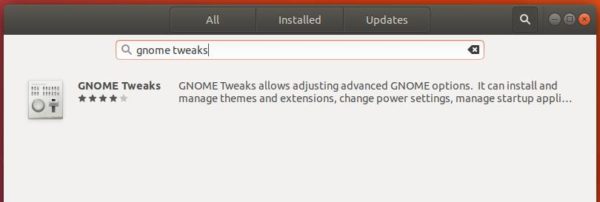
1. Open Ubuntu Software, search for and install Gnome Tweaks.

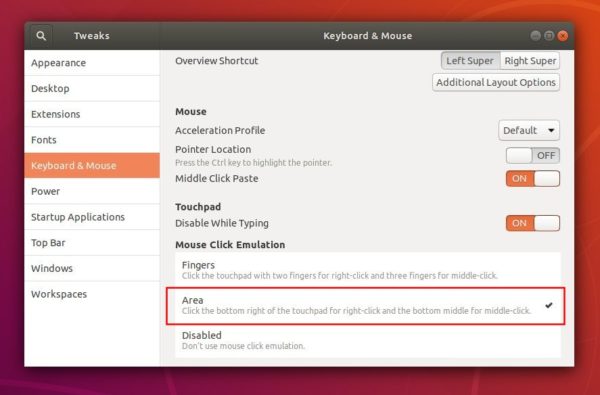
2. Launch Gnome Tweaks and navigate to Keyboard & Mouse settings page.

Under Mouse Click Emulation, simply click enable the second option: “Area – Click the bottom right of the touchpad for right-click and the bottom middle for middle click.”

That’s it. Enjoy!

gnome shell

This quick tutorial is going to show you how to change the transparency level of the Gnome 3 desktop top panel in Ubuntu 18.04 LTS, though

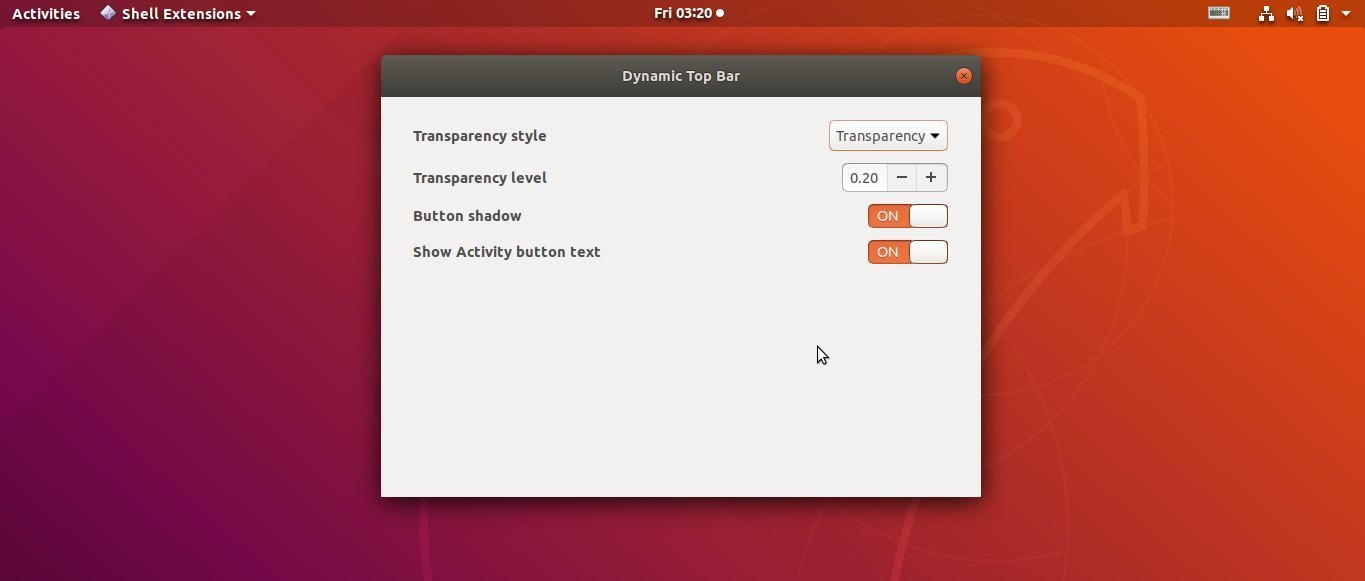
It’s easy to configure top panel transparency via a Gnome Shell extension called Dynamic Top Bar. With the extension, you can easily configure top panel transparency if app is not full screen:

  • top panel transparency style: transparency or gradient.
  • transparency level.
  • Show or hide button shadow, Activities button text.

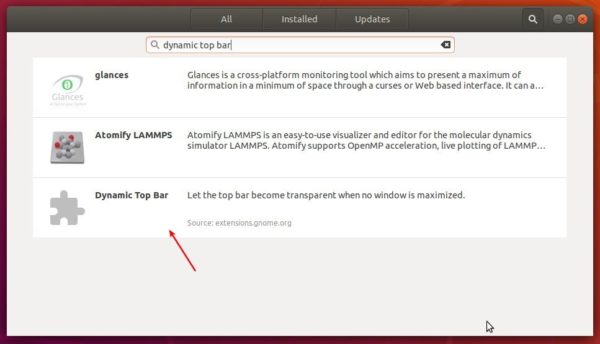
1. Open Ubuntu Software, search for and install Dynamic Top Bar

2. Once installed, go to extension settings via the install page (Ubuntu Software) or Gnome tweak tool (install it via Ubuntu Software).

That’s it. Enjoy!

How to Install Pidgin 2.13.0 in Ubuntu 18.04

Last updated: July 12, 2018

Pidgin internet messenger

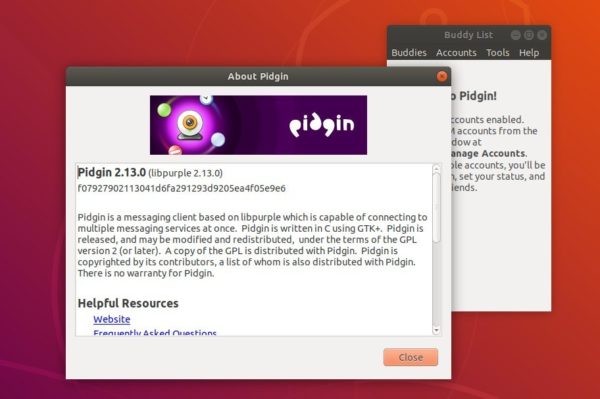
This quick tutorial shows how to install the latest Pidgin internet messenger 2.13.0 in Ubuntu 18.04.

Pidgin 2.13.0 was released a few months ago with better support for dark themes and various bug-fixes. While Ubuntu 18.04 ships with an old version in its main repository, you can install or upgrade to Pidgin 2.13.0 via this unofficial PPA.

The PPA packages also contain an IRC connection flood patch for this bug.

Install Pidgin 2.13.0 via PPA in Ubuntu 18.04:

Open terminal either via Ctrl+Alt+T or by searching for ‘terminal’ from software launcher. When it opens, run command to add the PPA:

sudo add-apt-repository ppa:kip/pidgin

Type your user password (no asterisks feedback) when it prompts and hit Enter.

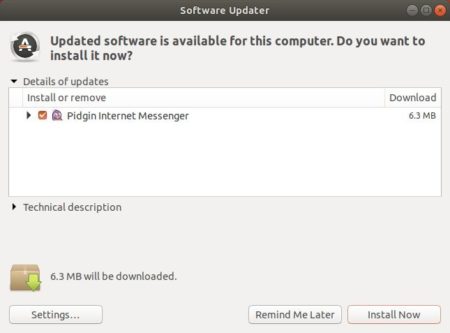
Then you can upgrade the internet messenger via Software Updater:

or run command in terminal to install Pidgin 2.13.0:

sudo apt-get install pidgin

Uninstall:

For any reason you can easily purge the PPA which also downgrade Pidgin to the stock version in Ubuntu 18.04 repository:

sudo apt-get install ppa-purge && sudo ppa-purge ppa:kip/pidgin

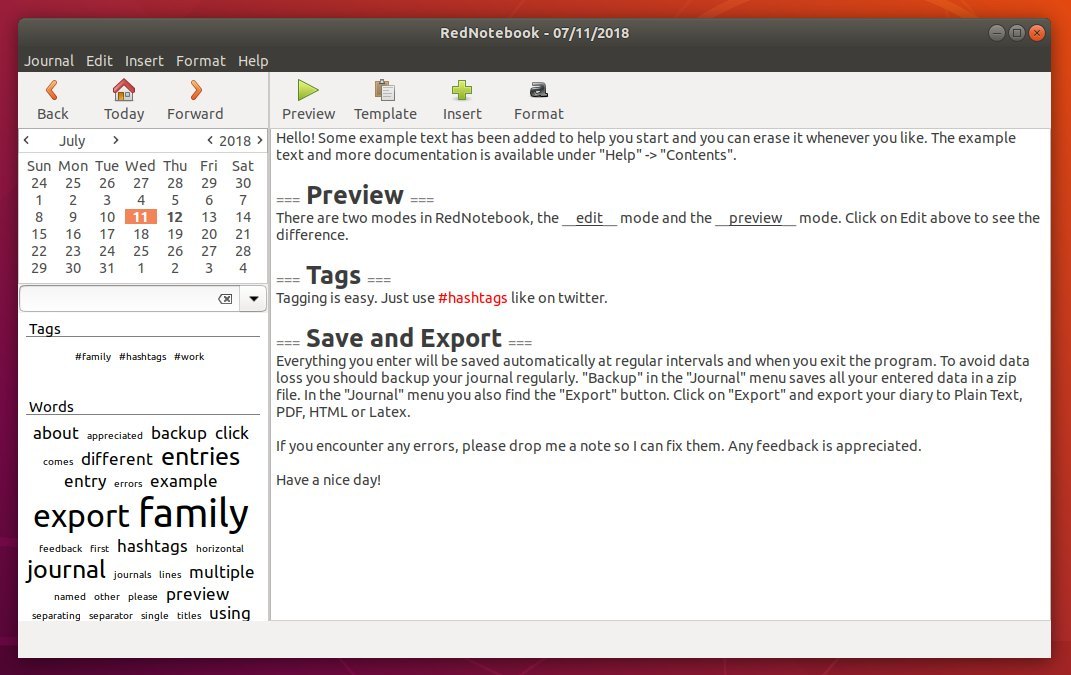
RedNotebook is a free cross-platform desktop diary and journal software written with Python and GTK+3. It lets you format, tag and search your entries. You can also add pictures, links and customizable templates, spell check your notes, and export to plain text, HTML, Latex or PDF.

The software has an official stable PPA that contains the latest packages for Ubuntu 18.04 and Ubuntu 16.04 so far. And below will show you how to add the PPA and install RedNotebook.

1. Open terminal either via Ctrl+Alt+T keyboard shortcuts or by searching for ‘terminal’ from software launcher.

2. Copy and paste following command into terminal and hit run to add the RedNotebook PPA:

sudo add-apt-repository ppa:rednotebook/stable

Type your password (no asterisks feedback due to security reason) when it prompts and hit Enter.

3. Finally check updates and install the desktop journal software by running following 2 commands one by one:

sudo apt update 

sudo apt install rednotebook

Ubuntu 18.04 users can skip sudo apt update command since it’s already done while adding PPA.

Uninstall:

To remove RedNotebook desktop journal, open terminal and run command:

sudo apt remove --autoremove rednotebook

And remove the PPA via Software & Updates utility -> Other Software tab.

This quick tutorial is going to show you how to install the latest version of Remmina remote desktop client in Ubuntu 18.04, Ubuntu 16.04.

Remmina is the default GTK+ remote desktop client shipped with Ubuntu desktop. It currently supports RDP, VNC, SPICE, NX, XDMCP, SSH and EXEC.

While distro’s builds of Remmina are always old, the upstream developers offers two ways to install the latest Remmina in Ubuntu.

Install Remmina via Snap in Ubuntu:

The software is now available as snap, an universal Linux package that will be updated automatically and will include both latest FreeRDP git and latest libssh 0.7 release.

Simply open Ubuntu Software search for and install “Remmina”. And yes, there are two Remmina packages, one is pre-installed, the other is the snap package.

You can alternatively run command in terminal to install the snap version of Remmina:

snap install remmina

For advanced features, (e.g., manage mount positions, servers discovery, manage printing, use gnome-keyring), run following commands one by one:

sudo snap connect remmina:avahi-observe :avahi-observe

sudo snap connect remmina:cups-control :cups-control

sudo snap connect remmina:mount-observe :mount-observe

sudo snap connect remmina:password-manager-service :password-manager-service

Install Remmina via PPA in Ubuntu:

If you don’t prefer Snap package, you can upgrade the pre-installed Remmina via the PPA repository.

1. Open terminal either via Ctrl+Alt+T or by searching for ‘terminal’ from app launcher. When it opens, run command to add the PPA:

sudo add-apt-repository ppa:remmina-ppa-team/remmina-next

Type your password (no asterisks feedback while typing) when it prompts and hit Enter.

2. Then upgrade Remmina either via Software Updater, or run commands:

sudo apt-get update

sudo apt-get install remmina remmina-plugin-* libfreerdp-plugins-standard

Uninstall:

To downgrade the software to its pre-installed status, run commands to purge the PPA:

sudo apt-get install ppa-purge && sudo ppa-purge ppa:remmina-ppa-team/remmina-next

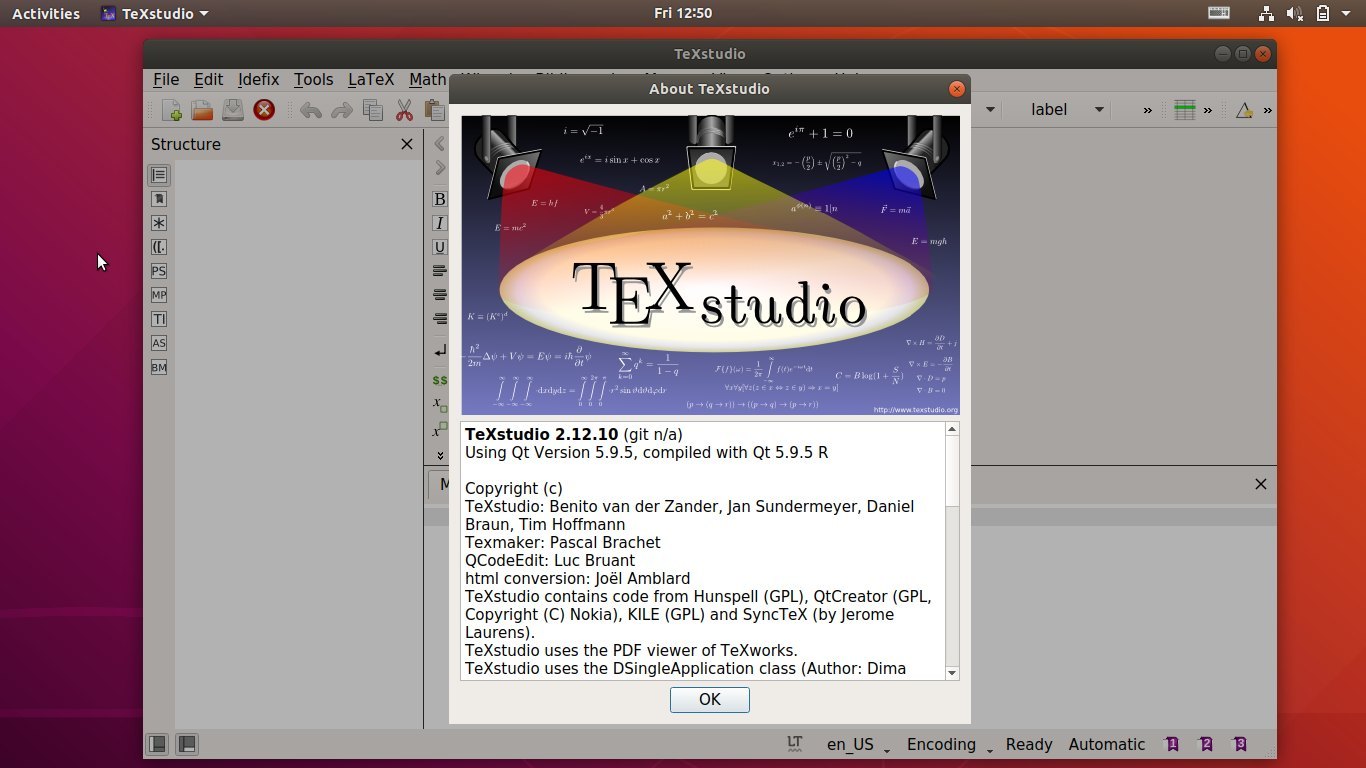
Full featured LaTeX editor TeXstudio 2.12.10 was released silently today. Here’s how to install it in Ubuntu 18.04, Ubuntu 17.10, Ubuntu 16.04, and/or Ubuntu 14.04.

No release note, no changelog. I can only find following words about TeXstudio 2.12.10:

  • bug fixes
  • fix structure view with Qt >5.10

How to Install TeXstudio 2.12.10 in Ubuntu:

There’s a PPA repository contains the latest TeXstudio packages for all current Ubuntu releases. You can do following steps to add the repository and install the latest TeXstudio.

1. Open terminal either via Ctrl+Alt+T or by searching for “terminal” from app launcher. When it opens, run command to add the PPA:

sudo add-apt-repository ppa:sunderme/texstudio

Input your password (no visual asterisks feedback while typing) when it prompts and hit enter.

2. If you’ve installed the distro’s build of TeXstudio from Ubuntu Software, you may first remove the doc, debug packages via command:

sudo apt-get remove texstudio-d*

3. Finally run commands one by one in terminal to install (or upgrade) the software:

sudo apt-get update

sudo apt-get install texstudio

Uninstall:

To remove the editor, run command in terminal:

sudo apt-get remove --autoremove texstudio

And launch Software & Updates and navigate to Other Software tab to remove PPAs.