Archives For Howtos

The first update for IntelliJ IDEA 2017.3 series was release a day ago with few bug fixes.

IntelliJ IDEA 2017.3.1 fixed:

  • Groovy: Intellisence does not work in Groovy code
  • JavaScript.Frameworks: Freezes when switching git branches

How to Install IntelliJ IDEA 2017.3.1 in Ubuntu:

There are a few ways to run the latest release of the Java IDE in Ubuntu desktop. And here are 3 of them:

method 1: Download official Linux package (NON-INSTALL), extract and run the executable to launch the IDE:

Download IntelliJ IDEA for Linux

method 2: Install the Snap package (runs in sandbox) for Ubuntu 16.04 and higher:

Open terminal via Ctrl+Alt+T or by searching ‘terminal’ from app launcher. When it opens, run command:

sudo snap install intellij-idea-community --classic

Replace intellij-idea-community with intellij-idea-ultimate for ultimate edition. And type your password (no visual feedback) when it asks.

method 3: Install the traditional .deb package via PPA to get the official Linux package and install the application shortcut automatically.

To do so, open terminal (Ctrl+Alt+T) and run following commands one by one to add the PPA and install the .deb packages:

sudo add-apt-repository ppa:ubuntuhandbook1/apps

sudo apt-get update

sudo apt-get install intellij-idea-community

Also replace intellij-idea-community in the code with intellij-idea-ultimate for ultimate edition.

Uninstall:

For the snap packages, you can either remove them from Ubuntu Software, or by running command in terminal:

sudo snap remove intellij-idea-community intellij-idea-ultimate

For the PPA packages, remove them either via Synaptic package manager, or by running command in terminal:

sudo apt-get remove --autoremove intellij-idea-community intellij-idea-ultimate

And you can remove the PPA via “Software & Updates” utility under Other Software tab.

GIMP 2.9.8, a new unstable release, an intermediate state on the way to the next GIMP 2.10, was released.

GIMP 2.9.8 introduces on-canvas gradient editing and various enhancements while focusing on bugfixing and stability.

  • Blend tool now features on-canvas gradient editing: adding, shifting, removing color stops, shifting midpoints and converting them to color stops, assignging colors to color stops, changing blending type for midpoints.
    Faster color library
  • ‘Clip Warning’ in Display Filters
  • The default brush is now “Hardness 050”.
  • OpenCL disabled by default
  • Statusbar will blink on warnings, errors
  • Screenshot for KDE/Wayland has been implemented
  • Color Picker now works on KDE/Wayland.
  • For more details, see the News page.

How to Install GIMP 2.9.x in Ubuntu:

There’s a PPA repository contains the latest development GIMP packages for Ubuntu 16.04, Ubuntu 17.04, and Ubuntu 17.10.

1. Note that GIMP 2.9.x is unstable! It should not be used in production!

2. Not sure why, the last numbers of 2.9.x, announced by GIMP team, are even numbers. But the PPA builds packages with odd version numbers (so far its GIMP 2.99).

1. Open terminal via Ctrl+Alt+T or by searching for it from app launcher. When it opens, run command to add the PPA:

sudo add-apt-repository ppa:otto-kesselgulasch/gimp-edge

Input your password (no visual feedback while typing) when it asks and hit Enter.

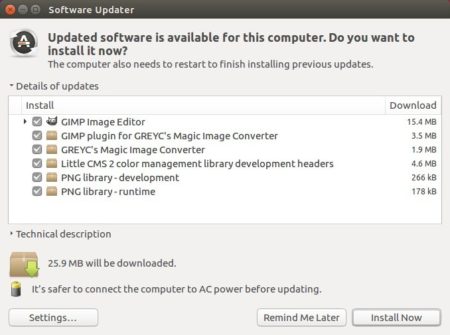
2. Then upgrade GIMP from an existing release via Software Updater utility:

or simply run commands to check updates and install GIMP:

sudo apt update

sudo apt install gimp

How to Restore:

You can easily restore GIMP image editor to the stock version (distribution build) in your Ubuntu by purging the PPA via command:

sudo apt install ppa-purge && sudo ppa-purge ppa:otto-kesselgulasch/gimp-edge

And if you want to re-install the latest stable GIMP (2.8.22 so far), see this tutorial after purging the previous PPA.

wireshark

The open-source network analyzer Wireshark 2.4.3 was released days ago on Nov 30. The stable PPA finally built the packages for all current Ubuntu releases.

Wireshark 2.4.3 is a bug-fix release. Following bugs has been fixed in the release:

  • The IWARP_MPA dissector could crash.
  • The NetBIOS dissector could crash.
  • The CIP Safety dissector could crash.
  • “tshark -G ?” doesn’t provide expected help.
  • File loading is very slow with TRANSUM dissector enabled.
  • SSL Dissection bug.
  • Wireshark crashes when exporting various files to .csv, txt and other ‘non-capture file’ formats.
  • RLC reassembly doesn’t work for RLC over UDP heuristic dissector.
  • HTTP Object export fails with long extension (possibly query string).
  • 3GPP Civic Address not displayed in Packet Details.
  • PEEKREMOTE dissector does not decode 11ac MCS rates properly.
  • Wireshark Crash when trying to use Preferences | Advanced.
  • Read the release note for more.

How to Install Wireshark 2.4.3 in Ubuntu:

Wireshark has a stable PPA with the latest packages for Ubuntu 14.04, Ubuntu 16.04, Ubuntu 17.04, and Ubuntu 17.10, though the title says only Ubuntu 17.10.

1. To add the PPA, open terminal from Unity Dash / App Launcher, or via Ctrl+Alt+T shortcut keys, and then run command:

sudo add-apt-repository ppa:wireshark-dev/stable

Type in your password (no visual feedback due to security reason) when it asks and hit Enter.

wireshark-official-ppa

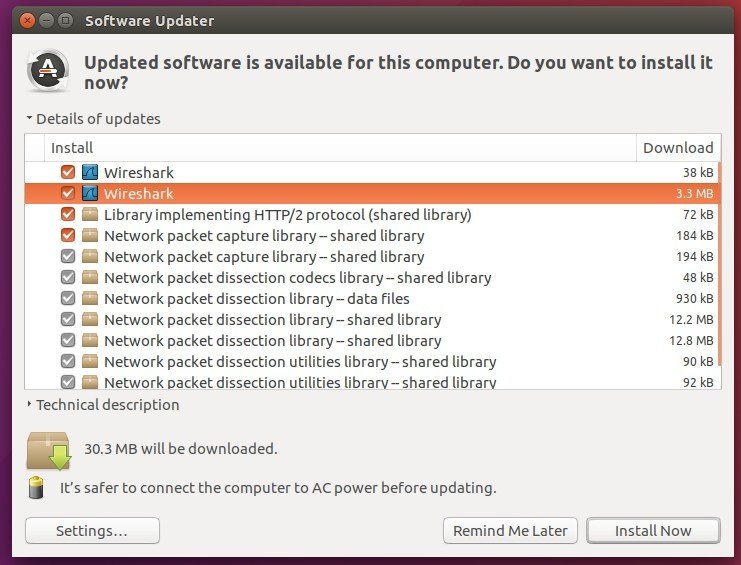
2. For those who have a previous release installed, launch Software Updater (or Update Manager) to upgrade it to the latest:

upgrade wireshark

Or run the commands below in terminal to install / upgrade wireshark:

sudo apt-get update

sudo apt-get install wireshark

How to restore:

To restore to the stock version of Wireshark in Ubuntu main repositories, purge the PPA via ppa-purge tool:

sudo apt-get install ppa-purge && sudo ppa-purge ppa:wireshark-dev/stable

Audacity audio editor reached the 2.2.1 release a few days ago with performance improvements and various bug-fixes.

Audacity 2.2.1 adds ability to change the colorway of the waveforms displayed in your project. The setting is per track and not per project so you can have multiple colorways in the same project.

Other changes in Audacity 2.2.1:

  • File menu called “Save Other” is reverted “Export”
  • Fix crash applying certain chain files
  • Fix MIDI playback timing / synchronisation problems for Linux
  • Fix Quick Play loops fail to start at click position
  • Fix auto-scroll stopped working issue in 2.2.0
  • And various other bug-fixes.

How to Install Audacity 2.2.1 in Ubuntu:

The Audacity team does not offer pre-compiled Linux binaries. Besides building from source, a third-party PPA is available with Audacity 2.2.0 for Ubuntu 16.04, Ubuntu 17.04, Ubuntu 17.10, and Ubuntu 18.04

1. Open terminal via Ctrl+Alt+T or by searching for ‘terminal’ from app launcher. When it opens, run command:

sudo add-apt-repository ppa:ubuntuhandbook1/audacity

Input your password (no visual feedback while typing) when it prompts and hit Enter to add the PPA.

audacity ppa

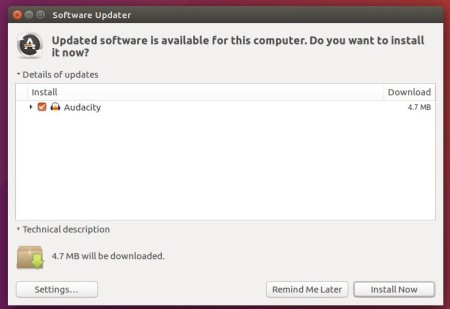
2. If you have a previous version installed, you can upgrade Audacity via Software Updater after adding the PPA.

upgrade audacity

or run following commands one by one to check updates and install (or upgrade) audacity 2.2:

sudo apt-get update

sudo apt-get install audacity

Uninstall:

To remove the PPA repository, launch Software & Updates utility and navigate to ‘Other Software’ tab.

To remove Audacity audio software, either use system package manager or run command in terminal:

sudo apt-get remove --autoremove audacity audacity-data

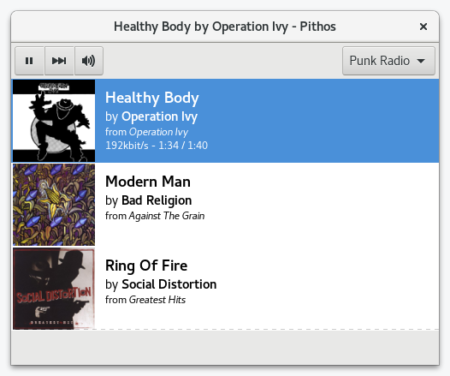
Pithos, a native Pandora Radio client for Linux, reached the 1.4.1 release days ago with performance improvements and some bug-fixes.

Changes in Pithos 1.4.1 include:

  • Change default quality to high (mp3)
  • Mark application as DBusActivatable
  • MPRIS: Fix potential unhandled exception
  • Handle keyboards with a dedicated pause key
  • Fix media keys support on GNOME-Shell 3.26+ and MATE
  • Improve behavior on various notification servers

How to Install Pithos 1.4.1 in Ubuntu:

There’s no PPA with the latest Pithos build at the moment. Besides building from source tarball, the easiest way is to install its Flatpak app.

See this how-to install Pithos flatpak app in Ubuntu 16.04 and higher.

MAME (Multiple Arcade Machine Emulator) reached the 0.192 release. Here’s how to install it via PPA in Ubuntu 17.04, Ubuntu 17.10.

MAME is a free and open source emulator designed to recreate the hardware of arcade game systems in software on modern personal computers and other platforms.

The latest MAME 0.192 was release a few days ago with following changes:

  • Supports Oriental Legend 2 and Knights of Valour 2 New Legend
  • The MCU for Ping Pong King is simulated
  • Flower and Taito’s abstract maze game Marine Date are emulated better.
  • Missing graphics in the Merit Megatouch games fixed.
  • graphical fixes for FM Towns
  • heaps of improvements for the Tatung Einstein
  • No-Slot Clock support for the Apple //e family
  • support for some Brazilian CoCo clones from Prológica and Codimex.
  • The ACI Destiny Prodigy, Mephisto RISC 1MB and Mephisto RISC II chess computers are now working.

How to Install MAME 0.192 in Ubuntu:

There’s an unofficial PPA contains the latest packages for Ubuntu 17.04, and Ubuntu 17.10 so far. Unfortunately, Ubuntu 16.04 build is not updated any more since version 0.189.

1. Open terminal either via Ctrl+Alt+T or by searching for ‘terminal’ form app launcher. When it opens, run command:

sudo add-apt-repository ppa:c.falco/mame

Input your password (no visual feedback) when it prompts and hit Enter to continue adding the PPA.

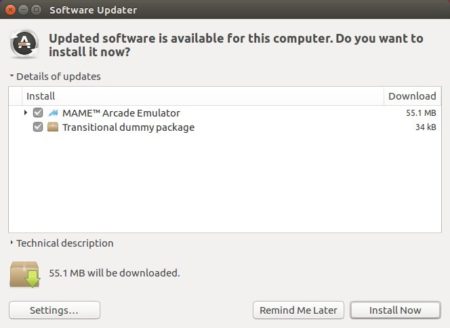
2. Then upgrade the emulator via Software Updater utility if you have a previous release installed.

or run commands one by one in terminal to install it:

sudo apt-get update

sudo apt-get install mame

Uninstall:

To remove MAME emulator, run following command in terminal:

sudo apt-get remove --autoremove mame

To remove the PPA, launch ‘Software & Updates’ utility and navigate to Other Software tab.

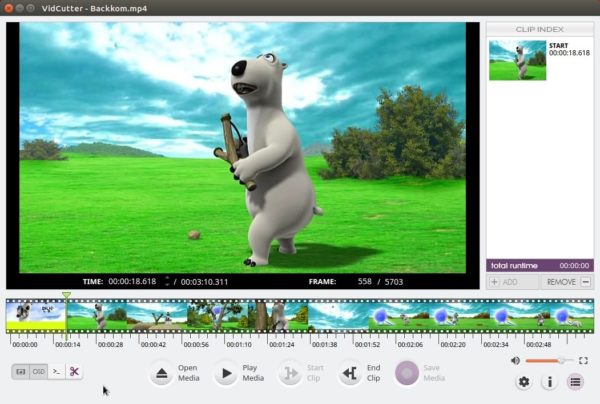
Free and open-source video cutting and joining software, Vidcutter 5.0.5, was released a few hours ago.

The new release is mainly for users of the AppImage binary which has been overhauled and tested on Ubuntu 14.04, 15.04 + KDE Neon.

Other changes include:

  • AppImage contains latest nightly binary of FFmpeg so SmartCut will work properly.
  • fixed timeline slider tooltip displaying issue.
  • Removal of Python 3 OpenGL module to allow app to work on Linux distros containing older 3.0.1 versions of the module.

How to Install Vidcutter 5.0.5 in Ubuntu:

For Ubuntu 14.04 users, grab .Appimage from the ‘Downloads’ section in the link below:

Vidcutter on Github

The Appimage is a single file with most run-time and dependency libraries bundled. To run it, do:

  • Right-click and go to its Properties -> Permissions window.
  • Check the box says ‘allow executing file as program’.
  • And right-click and run the Appimage to launch Vidcutter.

For Ubuntu 16.04 and higher users, Vidcutter can be installed via its official PPA.

1. Open terminal either via Ctrl+Alt+T or by searching for ‘terminal’ form app launcher. When it opens, run command:

sudo add-apt-repository ppa:ozmartian/apps

Input your password (no visual feedback while typing) when it prompts and hit Enter.

2. Then install Vidcutter either via your system package manager or run command:

sudo apt-get update; sudo apt-get install vidcutter

Uninstall:

To remove the PPA, open ‘Software & Updates’ utility and navigate to Other Software tab.

To remove the video cutting software, either use your system package manger or run command:

sudo apt-get remove --autoremove vidcutter

Liferea Feed Reader

The open-source Liferea feed reader finally reached the new stable 1.12.0 release after months of development. Here’s how to install it in Ubuntu 16.04, Ubuntu 17.04, Ubuntu 17.10, Ubuntu 18.04.

Liferea 1.12.0 release highlights:

  • Wide view is now default view
  • HTML view now has a ‘View Image’ context menu
  • Redesign of the wide view: large icons with teaser text for better using 16:9 screen ratios and making Liferea usable on touchscreen
  • Optional AMP / HTML5 rich content fetching feature
  • Upgrade to WebKit2: This is an important security improvement!
  • Added a “Do Not Track” preference (disabled per-default)
  • Reordered columns in ‘Normal’ email-like view to have the date column always at the end
  • Plugins switched to Python3 libpeas loader
  • Full screen support for videos
  • Simplified external browser support
  • Experimental support for InoReader and Reedah online services
  • Added category/folder support for TheOldReader
  • Added folder auto-removal for TinyTinyRSS & TheOldReader
  • Removed libindicate, libnotify code, tray icon code (re-added as a plugins)
  • Some important bug-fixes.

Liferea 1.12.0

How to Install Liferea 1.12.0 in Ubuntu:

For Ubuntu 16.04 and higher, you can easily install the new release from this PPA repository.

1. Open terminal either via Ctrl+Alt+T or by searching for ‘terminal’ from app launcher. When it opens, run command:

sudo add-apt-repository ppa:ubuntuhandbook1/apps

Type your password (no visual feedback while typing) when it asks and hit Enter.

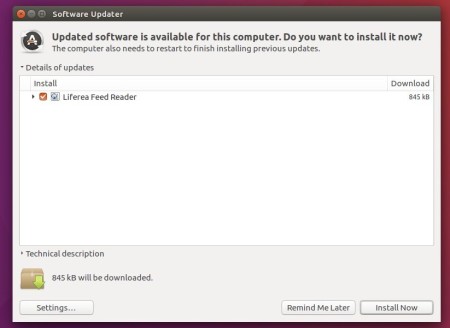
2. Then upgrade Liferea via Software Updater utility:

upgrade Liferea via Software Updater

or run commands one by one to install the Linux feed reader:

sudo apt-get update

sudo apt-get install liferea

Uninstall Liferea:

To remove the software, either use your system package manager or run command:

sudo apt-get remove --autoremove liferea

To remove the PPA repository, open “Software & Updates” utility and navigate to Other Software tab.

Jet Brains announced the release of IntelliJ IDEA 2017.3 earlier today. Here’s how to install it in Ubuntu 14.04, Ubuntu 16.04, Ubuntu 17.10, and Ubuntu 18.04.

IntelliJ IDEA 2017.3 is a new massive release that includes loads of new features and dozens of important bugfixes. See the release note for details.

How to Install IntelliJ IDEA 2017.3 in Ubuntu:

There are a few ways to run the latest release of the Java IDE in Ubuntu desktop. And here are 3 of them:

method 1: Download official Linux package (NON-INSTALL), extract and run the executable to launch the IDE:

Download IntelliJ IDEA for Linux

method 2: Install the Snap package for Ubuntu 16.04 and higher:

Open terminal via Ctrl+Alt+T or by searching ‘terminal’ from app launcher. When it opens, run command:

sudo snap install intellij-idea-community --classic

Replace intellij-idea-community with intellij-idea-ultimate for ultimate edition. And type your password (no visual feedback) when it asks.

method 3: Install the traditional .deb package via PPA to get the official Linux package and install the application shortcut automatically.

To do so, open terminal (Ctrl+Alt+T) and run following commands one by one to add the PPA and install the .deb packages:

sudo add-apt-repository ppa:ubuntuhandbook1/apps

sudo apt-get update

sudo apt-get install intellij-idea-community

Also replace intellij-idea-community in the code with intellij-idea-ultimate for ultimate edition.

Uninstall:

For the snap packages, you can either remove them from Ubuntu Software, or by running command in terminal:

sudo snap remove intellij-idea-community intellij-idea-ultimate

For the PPA packages, remove them either via Synaptic package manager, or by running command in terminal:

sudo apt-get remove --autoremove intellij-idea-community intellij-idea-ultimate

And you can remove the PPA via “Software & Updates” utility under Other Software tab.

PyCharm IDE

Jet Brains announced the release of PyCharm 2017.3 earlier today. Here’s how to install it in Ubuntu 16.04, Ubuntu 17.04, Ubuntu 17.10, Ubuntu 18.04.

PyCharm 2017.3 release highlights:

  • Performance improvements: Python indexing is twice as fast, JavaScript indexing is up to 40% faster, configuring SSH interpreters is much faster (in some cases over 100x), and more!
  • The new release makes creating and selecting Python interpreters easier.
  • A new scientific mode, which puts all the tools you need for data science at your fingertips (professional version only)
  • An all new HTTP client for those who build (REST) APIs.
  • Fully supports for Django 2.0 (professional edition only)
  • Supports running Python modules (python -m )
  • Supports for SSH config files

How to Install PyCharm 2017.3 in Ubuntu:

You can easily run the new release in Ubuntu via either:

method 1: official Linux binaries. NON-INSTALL version, just extract and run executable file to launch the IDE:

Download PyCharm Linux binary

method 2 (recommended): or install the Snap package. WELL integrated with Ubuntu. Support for Ubuntu 16.04 and higher:

Simply open terminal via Ctrl+Alt+T or by searching for ‘terminal’ from app launcher. When it opens, run command:

sudo snap install pycharm-community --classic

For sudo prompts, input your password (no visual feedback while typing) when it asks and hit Enter.

For professional edition, run following command instead:

sudo snap install pycharm-professional --classic

Once installed, launch the IDE from your application launcher and enjoy!

Uninstall:

To remove the snap packages, either use Ubuntu Software or run command in terminal:

sudo snap remove pycharm-community pycharm-professional