Archives For Howtos

This tutorial shows how to set custom screen resolution in current Ubuntu releases, including Ubuntu 20.04, Ubuntu 22.04, and Ubuntu 24.04, on either Wayland or Xorg session.

So this tutorial is going to show you another way to add your favorite screen resolution if it’s not available in Display settings.

In the case, I’ve the default 1920X1080 (16:9) resolution. However, I prefer 1600X900 (16:9) a little more which is not available in settings.

Before getting started:

In this tutorial I’m going to add video mode option as Kernel parameter. The good side is that it works on both Wayland and Xorg.

Downsides includes:

  • You can’t set custom resolution higher than the maximum one in Display settings. In my case (see the picture above), X resolution must be less than 1920, and Y resolution have to less than 1080.
  • If you have dual-boot or multi-boot systems, below steps may not work for “other Linux” in Grub boot menu. For instance, I’ve Ubuntu 21.04 and Ubuntu 20.04 dual-boot in my laptop, the startup boot menu is handled by Grub for Ubuntu 21.04. It lists Ubuntu 21.04 as the first menu entry, custom Kernel parameter does not work for Ubuntu 20.04 in my case.

And after adding the parameter, the custom resolution should appear in Display settings, 1600×900 for instance:

How to Tell the Display Device Name in Ubuntu:

Firstly, you have to find out the current Display name. To do so, open terminal from the system application launcher:

When terminal opens, run command:

for p in /sys/class/drm/*/status; do con=${p%/status}; \
echo -n "${con#*/card?-}: "; cat $p; done

This is a single command separated into 2 lines. It checks all the sub-folders under ‘/sys/class/drm‘ directory. For the sub-folder includes ‘status‘ file with ‘connected‘ as content, the folder name exclude ‘card?-‘ part is the device name we need.

As the picture shows, it’s eDP-1 in my case.

DON”T edit the files

How to add video mode kernel parameter:

Option 1.) edit Grub configuration file.

a.) Open terminal from system app launcher. When it opens, run command to edit the config file:

sudo gnome-text-editor /etc/default/grub

Replace gnome-text-editor depends on your DE or Ubuntu edition, such as gedit for Ubuntu 22.04 and earlier, or nano command line text editor for most desktops.

When it opens, add video=eDP-1:1600×900@60, in my case, as value for “GRUB_CMDLINE_LINUX_DEFAULT”.

IMPORTANT: you have replace video=eDP-1:1600×900@60:

  • eDP-1 is the Display Device Name, you can find it in previous step.
  • 1600×900 is the desired screen resolution. Replace it with yours.
  • 60 is the refresh rate. It’s OK to skip it, so it will be video=eDP-1:1600×900

There are more flags for the video mode kernel parameter. See the documentation for detail.

b.) After saving the changes (for nano, press Ctrl+S, then Ctrl+X.) Finally apply changes by running command:

sudo update-grub

And reboot.

Option 2.) use Grub Customizer:

Grub-Customizer, the popular graphical tool offers an option to add the Kernel parameter.

Install it from Ubuntu Software if you don’t have it. Then launch it and navigate to General Settings tab. Finally add the value and click on Save button.

Set Custom Resolution for Multiple Displays:

If you have multiple monitors connected to your Ubuntu machine. It’s OK to set one screen resolution for all displays, or use more “video=” parameter for each display.

a.) To set one screen resolution for all displays, just skip the device name. For instance:

video=1600x900@60

It will add 1600×900 screen resolution with 60 Hz refresh rate for all the connected displays.

b.) To add more “video=” parameter. For instance, I have two displays: eDP-1 and DP-1 connected. And to add 1360×700 for eDP-1 and 1600×900 for DP-1, use:

video=eDP-1:1360x700@60 video=DP-1:1600x900@60

That’s all. Enjoy!

ubuntu bootable usb

Want to create a bootable live-USB for installing Ubuntu on your machine? Well, here’s how to do it in Windows, Linux, or Mac OS.

I used to use UNetbootin to create bootable Live USB. However, the USB drive does not boot after writing with recent Ubuntu ISO images. So here I’m going to introduce you few other USB writing tools.

Though I prefer the style of Ventoy, it however does not install in my USB stick for unknown reason. If you need bootable USB with other data transfer usage unaffected, try it!

Requirements:

Firstly you need an USB stick with at least 4 GB storage. And backup your data before getting started.

Also a PC, Laptop / Notebook, or even Raspberry Pi running Linux, Windows, or Mac OS.

And download Ubuntu ISO image from either releases.ubuntu.com or ubuntu.com/download

Create Bootable USB from Ubuntu:

If you’re now working on Ubuntu, that’s great, simply search for and launch Startup Disk Creator. Other Ubuntu based systems can get it by installing the usb-creator-gtk package.

When the tool opens, click on “Other …” and select the Ubuntu ISO image. Plug-in USB stick and it will auto-detect it.

Finally click on “Make Startup Disk“, click OK to confirm and type your user password to get start.

When done, it should prompt you installation complete. That’s it.

Create Bootable USB from Other Linux, Windows, Mac OS.

For all other systems I’d recommend USBimager if no system built-in tool available, though there are many other USB creating tools in the web.

USBimager is a free and open-source tool with really simple interface. It small in package size with less than 200 KB. And it works on old systems, minimum system required Windows XP, Mac OS 10.13. Also it’s available for Raspberry Pi.

1.) Firstly select download the USBImager package from your system:

2.) Then install and/or launch the tool, select ISO image via three dots “…” button and choose your USB stick from drop-down menu after plugged in.

Finally click on “Write” to start creating the USB installer.

The bottom bar will show the process info with data size and time left.

When done, you’ll see “Done. Image written successfully in xxx” message in the bottom.

That’s it. Enjoy!

Got a deb file download from the web? This is a beginner’s guide shows you how to install the file in Ubuntu.

DEB is the software package format for Debian / Ubuntu based systems. Besides Ubuntu main / universe repositories and Ubuntu PPAs, some applications offer .deb files for downloading in their project pages or websites.

Option 1.) Directly install via double-click.

Like EXE file for Windows, you can simply double click on a deb file. By default, it opens Ubuntu Software with an option to install the software package.

This is the easiest way. However Ubuntu Software is buggy, it’s one of the top core apps being criticized for years.

Option 2.) Use Gdebi Package Installer.

Gdebi package installer is the most recommended way to handle .deb packages. It’s default in Linux Mint. Ubuntu users can either install it from Ubuntu Software or by running command in terminal (Ctrl+Alt+T):

sudo apt install gdebi

After installed it, just right-click on a deb file, select “Open With Other Application” and choose Gdebi package installer to open the file.

When Gdebi opens, it shows the package details including app description, dependency libraries, and installed files. To install it, click on “Install Package” button.

And a ‘Remove Package’ button will be available once you installed it.

Option 3.) Using apt command:

Apt is the most commonly used command to install, remove, and manage software packages from Ubuntu repositories, PPAs, and third-party apt repositories.

It seems to start from Ubuntu 20.04, the apt command added support for installing local deb files.

Firstly, right-click on blank area of the folder that contains the deb file. Then select ‘Open in Terminal’

When terminal opens, run command to install local deb file:

sudo apt install ./PACKAGE_NAME.deb

You can use wildcard character * in file name. In my case, the command can be:

sudo apt install ./giara_0.3*.deb

Option 4.) Using dpkg command:

dpkg is the command line package manager for Debian. I used to use the command to install local deb files in Ubuntu. The downside is that dpkg does not install missing dependency packages automatically.

To install a deb file via dpkg command, run:

sudo dpkg -i /path/to/file_name.deb

Same to the previous option, you can use “Open in Terminal” option to open folder in terminal and then run command:

sudo dpkg -i giara_0.3*.deb

Since it does not handle dependency automatically, the command often output error and leave package unconfigured. You have to run one more command to fix it:

sudo apt -f install

Conclusion:

Since Ubuntu Software is buggy and dpkg command does not handle dependency packages, Gdebi and apt command can be the best choices to install local deb file in Ubuntu via either graphical or command line.

Ubuntu 18.04

Ubuntu 21.04 Hirsute Hippo was officially released! For Ubuntu 20.10 users, here’s how to upgrade your system to the new edition.

Same to the previous version, Ubuntu 21.04 is a short term release with 9 month support. It’s powered by Linux Kernel 5.11 with following features:

  • Microsoft Active Directory integration
  • Use wayland as default session, while Xorg is still available.
  • Dark Gnome Shell Theme by default.
  • Use Desktop Icons NG extension for drag & drop support.
  • Use nftables as default firewall backend.
  • Add support for smartcard authentication
  • Toolchain and core application updates.

How to Upgrade Ubuntu 20.10 to Ubuntu 21.04:

1.) First of all, make backup of all your important data.

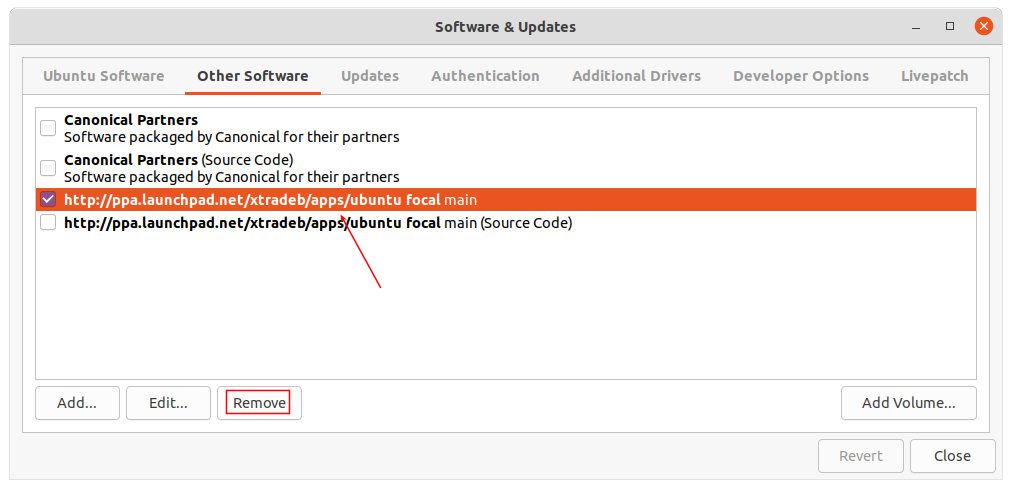
2.) Then disable or remove Ubuntu PPAs, or third-party repositories. To do so, open Software & Updates utility and go to Other Software tab.

3.) Next navigate to Updates tab, make sure the value of “Notify me a new Ubuntu version” is set to “For any new version“.

4.) If proprietary drivers are in use, it’s recommended to switch to the open-source drivers under Additional Drivers tab.

5.) Press Ctrl+Alt+T on keyboard to open terminal, and run command to install all system updates:

sudo apt update && sudo apt upgrade

6.) Restart your machine, then open terminal and run command:

update-manager -d

The Software Updater will pop-up and prompt you that Ubuntu 21.04 is available.

7.) Click on “Upgrade” button and confirm after reading the release note dialog.

NOTE: though the release note says Hirsute Hippo development branch. It did upgrade to Ubuntu 21.04 final edition in my test.

After that, it starts downloading the release upgrade tool:

8.) Finally, you’re at the system upgrade wizard:

Before “Getting new packages“, it will again ask for confirmation. And your WON’T be able to cancel the upgrading process once you click on “Start Upgrade” button.

9.) Depends on network speed and system resources, the upgrading process can even take a few hours. However, there will be one or two confirm dialog during the process. So DON’T leave your machine too far, you have to keep an eye on it.

When everything’s done successfully, it will prompt to restart the machine to complete the process.

That’s it. Enjoy!

Prefer Plank dock launcher? Dash-to-Plank is the GNOME Shell extension to integrate it in Ubuntu.

Besides Dash-to-Dock and Dash-to-Panel, this is the third ‘Dash-to’ extension I’ve heard about. It’s Gnome Shell integration for Plank, the simplest dock on the planet.
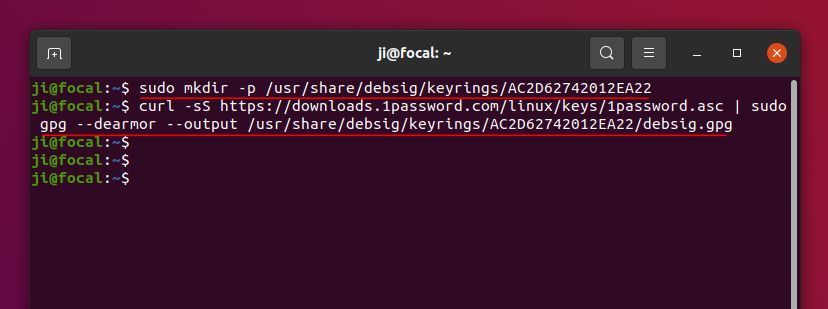
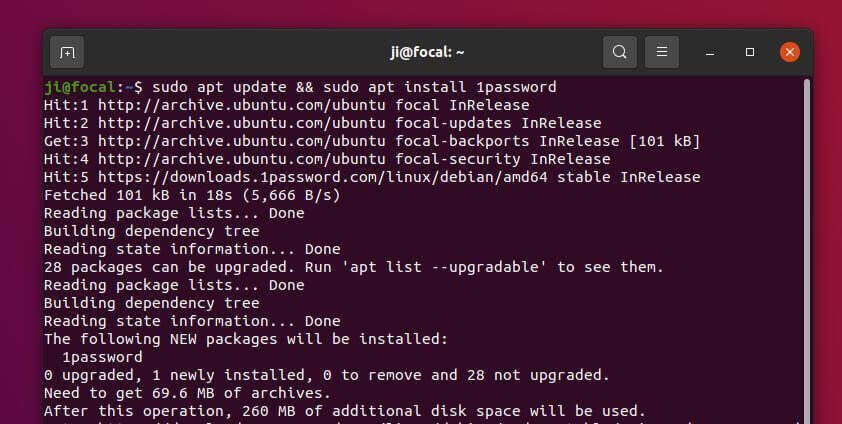
Why Plank?

For me, the only reason to use Plank instead of Ubuntu Dock (Dash-to-Dock) is that there are tons of Plank themes available in the web, so I can change its look and feel at will.

Install Dash-to-Plank:

1.) Firstly, you have to install plank by running command in terminal (press Ctrl+Alt+T to open terminal):

sudo apt install plank

Though I’m not sure, before installing the extension system restart is required.

2.) Install the chrome-gnome-shell package if you’re first time to install a Gnome Shell extension.

sudo apt install chrome-gnome-shell

3.) Finally go to the extension web page and turn on the toggle icon to install it.

Don’t see the toggle icon? Click the link ‘Click here to install browser extension’ to install browser extension and refresh the web page.

That’s it!

In addition, the extension does not remove the default Ubuntu Dock. To get rid of it, disable ‘Dash’ via another extension.

3 Ways to Check Your Wi-Fi Password in Ubuntu

Last updated: April 20, 2021

wifi hotspot

Forgot your wireless access point password? Well, there are a few ways to find it out in Ubuntu.

Option 1.) Using system’s wifi settings:

Firstly, if your Ubuntu is running with the default desktop environment. Simply go to Wi-Fi settings from system tray menu:

Then click on the gear button after the current connected access point to get into settings page. Navigate to the Security tab, and finally tick “Show password” check out to get the password.

Option 2.) Get Wi-Fi password via connection profiles:

For other desktop environments or command line, navigate to /etc/NetworkManager/system-connections directory either in file manager or by running command in terminal:

cd /etc/NetworkManager/system-connections && ls

There you’ll see all saved network connections. Just open the desired one with your favorite text editor (need root permission) or by running command:

sudo cat FILENAME.connection

When file opens, you’ll see the password under wifi-security section.

Option 3.) Single command to tell Wi-Fi password:

If you don’t hate Linux command, you can run this single command to print the current connected Wi-Fi password:

nmcli device wifi show-password

The command will work on all Linux systems. And it outputs a QR code for sharing with your friends.

gThumb, GNOME image viewer and organizer, released version 3.11.3 a few days ago. Here’s how to install it in Ubuntu 20.04, Ubuntu 18.04, Ubuntu 20.10 via PPA.

gThumb 3.11.3 adds support for JPEG XL – the next generation image coding standard.

JPEG XL (.jxl) is based on ideas from Google’s Pik format and Cloudinary’s FUIF format. It is the next-generation, general-purpose image compression codec by the JPEG committee. Some popular apps, e.g., ImageMagick, XnView MP, have already added support for the image format.

gThumb now opens the .jxl image format through the libjxl library.

Other changes in the release include:

  • Added file actions to the viewer context menu.
  • Removed facebook and picasaweb uploaders
  • Fixed issue that continuously reloads image when it is only image in folder
  • Webp can have transparency as well.
  • New and updated translations.

How to Install gThumb 3.11.3 in Ubuntu via PPA:

For Ubuntu 18.04 (64-bit), Ubuntu 20.04, Ubuntu 20.10, Ubuntu 21.04, Linux Mint 19.x, 20.x, you can install the new release packages via the unofficial PPA.

NOTE for Ubuntu 21.04: It seems to have bug (not sure) in libjxl when building against Clang 11.0.1. So gThumb packge for 21.04 was built without JPEG XL support.

1.) To add the PPA, open terminal from system application launcher, and run command:

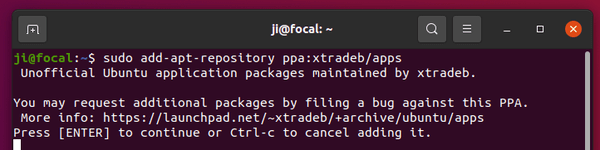
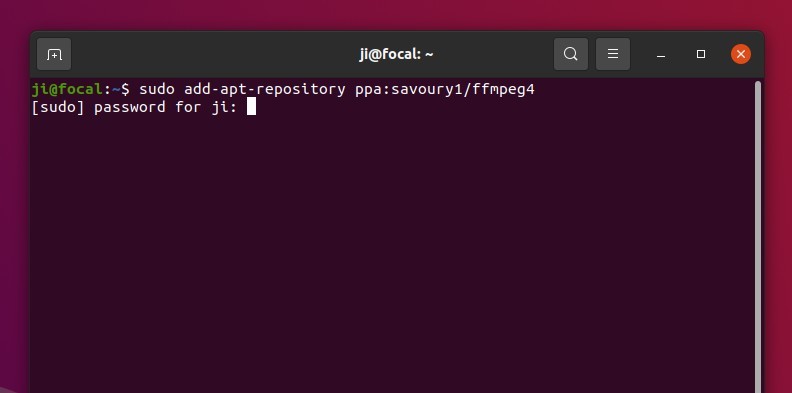
sudo add-apt-repository ppa:ubuntuhandbook1/apps

2.) You can then either upgrade the image viewer from an old version via Update Manager (Software Updater), or run command in terminal:

sudo apt install gthumb

Uninstall gThumb & the Ubuntu PPA

To remove gThumb image viewer, run command:

sudo apt remove --autoremove gthumb gthumb-data

To remove the Ubuntu PPA, either run the apt-add-repository command with --remove flag, or use Software & Updates -> Other Software.

Starting in Ubuntu 21.04, when user trying to open file or path via GVfs admin daemon it outputs an error and refuses to work.

This usually happens when you use “Open as Administrator” or “Edit as Administrator” to open folder or edit file via root. Or when you trying to access another user folder in system, and even using nautilus admin://, gedit admin://, or other commands in your script or console.

It usually outputs an error look like this:

GDBus.Error:org.freedesktop.PolicyKit1.Error.Failed: Unix process subject does not have uid set

The issue is caused by a gvfs commit to fix flatpak app network permission requirement problem. To get rid of the error (see bug), reverting just that one commit could be a workaround.

Method 1: Install old GVfs from Ubuntu 20.10 repository:

You can download & install the gvfs .deb packages for the previous Ubuntu 20.10. And here are the links for 64-bit system:

gvfs_1.46.1-1ubuntu1_amd64.deb

gvfs-libs_1.46.1-1ubuntu1_amd64.deb

gvfs-fuse_1.46.1-1ubuntu1_amd64.deb

gvfs-daemons_1.46.1-1ubuntu1_amd64.deb

gvfs-common_1.46.1-1ubuntu1_all.deb

gvfs-backends_1.46.1-1ubuntu1_amd64.deb

Grab the 6 packages, then open terminal (Ctrl+Alt+T) and run command to install all of them:

sudo apt install ./Downloads/gvfs*.deb

Method 2: upgrade GVfs via PPA (recommend):

Upstream has fixed the issue by releasing GVfs 1.48.1. Ubuntu somehow stuck at v1.47.91 in Ubuntu 21.10 & 21.04.

Besides building from the source, I’ve uploaded it into this PPA to make life easier.

1. Open terminal either by searching from activities overview screen or by pressing Ctrl+Alt+T on keyboard. When it opens, run command to add the PPA:

sudo add-apt-repository ppa:ubuntuhandbook1/gvfs

2. Then either upgrade GVfs via “Software Updater” or run the apt command in terminal:

sudo apt install gvfs

After installing the new packages, Log out and back in to apply change.

How to Restore GVfs to stock version:

If you change mind, and want to revert it back, simply run command in terminal to purge the PPA which will downgrade the installed packages:

sudo apt install ppa-purge && sudo ppa-purge ppa:ubuntuhandbook1/gvfs

That’s all. Enjoy!

Want to get Google search suggestions in your system search results? There’s now an extension to enable the feature in Gnome Desktop.

Google Search Provider is the extension inspired by DuckDuckGo Search Provider. With it, typing any keyword in the Activities overview or ‘Show Applications’ search box will display Google search suggestions. And you can click to open the result in your favorite web browser.

How to Install the Extension in Ubuntu:

The Gnome Shell extension so far supports Gnome 3.36 & 3.38, so it should work in Ubuntu 20.04, Ubuntu 20.10, and the upcoming Ubuntu 21.04.

1.) Firstly open terminal (Ctrl+Alt+T) and run command to install the chrome-gnome-shell package if you don’t have it:

sudo apt install chrome-gnome-shell

2.) Next go to the extension web page in web browser, and turn on the toggle icon to install it.

If you don’t see the toggle icon, click the link “Click here to install browser extension” and refresh the web page afterward.

Uninstall Gnome Shell Extension

To remove the extension, either go to the web page again or use Extensions tool, which can be installed via sudo apt install gnome-shell-extension-prefs command.

Want to try out the new Gnome 40 Desktop? You can install it in Ubuntu 21.04 Hirsute Hippo via PPA.

Gnome 40 was released more than a week ago with new features including new design for the overview screen, a horizontal workspace switcher, Dock at the bottom, new gestures, and more.

While Ubuntu 21.04 includes Gnome 3.38.x with some Gnome 40 core applications, you can get the new desktop environment via this third-party PPA.

WARNING: GNOME 40 is not yet officially supported in Ubuntu 21.04. The PPA packages is just for testing purpose! Use it at your own risk!

1.) Firstly open terminal by pressing Ctrl+Alt+T on keyboard. When it opens, run command to add the PPA:

sudo add-apt-repository ppa:shemgp/gnome-40

Type your user password (no asterisk feedback) when it asks and hit Enter to continue.

2.) After adding the PPA, run command to upgrade the mutter window manager:

sudo apt install mutter

You can follow the command in the PPA description, which adds the package version in the code. It however just works with the package name only.

3.) Then install Gnome Shell 40 via command:

sudo apt install gnome-shell

4.) As the default Yaru theme is not updated for Gnome 40, you have to install and use Gnome Session instead of the Ubuntu Session. To install it, run command:

sudo apt install gnome-session

5.) And run command for the rest packages:

sudo apt upgrade

Finally reboot your machine. When you’re in login screen, DO SELECT “Gnome” or “Gnome on Xorg” before logging in. To do so, select your user and then click the gear button in the bottom-right and select Gnome in popup menu.

How to Uninstall Gnome 40:

To remove the new Gnome Desktop and revert back to the original v3.38.x, run command to purge the Ubuntu PPA:

sudo apt install ppa-purge && sudo ppa-purge ppa:shemgp/gnome-40

And if you no longer use the Gnome Session from login screen, remove it via command:

sudo apt remove gnome-session