Archives For PDF annotator

Xournal++, the free open-source open source handwriting app and PDF annotator, released new 1.3.6 version today for Linux, Windows, and macOS.

The new version of this GTK3 based application added official installer package for Ubuntu 26.04 LTS, though Ubuntu has already included the app (an old version) in the system repository.

Continue Reading…

Xournal++, open-source handwriting notetaking software with PDF annotation support, released 1.0.5 a few days ago. Here’s how to install it in Ubuntu 16.04, Ubuntu 18.04, and higher.

Xournal++ is written in C++ with GTK3. It supports pen input from devices such as Wacom Tablets, and features:

  • Support for annotating PDFs
  • PDF Export (with and without paper style)
  • PNG Export (with and without transparent background)
  • LaTeX support (requires a working LaTeX install)
  • Audio recording and playback alongside with handwritten notes
  • Plugins using LUA Scripting
  • And much more other features.

Xournal++ 1.0.4 was released a week ago, quickly followed by a minor 1.0.15 release. It includes many bugfixes as well as some quality-of-life enhancements and new experimental floating toolbox.

How to Install Xournal++ 1.0.5 in Ubuntu:

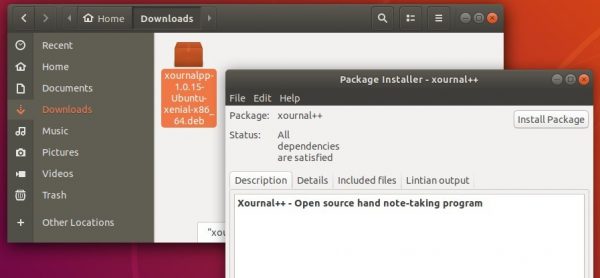
For Ubuntu 16.04 and Ubuntu 18.04 64-bit, the official xournalpp-1.0.15-Ubuntu-xenial-x86_64.deb package is available to download at the link below:

Download Xournal++

Install “Gdebi package installer” from Ubuntu Software, and click install the Xournal++ .deb package via Gdebi.

Other ways:

Git builds of Xournal++ snap package (runs in sandbox) is also available in Ubuntu Software for Ubuntu 18.04 and higher.

Flathub repository offers version 1.0.5 of Xournal++ flatpak package (runs in sandbox) for Ubuntu 18.04 and higher.

MuPDF Ubuntu 16.04

MuPDF 1.14.0, a lightweight PDF, XPS, and E-book viewer, was released today with new features, UI improvements and other changes.

Changes in MuPDF 1.14.0 include:

  • Added “Source Han Serif” CJK fallback font.
  • Added more scripts to the Noto fallback fonts.
  • Multi-page PNM support.
  • “mutool show” now supports a path syntax for selecting objects to show.
  • New annotation editing mode in mupdf-gl.
  • Can create, edit, and delete most annotation types.
  • Can create appearance streams for most annotation types, Tx form fields, Ch form fields.
  • And UI improvements, API changes, and other more.

How to Install MuPDF 1.14.0 in Ubuntu:

The unofficial PPA contains the most recent MuPDF packages for Ubuntu 16.04, Ubuntu 18.04, Linux Mint 18/19 so far.

MuPDF 1.14.0 package is delayed due to a building issue. I’ll update the PPA once a patch for the issue published.

UPDATE: The new release package now is ready to install via following steps in Ubuntu 16.04, Ubuntu 18.04, Ubuntu 18.10, and their derivatives.

1. Open terminal by pressing Ctrl+Alt+T or searching for “Terminal” from start menu. When it opens, run command to add the PPA:

sudo add-apt-repository ppa:ubuntuhandbook1/apps

Type in password (no asterisks feedback due to security reason) when it asks and hit Enter.

2. Then install mupdf and mupdf-tools packages either via Synaptic Package Manager or by running following commands in terminal:

sudo apt-get update

sudo apt-get install mupdf mupdf-tools

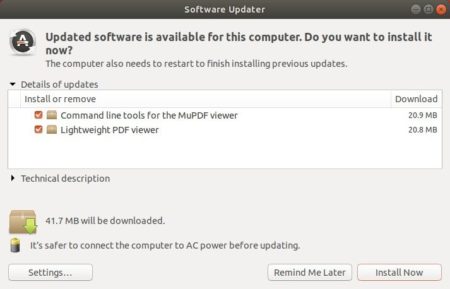
If you have a previous release installed, simply launch Software Updater to upgrade the tool after checking for updates.
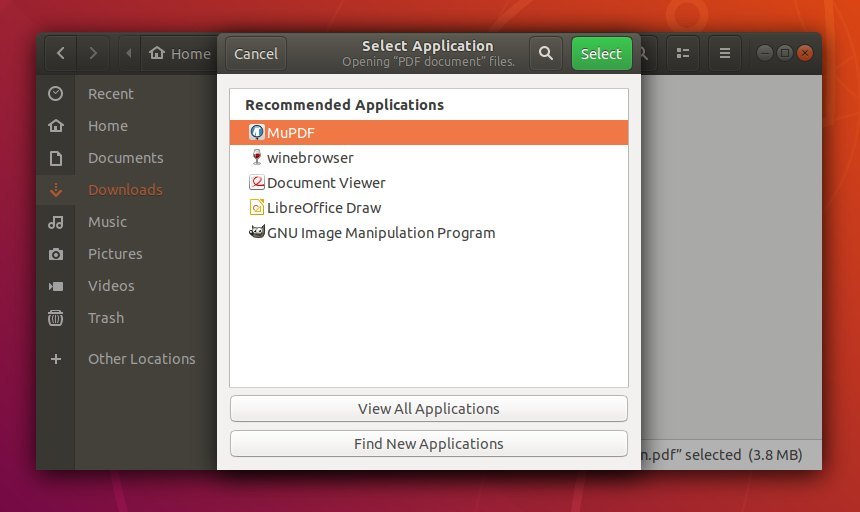
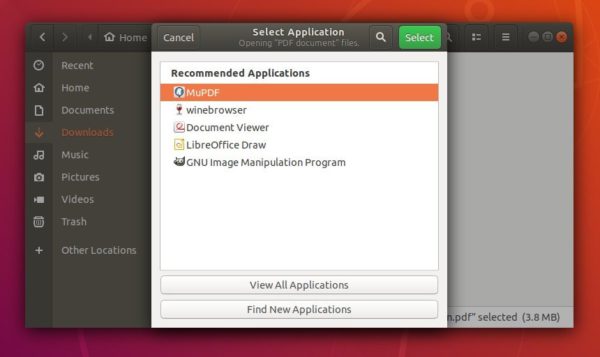
To use the PDF/XPS viewer, right-click on your file and select open with MuPDF. You can also set MuPDF as default in the Properties window.
Uninstall:

To restore MuPDF to the stock version available in your Ubuntu’s main archive, run command in terminal to purge the PPA:

sudo apt-get install ppa-purge && sudo ppa-purge ppa:ubuntuhandbook1/apps

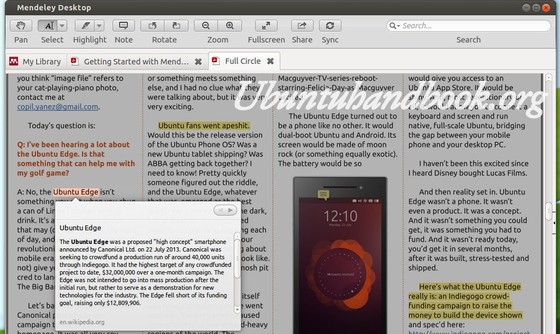
Want to annotate PDF file in Linux systems? Well, Mendeley Desktop is one of the best choice. Besides being able to highlight & add note to text / rectangle of PDF, it can also display definition of selected text from en.wikipedia.org, share the document via E-mail and sync library with Mendeley Web.

Mendeley Desktop

Features:

Mendeley is available as a basic free version, and also in premium payable versions.

  • Mendeley Desktop, based on Qt, runs on Windows, Mac and Linux.
  • Automatic extraction of metadata from PDF papers.
  • Back-up and synchronization across multiple computers and with a private online account.
  • PDF viewer with sticky notes, text highlighting and full-screen reading.
  • Full-text search across papers.
  • Smart filtering, tagging and automatic PDF file renaming.
  • Citations and bibliographies in Microsoft Word, OpenOffice.org and LibreOffice.
  • Import of documents and research papers from external websites (e.g., PubMed, Google Scholar, Arxiv) via browser bookmarklet.
  • BibTeX export/file sync
  • Private groups to collaboratively tag and annotate research papers.
  • Public groups to share reading lists.
  • Social networking features (newsfeeds, comments, profile pages, etc.).
  • Usage-based readership statistics about papers, authors and publications.
  • iPhone app
  • iPad app
  • Install Mendeley Desktop in Ubuntu & Other Linux OSs

    For Ubuntu 13.10, Ubuntu 13.04, Ubuntu 12.04, Linux Mint, Elementary OS and others, download the DEB from the link below:

    Mendeley Desktop for Ubuntu 32-bit | Ubuntu 64-bit

    You may check your system type (32-bit or 64-bit) via System Settings ->Details utility. Once downloaded, install it via below command in terminal (Ctrl+Alt+T).

    sudo dpkg -i ~/Downloads/mendeleydesktop_*-stable_*.deb

    During installation, the Mendeley Ubuntu repository will be added to your list of software sources. You can then use the standard Ubuntu/Debian software update tools to keep Mendeley up to date.

    For other Linux, Windows, and Mac, download Mendeley Desktop installer from this page.