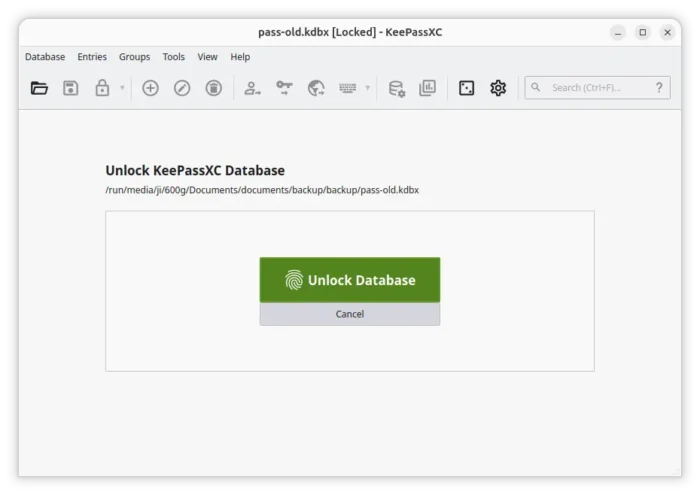
KeePassXC, the community fork of KeePass Password Safe, finally released new 2.8.0 version after a month of beta testing.
The new version of this popular cross-platform password manager finally migrated its UI from Qt5 to Qt6 for better graphics capabilities, HiDPI and HDR multi-monitor improvements, and robust Wayland support.
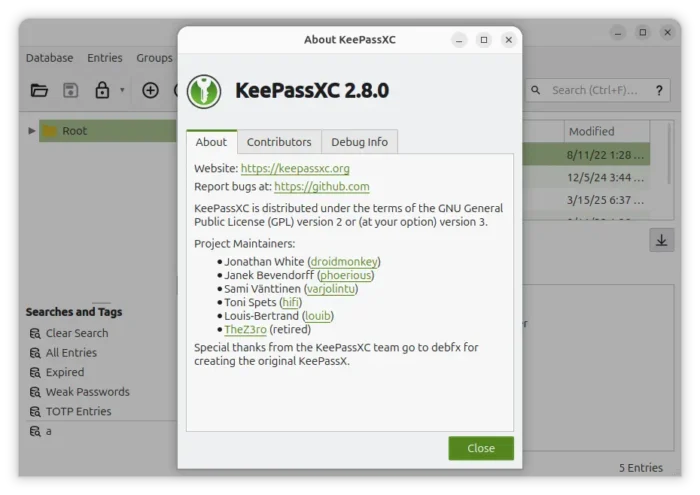
The “Import” dialog now includes a new Remote Database (.kdbx) option, allowing to access database files from remote computers through either sftp or scp protocols.
Not only accessing remote databases through secure shell file transfer protocols, it also support remote sync the database that’s accessed with the scp/sftp protocol. And, a configurable timeout for the remote process is available in settings.
For Linux Wayland, the session that’s default in recent GNOME and KDE Plasma desktops, it now has Auto-Type support by using XDG Desktop Portals.
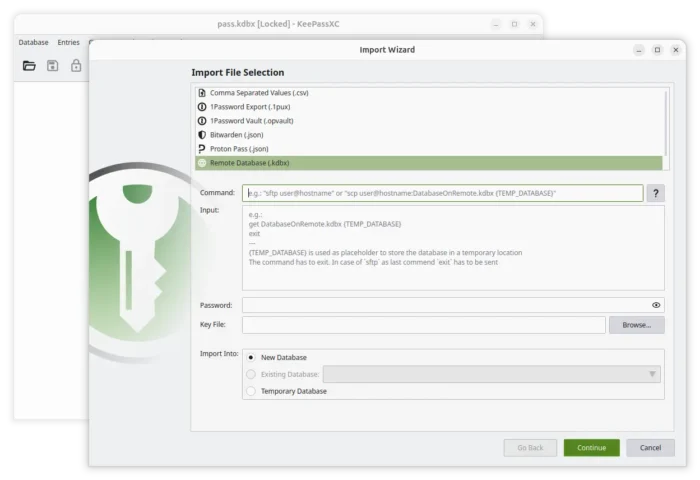
It also introduced Polkit Quick Unlock feature. Parity with macOS Touch ID and Windows Hello, the feature allows Linux users to use fingerprint to unlock database quickly.
As well, it improved the AppImage package with better desktop integration, updated Snap package with Linux kernel keyring integration, and fixed a timing-related bug that could cause dark mode to be detected incorrectly.
For Windows, it added native Arm64 support. Meaning the password manager can now run in Surface, XPS 13, etc laptops with Snapdragon X Elite processors.
Other changes include:
- ARM64 version of AppImage support.
- Support generating SSH keys, so far RSA, ECDSA and Ed25519 supported.
- Configurable Keyboard Shortcuts.
- Fallback to Device Password when Touch-ID no available in macOS.
- More entry types in Proton Pass importer.
Get KeePassXC 2.8.0
The official release note as well as the installers for Linux, Windows, and macOS are available in the Github releases page via the link below:
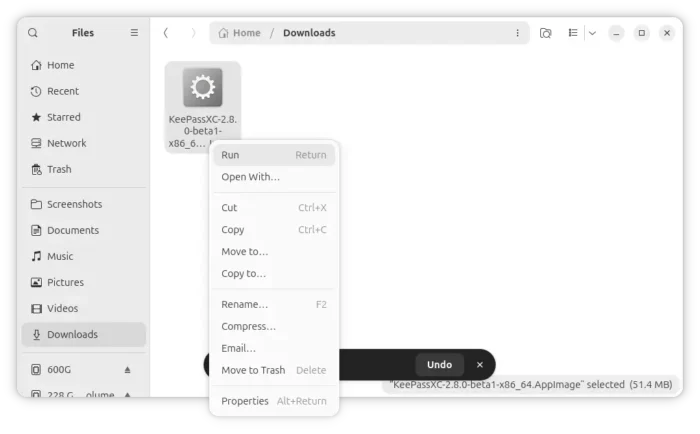
For Linux, select download the AppImage, add executable permission from its Properties dialog, finally run to launch the password manager.
Though, Ubuntu since 22.04 needs to install libfuse2 by running the command below in a terminal window to enable AppImage support:
sudo apt install libfuse2