Archives For Howtos

RawTherapee

RawTherapee RAW image editor released version 5.5 last night with exciting new features. Here’s how to install it in Ubuntu 18.10, Ubuntu 18.04.

RawTherapee 5.5 release highlights:

  • Filter to remove striping artifacts and banding artifacts for any camera has a PDAF entry in camconst.json.
  • Ability to specify custom working color spaces through the workingspaces.json file.
  • Unbounded processing – allows you to decide whether out-of-gamut colors should get clipped.
  • New Shadows/Highlights tool (replaced previous one).
  • Contrast threshold mask which divides an image into areas of high and low detail, allowing the effect of certain tools (Sharpening, Post-Resize Sharpening, Microcontrast, Demosaicing) to be focused where it matters most and to mitigate the effect on areas where it would be undesirable.
  • Dual-demosaic algorithms, making use of the new contrast threshold mask, allowing one to use a combination of demosaicing algorithms where one is best for details and the other best for plain areas.
  • New color toning methods: Grid and Regions
  • Support for Blackmagic and Canon Magic Lantern lj92 encoded files.
  • New Soft Light tool which enhances contrast and saturation by emulating the effect of blending an image with a copy of itself in “soft light” blending mode in GIMP.
  • New Haze Removal tool to reduce the effects of haze or fog.
  • The Resize tool allows you to specify whether you want it to upscale or only downscale.
  • New icon and cursor theme. New cameras support, and new input color profiles.
  • Other new features, enhancements, and bug fixes.

Download / Install RawTherapee 5.5 in Ubuntu:

The official Linux Appimage, single executable file to launch the software, is available for download at the link below:

Download RawTherapee (Linux Appimage)

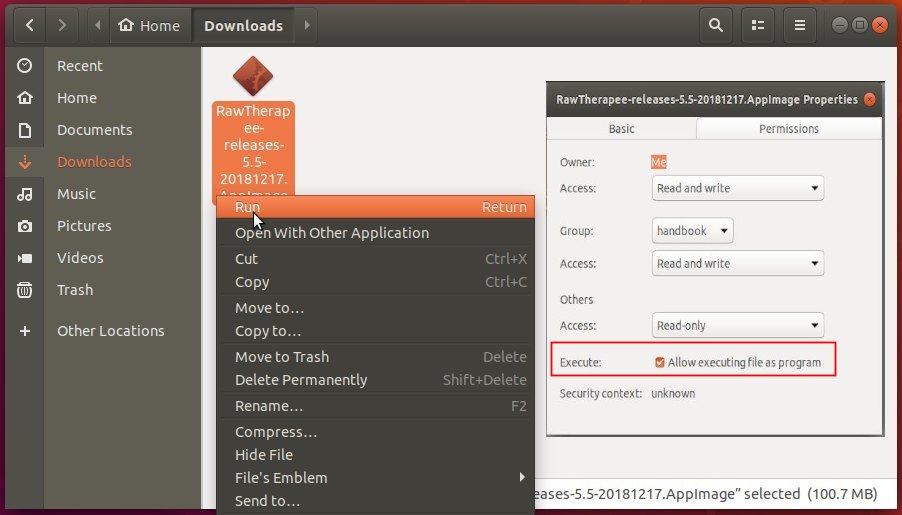
Go to file’s properties, allow executable file as program, and finally run it to launch RawTherapee 5.5.
There are also a few PPA repositories that contain RawTherapee packages for Ubuntu. I’ll update the tutorial once the 5.5 release package is available.

UPDATE: For Ubuntu 18.04, Ubuntu 18.10, Linux Mint 19.x, you can install RawTherapee 5.5 via the unofficial PPA.

1. Open terminal either via Ctrl+Alt+T keyboard shortcut or by searching for “Terminal” from app launcher. When it opens, run command:

sudo add-apt-repository ppa:dhor/myway

Input your password (no asterisks feedback when typing) when it prompts and hit Enter to add the PPA.

2. After that, upgrade the software via Software Updater if a previous version was installed:
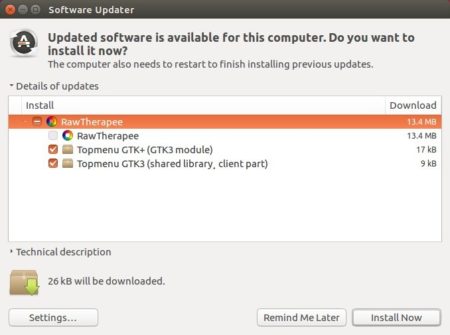
The upgrading process may be kept back if you were installing it from Ubuntu Software.

A workaround is simply running following commands instead to install or upgrade RawTherapee:

sudo apt-get install rawtherapee

How to Remove:

To uninstall the free raw developer, run command in terminal:

sudo apt-get remove --autoremove rawtherapee

And remove the PPA via Software & Updates utility under Other Software tab, by removing the line says “http://ppa.launchpad.net/dhor/myway/ubuntu”.


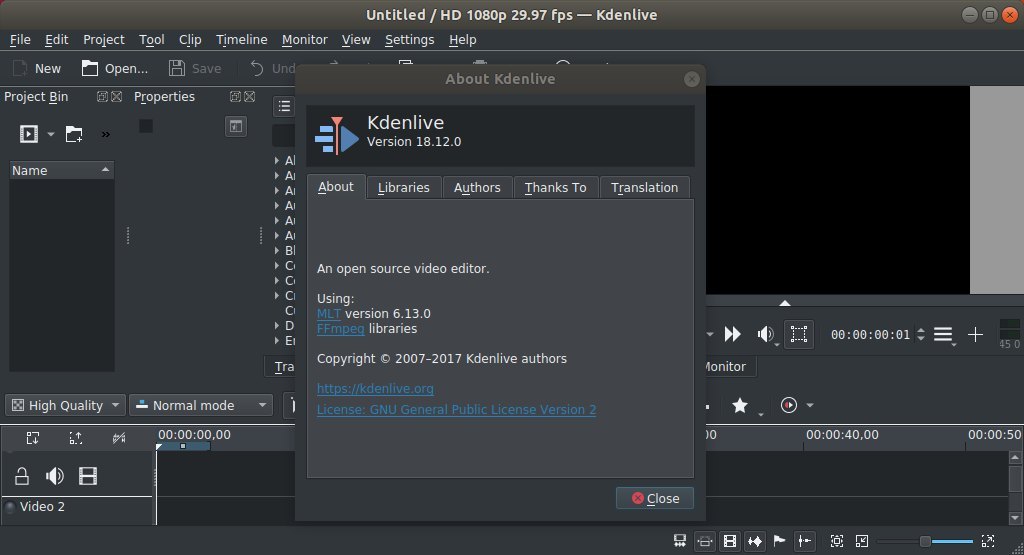
Kdenlive, KDE Non-Linear Video Editor, released version 18.12 a few days ago with some crashes fixed and other improvements.
Kdenlive 18.12 release highlights:

  • Backport crash on image sequence import.
  • Backport fix for titler text gradient.
  • Add donation url to appdata.
  • Fix minor EBN issues and typos.
  • Fix play/pause on Windows.
  • Sync quickstart manual with UserBase.
  • Install doc files.
  • Make it compiles when we use QT_NO_NARROWING_CONVERSIONS_IN_CONNECT.
  • Fix minor EBN issues.

Download / Install Kdenlive 18.12 in Ubuntu:

Before Kdenlive stable PPA and/or the flathub repository building the latest packages for Ubuntu Linux, you can download the Appimage from the link below:

Download Kenlive Appimage

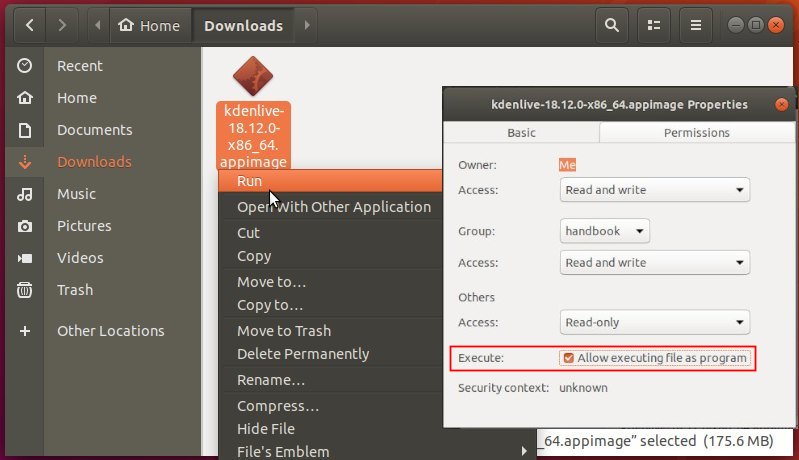
Make it executable in the Appimage file properties, and run to launch the video editor.

Vivaldi web browser released version 2.2 yesterday with more tabs management functionality, more configurable toolbars, and other new features.

Vivaldi 2.2 release highlights:

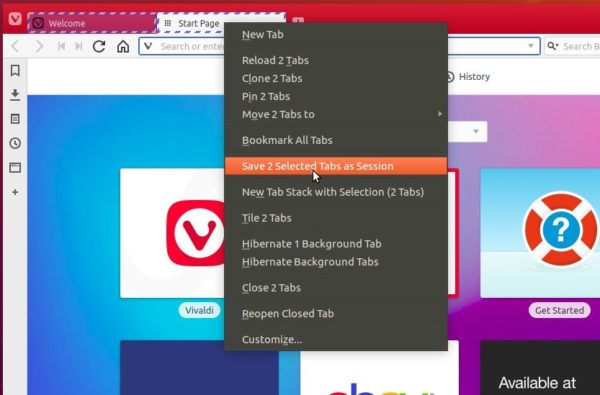
  • Add ‘Save select tabs as Session’ in context menu.
  • Add numbered accelerators to elements in main Window menu
  • Middle clicking in Back/Forward history drop-down should open the page in new tab
  • Add search box in speed dial.
  • Show a list of closed tabs using Quick Commands by typing “Show Closed Tabs”
  • Enable pop out video (Picture in Picture)
  • Better ‘Netflix’ support for Linux
  • Add a new ‘Customize’ context menu for any button on the toolbar.
  • Mute all other tabs via the tab context menu
  • For more, see the relese note.

How to Install Vivaldi 2.2 in Ubuntu:

The official Ubuntu .DEB packages are available for download at the link below:

Download Vivaldi (DEB)

Grab the deb matches your OS, then install it via Ubuntu Software or Gdebi package manager. Or run command in terminal:

sudo dpkg -i ~/Downloads/vivaldi-stable_2.2*.deb

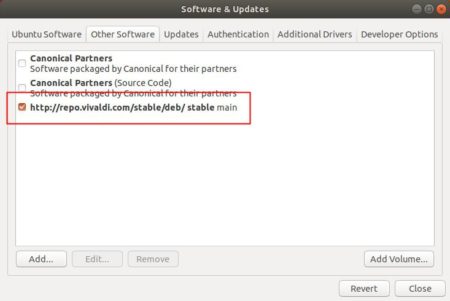
In addition, after installed the .deb package, you can enable Vivaldi apt repository (Softare & Updates -> Other Software) to receive future updates through Software Updater:

Blender 2.79

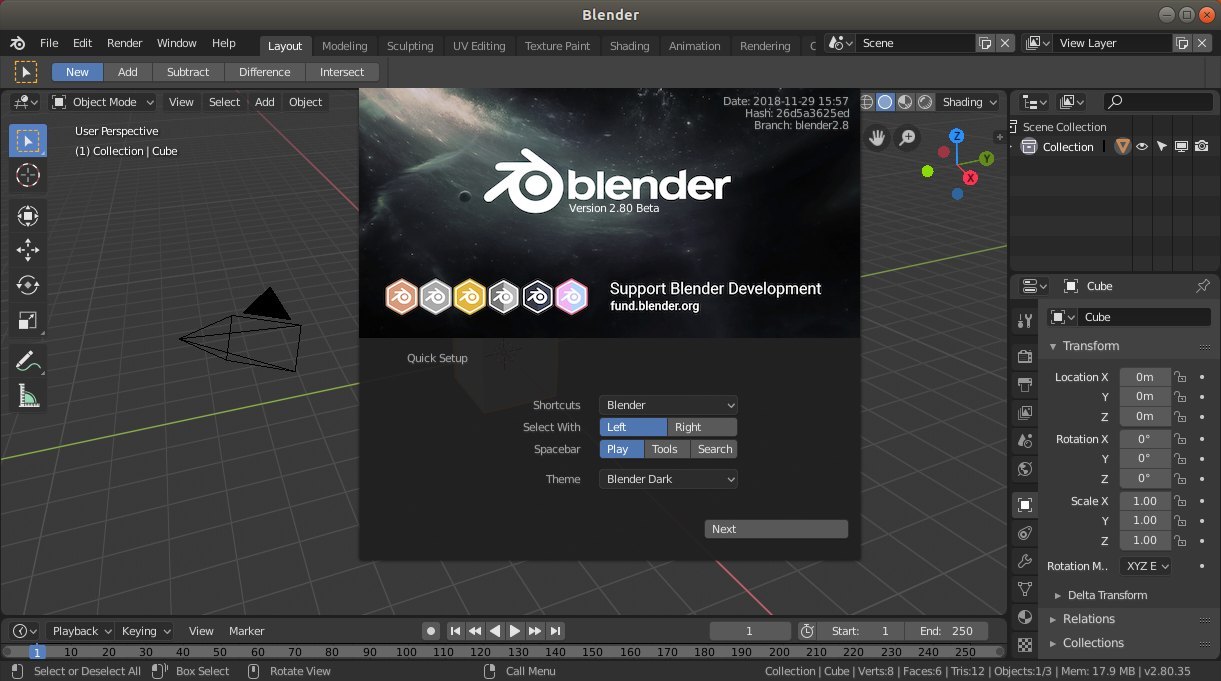
While the next Blender 2.80 stable is scheduled to be released on early 2019, Blender 2.80 Beta package now is available for testing.

What’s new in Blender 2.80:

  • A revamped user interface
  • A new physically based realtime renderer: EEVEE
  • A new, modern 3D viewport.
  • Blender’s 2D drawing capabilities has been greatly improved
  • A new collection system, and more

Download / Install Blender 2.80 Beta in Ubuntu:

To help testing Blender 2.80, you can either download the official Linux package from the link below:

Download Blender

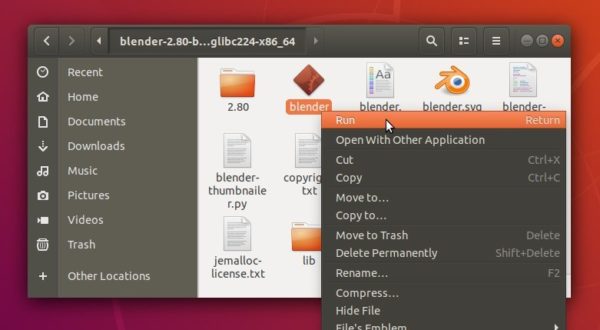
After downloaded the Linux package, simply extract and run the executable to launch the program.

Or install the Blender snap package maintained by Gustavo Niemeyer.

Open terminal via Ctrl+Alt+T keyboard shortcut and run command to install the Blender snap beta package:

snap install blender --channel=beta --classic

The snap package auto-updates itself once a new release package published by maintainer, though the current package is a few days older than the official Linux package.

To remove the Blender snap package, run command:

snap remove blender

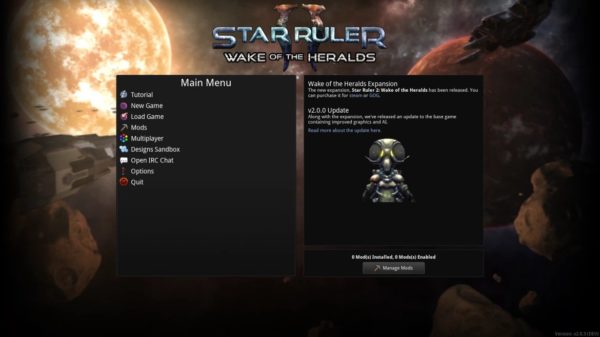
Star Ruler 2, a space 4X / RTS hybrid developed by Blind Mind Studios, now can easily installed in Ubuntu 16.04, Ubuntu 18.04 and higher via Snap package.

Explore dozens, hundreds, or even thousands of systems in a galaxy of your choosing, expand across its planets, exploit the resources you find, and ultimately exterminate any who stand in your way. The fate of your empire depends on your ability to master the economy, field a military, influence galactic politics, and learn what you can about the universe.

Star Ruler 2 Snap is a containerised software packages runs in most Linux desktop. It bundles most dependency libraries and auto-updates itself once a new release package published.

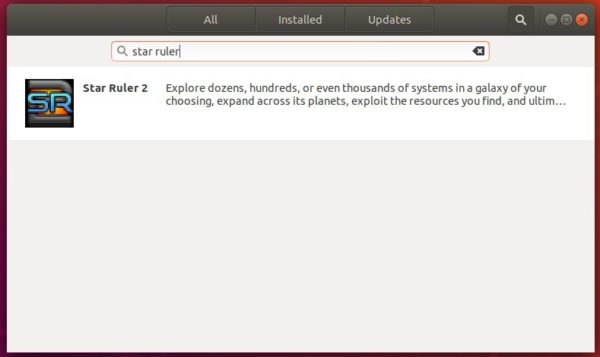
To install Star Ruler 2 snap package in Ubuntu 18.04 & higher, simple open Ubuntu Software, search for and install the game package:

For Ubuntu 16.04, open terminal (Ctrl+Alt+T) and run command to install snapd first:

sudo apt install snapd snapd-xdg-open

then install the snap via command:

sudo snap install starruler2

Uninstall:

To remove the software package, either use Ubuntu Software or run command:

sudo snap remove starruler2

gnome shell

This quick tutorial is going to show you how to increase or decrease the default Gnome Shell animation speed in Ubuntu 18.04, Ubuntu 18.04, and higher.

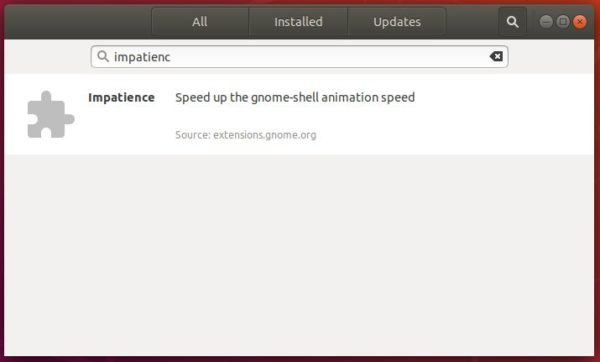
There is a Gnome Shell extension called impatience can do the job. It can be easily installed in Ubuntu via Ubuntu Software.

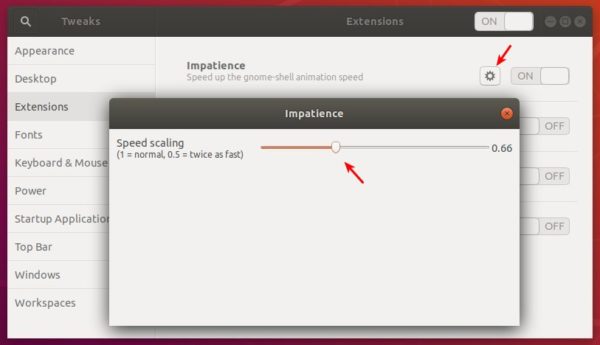
After installed the extension, go to its settings via Gnome Tweaks (available in Ubuntu Software).

Then change the speed scaling value < 1 to speed up the animation, > 1 to slow down desktop animation.

This simple tutorial shows how to install the latest Brave web browser in Ubuntu 21.10, Ubuntu 20.04, Ubuntu 18.04, Linux Mint 20.

Brave is a free and open-source web browser based on Chromium. It features faster page loading speed, and blocks ads and trackers by default.

The browser offers an official apt repository. So Ubuntu, Debian, and Linux Mint based systems can easily install the software and receive updates via built-in update manager utility.

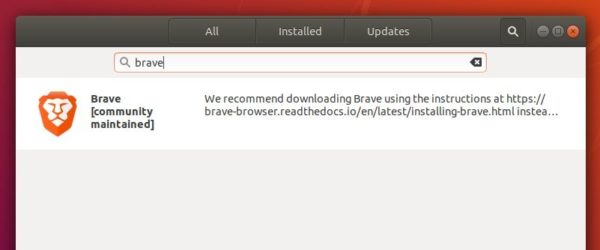
To make things easier, Ubuntu 18.04 and higher can install the community maintained Brave snap package directly from Ubuntu Software.

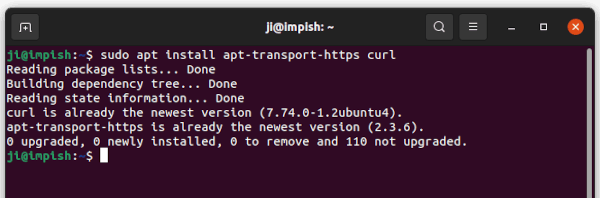
1. Firstly, search for and open “terminal” from your system start menu. When it opens, paste the command below into terminal and hit Enter:

sudo apt install apt-transport-https curl

Type user password (no asterisk feedback) and hit Enter. It will add https support for apt package manager and install curl to grab the GPG key.

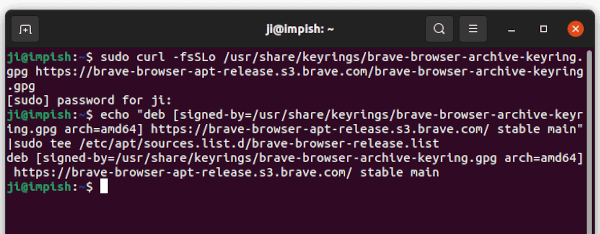
2. Next copy and paste the command below, and run to download & install the GPG key:

sudo curl -fsSLo /usr/share/keyrings/brave-browser-archive-keyring.gpg https://brave-browser-apt-release.s3.brave.com/brave-browser-archive-keyring.gpg

And run command to add the apt repository to your system. So far, only 64-bit PC / laptop is supported.

echo "deb [signed-by=/usr/share/keyrings/brave-browser-archive-keyring.gpg arch=amd64] https://brave-browser-apt-release.s3.brave.com/ stable main"|sudo tee /etc/apt/sources.list.d/brave-browser-release.list

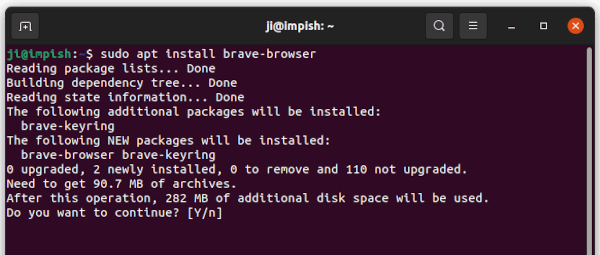
3. Finally refresh system cache and install the web browser by running the commands one by one:

sudo apt update

sudo apt install brave-browser

Uninstall Brave & Apt Repository:

To remove the Brave web browser, run command in terminal:

sudo apt remove --autoremove brave-browser

Unlike PPA, Brave’s apt repository does not list in Software & Updates utility under Other Software tab. However, you can remove the config file easily by running command in terminal:

sudo rm /etc/apt/sources.list.d/brave-browser-release.list

PyCharm 2018.3.1 Released with Various Bug Fixes

Last updated: December 6, 2018

PyCharm IDE

PyCharm IDE released version 2018.3.1 one day ago with various bug fixes. Here’s how to install it in Ubuntu 16.04 and higher.

PyCharm 2018.3.1 release highlights:

  • A fix for the recently added WSL support in PyCharm 2018.3
  • An issue where PyCharm couldn’t correctly authenticate over SSH using a passphrase-protected private key has been resolved.
  • A few fixes for Docker and Docker Compose
  • Fixes for the embedded terminal
  • Many fixes coming from WebStorm, DataGrip and IntelliJ IDEA

How to Install PyCharm 2018.3.1 in Ubuntu:

Jetbrains offers official Snap package for Linux desktop, which keeps the IDE always up-to-date.

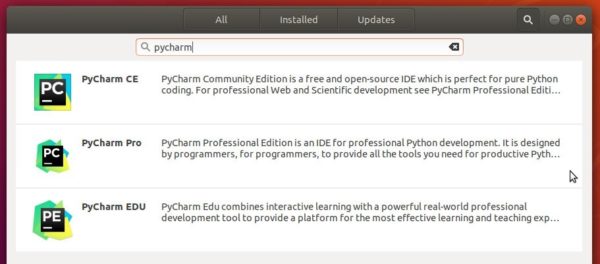
For Ubuntu 18.04 and higher, simply open Ubuntu Software, search for and install pycharm packages:

For Ubuntu 16.04, open terminal (Ctrl+Alt+T) and install snapd daemon via command:

sudo apt install snapd snapd-xdg-open

Then install PyCharm snap package via command:

sudo snap install pycharm-community --classic

In the command replace pycharm-community with pycharm-professional for the professional edition.

Uninstall:

To remove the PyCharm snap package, either use Ubuntu Software or run command in terminal:

sudo snap remove pycharm-professional pycharm-community

Liferea News Reader 1.12.6 Released (Ubuntu PPA)

Last updated: December 4, 2018

Liferea Feed Reader

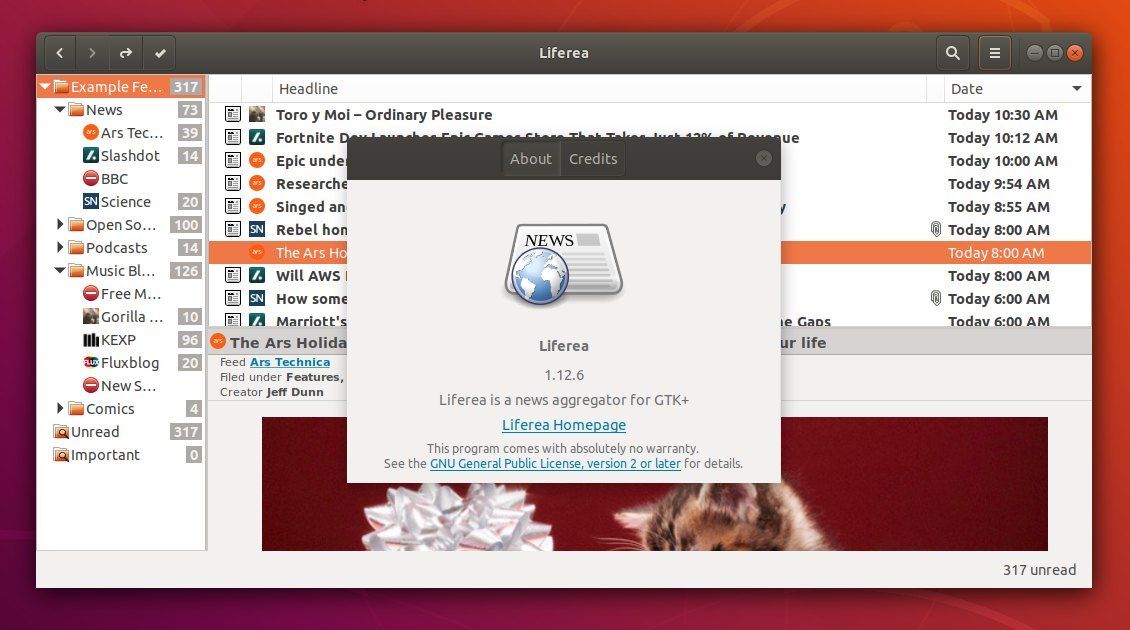
Liferea (Linux Feed Reader) 1.12.6 was released day. Here’s how to install it in Ubuntu 18.04, Ubuntu 16.04, Ubuntu 18.10.

Liferea 1.12.6 is a new bug-fix release which resolves several usability problems.

  • Add confirmation dialog when adding duplicate subscription
  • Fix that when resuming from sleep feeds were being fetched before Wifi came up
  • Fix Headerbar plugin “Mark All Read” button is not feed-specific
  • Fix scrollbars not always present in the headline area
  • Fix that Next update overrides HTML5 enrichment
  • Fix overly wide label in enclosure preferences dialog
  • Dropped unencrypted warning from auth dialog (not true anymore)
  • Adding translatable tooltips for the headerbar plugin

How to Install Liferea 1.12.6 in Ubuntu:

For Ubuntu 16.04, Ubuntu 18.04, Ubuntu 18.10, and derivatives, the new release packages are available in an unofficial PPA repository.

1. Open terminal either via Ctrl+Alt+T or by searching for ‘terminal’ from app launcher. When it opens, run command to add the PPA:

sudo add-apt-repository ppa:ubuntuhandbook1/apps

Type your password (no asterisks feedback while typing) when it prompts and hit Enter.

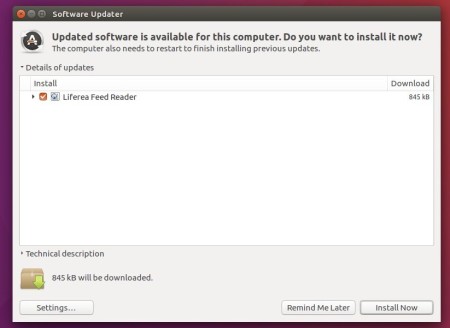
2. Then upgrade Liferea via Software Updater utility:

upgrade Liferea via Software Updater

or run commands one by one to install the Linux feed reader:

sudo apt-get update

sudo apt-get install liferea

Finally launch the news reader from your application launcher and enjoy! (Log out and log back if you don’t see the icon).

Uninstall Liferea:

As the PPA also contains many other software packages, you may remove it by launching Software & Updates and navigating to Other Software tab.

If you want to remove the Liferea news reader software, either use your system package manager or run command in terminal:

sudo apt-get remove --autoremove liferea liferea-data

HP Linux Imaging and Printing

HPLIP, HP developed Linux drivers for HP inkjet and laser based printers, released version 3.18.12 a few hours ago with new devices and Linux Distros support.

According to the release note, HPLIP 3.18.12 adds support for 64-bit Ubuntu 18.10 and Debian 9.6.

Also following new devices are supported:

  • HP Tango
  • HP Tango X
  • HP Scanjet Pro 2000 S1

Download / Install HPLIP 3.18.12 in Ubuntu:

To install the software, download the package “hplip-3.18.12.run” from the link below:

HPLIP Download Page

Then open terminal either via Ctrl+Alt+T or search for “terminal” from app launcher. When it opens, run command:

cd ~/Downloads/ && chmod +x hplip-3.18.12.run && ./hplip-3.18.12.run

Type your user password (no asterisks feedback) when it prompts and hit Enter.

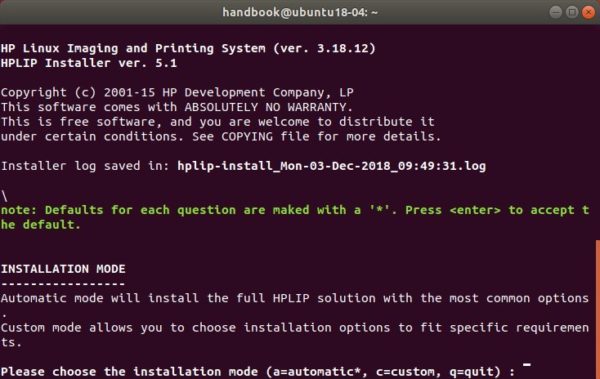
Then follow the terminal prompts, answer some questions to build and install HPLIP on your system. When everything is done, plug/re-plug your printers and enjoy!