Dash to Dock, the popular Gnome Shell Extension that brings out the bottom dock launcher out of overview, released new 106 version a few days ago.
The new version of this extension that’s default in Ubuntu (known as Ubuntu Dock) added the upcoming GNOME 51 support, and explained why the “scroll over icon” switching workspace action does not work.
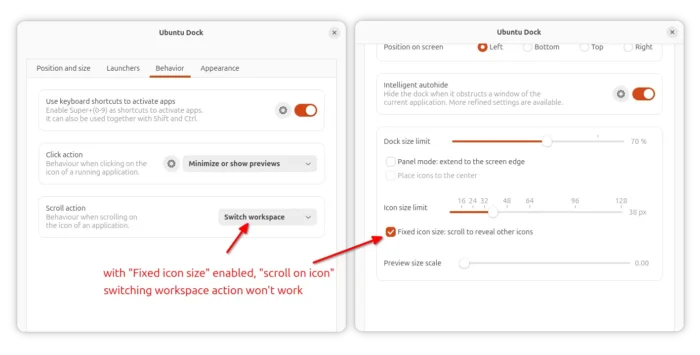
As you may know, Dash to dock has a Scroll action option which supporting scrolling over app icon to switch workspace or cycle through app window. The scroll switching workspace however does not work by default!
Because it conflicts with “Fixed icon size” option which is enabled by default.
When you have too many app icons on the dock, some of them will be not visible due to the dock length limit or screen size limit. In the case, the scroll action will reveal other icons instead of switching workspace.
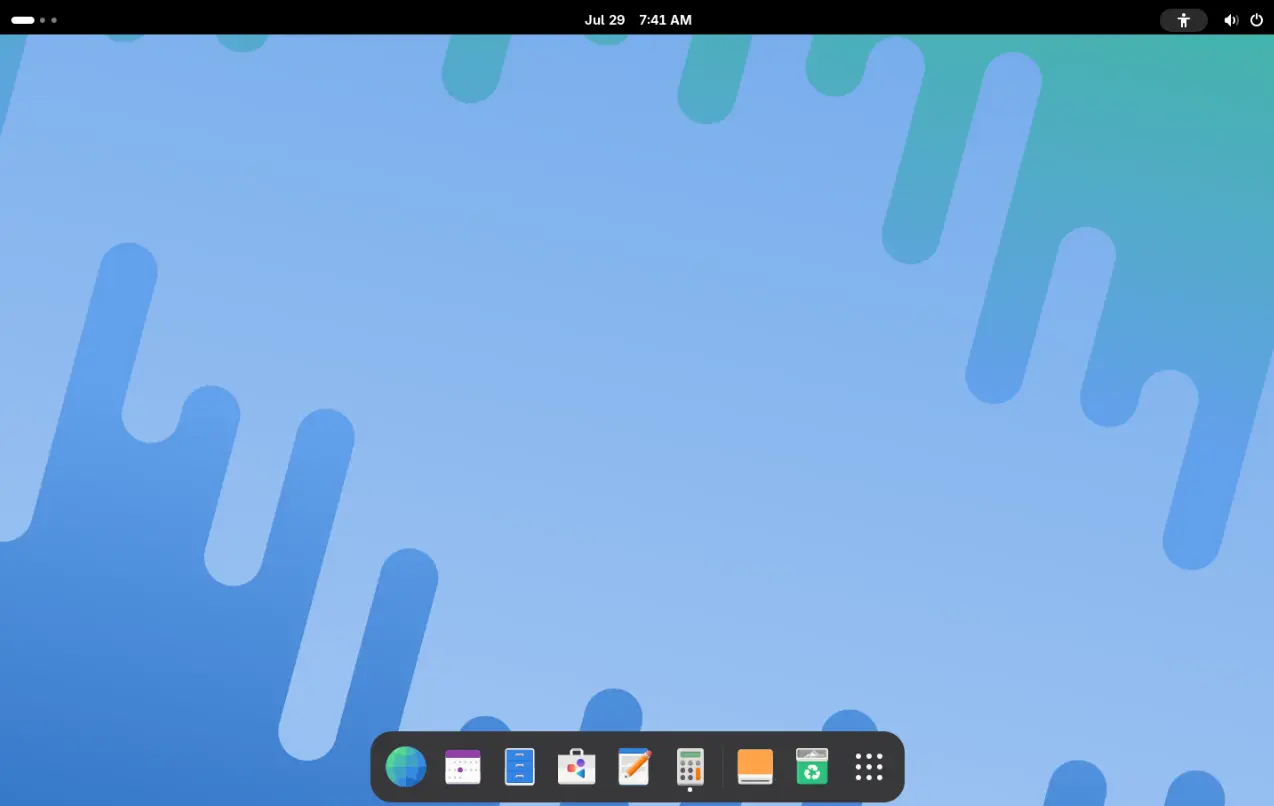
In the case, you may workaround by scrolling on the “Show Apps” (9 dots or Ubuntu logo) icon or scrolling on the top-bar “dot and pill” icon.
If you don’t have too many app icons on dock, you may alternatively turn off “Fixed icon size”. In which case, the dock will shrink app icons automatically to always show them all.
Besides GNOME 51 support and scroll action explanation, this version also fixed various bugs.
It fixed Ctrl+Alt+Tab switching focus between GNOME components does not work when it comes to select windows or apps overview states, the small dot position under (or beside depends on dock position) app icon indicating running state, and, notification badges and running-app dots disappear issue after toggling on/off Do Not Disturb (DND).
Other fixes include:
- The gap between Show Apps icon and the rest is not consistent.
- Disable “Show overview on startup” not working on Gnome 50.
- Disable the extension on shutdown to prevent Gnome Shell crash.
- Local installation problem related to GNOME GSettings schemas.
- Intelligent autohide (intellihide) bug where the dock’s window-detection area could be in the wrong position when the dock was centered at the bottom.
How to Install Dash to Dock
NOTE: Ubuntu has Dash to Dock installed out-of-the-box (named Ubuntu Dock). You don’t need to do anything, as Ubuntu developer’s responsible for providing the updates.
Dash to Dock is available to install in GNOME EGO website via the link below:
For GNOME 51, the link above so far does not support it. You may instead download the .zip archive from Github releases page (under Assets), then run the command below to install:
gnome-extensions install ~/Downloads/[email protected]