Archives For Howtos

Diary Software RedNotebook

RedNotebook, a graphical diary and journal software, has reached the 1.10 release. Official PPA is ready for Ubuntu 10.04, Ubuntu 12.04, Ubuntu 14.04, Ubuntu 14.10 and their derivatives.

The new version was released this Sunday, features below changes:

  • Write data to temporary files first to prevent corrupted month files.
  • Add format button for monospace font. Automatically add the correct format for code blocks.
  • Show warning for dates before 1900 (not supported by Python’s datetime module).
  • Fix undo/redo.
  • Don’t add unneeded newlines around titles and code.
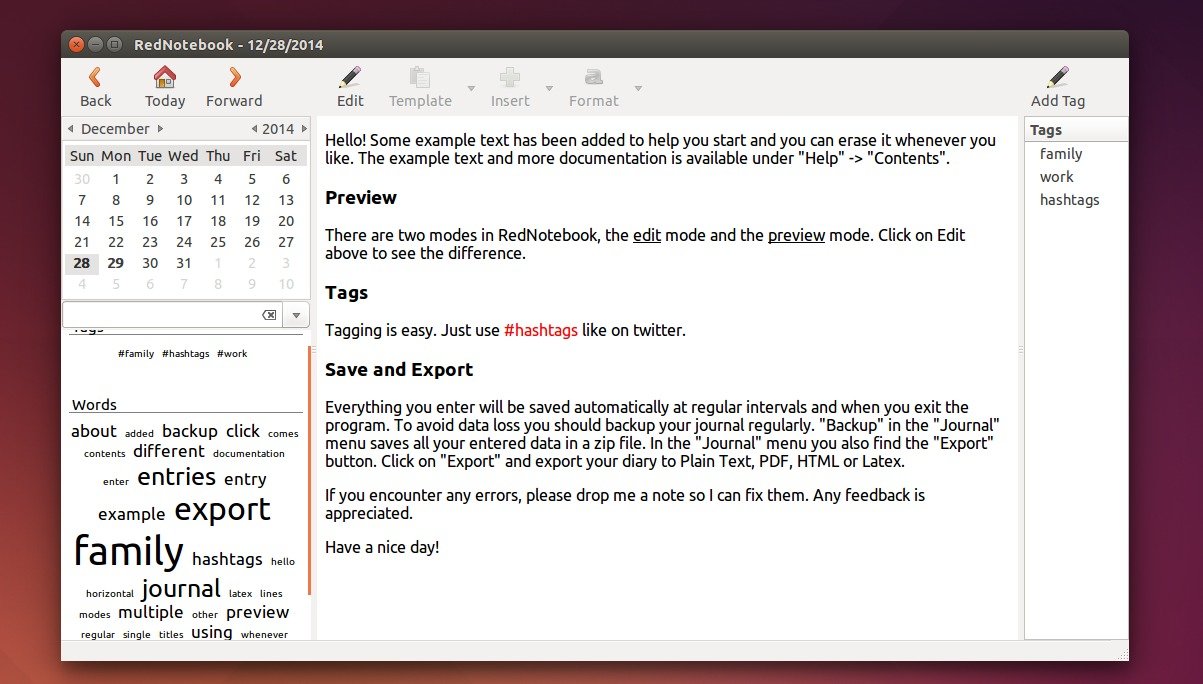
RedNotebook 1.9 in Ubuntu 14.04

Install/Upgrade to RedNotebook 1.10:

1. Open terminal (Ctrl+Alt+T) and run below command to add the official PPA:

sudo add-apt-repository ppa:rednotebook/stable

2. Refresh your system package cache:

sudo apt-get update

3. Finally install or upgrade the software:

sudo apt-get install rednotebook

You may skip step 2 & step 3, instead install updates for rednotebook through Software Updater.

If you don’t want to add PPA, grab the .deb binary directly from the PPA webpage.

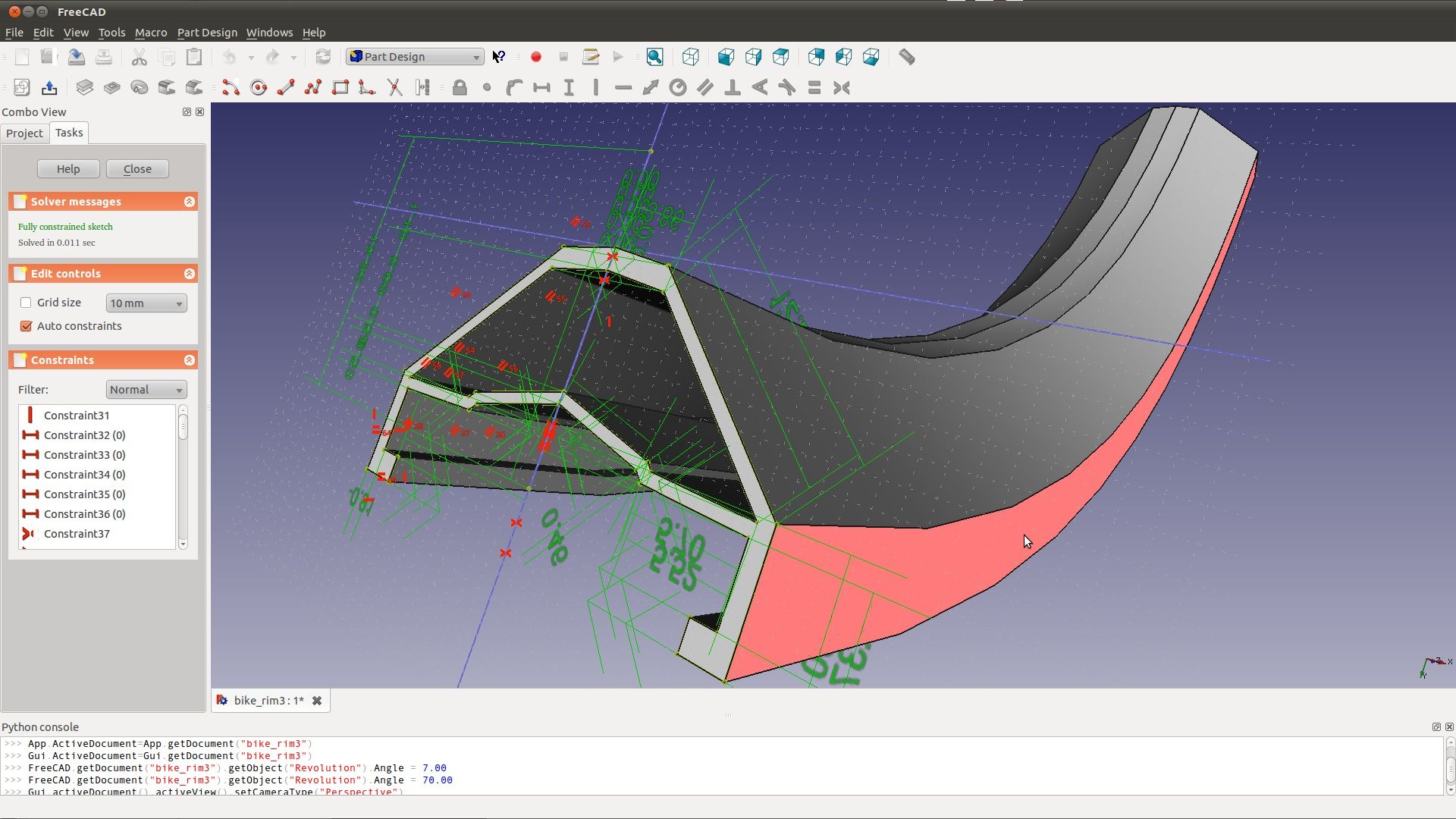
FreeCAD 3D CAD modeler

A new stable release of FreeCAD, an open ource parametric 3D CAD modeler, was released a few days ago. It features a great variety of improvements in many workbenches, as well as fancy new things like Occulus Rift support.

What’s New in FreeCAD 0.15:

  • Cutting objects with planes is possible now.
  • IFC filter is based on the most recent IfcOpenShell library, it’s faster and supports the exporting of IFC files now, thus making FreeCAD two-way compatible in BIM workflows.
  • New Panel object allows creating all sorts of panel-like objects.
  • New Arch Equipment object makes it possible to add lighting appliances, sanitary equipments, furniture and all kinds of interior design objects.
  • New Roof tool provides more control over roof features such as thickness, length of the overflow etc.
  • Read the release note for more details.

    freecad-main

    Install /Upgrade to FreeCAD 0.15 in Ubuntu/Linux Mint:

    The new release has been made into its PPA repository, available for Ubuntu 14.04, Ubuntu 14.10, and Linux Mint 17.

    1. To add the PPA, open terminal from the Dash or by pressing Ctrl+Alt+T on keyboard. When it opens, run command:

    sudo add-apt-repository -y ppa:freecad-maintainers/freecad-stable

    2. After adding the PPA, you should be able to upgrade your FreeCAD installation using Software Updater or Update Manager.

    Or run below commands one by one directly in terminal:

    sudo apt-get update
    
    sudo apt-get install freecad

    That’s it. Enjoy!

    Rhythmbox

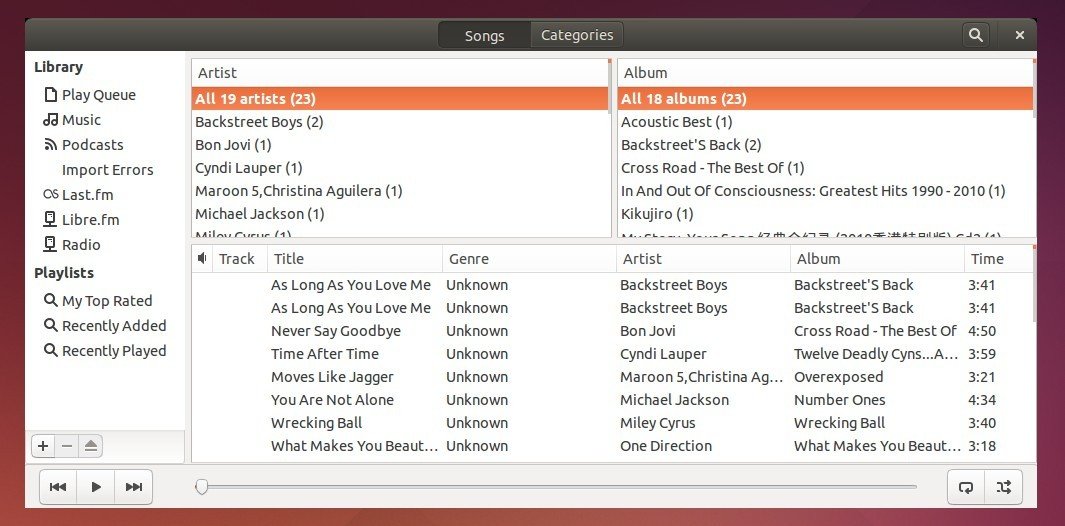
    For Gnome Shell users, Rhythmbox music player now looks better by using new GTK3 header bar (client-side decorations) provided by alternative-toolbar plugin.

    Thanks to David Mohammed, Ozon and Georgi Karavasilev. With the new alternative-toolbar plugin, Rhythmbox player looks better in Gnome:

    rhy-csd

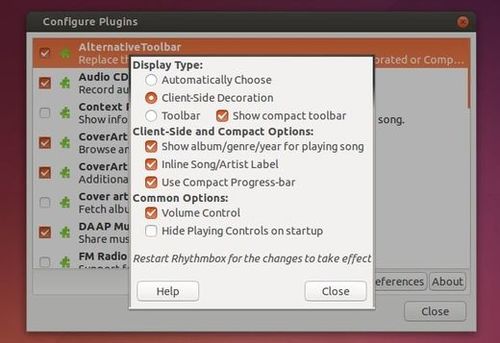
    And below is the plugin configuration window with a few options:

    rhythmbox-csd-plugin

    How to install alternative-toolbar plugin:

    For ubuntu 14.04, Ubuntu 14.10, and Ubuntu 15.04, install the plugin from developer’s PPA by running below commands one by one in terminal (Ctrl+Alt+T):

    sudo add-apt-repository ppa:fossfreedom/rhythmbox-plugins
    
    sudo apt-get update
    
    sudo apt-get install rhythmbox-plugin-alternative-toolbar

    If you don’t want to add the PPA, grab the .deb package from launchpad.net

    Nvidia 346.59

    A new Linux graphics driver NVDIA 346.59 was released with all GeForce 900 series notebook GPUs support, e.g., GeForce 920M, 930A, 930M, 940M, GTX 950M, GTX 960M. Also GTX TITAN X, Quadro K1200, M6000 GPUs are added support in this release.

    Besides that, following bugs has been fixed in NIVDIA 346.59:

    • Fixed a bug that caused corruption when switching display modes in some applications that use transform feedback.
    • Fixed a bug that caused texture corruption on framebuffer depth attachments cleared using glClearTexImage().
    • Fixed a bug that artificially limited the maximum pixel clock on displays in some SLI Mosaic configurations.
    • Fixed a kernel memory leak that occurred when looping hardware- accelerated video decoding with VDPAU on Maxell-based GPUs.
    • Fixed a bug that could cause nvidia-settings to crash on exit on 32-bit Linux systems.

    Install NVIDIA 346.59 from PPA:

    The new release has been made into PPA repository, available for Ubuntu 14.10 and Ubuntu 15.04.

    To install it, open terminal (Ctrl+Alt+T) and run below commands one by one:

    sudo add-apt-repository ppa:mamarley/nvidia
    
    sudo apt-get update
    
    sudo apt-get install nvidia-346

    For Ubuntu 14.04 and other Linux, you may download the official binary from nvidia page, and follow this how-to-install guide.

    audacity-logo1

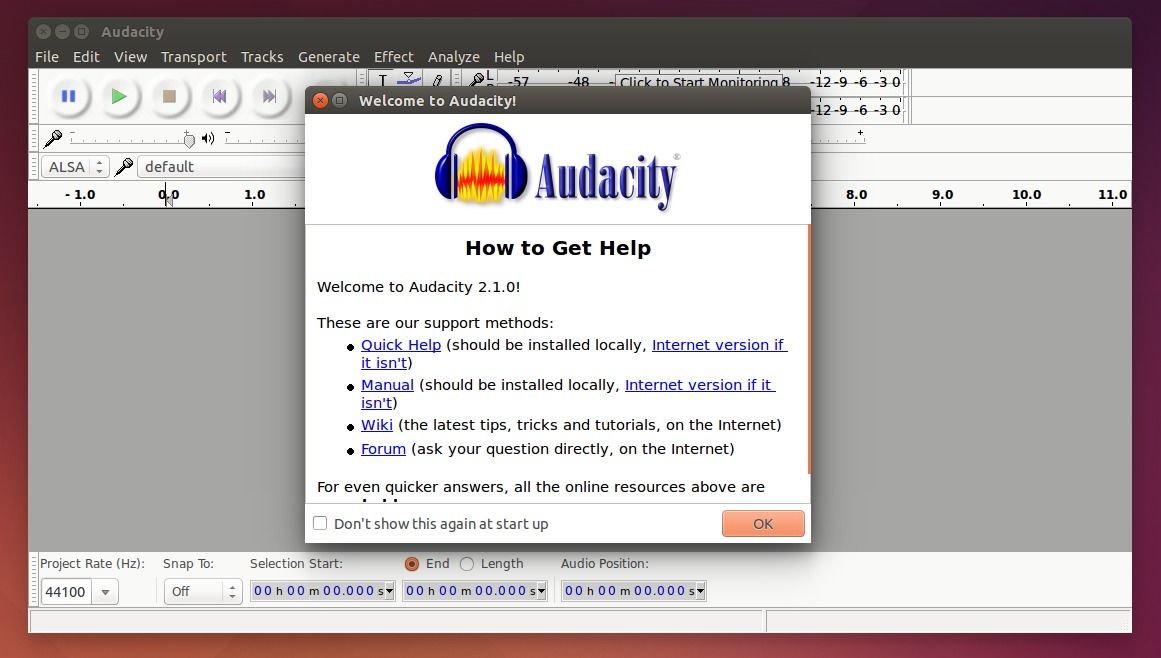
    A new stable release of the free and open-source Audio Editor and Recorder, Audacity 2.1.0, was announced a few days ago.

    The new release brings Real-Time Preview feature and lots of improvements and bug fixes. Here’s the release highlights:

    • For a long time, we have wanted Real-Time Preview for effects. It seemed nearly unachievable without major restructuring. But with Audacity 2.1.0, we have it in LADSPA, VST, and Audio Unit (OS X) effects! Thanks to Leland Lucius for these great new capabilities!
    • Much improved Noise Reduction effect replaces Noise Removal. Thanks to new contributor Paul Licameli!
    • Lots of other improvements to effects, also thanks to Leland, including:
      • VST: FXB preset banks, hosting multiple plugins
      • All effects can now be used in Chains, and can be sorted on name, publisher, or class.
      • Most Nyquist effects now have Preview button.
    • Redesigned Meter Toolbars show a lot more information in smaller area. Thanks, Leland Lucius and James Crook!
    • Spectral Selection in Spectrogram view. Thanks to Paul Licameli!

    For more details, see the release note.

    Audacity 2.1.0 in Ubuntu

    Install / Upgrade to Audacity 2.1.0 in Ubuntu / Linux Mint:

    Since Audacity Team only provides an daily build PPA with latest development packages and Ubuntu repositories still provide old versions in Software Center, I’ve uploaded Audacity 2.1.0 into this PPA.

    So far, Ubuntu 12.04, Ubuntu 14.04, Ubuntu 14.10, Ubuntu 15.04, Linux Mint 13 and 17 are supported.

    Update: PPA updated with the 2.1.1 packages for 15.10, 15.04, and 14.04! Ubuntu 12.04 is excluded due to the old libsuil library.

    1. To add the PPA, open terminal from the Dash, Menu, or by pressing Ctrl+Alt+T on keyboard. When it opens, run command:

    sudo add-apt-repository ppa:ubuntuhandbook1/audacity

    2. After adding the PPA, you can upgrade the editor using Software Updater (or Updater Manager).

    Or just run below commands one by one in terminal:

    sudo apt-get update
    
    sudo apt-get install audacity

    For issue and help, please use Audacity Forum.

    How to Play An Ambient Noise in Ubuntu 14.04

    Last updated: April 4, 2015

    Ambient Noise Player

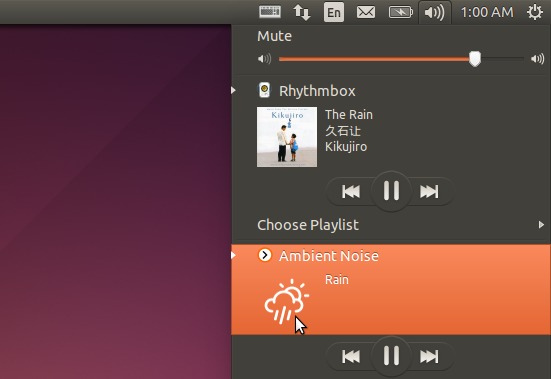
    ANoise Player is a handy application allows to play some background noises in Ubuntu by simply choosing a noise (e.g., rain, night, wind, sea, storm, fire, forest, and coffee shop) from system tray sound menu. More noises can be added to menu manually.

    Ambient Noise

    The player is an open-source project created by Marcos Alvarez Costales, an Ubuntu Member and the developer of Folder Color extension.

    If you want to try it in your Ubuntu, run below commands one by one in terminal to get it from PPA:

    sudo add-apt-repository ppa:costales/anoise
    
    sudo apt-get update
    
    sudo apt-get install anoise anoise-community-extension1

    So far, Ubuntu 12.04, Ubuntu 14.04, Ubuntu 14.10, and Ubuntu 15.04 are supported. Note: For GNOME Shell you’ll need this extension.

    If you don’t want to add the PPA, grab the .deb packages of anoise and anoise-media from PPA packages page. And I will recommend to install them via below command because they depend on each other.

    cd ~/Downloads; sudo dpkg -i anoise*.deb; sudo apt-get -f install

    Once installed, start the player for the first time from the Unity Dash and then you can always play a ambient noise the sound indicator.

    To add your own .OGG noises to sound indicator, copy and paste the files into Computer > usr > share > anoise > sounds folder. You may run gksudo nautilus command to open file browser with root and do the copy and paste things.

    Install Latest Blender in Ubuntu

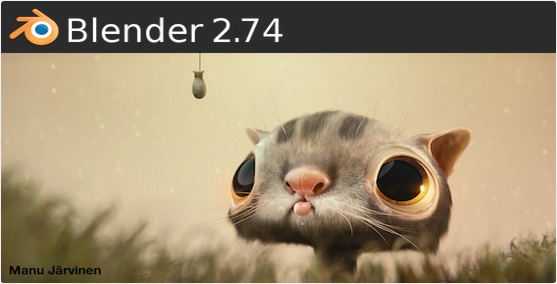
    A new stable release of the open-source 3D software Blender 2.74 was released at the end of March with some new features and numerous improvements.

    Blender 2.74 release highlights:

    • Cycles got several precision, noise, speed, memory improvements, new Pointiness attribute.
    • Viewport has new cool compositing features, outliner now manages orphan datablocks better.
    • Modeling now allows custom normals, and transferring data layers between meshes!
    • Massive improvements to hair dynamics and editing tools: a big step forward with more to come…
    • A new tool “Cavity Mask” was added to sculpting/painting, along with other improvements.
    • Great memory consumption optimization in Freestyle NPR stroke rendering.
    • Grease pencil and Game engine improvements, and more…

    Read the detailed changes at this page.

    blender_splash

    How to Install or Upgrade to Blender 2.74 in Ubuntu:

    While Blender website provides a portable version for download, you can always install the latest release via these steps in another post (You may first remove the previous Blender installation).

    There are some guys maintaining the most recent Blender release in PPAs. Below are some of them:

    To add a PPA, run below command in terminal:

    sudo add-apt-repository PPA_NAME_HERE

    For example, running sudo add-apt-repository ppa:thomas-schiex/blender to add the Thomas Schiex’s PPA.

    After adding a PPA, open Software Updater and upgrade Blender after checking for updates.

    screen brightness

    Running Ubuntu on a laptop? You may found that Ubuntu doesn’t memorize your screen brightness level. Every time you reboot or wake the machine up from sleep, it resets the screen brightness to maximum level.

    I’ve written how to save screen brightness level in Ubuntu, but it might not work for all video adapters.

    Thanks to Norbert, he made a sysvinit-backlight script that automatically remembers your screen brightness level for all video adapters and loads the backlight levels on boot, reboot, or wake up from sleep.

    To install the script:

    Open terminal (Ctrl+Alt+T) and run below commands one by one to get it from Norbert’s PPA:

    sudo add-apt-repository ppa:nrbrtx/sysvinit-backlight
    
    sudo apt-get update
    
    sudo apt-get install sysvinit-backlight

    If you don’t want to add PPA, you may grab the script directly from PPA packages page. So far, Ubuntu 14.10, Ubuntu 14.04 and Ubuntu 12.04 are supported.

    For more you may contact the the script author at launchpad.net.

    Rhythmbox

    The 3.2 release of Rhythmbox, Ubuntu’s default music player, was announced just a few hours ago with some new features, bug fixes and translation updates.

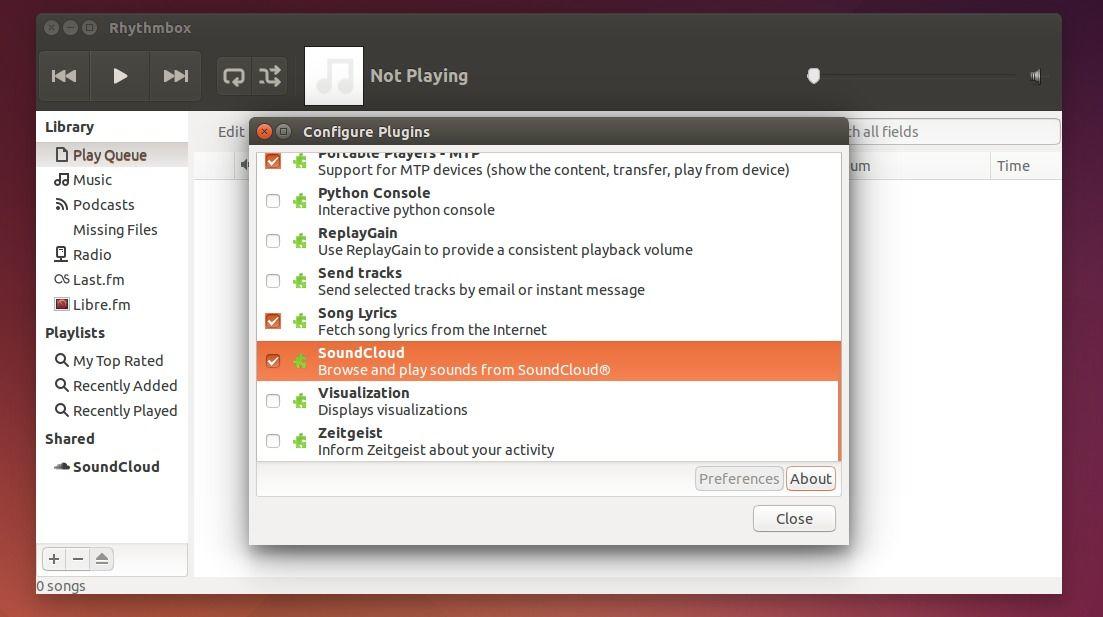
    According the the changelog, Rhythmbox 3.2 brings a Soundcloud plugin, support for disc and track total tags, ability to clear, re-fetch and manually set cover art using the song info window.

    rhythmbox-soundcloud-plugin

    There are also some bugs has been fixed in the new release:

    • same songs played after reading a playlist
    • no easy way to unselect the browse by album,artist,genre option
    • Unclear string “in” for translation
    • rhythmbox skips one or two songs after playing certain songs
    • configure warning: ‘INCLUDES’ is the old name for ‘AM_CPPFLAGS’ (or ‘*_CPPFLAGS’)
    • Add track count and disc count to the database
    • data: Add Vorbis aliases as supported mime-types
    • Failure to build with tdb 1.3
    • Crash when right clicking the track list in the library
    • Rhythmbox fails to import MP3 files with ID3 v2.4 tags created by PicardQT
    • Tracks with no embedded covert art show a random cover art from the music collection
    • Right click on any file in ‘Tracks list’ clashes the application
    • Duplicate symbol _rb_metadata_iface_xml
    • gdkx.h explicitly included; prevents building on Mac
    • symbolic icon is broken

    How to upgrade to Rhythmbox 3.2 in Ubuntu:

    The new release is available in fossfreedom’s PPA, available for Ubuntu 14.04, Ubuntu 14.10, Ubuntu 15.04, and Linux Mint 17.

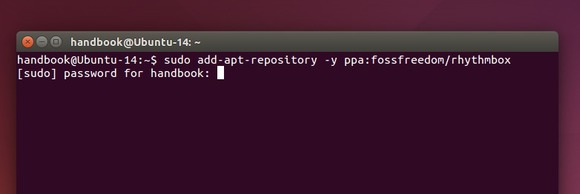
    1. First open terminal by pressing Ctrl+Alt+T on keyboard. When it opens, run below command to add the PPA:

    sudo add-apt-repository -y ppa:fossfreedom/rhythmbox

    Add rhythmbox PPA

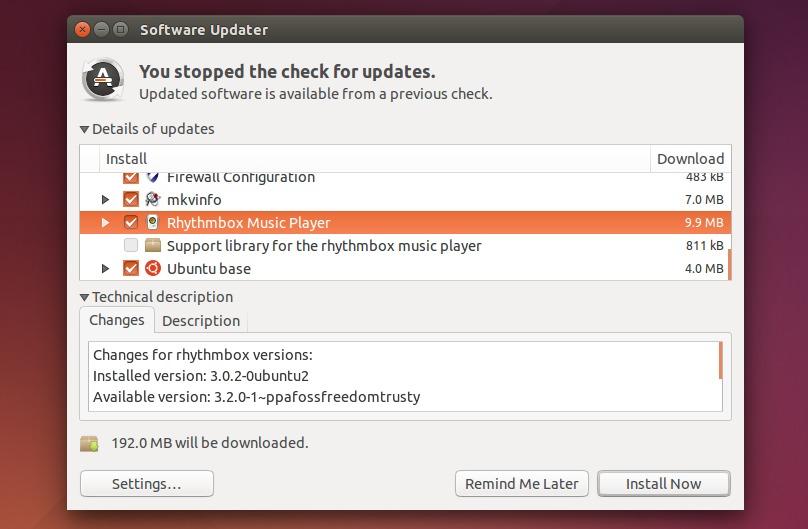
    2. After adding the PPA, launch Software Updater (or Update Manager) and install available updates for Rhythmbox after checking for updates.

    upgrade rhythmbox via software updater

    musescore-icon

    MuseScore, a free and open-source music composition and notation software, has reached a new major release, MuseScore 2.0, with great new features and improvements.

    MuseScore is a scorewriter for Windows, OS X, and Linux. It’s main purpose is the creation, editing and printing of various types of musical scores in a “What-You-See-Is-What-You-Get” (WYSIWYG) environment.

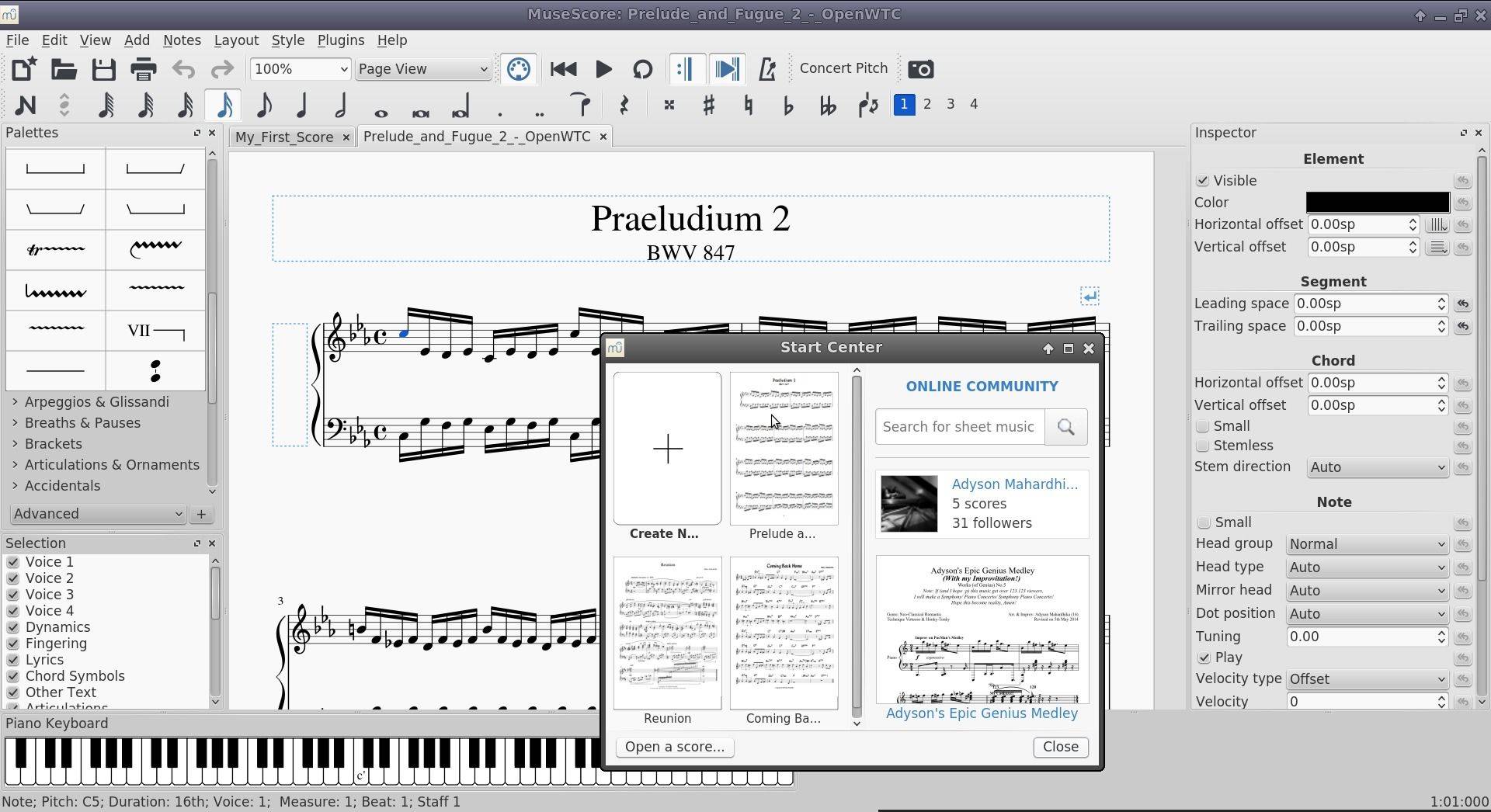
    musescore2

    MuseScore 2.0 comes with a brand new start center to simplify score browsing and creation, an inspector window to provide easy access to properties of individual notes and other elements, and customizable palettes to allow you to group your most commonly-used score symbols together.

    MuseScore 2 also brings:

    • a new continuous view mode
    • some powerful new editing tools.
    • New notation styles and elements
    • layout, playback, import and export improvements.

    For more, see what’s new in MuseScore 2.

    How to install/upgrade MuseScore 2.0 in Ubuntu:

    The new release has been made into its official PPA, available for Ubuntu 14.04, Linux Mint 17, Ubuntu 14.10, Ubuntu 15.04.

    To install it, open terminal from the Dash/Menu or by pressing Ctrl+Alt+T on keyboard. When it opens, run below commands one by one:

    sudo add-apt-repository -y ppa:mscore-ubuntu/mscore-stable
    
    sudo apt-get update
    
    sudo apt-get install musescore